
Learning Custom IR Codes for Xiaomi Devices
A comprehensive guide on capturing and configuring Xiaomi IR signals
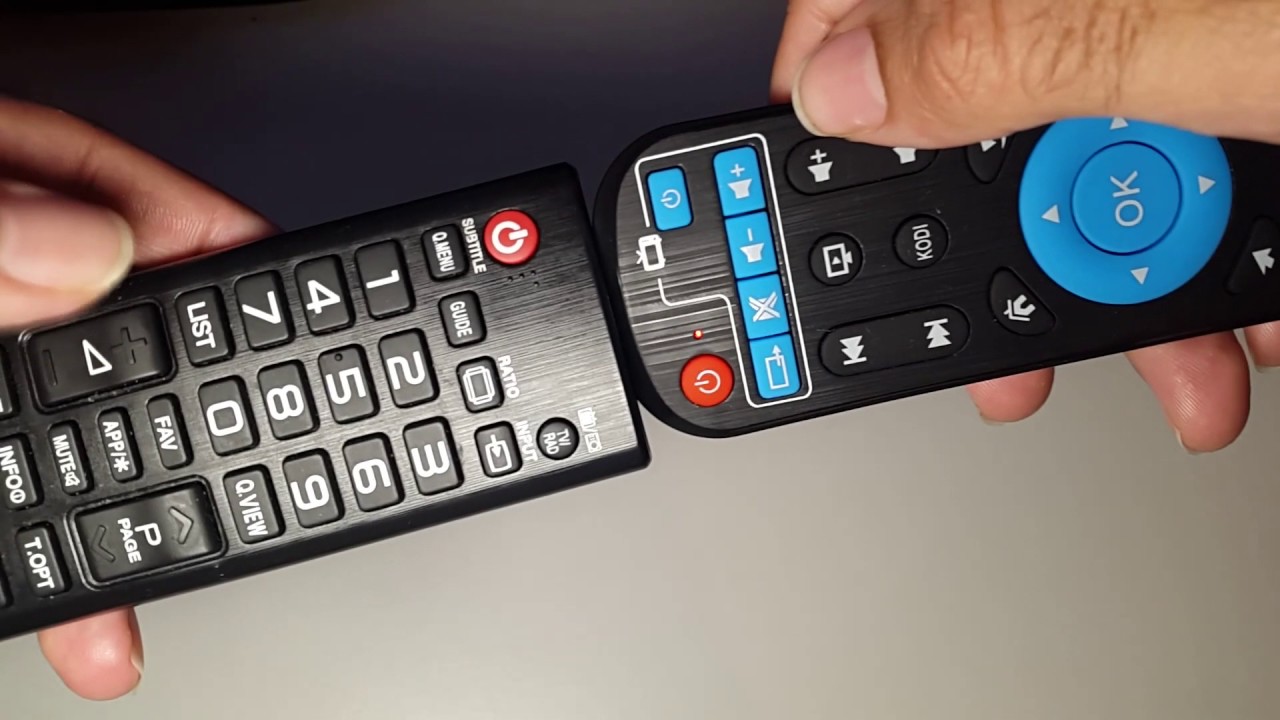
Key Highlights
- Multiple Methods: Leverage Xiaomi Mi Home, Home Assistant, and third-party apps for custom code learning.
- Hardware Integration: Use Xiaomi remotes, Broadlink devices, and IR blasters to capture and convert signals.
- Community and Documentation: Benefit from established community guides and GitHub projects to simplify the process.
Understanding the Basics of IR Codes and Xiaomi Devices
Infrared (IR) communications have long been utilized for remote controls, allowing devices to interact wirelessly through IR signals. Xiaomi devices, which include smart IR remotes, routers, and even IoT gadgets, often rely on such IR codes to control audio-visual equipment and other appliances. Learning custom IR codes with a Xiaomi IR device involves extracting or “learning” the IR transmissions from an existing remote, then configuring your Xiaomi device to send these signals when needed.
What Are IR Codes?
IR codes are essentially sequences of digital pulses encoded with specific timing and frequency characteristics. They enable a remote to communicate with devices by sending these pulses at a regulated frequency (commonly around 36 kHz or 38 kHz). When you press a button on the remote, it transmits a particular code corresponding to that function—be it turning on a television or adjusting the volume.
Methodologies for Learning Custom IR Codes
There are several established techniques for learning and utilizing custom IR codes with Xiaomi devices. The most common methods involve using official apps, third-party integrations like Home Assistant and SmartIR, and hardware tools such as Broadlink devices. Each method has its advantages depending on your setup, technical background, and intended use.
1. Using Xiaomi Mi Home App
Setup and Operation
The Xiaomi Mi Home app is the default application for configuring Xiaomi smart products. With this app, you can initially set up your Xiaomi IR device. Although the interface may sometimes be in Chinese, users can leverage translation tools like Google Translate to navigate the settings.
The primary steps include registering your device within the app, ensuring it is connected to your network, and performing initial configuration. Once your Xiaomi IR device is ready, you may be limited by the app's capability to directly “learn” codes, as Xiaomi typically designs these devices for pre-set functionality. However, for certain devices with an IR receiver, you might be able to capture and send custom commands if supported by firmware updates or through hidden menus.
Integration Limitations
Although the Mi Home app is user friendly, it may not expose all the advanced functionalities required for custom IR code learning. In such cases, third-party integrations become essential.
2. Home Assistant and SmartIR Integration
Home Assistant as a Central Hub
Home Assistant is a widely-used, open-source home automation platform that provides extensive support for Xiaomi devices. For custom IR code learning, the integration with Home Assistant, particularly through the Xiaomi Miio component, proves extremely powerful. With the xiaomi_miio.remote_learn_command service, you can send a command to your Xiaomi IR device which triggers it to “learn” a new IR code.
The general process in Home Assistant involves the following steps:
- Configure the Xiaomi IR device within the Home Assistant system by entering the device IP address and access token.
- Select the
xiaomi_miio.remote_learn_commandservice and choose the appropriate device entity (for example,remote.xiaomi_miio_192_168_1_63). - Put your remote in learning mode by directing its IR output toward the Xiaomi device and pressing the button whose code you wish to capture.
- Wait for the notification pane to display the learned code, which you can then copy and paste into your
configuration.yamlfile for persistent usage.
This method is particularly effective if you are comfortable editing YAML files and understanding the underlying integrations used by Home Assistant.
SmartIR Integration
Another reliable option is employing the SmartIR custom integration. SmartIR enhances the capabilities of Home Assistant by providing pre-configured IR code libraries and facilitating the learning of new codes. SmartIR supports multiple Xiaomi devices and simplifies the management of complex IR code configurations.
Using SmartIR involves similar steps to the Home Assistant approach but provides a more user-friendly interface to manage multiple device codes, which is exceptionally helpful if you are controlling numerous appliances.
3. Using Hardware Devices like Broadlink
Broadlink RM Series Devices
Broadlink devices, such as the RM2 or RM3, are dedicated IR receivers and transmitters that can simplify the process of learning IR codes. These devices can capture IR signals from any remote control and translate them into a programmable format.
Steps involved in using a Broadlink device:
- Make sure the Broadlink device is connected to your home network and integrated with your automation platform (e.g., Home Assistant) or controlled via a standalone application.
- Activate the learning mode on the Broadlink device. This could entail using an app command or a service call from Home Assistant (e.g.,
switch.broadlink_learn_command). - Point the original remote towards the Broadlink device and press the desired button. The device will capture the IR code and store the raw data.
- Once the signal is captured, you may need to decode or convert the data into a format that a Xiaomi IR device can manage. Tools like IRgen help in converting IR codes into multiple formats.
Python Scripts and Custom Tools
For users who are comfortable with coding, there exists the option of utilizing custom Python scripts to interact with Broadlink devices. Python libraries can send the raw IR signals to Xiaomi devices, enhancing automation and ensuring that custom IR codes are correctly stored and used.
4. Third-Party Applications and Alternative Methods
Using Dedicated IR Remote Apps
Several mobile applications, including the Sure App and others, have been developed to interface with IR blasters on smartphones or dedicated hardware. These apps allow you to capture and store IR codes by either learning them from existing remotes or downloading shared databases.
Users can:
- Download an application that supports IR code learning for Xiaomi devices.
- Follow in-app instructions to capture the IR signal, often requiring you to line up the remote with the smartphone’s IR blaster.
- Save the captured code for later use in custom scripts or to directly control devices.
While these apps may not provide the level of customization that Home Assistant or SmartIR integrations allow, they serve as a quick and accessible method to gather IR codes.
Manual Code Extraction
In some cases, you may choose to manually extract the IR codes by accessing the device’s firmware. This involves connecting to the device’s serial port (commonly using a UART connection over serial0 at 115200 baud) and issuing a series of commands via the Mijia app or through a terminal. However, this method requires advanced technical expertise and a deep understanding of both hardware and software protocols.
Due to the complexity and risk involved with firmware manipulation, this approach is recommended only for experienced users seeking to fully customize their device.
Overview Table: Methods and Tools for Learning Custom IR Codes
| Method | Tools/Software | Key Steps |
|---|---|---|
| Mi Home App | Mi Home App, Xiaomi Device Firmware |
|
| Home Assistant & SmartIR | Home Assistant, YAML configuration, SmartIR custom integration |
|
| Broadlink Devices | Broadlink RM2/RM3, Python Scripts |
|
| Third-Party Apps | Sure IR Remote, IR Remote Creator |
|
| Manual Extraction | Serial connection tools, Mijia App |
|
Detailed Steps to Learn Custom IR Codes Using Home Assistant
For those ready to leverage the robust features of Home Assistant, here is a more granular account of the process for capturing custom IR codes using Xiaomi devices:
Step 1: Integrate Xiaomi Device with Home Assistant
Device Configuration
Begin by ensuring that your Xiaomi IR device is properly set up and connected to your Wi-Fi network through the Mi Home app. After confirming connectivity, retrieve your device's IP address as well as its access token. These details will be essential for Home Assistant integration.
Next, insert the relevant configuration within your configuration.yaml file. This typically involves adding your device’s details under the Xiaomi Miio integration section. Familiarize yourself with the YAML syntax for Home Assistant, as precise formatting is crucial for successful integration.
Step 2: Initiate the IR Learning Process
Activating the Command
After establishing connectivity, navigate to the Services panel in Home Assistant. Select the service named xiaomi_miio.remote_learn_command and choose your device entity, for example, remote.xiaomi_miio_device. Once activated, put your Xiaomi remote in a position to receive external IR signals.
With the device in the appropriate mode, use a functioning remote to transmit the IR signal of interest. Observe the notification pane in Home Assistant; once the code appears, this indicates a successful capture.
Step 3: Test and Document the Learned Code
Verification and Storage
Testing is critical to ensure the learned IR code is working correctly. Once the code is captured, perform a test by using Home Assistant or the Mi Home app to resend the custom code to the target device. If the device responds as expected, document the IR code by storing it securely in your configuration files. You can paste the code into your configuration.yaml file and adjust your automation scripts accordingly.
Maintaining organized records of your custom IR codes will facilitate future updates or troubleshooting. Consider using comments within your YAML file to denote the function each IR code serves.
Enhancements and Advanced Customization
For users with technical expertise, advanced methods may further streamline your custom IR code learning processes. Integrating Python scripts and additional tools can automate the capture, conversion, and deployment of IR codes. Specialized tools like IRgen enable the conversion of raw IR signals into formats compatible with various Xiaomi devices.
Additionally, be sure to check for firmware updates or community-provided patches that might extend the capabilities of the Xiaomi Mi Home app. User-driven communities such as those on GitHub, Reddit, and open-source project forums regularly share innovative techniques and troubleshooting advice that can be integrated into your workflow.
Managing a Multi-device Setup
In many smart home environments, you may deal with multiple devices, each requiring distinct IR codes. In these cases, using Home Assistant with integrations like SmartIR becomes invaluable. This setup not only allows for individual device control but also facilitates scene-based automation where multiple devices operate in a coordinated manner.
For instance, you can configure automation scripts that trigger custom IR codes for your television, air conditioner, and sound system simultaneously based on environment conditions or user commands. This offers flexibility and centralized control, greatly enhancing the overall user experience.
Additional Configuration Details and Troubleshooting Tips
Common Troubleshooting Steps
Network and Device Connectivity
Ensure that all your devices are on the same network and that there is consistent power to the Xiaomi IR device. Inconsistent connectivity can result in failed code captures or delayed responses.
Double-check your configuration.yaml for potential syntax errors. YAML files are sensitive to indentation and formatting, so a small inconsistency can cause the entire configuration to fail.
Testing IR Frequencies
Confirm that the frequency settings (often 36 kHz or 38 kHz) of your Xiaomi IR device match those of the remote whose code you want to learn. In cases where frequencies differ, the IR signal may not be recognized, so adjusting the learning mode settings can help.
Community and Online Support
Engaging with online communities such as the Home Assistant Community Forum or the Xiaomi user groups on Reddit can provide personal insights and shared experiences. These platforms are rich with step-by-step guides, troubleshooting logs, and successful integrations that can offer practical advice when you encounter problems.
Comprehensive Resource Table
| Resource Type | Details | Usage |
|---|---|---|
| Mi Home App | Official Xiaomi mobile app to set up and manage devices | Basic device configuration and limited IR learning |
| Home Assistant | Open-source automation platform with Xiaomi Miio integration | Advanced IR code capture using remote_learn_command service |
| SmartIR | Custom integration for Home Assistant | Your go-to for a unified interface managing multiple IR codes |
| Broadlink Devices | Dedicated hardware for IR code capture and conversion | Learning and rebroadcasting IR signals reliably |
| Third-Party Apps | Applications such as Sure IR Remote and IR Remote Creator | Quick learning and management when using an IR blaster |
| Python Scripts | Custom scripts interfacing with Broadlink or Xiaomi devices | Automated and deep customization of IR code handling |
References
- Xiaomi IR Remote Commands - Home Assistant Community
- Custom IR Remote - XDA Forums
- SmartIR on GitHub
- Xiaomi Mi Infrared Remote Control - openHAB Community
- Learning IR Code from Xiaomi Mi Infrared Remote Control - openHAB Community
Recommended Topics for Further Exploration
Last updated March 15, 2025