
Unlock the Power of Your JSON: Seamlessly Add Custom Explanations
Discover how to easily enhance your JSON data by incorporating new parameters like "explanation" using various tools and techniques.
Yes, it is entirely possible to update your JSON (JavaScript Object Notation) data by adding new parameters, such as an "explanation" field. This process allows you to enrich your data with contextual information, making it more understandable and useful. You can provide the JSON content, and I can guide you through how it can be modified, or demonstrate the result if you paste the JSON content directly.
Key Insights: Adding Parameters to JSON
- Flexibility of JSON: JSON's structure as key-value pairs makes it inherently easy to modify. Adding a new parameter like "explanation" involves simply inserting a new key with its corresponding value.
- Multiple Methods Available: You can modify JSON data using various approaches, including intuitive online JSON editors, powerful programming languages (like Python or JavaScript), and specialized command-line tools.
- Targeted Placement: The new "explanation" parameter can be added at the root level of the JSON object or nested within specific existing objects or arrays, depending on your data structure and requirements.
Understanding JSON Modification
JSON is a lightweight, human-readable data interchange format. It's built on two structures:
- A collection of name/value pairs (often realized as an object, dictionary, hash table, or associative array).
- An ordered list of values (often realized as an array, list, or sequence).
Adding an "explanation" parameter means introducing a new name (the key, "explanation") and its associated value (the descriptive text) into a JSON object. For example, if you have a simple JSON object:
{
  "id": 123,
  "productName": "Wireless Mouse"
}
You could add an "explanation" parameter like this:
{
  "id": 123,
  "productName": "Wireless Mouse",
  "explanation": "High-precision wireless optical mouse with ergonomic design."
}
This can be accomplished in several ways, depending on your preference for tools, technical expertise, and the scale of your task.
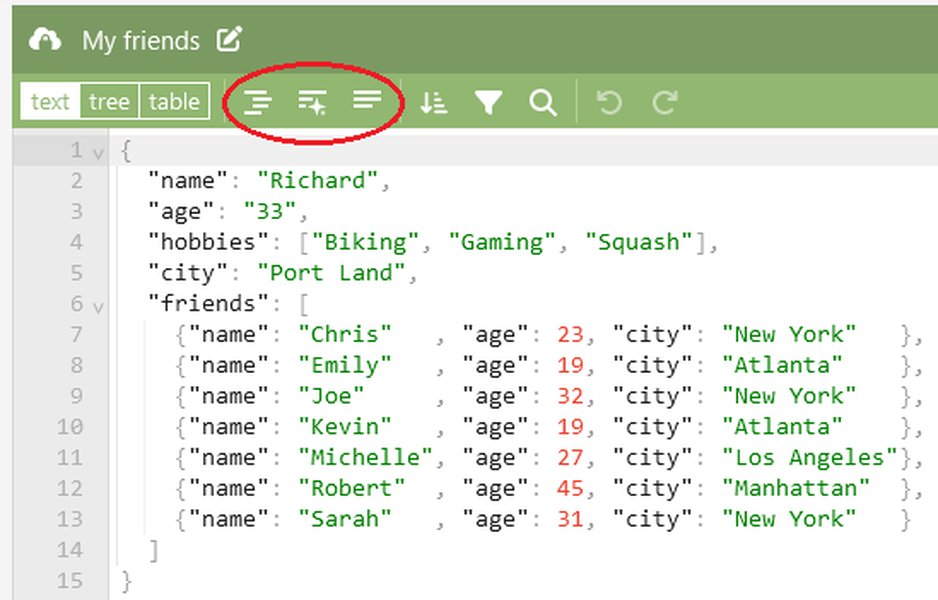
An example of an online JSON editor, useful for viewing, editing, and formatting JSON data.
How to Provide Your JSON Data
While I don't have a direct file upload capability in this interactive interface, you can easily work with your JSON data by:
- Pasting the JSON content: You can copy your JSON data and paste it directly into your message.
- Describing the structure: If the JSON is very large or complex, you can describe its structure and specify where the "explanation" should be added.
Once the JSON data is provided, the process of adding the "explanation" parameter involves parsing it, making the modification, and then presenting the updated JSON structure.
Methods for Adding Parameters to JSON
Several effective methods exist for modifying JSON data. The choice often depends on factors like the complexity of the JSON, whether the task needs to be automated, and your familiarity with programming.
1. Using Online JSON Editors
Interactive and User-Friendly
Online JSON editors are web-based tools that provide a graphical interface for viewing, editing, and validating JSON data. They are excellent for quick, manual modifications.
- Process: Typically, you can paste your JSON content or upload a JSON file (if the tool supports it). You can then navigate the JSON structure (often in a tree view) and add new key-value pairs.
- Features: Many editors offer syntax highlighting, auto-formatting, validation to catch errors, and options to download the modified JSON.
- Examples: Tools like JSON Editor Online, Code Beautify's JSON Editor, and Online JSON Tools are popular choices.
These tools are generally very intuitive. For instance, to add an "explanation" parameter, you would locate the desired object within the editor, insert a new line, type "explanation": "Your detailed explanation here", and the editor would often help ensure correct syntax (like adding a comma to the preceding line if necessary).
This video provides an overview of using an online JSON editor, a common tool for manually modifying JSON data structures. Understanding how these editors work can be beneficial for quick edits and visualizations of JSON content.
2. Programmatic Modification
Automation and Integration
For more complex tasks, batch processing, or integrating JSON modification into applications, programmatic approaches are ideal. Languages like Python and JavaScript offer robust libraries for handling JSON.
JavaScript
JavaScript has built-in methods for working with JSON. If you're in a Node.js environment or a browser's developer console:
// Example in JavaScript
let jsonString = '{"name": "Product A", "price": 100}';
let jsonObject = JSON.parse(jsonString); // Parse JSON string to an object

// Add the new parameter
jsonObject.explanation = "This is an explanation for Product A.";

// Convert back to JSON string (optional: pretty print with indentation)
let updatedJsonString = JSON.stringify(jsonObject, null, 2);
console.log(updatedJsonString);

/* Output:
{
  "name": "Product A",
  "price": 100,
  "explanation": "This is an explanation for Product A."
}
*/
This method is particularly useful for web applications or server-side scripts using Node.js.
Python
Python's `json` module is standard for working with JSON data:
# Example in Python
import json

json_string = '{"name": "Service B", "status": "active"}'
data_object = json.loads(json_string) # Parse JSON string to a Python dictionary

# Add the new parameter
data_object['explanation'] = "Detailed explanation of Service B's status."

# Convert back to JSON string (optional: pretty print with indentation)
updated_json_string = json.dumps(data_object, indent=4)
print(updated_json_string)

# Output:
# {
#     "name": "Service B",
#     "status": "active",
#     "explanation": "Detailed explanation of Service B's status."
# }
Python is widely used for data processing scripts and backend applications that handle JSON.
3. Command-Line Tools (e.g., jq)
Powerful for Scripting and Terminal Use
Tools like `jq` are powerful command-line JSON processors. They allow for complex queries and transformations directly from the terminal or within shell scripts.
To add an "explanation" field at the root of a JSON file named `input.json`:
jq '. + {"explanation": "This is a command-line generated explanation."}' input.jsonThis command reads `input.json`, adds the new field, and outputs the modified JSON to standard output. You can redirect this to a new file.
4. Database JSON Functions
For JSON Stored in Databases
If your JSON data resides within a database that supports JSON types (like PostgreSQL, MySQL, SQL Server, or Oracle), these databases often provide built-in functions to modify JSON documents directly using SQL queries.
For example, in SQL Server, you might use `JSON_MODIFY`:
-- Example for SQL Server
UPDATE YourTable
SET JsonColumn = JSON_MODIFY(JsonColumn, '$.explanation', 'Database-level explanation added')
WHERE YourCondition;
This approach is efficient when data is already managed within a database system.
Comparative Overview of JSON Modification Methods
The best method for adding an "explanation" parameter to your JSON depends on your specific needs. The table below summarizes the characteristics of common approaches:
| Method | Description | Pros | Cons | Best Use Case |
|---|---|---|---|---|
| Online JSON Editors | Web-based graphical tools for manual JSON editing. | User-friendly, no setup, instant validation and formatting. | Not suitable for large files or automation; potential security concerns with sensitive data. | Quick, one-off edits; visualizing JSON structure; learning JSON. |
| Programmatic (Python/JavaScript) | Using scripting languages to parse, modify, and serialize JSON. | Highly flexible, automatable, good for complex logic and batch processing, integrates with applications. | Requires coding knowledge; setup of environment may be needed. | Automated workflows, application backends, data processing pipelines, large-scale modifications. |
| Command-Line Tools (e.g., jq) | Terminal-based utilities for JSON manipulation. | Powerful for scripting, fast for simple to moderately complex operations, pipeable with other commands. | Steeper learning curve for complex queries; less visual than editors. | Shell scripting, quick terminal-based modifications, log processing. |
| Database JSON Functions | SQL functions within databases that support JSON data types. | Efficient for in-database modifications, transactional consistency. | Specific to database systems; requires SQL knowledge. | Modifying JSON data stored directly within relational or NoSQL databases. |
Feature Comparison of JSON Modification Techniques
To help you choose the most suitable approach, the radar chart below visually compares different JSON modification methods based on key attributes. The scores (out of 10) are subjective and intended to provide a general comparison:
This chart highlights that online editors excel in ease of use and have a low learning curve, but programmatic approaches offer superior automation, scalability, and flexibility, albeit with a higher learning curve. Command-line tools strike a balance for users comfortable with terminal operations.
Visualizing the JSON Modification Process
The process of adding a parameter like "explanation" to a JSON structure can be visualized as a series of steps. This mindmap outlines the typical workflow:
(e.g., object, dictionary)"] id3["3. Locate Target for New Parameter"] id3a["Root Level of JSON Object"] id3b["Nested Object"] id3c["Specific Element in an Array of Objects"] id4["4. Add 'explanation' Parameter"] id4a["Define Key: 'explanation'"] id4b["Assign Value: 'Your descriptive text'"] id4c["Ensure correct syntax (e.g., commas)"] id5["5. Validate Modified JSON (Optional but Recommended)"] id5a["Check for syntax errors"] id5b["Ensure structural integrity"] id6["6. Output Updated JSON"] id6a["Convert native data structure back to JSON string"] id6b["Save to File"] id6c["Return as API Response"] id6d["Display in UI"]
This mindmap illustrates that regardless of the method chosen, the core logic involves obtaining the JSON, parsing it into a manipulable format, adding the new key-value pair at the desired location, optionally validating the result, and then outputting the modified JSON.
Best Practices for Modifying JSON
When adding parameters or otherwise modifying JSON data, consider these best practices:
- Validate Your JSON: Always validate the JSON structure after modification to ensure it's well-formed. Many tools and libraries offer validation features. Malformed JSON can cause errors in applications that consume it.
- Maintain Readability: Use consistent formatting, such as indentation (pretty-printing), especially for complex JSON. This makes the data easier for humans to read and debug.
- Be Mindful of Data Types: Ensure the value you assign to the "explanation" parameter (and any other parameter) is of the appropriate data type (e.g., string, number, boolean, object, array).
- Security: If using online tools, be cautious with sensitive or confidential data, as it will be processed on external servers. Prefer local processing or trusted services for such data.
- Test Thoroughly: After modifying JSON, especially if it's consumed by an application, test to ensure the changes are correctly interpreted and don't cause unintended side effects.
- Idempotency (for automated processes): If you're scripting modifications, consider whether your script should be idempotent – meaning running it multiple times on the same input produces the same result (e.g., it doesn't add duplicate "explanation" fields if one already exists, but perhaps updates it).
Frequently Asked Questions (FAQ)
Can I add multiple parameters at once, not just "explanation"?
Yes, absolutely. Whether you're using an online editor or a programmatic approach, you can add as many new key-value pairs as needed in a single operation. For example, you could add "explanation", "version", and "author" all at the same time.
What if my JSON is very large? Which method is best?
For very large JSON files, programmatic approaches (like Python or Node.js scripts) or command-line tools (like `jq`) are generally more efficient than online editors. These methods can handle large data streams and often perform better. Online editors might struggle with performance or have upload limits for extremely large files.
What happens if I provide JSON with a syntax error?
If the JSON you provide has syntax errors, it cannot be parsed correctly. Most JSON parsing libraries or tools will report an error, often indicating the location of the syntax issue. You would need to correct the syntax before the "explanation" parameter (or any other modification) can be added. Online editors often highlight syntax errors in real-time.
Can the "explanation" parameter be added to a specific nested element within the JSON?
Yes. When adding the "explanation" parameter, you can specify its location. It can be at the top (root) level of the JSON object, or within any nested object or even an object within an array. Programmatic methods and some advanced online editors allow you to precisely target where the new parameter should be inserted using paths (e.g., `user.details.explanation`).
Recommended Further Exploration
- What are the best online tools for validating and formatting JSON data?
- How can I programmatically update nested values in a complex JSON structure using Python?
- What are common pitfalls to avoid when working with JSON in JavaScript applications?
- Explore advanced JSON manipulation techniques using the jq command-line tool.
References
Last updated May 10, 2025