
Unlock Word Automation: Your Custom AutoHotkey v2 Script Guide
Craft a script to launch Word, insert text, and save your document seamlessly with AutoHotkey v2.
Automating repetitive tasks in Microsoft Word can significantly boost your productivity. AutoHotkey v2, a powerful scripting language for Windows, offers robust capabilities to control applications like Word. This guide will walk you through creating a script to automatically start Word, write a specific phrase ("My name is Sharon"), and save the document.
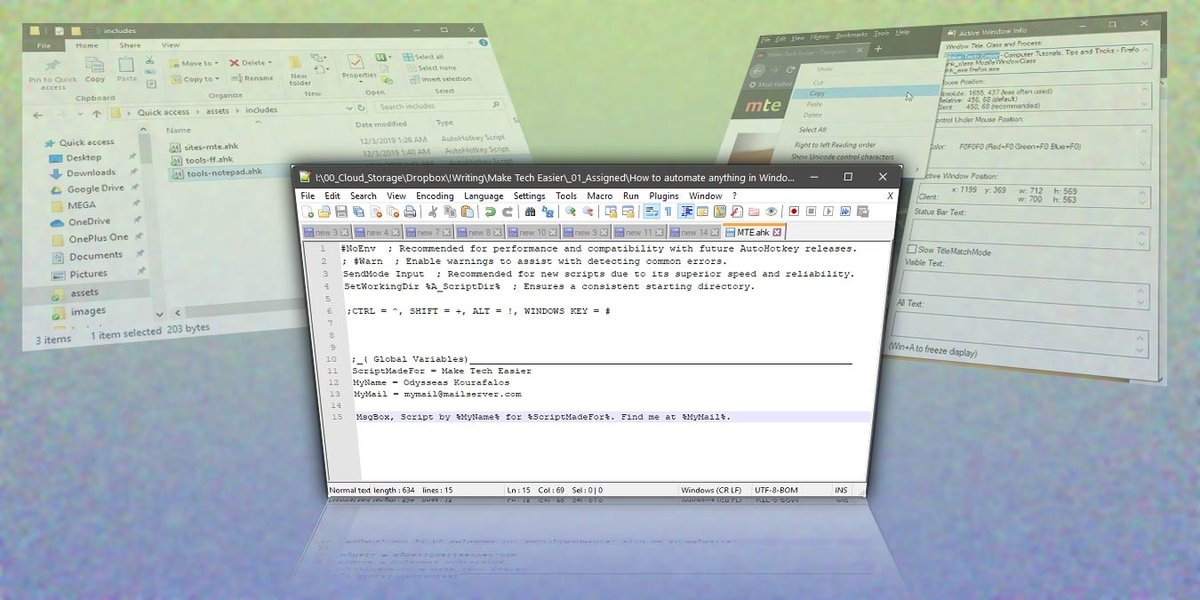
Streamline your Microsoft Word tasks with an AutoHotkey v2 script.
Essential Insights: Key Takeaways
- Reliable Automation with COM: AutoHotkey v2 leverages the Component Object Model (COM) to interact directly with Microsoft Word. This method provides robust, precise, and predictable control over the application, far surpassing simpler keystroke simulation techniques.
- Step-by-Step Document Handling: The provided script meticulously controls each phase of the process: launching Word, creating a new document, inserting your desired text ("My name is Sharon"), and saving the file to a specified location, ensuring each step is executed correctly.
- Customizable and Error-Resistant: The script is designed for flexibility. You can easily modify the text to be written, the filename, and the save path. Furthermore, it incorporates error handling to gracefully manage unexpected issues, like Word not being installed.
The AutoHotkey v2 Script for Word Automation
Your Ready-to-Use Script
Below is the AutoHotkey v2 script designed to accomplish the task. This script uses COM objects for reliable interaction with Microsoft Word.
#Requires AutoHotkey v2.0

try {
    ; --- 1. Start Microsoft Word and make it visible ---
    oWord := ComObjCreate("Word.Application") ; Create a Word application object
    oWord.Visible := true                     ; Make the Word window visible
    oWord.Activate()                          ; Bring the Word window to the foreground

    ; --- 2. Create a new document ---
    oDoc := oWord.Documents.Add()             ; Add a new blank document

    ; --- 3. Write the text "My name is Sharon" ---
    oWord.Selection.TypeText("My name is Sharon") ; Type the specified text at the cursor position

    ; --- 4. Save the document ---
    ; Define the save path and filename. Here, it saves to the Desktop.
    DefaultSavePath := A_Desktop "\Sharon_Document.docx"
    oDoc.SaveAs2(DefaultSavePath)             ; Save the document with the specified name and path

    ; Notify the user of completion
    MsgBox "Document successfully created with the text 'My name is Sharon' and saved as:<code>n" . DefaultSavePath, "Task Complete!", 64 ; 64 = Information icon

    ; --- Optional: Close Word ---
    ; Uncomment the next line if you want Word to close automatically after saving
    ; oWord.Quit()

} catch Error {
    ; Display a detailed error message if something goes wrong
    ErrorMessage := "An error occurred during Word automation:nn"
                 . "Message: " Error.Message "n"
                 . "File: " Error.File "n"
                 . "Line: " Error.Line "n"
                 . "What: " Error.What "`n"
                 . "Extra: " Error.Extra
    MsgBox ErrorMessage, "AutoHotkey Script Error", 16 ; 16 = Error icon
}

; Release COM objects (optional, as AHK v2 often handles this on exit, but good practice)
oDoc := ""
oWord := ""

ExitApp ; Explicitly end the script
How to Use This Script
- Ensure AutoHotkey v2 is Installed: If you haven't already, download and install the latest version of AutoHotkey (v2.x) from the official website.
- Save the Script: Copy the code above into a plain text file. Save it with an
.ahkextension (e.g.,WordAutomate.ahk). Ensure your text editor saves it as UTF-8 for compatibility. - Run the Script: Double-click the
.ahkfile you saved. AutoHotkey will execute the script, launching Word, typing the text, and saving the document.
Dissecting the Script: A Step-by-Step Guide
Understanding each part of the script will help you customize it further or troubleshoot any issues.
1. Prerequisite: AutoHotkey v2 Declaration
#Requires AutoHotkey v2.0: This directive at the beginning of the script ensures it's run using AutoHotkey version 2.0 or newer, preventing compatibility issues with older v1 scripts.
2. Robustness: Error Handling with try...catch
The main logic is wrapped in a try { ... } catch Error { ... } block. If any command within the try block fails (e.g., Word isn't installed, or a COM error occurs), the script jumps to the catch block, displaying a detailed error message instead of crashing silently.
3. Initializing Word: The COM Approach
oWord := ComObjCreate("Word.Application"): This is the cornerstone of Office automation. It creates a Component Object Model (COM) object that represents the Microsoft Word application, allowing your script to control Word programmatically.
oWord.Visible := true: This line makes the Word application window visible on your screen. If you set this to 0 or false, Word would perform the actions in the background (though for typing text, visibility is often preferred).
oWord.Activate(): This command brings the Word window to the foreground and makes it the active window. This can be important to ensure subsequent commands like TypeText work as expected, especially if multiple Word instances or other applications are open.
4. Creating a New Canvas: Adding a Document
oDoc := oWord.Documents.Add(): Once the Word application object (oWord) is created, this line instructs Word to add a new, blank document. The script stores a reference to this new document in the oDoc variable, allowing for operations specific to this document, like saving it.
5. Inscribing Your Message: Typing the Text
oWord.Selection.TypeText("My name is Sharon"): This command simulates typing the specified string ("My name is Sharon") at the current cursor position within the active Word document. The Selection object represents the current selection (or cursor position if nothing is selected) in Word.
6. Securing Your Work: Saving the Document
DefaultSavePath := A_Desktop "\Sharon_Document.docx": This line defines the full path where the document will be saved. A_Desktop is a built-in AutoHotkey variable that resolves to the current user's Desktop path. You can change "Sharon_Document.docx" to your desired filename and modify A_Desktop to any other directory (e.g., "C:\MyWork\Reports\Sharon_Report.docx").
oDoc.SaveAs2(DefaultSavePath): This method saves the document (referenced by oDoc) to the path specified in DefaultSavePath. The SaveAs2 method is powerful as it allows specifying the filename, path, and format. If the file already exists, Word's default behavior is often to overwrite it without prompting, though this can vary based on Word's settings or if the file is open.
7. User Feedback and Optional Cleanup
MsgBox "Document successfully created...", "Task Complete!", 64: This displays a confirmation message to the user indicating that the script has completed its task successfully. The number 64 styles the message box with an information icon.
; oWord.Quit(): This line, currently commented out with a semicolon, would instruct Word to close. You can uncomment it if you want the script to automatically close Word after saving.
oDoc := "" and oWord := "": These lines release the COM objects. While AutoHotkey v2 has improved garbage collection for COM objects upon script termination, explicitly releasing them is still considered good practice, especially in longer or more complex scripts, to free up system resources promptly.
ExitApp: This command ensures the script terminates after completing its operations or handling an error.
Alternative Approaches & Considerations
While COM automation is generally the most reliable method for interacting with Microsoft Office applications, AutoHotkey does offer other ways to achieve similar results, though often with trade-offs.
Comparing COM with Run and Send Methods
The primary alternative involves using the Run command to start Word and then Send or ControlSend to simulate keyboard inputs. This approach is simpler for very basic tasks but lacks the robustness and direct control of COM.
| Feature | COM (Component Object Model) Method | Run + Send Keys Method |
|---|---|---|
| Reliability | High (direct application control, less affected by UI changes or window focus) | Moderate to Low (highly dependent on window focus, system speed, UI layout, and timing delays) |
| Control Granularity | Very High (access to Word's internal objects, methods, and properties for complex manipulations) | Low (simulates user keyboard/mouse input, limited to what a user can do via the UI) |
| Complexity for Basic Tasks | Slightly higher initial setup for COM object creation | Simpler for launching and sending a few keystrokes |
| Complexity for Advanced Tasks | Manages complexity well due to structured object interaction | Becomes very complex and unreliable quickly |
| Error Handling | Robust (can catch specific application-level errors and exceptions from Word) | Difficult (errors are often due to timing or focus loss, hard to detect programmatically) |
| Background Operation | Can often run Word invisibly (oWord.Visible := 0) for true background processing |
Generally requires the Word window to be active and visible for Send commands to target correctly |
| Best For | Complex Office automation, data extraction/manipulation, reliable document generation, batch processing | Quick and simple tasks, launching applications, basic text input in generic fields where COM is not available/too complex |
For tasks like the one requested—starting Word, writing specific text, and saving—the COM method is strongly recommended due to its superior reliability and control.
Visualizing Automation Method Effectiveness
To better understand the strengths of different automation approaches with AutoHotkey for tasks like Word manipulation, the radar chart below compares the COM method against the simpler SendKeys (or Send command) method across several key factors. A higher score (out of 10) indicates better performance in that category. This is an opinionated analysis for illustrative purposes.
As the chart illustrates, the COM method generally excels in reliability, control, error resilience, and background processing capabilities, making it the preferred choice for robust Word automation, despite a slightly steeper learning curve for initial setup compared to the simpler SendKeys approach.
Mapping the Automation Journey with AutoHotkey and Word
The process of automating Microsoft Word with AutoHotkey v2 using COM can be visualized as a series of interconnected steps. The mindmap below outlines the typical workflow involved in the script we've discussed.
(Version Specificity)"] id1_2["Error Management
(try-catch blocks for robustness)"] id2["Word Application Control (via COM)"] id2_1["Initialize Word Instance
ComObjCreate(\"Word.Application\")"] id2_2["Set Visibility
oWord.Visible := true (or false for background)"] id2_3["Activate Window
oWord.Activate()"] id3["Document Operations"] id3_1["Create New Document
oWord.Documents.Add()"] id3_2["Access Existing Document
(e.g., oWord.Documents.Open(filePath))"] id4["Content Manipulation"] id4_1["Select Text Area
oWord.Selection"] id4_2["Insert Text
.TypeText(\"Your text here\")"] id4_3["Format Text
(e.g., oWord.Selection.Font.Bold := true)"] id5["Saving & Closing"] id5_1["Save Document
oDoc.SaveAs2(FullSavePath) or oDoc.Save()"] id5_2["Close Document (Optional)
oDoc.Close()"] id5_3["Quit Word Application (Optional)
oWord.Quit()"] id6["Resource Management"] id6_1["Release COM Objects
oVar := \"\" (Best Practice)"] id6_2["Exit Script
ExitApp"]
This mindmap highlights the logical flow: setting up the script, controlling the Word application, performing document actions like creation and content insertion, saving the work, and finally, cleaning up resources. Each branch represents a crucial phase in robustly automating Word.
Watch and Learn: AutoHotkey COM for Word in Action
Visual demonstrations can be incredibly helpful for understanding how AutoHotkey interacts with Microsoft Office applications using COM. The video below provides insights into using COM with Word, which aligns with the techniques discussed in this guide.
This video, "AutoHotkey - Microsoft Office - Word Coms," demonstrates how to use Component Object Model (COM) to control Microsoft Word with AutoHotkey. It covers fundamental concepts like creating a Word object, making it visible, adding documents, and manipulating content or properties, similar to the methods employed in our script. Watching such examples can solidify your understanding of how AHK interfaces with Word for powerful automation.
Frequently Asked Questions (FAQ)
Recommended Further Exploration
To deepen your understanding of AutoHotkey and Word automation, consider exploring these related queries:
- How can I use AutoHotkey v2 to read data from an Excel sheet and populate a Word document template?
- What is an efficient AutoHotkey v2 script to find and replace text across multiple Word documents within a specific folder?
- How can I implement advanced error handling and logging when automating Microsoft Office applications with AutoHotkey v2 COM?
- Is it possible to create a custom AutoHotkey v2 GUI to trigger different Word automation tasks, such as a simplified mail merge?
References
The information and script presented are based on established AutoHotkey v2 practices and COM automation principles. For further reading and community discussions, these resources are valuable:
Last updated May 13, 2025