
Unlock Peak Efficiency: Automate Your Linux Tasks Today!
Discover how a simple shell script can automate daily backups, saving you time and ensuring data safety on your Linux system.
Key Insights
- Daily Backups: A critical yet repetitive task perfect for automation in Linux to prevent data loss.
- Shell Scripting Power: Shell scripts provide a flexible and robust way to define, customize, and execute automated workflows like backups.
- Scheduling with Cron: Linux's built-in
cronutility allows you to schedule scripts to run automatically at regular intervals (e.g., daily), ensuring consistency.
The Need for Automation in Linux
In the world of Linux system administration and even for regular users, many tasks are performed repeatedly. These repetitive actions, while often necessary, consume valuable time and are susceptible to human error. Automating these routine tasks can significantly boost productivity, enhance reliability, and free you up to focus on more complex challenges. One of the most common and beneficial tasks to automate is the daily backup of important data.
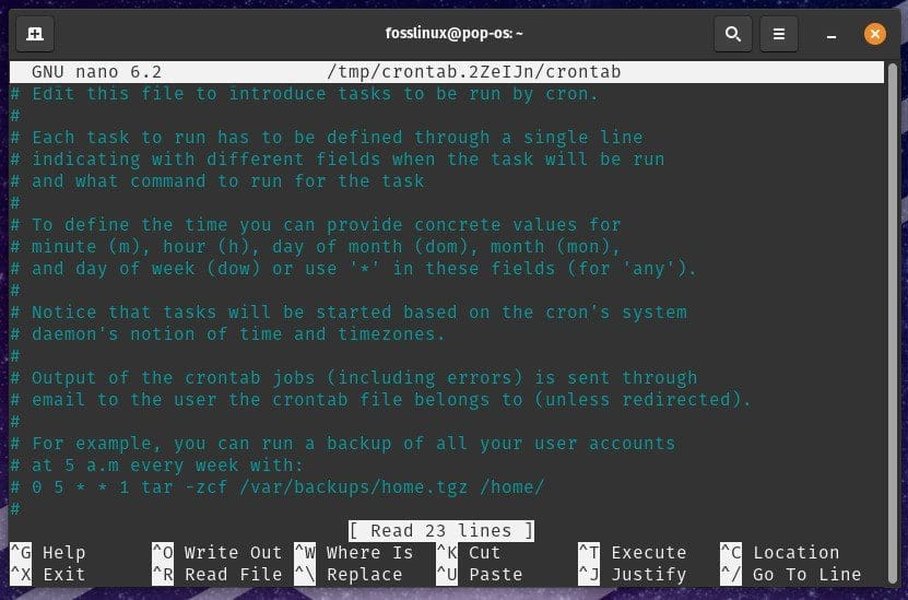
Conceptual representation of task scheduling and automation.
Why Automate Daily Backups?
Imagine having a folder containing critical documents, project files, or configuration settings. Losing this data due to accidental deletion, hardware failure, or other unforeseen events can be disastrous. Performing manual backups daily is a solution, but it's easy to forget, inconsistent, and tedious. Automating this process ensures:
- Consistency: Backups run regularly without fail.
- Reliability: Reduces the chance of human error during the backup process.
- Time Savings: Frees up your time for other important activities.
- Data Safety: Provides a safety net against data loss.
Leveraging Shell Scripts for Automation
Shell scripts are the cornerstone of automation in Linux. They are simple text files containing a sequence of commands that the Linux shell (like Bash) can execute. For automating tasks like daily backups, shell scripts are ideal because they allow you to combine multiple commands, use variables, implement logic (like checking if directories exist), and integrate seamlessly with system utilities.
The Backup Automation Script
Here is an example of a shell script designed to automate the backup of a specific directory. This script creates a compressed archive (.tar.gz) of the source directory, names the backup file with a timestamp for easy identification and versioning, and stores it in a designated backup location.
#!/bin/bash

# --- Configuration ---
# Define the directory you want to back up
SOURCE_DIR="/home/user/important_data"

# Define where the backups should be stored
BACKUP_DIR="/mnt/backup_drive/daily_backups"

# Define how many days of backups to keep (optional)
RETENTION_DAYS=7

# --- Script Logic ---

# 1. Create the backup directory if it doesn't exist
# The -p option ensures parent directories are created if needed,
# and suppresses errors if the directory already exists.
mkdir -p "$BACKUP_DIR"
echo "Ensured backup directory exists: $BACKUP_DIR"

# 2. Check if the source directory exists
if [ ! -d "$SOURCE_DIR" ]; then
    echo "Error: Source directory '$SOURCE_DIR' not found. Backup aborted."
    # Optionally send an alert here (e.g., email)
    exit 1 # Exit script with an error status
fi
echo "Source directory found: $SOURCE_DIR"

# 3. Generate a timestamp and filename for the backup
# Format: YYYYMMDD_HHMMSS
TIMESTAMP=$(date +"%Y%m%d_%H%M%S")
BACKUP_FILENAME="backup_${TIMESTAMP}.tar.gz"
FULL_BACKUP_PATH="$BACKUP_DIR/$BACKUP_FILENAME"
echo "Backup filename generated: $BACKUP_FILENAME"

# 4. Create the compressed backup archive
# -c: Create a new archive
# -z: Compress the archive with gzip
# -f: Specify the filename of the archive
# -P: Preserve absolute pathnames (use with caution or use -C to change dir)
# Alternatively, use -C "$SOURCE_DIR" . to change into the source dir first
echo "Creating backup archive..."
tar -czf "$FULL_BACKUP_PATH" -C "$(dirname "$SOURCE_DIR")" "$(basename "$SOURCE_DIR")"

# 5. Verify if the backup command was successful
if [ $? -eq 0 ]; then
    echo "Success: Backup of '$SOURCE_DIR' completed successfully."
    echo "Archive saved to: $FULL_BACKUP_PATH"
else
    echo "Error: Backup command failed. Please check logs and permissions."
    # Optionally send an alert here
    exit 1 # Exit script with an error status
fi

# 6. (Optional) Remove old backups based on RETENTION_DAYS
if [ -n "$RETENTION_DAYS" ] && [ "$RETENTION_DAYS" -gt 0 ]; then
    echo "Checking for old backups to remove (older than $RETENTION_DAYS days)..."
    # Find files (-type f) in backup dir, matching the name pattern,
    # modified more than RETENTION_DAYS ago (-mtime +$((RETENTION_DAYS-1))), and delete them.
    find "$BACKUP_DIR" -maxdepth 1 -type f -name "backup_*.tar.gz" -mtime +"$((RETENTION_DAYS-1))" -print -delete
    echo "Old backup cleanup complete."
fi

# 7. Final success message
echo "Backup script finished successfully at $(date)."

exit 0 # Exit script with success status
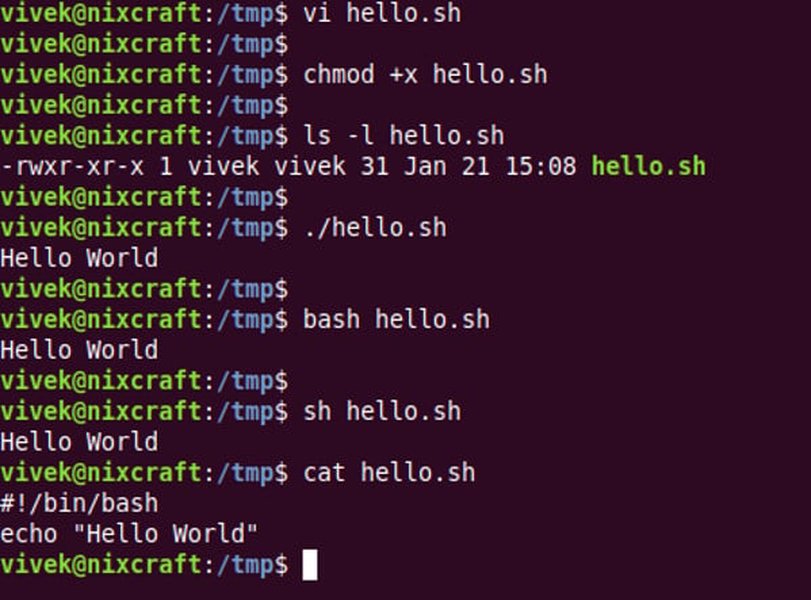
Shell scripts are text files containing commands executed by the shell.
Dissecting the Script
Let's break down the key components of this backup script:
Configuration Variables
SOURCE_DIR: Specifies the full path to the directory you wish to back up. Remember to change this to your actual directory.BACKUP_DIR: Defines the location where the backup archives will be stored. Ensure this location has sufficient space and write permissions.RETENTION_DAYS: An optional variable to control how many days' worth of backups are kept. Older backups will be automatically deleted.
Script Execution Flow
- Directory Creation:
mkdir -p "$BACKUP_DIR"ensures the target backup directory exists, creating it if necessary without causing errors if it's already there. - Source Validation:
if [ ! -d "$SOURCE_DIR" ]; then ... fichecks if the source directory actually exists before proceeding. If not, it prints an error and exits. - Timestamp & Filename:
TIMESTAMP=$(date +"%Y%m%d_%H%M%S")captures the current date and time. This is used to create a unique filename (backup_YYYYMMDD_HHMMSS.tar.gz) for each backup, preventing overwrites and allowing for version history. - Archiving and Compression:
tar -czf "$FULL_BACKUP_PATH" -C ...is the core command.taris the archiving utility.-ccreates a new archive.-zfilters the archive throughgzipfor compression.-fspecifies the output filename (our timestamped archive path).-C "$(dirname "$SOURCE_DIR")" "$(basename "$SOURCE_DIR")"is a safer way to archive the target directory without including its absolute path inside the archive. It changes to the parent directory of the source first, then archives the source directory by its name.
- Success Check:
if [ $? -eq 0 ]; then ... else ... fichecks the exit status of thetarcommand.$?holds the exit code of the last executed command (0 typically means success). This provides feedback on whether the backup was created successfully. - Cleanup (Optional): The
findcommand locates and deletes backup files within theBACKUP_DIRthat are older than the specifiedRETENTION_DAYS. This prevents the backup location from filling up indefinitely. - Exit Status: The script uses
exit 0for success andexit 1for errors, which is standard practice and useful for monitoring automated tasks.
Visualizing the Automation Process
This mindmap illustrates the flow of the automated backup process using the shell script and scheduling:
(e.g., /home/user/important_data)"] id1b["Identify Backup Destination
(e.g., /mnt/backup_drive/daily_backups)"] id1c["Define Retention Policy
(e.g., Keep 7 days)"] id2["Create Shell Script (backup.sh)"] id2a["Variables (Source, Destination, Retention)"] id2b["Check Source Directory Existence"] id2c["Generate Timestamped Filename"] id2d["Create Backup Archive (tar -czf)"] id2e["Verify Backup Success"] id2f["(Optional) Clean Up Old Backups (find)"] id2g["Logging / Notifications"] id3["Schedule Execution (Cron)"] id3a["Edit Crontab (crontab -e)"] id3b["Add Cron Job Entry"] id3b1["Specify Schedule (e.g., Daily at 2 AM: 0 2 * * *)"] id3b2["Specify Script Path (/path/to/backup.sh)"] id3b3["(Optional) Redirect Output (> /dev/null 2>&1 or >> logfile)"] id4["Execution & Monitoring"] id4a["Cron Daemon Runs Script Automatically"] id4b["Check Logs or Notifications for Status"] id4c["Verify Backup Files Periodically"]
The mindmap shows the steps from defining the backup requirements, writing the script logic, scheduling it with cron, and finally the execution and monitoring phase.
Scheduling Daily Execution with Cron
Writing the script is the first step; making it run automatically every day is the next. Linux provides a powerful utility called cron for scheduling tasks (often called "cron jobs") to run at specific times or intervals.
Setting up a Cron Job
- Save the Script: Save the script content above into a file, for example,
/home/user/scripts/daily_backup.sh. - Make it Executable: Open a terminal and run
chmod +x /home/user/scripts/daily_backup.shto grant execute permissions to the script. - Edit Crontab: Run the command
crontab -e. This will open your user's crontab file in a text editor (likenanoorvim). - Add the Schedule Line: Add the following line at the end of the file to schedule the script to run every day at 2:00 AM:
0 2 * * * /bin/bash /home/user/scripts/daily_backup.sh0: Minute (0th minute)2: Hour (2 AM)*: Day of the month (every day)*: Month (every month)*: Day of the week (every day)/bin/bash: The interpreter to use./home/user/scripts/daily_backup.sh: The full path to your script. Adjust this path accordingly.
- Save and Exit: Save the changes and close the editor. Cron will automatically read the new schedule.
Now, your backup script will run automatically every morning at 2:00 AM without any manual intervention.
Manual vs. Automated Backups: A Comparison
Automating backups offers significant advantages over manual methods. This chart highlights key areas where automation excels:
The chart visually contrasts the high reliability, consistency, time efficiency, and scheduling flexibility of automated backups against the lower scores and higher effort required for manual backups.
Feature Breakdown Table
This table further clarifies the differences:
| Feature | Manual Backup | Automated Backup (Script + Cron) |
|---|---|---|
| Consistency | Depends on user remembering; prone to being missed. | Runs automatically on schedule; highly consistent. |
| Execution Time | Requires active user time for each backup. | Runs in the background, often during off-peak hours. |
| Error Potential | Higher risk of mistakes (wrong source/destination, forgotten steps). | Lower risk once script is correctly configured; errors can be logged. |
| Versioning | Requires manual naming or overwriting; complex to manage. | Easily implemented with timestamps; automated cleanup possible. |
| Effort | High recurring effort. | Initial setup effort, then minimal ongoing effort. |
| Scalability | Difficult to manage for many directories or frequent backups. | Easily adaptable for multiple tasks; scales well. |
Understanding Cron and Automation Further
To deepen your understanding of how cron works and its role in Linux task automation, the following video provides a helpful overview:
This video explains the concept of using the cron utility to schedule tasks like backups and updates at various intervals, demonstrating its practical application in automating routine Linux operations.
Addressing the Screenshot Request
While you requested a screenshot, as an AI, I cannot directly execute this script in a live Linux environment and capture a visual screenshot of the terminal output. However, I can describe what you would typically see after running the script manually (./daily_backup.sh) or what might be logged if you redirect the output in your cron job.
Expected Terminal Output
If you ran the script successfully from your terminal, the output would look something like this:
Ensured backup directory exists: /mnt/backup_drive/daily_backups
Source directory found: /home/user/important_data
Backup filename generated: backup_20250428_103000.tar.gz
Creating backup archive...
Success: Backup of '/home/user/important_data' completed successfully.
Archive saved to: /mnt/backup_drive/daily_backups/backup_20250428_103000.tar.gz
Checking for old backups to remove (older than 7 days)...
Old backup cleanup complete.
Backup script finished successfully at Mon Apr 28 10:30:01 UTC 2025
If an error occurred (like the source directory not existing), you would see the corresponding error message instead:
Ensured backup directory exists: /mnt/backup_drive/daily_backups
Error: Source directory '/home/user/important_data_typo' not found. Backup aborted.
You can capture this output yourself using screenshot tools available on your Linux distribution (like gnome-screenshot or ksnip) after running the script in a terminal.
Frequently Asked Questions (FAQ)
What exactly is a shell script?
A shell script is a text file containing a sequence of commands for a Unix/Linux shell (like Bash). Instead of typing commands one by one into the terminal, you can list them in a script file and execute the file. This allows you to automate complex or repetitive sequences of operations. Scripts can include variables, loops, conditional logic (if/else), functions, and interaction with system utilities, making them powerful tools for automation.
What is Cron and how does it work?
Cron is a time-based job scheduler daemon found in Unix-like operating systems, including Linux. It runs in the background and executes scheduled tasks (known as "cron jobs") automatically at specified intervals (e.g., every minute, hour, day, month). Users define these jobs in a configuration file called a crontab. Each line in the crontab specifies a schedule (using five time-and-date fields) followed by the command or script to be executed.
Can I customize this backup script further?
Absolutely! Shell scripts are highly customizable. You could modify this script to:
- Back up multiple source directories.
- Use different compression methods (e.g., `bzip2` with `tar -cjf`).
- Implement more sophisticated logging (e.g., writing output to a dedicated log file).
- Add email or system notifications upon success or failure.
- Exclude specific files or subdirectories from the backup using `tar` options (like `--exclude`).
- Integrate with remote storage (e.g., using `rsync` over SSH or tools like `rclone`).
- Add checks for available disk space before starting the backup.
Start by modifying the configuration variables and gradually add more complex features as needed.
Are there alternatives to Cron for scheduling?
Yes, while Cron is the most traditional and widely used scheduler, modern Linux systems often use `systemd timers` as a more flexible alternative. Systemd timers offer features like finer control over scheduling (e.g., running after boot, relative to events), better logging integration with `journalctl`, and dependency management. For simpler tasks or one-off scheduled commands, the `at` command can also be used. Anacron is another tool often used on laptops or systems that aren't always running, as it ensures jobs missed due to downtime are run when the system is back online.
Recommended Reads
- Explore using systemd timers as a modern alternative to cron for scheduling tasks in Linux.
- Learn advanced shell scripting techniques for robust error handling and logging in automation scripts.
- Discover how to automate backups to remote servers securely using rsync and SSH.
- Find best practices for managing and monitoring multiple cron jobs effectively on a Linux server.
References
Last updated April 28, 2025