
Backup WhatsApp from iPhone to Thumb Drive Using Free Software
A Comprehensive Guide to Securely Storing Your Chats
Key Takeaways
- WhatsApp Export Feature: Use the built-in "Export Chat" function in WhatsApp to save individual chats to your iPhone, then transfer them to a thumb drive.
- Full iPhone Backup: Utilize iTunes or similar tools for a complete backup of your iPhone, including WhatsApp data, and then extract and transfer this data to a thumb drive.
- Third-Party Software: Leverage free third-party tools like iMazing, iBackup Viewer, or WooTechy WhatsMover to directly backup WhatsApp data to a computer before transferring to a thumb drive.
Introduction
In today's digital world, securing your personal data is more crucial than ever. WhatsApp, a widely used messaging app, contains valuable conversations and media that many users wish to safeguard. This guide will walk you through various methods to back up WhatsApp data from your iPhone to a thumb drive using free software. Whether you're looking to preserve important conversations or simply want an additional layer of data protection, these methods cater to different needs and technical comfort levels.
Understanding WhatsApp Backup on iPhone
Before delving into the backup methods, it's essential to understand how WhatsApp handles data on iOS devices. WhatsApp on iPhone primarily uses iCloud for backups, which can be convenient but also has limitations such as storage constraints and reliance on internet connectivity. By backing up to a thumb drive, you gain more control over your data, ensuring it's stored offline and in a format you can easily manage.
WhatsApp Data Components
WhatsApp data on your iPhone includes:
- Text messages
- Voice messages
- Photos and videos
- Documents
- Call logs
Why Backup to a Thumb Drive?
Backing up to a thumb drive offers several advantages:
- Offline Access: You can access your data without an internet connection.
- Portability: Thumb drives are small and easy to carry, making it convenient to transport your backup.
- Security: Physical storage can be more secure than cloud storage, as it's not susceptible to hacking or data breaches.
- Flexibility: You can choose to back up only specific data or the entire WhatsApp content.
Method 1: Using WhatsApp's Built-in "Export Chat" Feature
This method is ideal for backing up individual conversations and is straightforward to execute:
Step-by-Step Guide
- Open WhatsApp on your iPhone and navigate to the chat you wish to back up.
- Tap on the contact's name or group title at the top of the screen.
- Scroll down and select "Export Chat."
- Choose whether to include media files or not. Note that including media will increase the file size.
- When prompted, select "Save to Files" and choose a location on your iPhone where you can later access the file.
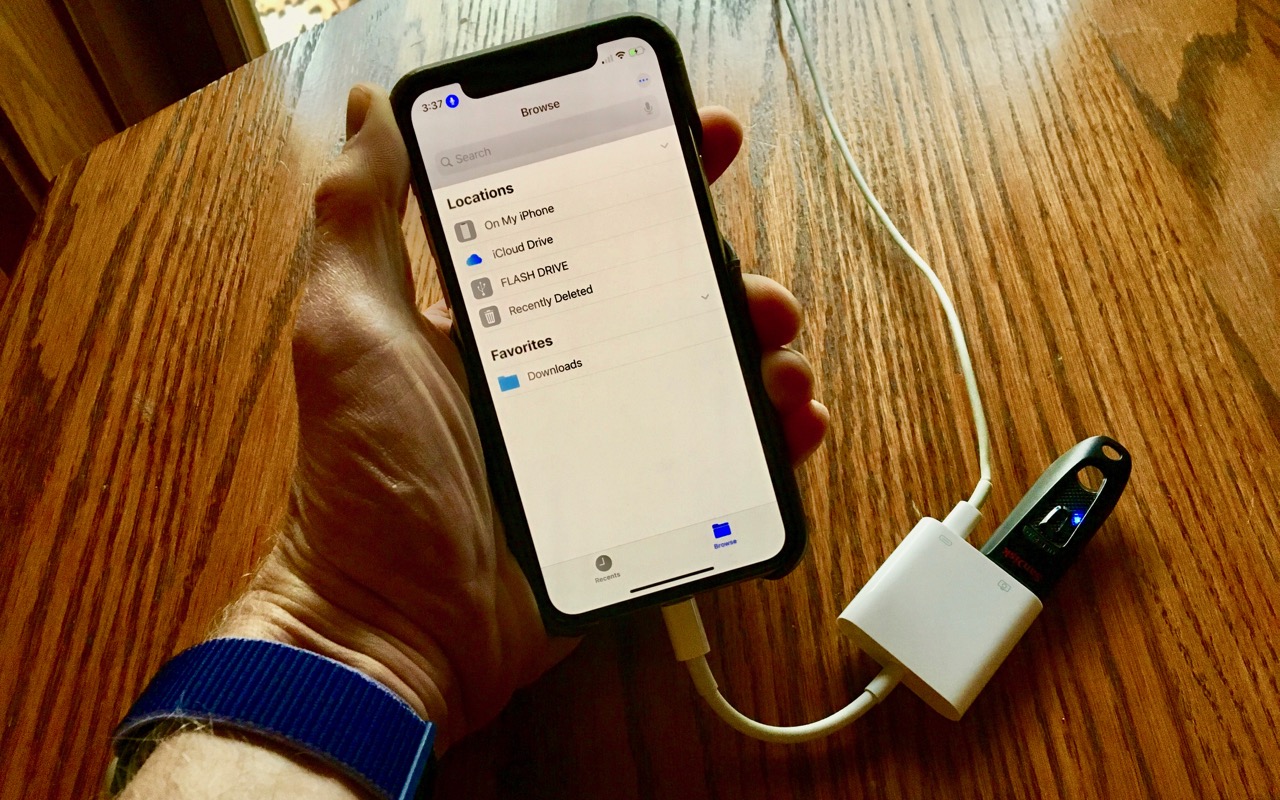
- Connect your thumb drive to your iPhone using a Lightning-to-USB adapter.
- Open the Files app on your iPhone, navigate to the saved chat file, and transfer it to your thumb drive.
Advantages and Limitations
The "Export Chat" feature is user-friendly and built directly into WhatsApp, making it an accessible option. However, it has limitations:
- It only allows exporting one chat at a time, which can be time-consuming for multiple conversations.
- The process must be repeated for each chat you wish to back up.
- The file size can become large when including media, potentially filling up your thumb drive quickly.
Method 2: Creating a Full iPhone Backup with iTunes
This method involves backing up your entire iPhone, including WhatsApp data, using iTunes and then extracting the WhatsApp content:
Step-by-Step Guide
- Connect your iPhone to your computer using a USB cable.
- Open iTunes on your computer (or Finder on macOS Catalina and later).
- Select your iPhone in iTunes and choose to back up your device. Ensure the backup is unencrypted for easier data extraction.
- Once the backup is complete, it will be stored on your computer.
- Download a free backup extraction tool such as "iBackup Viewer" by iMacTools.
- Install and run iBackup Viewer, which should detect your recent iTunes backup.
- Browse through the backup contents to find "WhatsApp Messenger" or similar entries.
- Use the export options (HTML, text, or CSV) to extract your WhatsApp message history. Note that some media files may require additional steps to extract.
- Save the exported files to your computer.
- Connect your thumb drive to your computer and copy the WhatsApp files to it.
Advantages and Limitations
This method offers a comprehensive backup of your entire iPhone, which can be beneficial for overall data management. However, it has its drawbacks:
- The backup includes all data, not just WhatsApp, which can be cumbersome if you only want WhatsApp data.
- Extracting specific WhatsApp data from an iTunes backup requires additional free software, which may have limitations.
- The initial backup files are not directly readable without extraction, adding complexity to the process.
Method 3: Using Third-Party Software
Several third-party tools offer free options to backup WhatsApp directly from your iPhone to your computer, which you can then transfer to a thumb drive. Here are three notable options:
Option 1: iMazing
iMazing is a versatile tool that provides a free trial, allowing you to export WhatsApp chats and media:
Step-by-Step Guide
- Download and install iMazing on your computer.
- Connect your iPhone to your computer using a USB cable.
- Open iMazing, select your iPhone, and choose the "Export WhatsApp Chats" option.
- Choose the chats you want to export and whether to include media files.
- Export the chat history and media files to your computer.
- Insert your thumb drive into your computer and copy the exported WhatsApp data to it.
Option 2: iBackup Viewer
iBackup Viewer is another tool that allows you to extract WhatsApp data from an iTunes backup:
Step-by-Step Guide
- After creating an iTunes backup (as described in Method 2), download and install iBackup Viewer on your computer.
- Run iBackup Viewer and let it detect your recent iTunes backup.
- Browse through the backup and locate "WhatsApp Messenger."
- Use the export options to extract your WhatsApp message history and any available media files.
- Save the exported files to your computer.
- Connect your thumb drive and copy the WhatsApp files to it.
Option 3: WooTechy WhatsMover
WooTechy WhatsMover offers a free backup feature specifically for WhatsApp data:
Step-by-Step Guide
- Download and install WooTechy WhatsMover on your computer.
- Connect your iPhone to your computer via USB.
- Select the backup option within WhatsMover.
- The software will backup your WhatsApp data, including chats and media, to your computer.
- Insert your thumb drive and transfer the backup files to it.
Advantages and Limitations
Third-party software offers direct and often more user-friendly ways to backup WhatsApp data:
-
Advantages: These tools allow for selective backups, focusing solely on WhatsApp data, and can be more straightforward than using iTunes.
-
Limitations: Free versions may have restrictions on features or backup size. Additionally, you'll need to transfer the backup from your computer to the thumb drive, adding an extra step.
Comparison of Backup Methods
To help you choose the best method for your needs, here's a comparison table of the methods discussed:
| Method | Complexity | Selective Backup | Media Inclusion | Free Software |
|---|---|---|---|---|
| WhatsApp Export Chat | Low | Yes | Optional | Yes (Built-in) |
| iTunes Full Backup | Medium | No | Yes | Yes (iTunes) |
| iMazing | Medium | Yes | Yes | Yes (Free Trial) |
| iBackup Viewer | Medium | Yes | Partial | Yes (Free Version) |
| WooTechy WhatsMover | Low | Yes | Yes | Yes (Free Backup Feature) |
Additional Tips for Secure Backup
To ensure your WhatsApp data remains secure and easily accessible, consider the following tips:
Regular Backups
Regularly backing up your WhatsApp data ensures that you don't lose important conversations or media. Set a reminder to perform backups at least once a month or after significant events.
Multiple Storage Locations
While backing up to a thumb drive is a great option, consider using multiple storage solutions. For example, you might also back up to a cloud service like Dropbox or Google Drive, providing an additional layer of security.
Password Protection
If your thumb drive supports it, use password protection to add an extra layer of security to your backup files. This can prevent unauthorized access if the drive is lost or stolen.
Data Verification
After backing up your data, verify that the files are intact and accessible. Open the backup files on your computer to ensure that all conversations and media are present and readable.
Conclusion
Backing up WhatsApp data from your iPhone to a thumb drive using free software is a practical way to ensure your conversations and media are safely stored. Whether you choose the built-in "Export Chat" feature, a full iPhone backup via iTunes, or a third-party tool like iMazing, iBackup Viewer, or WooTechy WhatsMover, each method offers its own set of advantages and limitations. By understanding these methods and following the step-by-step guides provided, you can select the approach that best suits your needs and technical comfort level. Remember to regularly back up your data, use multiple storage solutions, and verify your backups to maintain the security and accessibility of your WhatsApp content.
References
Last updated February 1, 2025