
Unraveling SQL Server Log Backup Failures: A Deep Dive into "BACKUP LOG model" Errors
Comprehensive troubleshooting and solutions for the common SQL Server transaction log backup error on the 'model' database.
Key Insights into the "BACKUP LOG model" Error
- Recovery Model Mismatch: The 'model' database is typically in the SIMPLE recovery model, which does not support transaction log backups. Attempting one will cause this error.
- Broken Backup Chain: For databases in the FULL or BULK_LOGGED recovery models, log backups require an unbroken chain, starting with a full backup. If this chain is interrupted or doesn't exist, log backups will fail.
- Logging for Diagnostics: The "backup application log" refers to various logs including the SQL Server Error Log, Windows Application Event Log, SQL Server Agent Job History, and third-party backup application logs, all crucial for pinpointing the exact cause.
When you encounter the error message "BACKUP failed to complete the command BACKUP LOG model. Check the backup application log for detailed messages," it signifies a problem with a transaction log backup operation for the SQL Server 'model' database. This error, often accompanied by Error 3041, points to fundamental issues related to the database's recovery model, the integrity of the backup chain, or underlying infrastructure problems. Understanding the intricacies of SQL Server's backup mechanisms is crucial for effective troubleshooting.
Understanding the 'model' Database and Transaction Log Backups
The 'model' database is a vital system database in SQL Server. It serves as a template for all new databases created on the instance. When you create a new database, SQL Server essentially makes a copy of the 'model' database, including its recovery model and collation settings. By default, the 'model' database is configured with the SIMPLE recovery model.
Transaction log backups are specifically designed for databases operating in the FULL or BULK_LOGGED recovery models. In these models, the transaction log records all changes to the database, allowing for point-in-time recovery and minimizing data loss. However, in the SIMPLE recovery model, transaction log entries are automatically truncated after they are no longer needed for recovery (e.g., after a checkpoint), making transaction log backups irrelevant and unsupported.
Therefore, a common reason for the "BACKUP LOG model" error is an attempt to perform a transaction log backup on a database (like 'model') that is set to the SIMPLE recovery model. This typically happens when backup jobs or maintenance plans are configured to back up transaction logs for all databases without excluding system databases or accounting for their default recovery models.
The Critical Role of Recovery Models in Backup Strategies
SQL Server offers three primary recovery models, each influencing how transaction logs are managed and what types of backups are supported:
- Simple Recovery Model:
- Minimal logging; log is truncated automatically.
- Supports full and differential backups only.
- No point-in-time recovery; can only restore to the end of a full or differential backup.
- Full Recovery Model:
- Full logging of all transactions.
- Supports full, differential, and transaction log backups.
- Enables point-in-time recovery, allowing restoration to any specific moment.
- Requires regular transaction log backups to prevent log growth and allow log truncation.
- Bulk-Logged Recovery Model:
- Similar to Full, but minimally logs certain bulk operations (e.g., bulk inserts, index creation).
- Supports full, differential, and transaction log backups.
- Provides better performance for bulk operations but might limit point-in-time recovery for data changed by these operations.
Decoding the "Backup Application Log"
The error message advises checking the "backup application log for detailed messages." This phrase can sometimes be ambiguous, as it doesn't refer to a single, universal log file. Instead, it encompasses several potential logging locations, depending on how your SQL Server backups are managed:
- SQL Server Error Log: This is the primary log for SQL Server itself, recording system events, errors, warnings, and informational messages. It's often the first place to look for general backup failures. You can access it via SQL Server Management Studio (SSMS) under Management > SQL Server Logs.
- Windows Application Event Log: SQL Server, along with other applications, logs events to the Windows Event Viewer. Critical errors, including those related to I/O, permissions, or system resources affecting backup operations, are often found here. Navigate to Event Viewer > Windows Logs > Application and filter for events from MSSQLSERVER or the SQL Server instance name.
- SQL Server Agent Job History: If your backups are scheduled using SQL Server Agent jobs, the job history provides specific output for each job step, including error messages and completion statuses. This is crucial for identifying failures within automated backup routines.
- Maintenance Plan Logs: If you use SQL Server Maintenance Plans for backups, these plans can be configured to write detailed logs to text files. Check the specified log directory within your Maintenance Plan configuration.
- Third-Party Backup Application Logs: If you're using a third-party backup solution (e.g., Veeam, Veritas, Azure Workload Backup, LiteSpeed, etc.) to manage your SQL Server backups, these applications maintain their own comprehensive logs. Consulting these logs is essential as they often provide more specific details about the failure within the context of the backup software.
- Custom Application Logs: For scenarios where backup commands are issued from a custom .NET application or script, review the logging mechanisms implemented within that application.
Thoroughly examining these logs is the most critical first step, as they often contain specific error codes or descriptive messages that pinpoint the exact cause of the backup failure.
Common Causes and Strategic Solutions for Log Backup Failures
The "BACKUP LOG model" error typically stems from a few core issues. Here's a breakdown of the prevalent causes and detailed solutions:
1. Incorrect Recovery Model for 'model' Database
Cause Explanation:
As discussed, the 'model' database is typically set to the SIMPLE recovery model by default. Transaction log backups are not supported for databases in SIMPLE recovery because the log is truncated automatically after checkpoints, and there's no need for continuous log chain management for recovery.
Solution:
The most straightforward solution is to exclude the 'model' database from any transaction log backup jobs or maintenance plans. Unless you have a very specific, rare requirement to perform point-in-time recovery on the 'model' database (which is highly unusual as it's a template), there's no operational benefit to backing up its transaction log.
If, for an extremely specific reason, you *must* perform log backups on 'model' (e.g., a non-standard configuration where 'model' is used directly for critical data, which is not recommended), you would need to:
- Change the Recovery Model:
USE master; ALTER DATABASE model SET RECOVERY FULL; - Perform a Full Database Backup: A full backup is mandatory after changing the recovery model to FULL to establish the starting point for the transaction log backup chain.
BACKUP DATABASE model TO DISK = N'C:\Backup\model_Full.bak'; GO - Then, Perform Log Backups: Only after a full backup can subsequent log backups succeed.
BACKUP LOG model TO DISK = N'C:\Backup\model_Log.trn';
GO
However, it's critical to reiterate that this is rarely necessary for the 'model' database.
2. Broken Log Backup Chain or No Current Full Backup
Cause Explanation:
For databases in FULL or BULK_LOGGED recovery models, transaction log backups depend on a continuous chain of backups. This chain starts with a full database backup. If this initial full backup is missing, or if the chain is broken (e.g., by switching recovery models back and forth without an intervening full backup, or by external backups that don't integrate with your existing strategy), subsequent log backups will fail with errors like "BACKUP LOG cannot be performed because there is no current database backup" (Error 4214, often accompanying Error 3041).
Solution:
The definitive solution for a broken log backup chain is to perform a new full database backup. This re-establishes the base for all future transaction log backups. This applies to any user database that is in FULL or BULK_LOGGED recovery model and experiencing this error, not just 'model' if its recovery model was explicitly changed.
BACKUP DATABASE YourDatabaseName TO DISK = N'C:\Backup\YourDatabaseName_Full.bak';
GO
3. Permissions and Accessibility Issues
Cause Explanation:
The SQL Server service account or the account executing the backup command (e.g., SQL Server Agent service account) must have sufficient permissions to read the database files and write to the specified backup destination. Lack of write permissions to the backup folder or network share, or issues with the backup device itself (e.g., full disk, offline share), will cause backup failures.
Solution:
- Verify Permissions: Ensure the SQL Server service account has full control (read/write) permissions to the directory where backup files are stored. If backing up to a network share, ensure the share permissions and NTFS permissions on the target folder grant access to the SQL Server service account.
- Check Backup Path: Confirm that the specified backup path is valid, accessible, and has sufficient free space. Try backing up to an alternative local drive to rule out network or destination-specific issues.
- SQL Server Roles: Ensure the user or account executing the backup has appropriate SQL Server permissions (e.g.,
db_ownerordb_backupoperatorfixed database roles, orsysadminfixed server role).
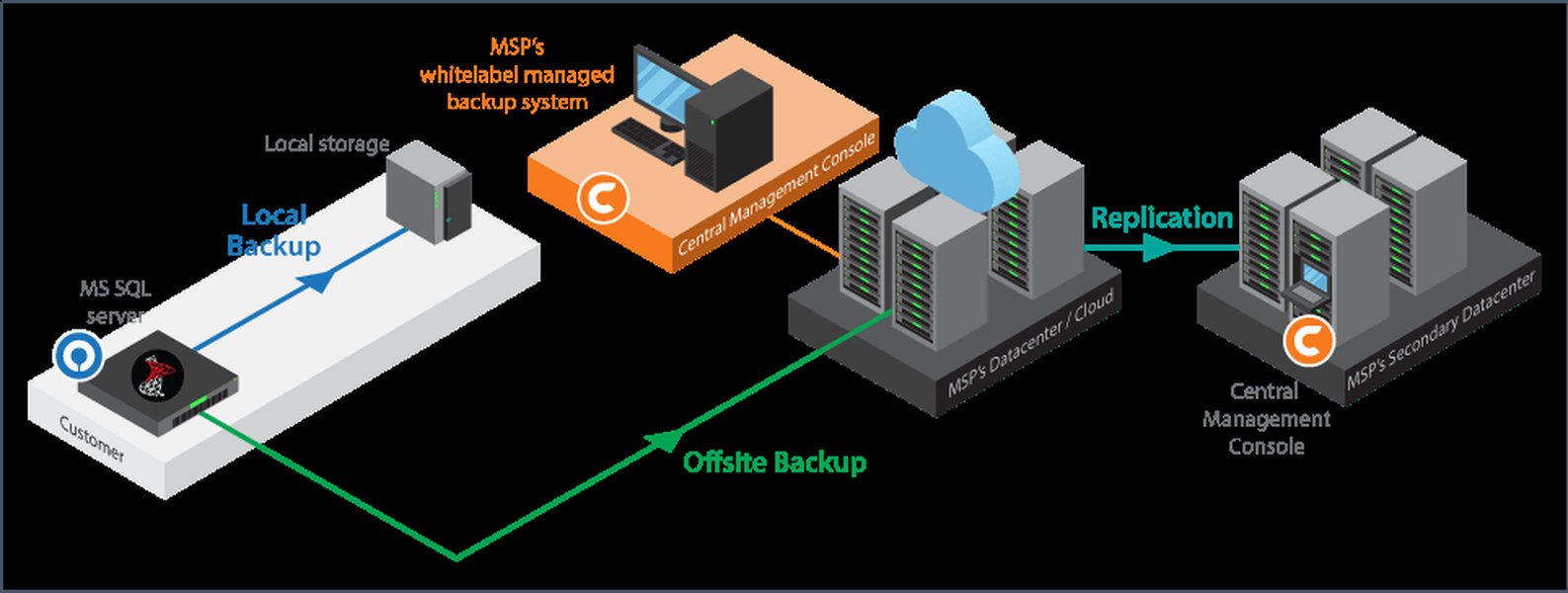
An illustration of SQL Server backup automation, highlighting the need for correct configuration and permissions.
4. Interference from Third-Party Applications or Antivirus
Cause Explanation:
Third-party backup software or antivirus programs can sometimes interfere with SQL Server's native backup processes by locking files, scanning them, or conflicting with the VSS (Volume Shadow Copy Service) writers that SQL Server relies on. This can lead to backup failures or operations getting stuck.
Solution:
- Check Third-Party Logs: If you are using a third-party backup tool, consult its specific logs for more detailed error messages that might explain conflicts or agent-related issues (e.g., "Repository agent is stopped" in Veeam).
- Antivirus Exclusions: Configure your antivirus software to exclude SQL Server data files (.mdf), log files (.ldf), temporary files (.ndf), and backup destination folders from real-time scanning. This is a common best practice.
- Coordination of Backups: If both native SQL Server backups and third-party backups are running, ensure they don't conflict. Consider using "COPY_ONLY" backups for native SQL Server full backups if a third-party tool is managing the primary full backups, as COPY_ONLY backups do not break the regular backup chain.
5. Database State Issues
Cause Explanation:
If the database is in an abnormal state (e.g., OFFLINE, RECOVERY PENDING, SUSPECT), backup operations will fail.
Solution:
Ensure the database is online and accessible. You can check the database status using SELECT name, state_desc FROM sys.databases;.
Assessing Backup Health and Reliability
To quantify the reliability and health of your SQL Server backup strategy, especially concerning transaction log backups, consider evaluating several key metrics. This radar chart provides a conceptual assessment of various aspects influencing backup success.
This radar chart illustrates a conceptual assessment of your backup environment. Each spoke represents a critical aspect of backup health. "Recovery Model Consistency" evaluates whether databases are correctly configured for their intended backup strategy. "Backup Chain Integrity" assesses if full and log backups are properly sequenced and uncompromised. "Permissions & Accessibility" gauges the security and availability of backup locations. "Log Truncation Efficiency" measures how well transaction logs are managed to prevent excessive growth. "Monitoring & Alerting" reflects the effectiveness of systems detecting and notifying backup failures. Finally, "Third-Party Integration" considers how seamlessly any external backup solutions work with SQL Server. Comparing your "Current State Assessment" to "Ideal State Benchmarks" can help identify areas for improvement in your backup strategy.
A Visual Overview of Backup Troubleshooting Pathways
This mindmap visually outlines the primary troubleshooting pathways for SQL Server backup failures, emphasizing the key areas to investigate when encountering errors like "BACKUP LOG model." It starts with the initial error and branches out into various diagnostic and resolution steps, connecting related concepts for a clearer understanding.
This mindmap serves as a quick reference for diagnosing and resolving SQL Server transaction log backup failures. It categorizes the problem into error message interpretation, common causes, and actionable troubleshooting steps, ultimately aiming for robust preventive measures.
Deep Dive: Recovery Models and Backup Strategies
To further understand the nuances of SQL Server recovery models and how they dictate your backup strategy, the following video offers an excellent primer. It covers the three recovery models and various backup types, providing foundational knowledge essential for effective troubleshooting and reliable data protection.
This video explains the three recovery models in SQL Server and various backup types, providing essential context for managing database backups effectively.
Understanding the interplay between recovery models (Simple, Full, Bulk-Logged) and backup types (Full, Differential, Log) is paramount. The video illustrates how each choice impacts recovery capabilities and log management. For instance, selecting the Full recovery model demands a consistent log backup strategy to prevent the transaction log from growing indefinitely, while the Simple model automatically truncates the log, simplifying management but limiting point-in-time recovery options. This knowledge is crucial for diagnosing why a "BACKUP LOG model" command might fail if the underlying recovery model isn't configured to support it.
Summary of Troubleshooting Steps
The table below summarizes the key aspects to consider when troubleshooting the "BACKUP failed to complete the command BACKUP LOG model" error, consolidating causes, diagnostic actions, and recommended solutions.
| Issue Category | Diagnostic Actions | Recommended Solutions |
|---|---|---|
| Recovery Model Misconfiguration | Check 'model' database recovery model (T-SQL: `sys.databases`, SSMS). | Exclude 'model' from log backup jobs (default and recommended). If needed, change to FULL, then take a full backup before log backups. |
| Broken Backup Chain | Look for "no current database backup" errors (Error 4214). Review previous full backup history. | Perform a new full database backup to re-establish the backup chain. |
| Permissions/Access | Check SQL Server service account permissions on backup path. Verify path accessibility and disk space. | Grant necessary write permissions. Ensure backup destination is online and has sufficient free space. Try alternative paths. |
| Application/Antivirus Interference | Review third-party backup application logs. Check Windows Event Viewer for VSS errors or conflicts. | Exclude SQL Server directories from antivirus scans. Coordinate third-party backups with native SQL Server backups (e.g., use COPY_ONLY). |
| Database State | Verify database state (e.g., ONLINE) using `sys.databases`. | Ensure the database is in an online and accessible state. |
This table provides a concise, actionable guide for systematically addressing the error. Always start by thoroughly checking the relevant logs, as they provide the most specific insights into the failure.
Frequently Asked Questions (FAQ)
Why does the 'model' database typically cause this error?
Where can I find the "backup application log" mentioned in the error message?
Do I always need to take a full backup before a log backup?
Should I change the 'model' database to the FULL recovery model?
Can antivirus software interfere with SQL Server backups?
Conclusion
The "BACKUP failed to complete the command BACKUP LOG model" error is a common SQL Server issue, primarily due to the 'model' database's default SIMPLE recovery model which does not support transaction log backups. Effective troubleshooting involves systematically checking recovery models, ensuring the integrity of the backup chain by performing necessary full backups, verifying permissions and accessibility to backup destinations, and investigating potential interference from third-party applications or antivirus software. By diligently reviewing relevant logs (SQL Server Error Log, Windows Event Log, job history, and third-party application logs), you can accurately pinpoint the root cause and implement the appropriate solution, ensuring the reliability of your SQL Server backup strategy. Prioritizing correct configuration and consistent monitoring are key to preventing such errors and maintaining robust data protection.
Recommended Further Queries
- How to configure SQL Server recovery models?
- What are the best practices for SQL Server backup strategy?
- How to troubleshoot SQL Server Agent job failures?
- What are the necessary SQL Server database permissions for backups?