
Troubleshooting Charging Issues for Premiere Earbuds Pro on Windows 11
A detailed guide to overcoming USB charging challenges with Premiere Earbuds Pro
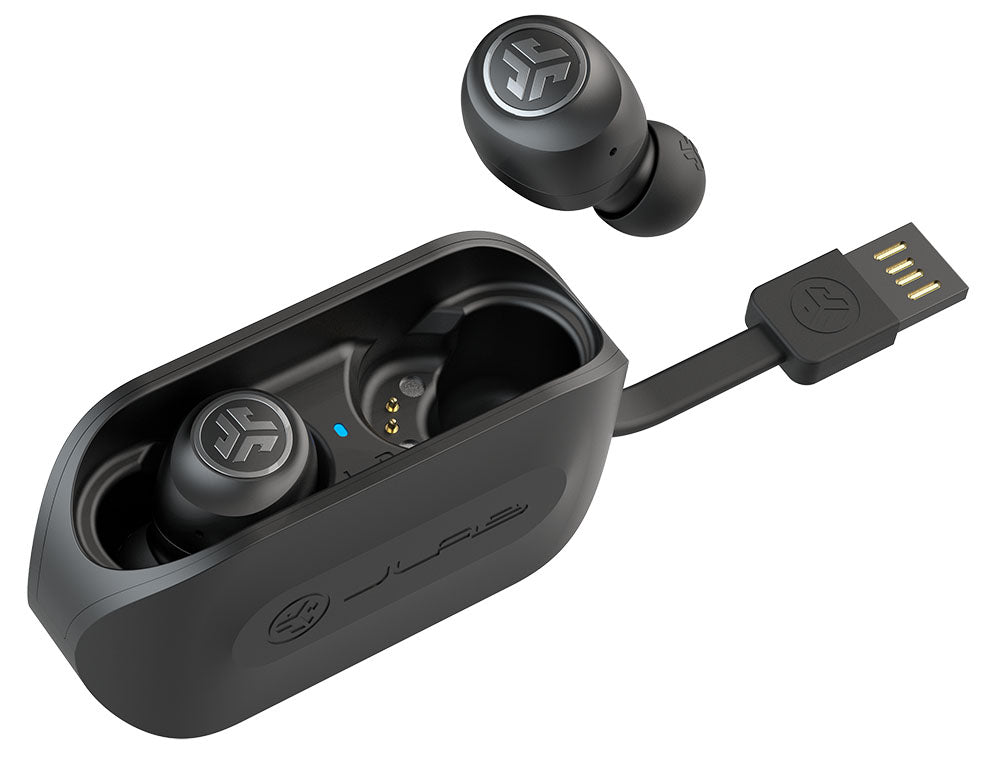
Highlights
- Essential Troubleshooting Steps: Understand how to check USB connections, clean charging contacts, and ensure proper placement.
- Software and Firmware Updates: Emphasize updating Windows 11 drivers and earbuds firmware to resolve compatibility issues.
- Hardware and Compatibility Considerations: Focus on verifying cable quality, charging port functionality, and manufacturer support for persistent issues.
Introduction
When your Premiere Earbuds Pro fail to charge via USB on Windows 11, the root cause of the problem typically lies in aspects related to both hardware and software. In this comprehensive troubleshooting guide, we will systematically discuss various potential issues — from dirty or misaligned charging contacts, cable or port issues, to firmware conflicts and driver updates on Windows 11 — and how you can resolve them. Understanding these elements not only ensures your earbuds charge reliably but also guarantees that your audio experience remains optimal.
Detailed Troubleshooting Steps
1. Assessing the Physical Hardware
One of the primary causes of charging issues is often physical in nature. To begin troubleshooting, inspect the physical hardware of both the earbuds and the charging case:
a. Cleaning Charging Contacts
Over time, dust, debris, or even minor residues can accumulate on the charging contacts. These contacts are essential for proper electrical connectivity between the earbuds and the charging case. To ensure optimal connection:
- Cleaning Procedure: Use a soft, dry microfiber cloth or a cotton swab slightly dampened with isopropyl alcohol. Gently wipe the contacts on both the earbuds and inside the charging case.
- Visual Inspection: After cleaning, look for any signs of corrosion, residue, or wear that might impair conduction.
b. Verifying Proper Placement
The earbuds must be correctly seated within the charging case. Misalignment may lead to incomplete contact between the charging pins on the earbuds and those in the case. To address this:
- Repositioning: Remove and reinsert both earbuds, ensuring they snap into place.
- Case Check: Confirm that the charging indicators (LED lights or similar signals) on the case come on, indicating that the earbuds are recognized.
c. Inspecting for Physical Damage
Look over the earbuds and the case for any signs of physical damage, such as cracks, dents, or malfunctioning pins. Damage can lead to intermittent charging or complete failure to charge.
2. Evaluating USB Connection and Power Source
The USB connection plays a crucial role in charging. A faulty cable or port can easily be mistaken for a device malfunction. Here are the key points to verify:
a. Checking the USB Cable and Port
Ensuring that your USB cable is in proper working order and the port is functioning is essential:
- Alternate Cable: Try charging with a different USB cable that meets the required specifications (5V 2A standard is often recommended).
- Alternate Ports: Change the USB port on your Windows 11 device. Some ports, especially those on older computers, might have reduced power output or intermittent connectivity issues.
- Check for Loose Connections: Examine both the cable ends to ensure no internal wiring issues or loose connections.
b. Power Source Considerations
Power output from different sources may vary significantly:
- Direct Wall Outlet: Instead of relying solely on a computer’s USB port — which can sometimes have lower power output — try using a USB adapter to charge from a wall outlet. This often provides a more stable power source.
- Compatibility of USB-C Ports: If your system uses USB-C, verify that the port supports both data transfer and charging. Some USB-C ports are designated for data only.
c. Utilizing a USB Table for Troubleshooting
The table below summarizes different USB and power configurations you might try:
| Test | Description | Expected Outcome |
|---|---|---|
| Different Cable | Use an alternative USB cable rated for 5V 2A | Charging proceeds normally if cable was the issue |
| Different Port | Insert cable into another USB port on the laptop or PC | Successful charging indicates prior port issues |
| Wall Adapter | Charge using a wall USB adapter | Sustained charging suggests power-supply issues from the PC port |
3. Firmware, Software, and Driver Updates
Modern wireless earbuds depend heavily on internal software and communication protocols. Outdated firmware or drivers may lead to unexpected behavior, including charging issues.
a. Firmware Update for the Earbuds
Outdated firmware can result in miscommunication between the charging circuit and the charging case:
- Check Manufacturer’s App: Many earbuds, including the Premiere Earbuds Pro, come with a companion app. Open the app and look for firmware update notifications.
- Follow Update Instructions: If an update is available, follow the manufacturer’s specific instructions to update the firmware.
b. Updating Windows 11 and USB Drivers
Ensuring that your system’s drivers and operating system are current is vital for maintaining compatibility:
- Windows Updates: Regularly check and install the latest updates for Windows 11. Often, updates fix known power delivery or USB compatibility issues.
- Driver Updates: Navigate to Device Manager and update the drivers, especially for USB controllers and Bluetooth devices. This can resolve potential conflicts that affect charging.
- Audio Device Settings: Since the earbuds might also serve for audio playback, ensure that the audio drivers are up to date to avoid conflicts.
c. Resetting the Earbuds
In cases where software issues persist, a factory reset of the earbuds might clear any anomalies:
- Factory Reset Procedure: Place both earbuds in the charging case and follow the reset procedure as specified in the user manual, which often involves holding touch-sensitive areas for about 7 seconds.
- Re-Pairing: After resetting, remove them from the case and re-pair them with your device to ensure fresh communication protocols are established.
4. Windows 11 Specific Considerations
Windows 11 brings advanced hardware and driver management, yet it may also introduce nuances that affect peripheral charging:
a. USB-C and Legacy Port Compatibility
Verify that the USB port in use is compatible with the device. Some systems have both USB-C and traditional USB-A ports, and not all may provide sufficient power:
- Port Capabilities: Check the laptop or PC specifications for port power output, ensuring compatibility for charging your earbuds effectively.
- Messengers and Notifications: If Windows 11 displays any warnings about USB devices, it might be a hint to check connectivity or power management settings.
b. Device Manager and Bluetooth Settings
Windows 11 requires a robust interaction between Bluetooth and USB subsystems:
- Update in Device Manager: Expand the list for USB controllers, right-click the particulars and choose to update drivers. This sometimes resolves intermittent issues caused by outdated drivers.
- Bluetooth Device Reset: As many wireless earbuds rely on both USB charging and Bluetooth connectivity, resetting Bluetooth (toggle off and on) might resolve conflicts influencing charging functionality.
c. Addressing Power Delivery Issues
Sometimes, the problem may not be the earbuds themselves but issues inherent to the power management system on your PC. Windows 11 might have different power profiles that affect USB charging:
- Power Settings: Navigate to Windows 11 power options and ensure that USB selective suspend settings are disabled. This may prevent the system from losing power to devices during low-power modes.
- High Performance Mode: Temporarily switching to a high-performance power plan can ensure steady and continuous charging.
5. Additional Troubleshooting Considerations
In addition to the above steps, consider the following for resolving charging issues:
a. Exploring User Forums and Manufacturer Resources
Often, other users may have experienced similar issues. Their collective experiences can provide insights:
- User Community Feedback: Look for similar cases in forums or community boards. Feedback from other users about potential fixes or undocumented issues can be invaluable.
- Manufacturer's Technical Support: If the solution remains elusive despite following all guidelines, contacting the manufacturer’s support can provide personalized troubleshooting or hardware checks.
b. Considering Environmental Factors
Sometimes, the surrounding environment or usage conditions can affect charging:
- Temperature Considerations: Extreme temperatures may hinder charging efficiency. Ensure that your device is being charged in a room with moderate ambient temperatures.
- Static Electricity and Interference: Rare cases of static build-up or interference from other electronic devices might cause connectivity issues. Ensure that the charging area is clean and free of any interfering devices.
c. Identifying Hardware Defects
If no solution seems to correct the charging issue, it might indicate a hardware defect:
- Warranty Consideration: Check if your device is still under warranty. If it is, a defective charging circuit might be covered, and sending the device for repair could be the most appropriate solution.
- Professional Diagnosis: Consider taking your device to an authorized repair center to have it professionally diagnosed. Sometimes minor issues can be fixed by recalibrating the internal hardware.
Integrating the Steps: A Flowchart Overview
To consolidate the troubleshooting process, the following flowchart (presented in a table) offers a streamlined set of steps:
| Step | Action | Observation | Next Move |
|---|---|---|---|
| 1 | Inspect & Clean Contacts | Any debris or misalignment? | If yes, clean/re-seat earbuds. |
| 2 | Check USB Cable/Port | Faulty cable/port? | Switch cable/port or use wall adapter. |
| 3 | Update Firmware & Drivers | Any available updates? | Update and restart device. |
| 4 | Review Power Settings | Power mode affecting USB? | Switch to high-performance mode. |
| 5 | Reset Earbuds | Reset successful? | If not, seek manufacturer support. |
Additional Considerations
Beyond the basic troubleshooting steps, there are several nuanced factors that might play a crucial role in resolving charging issues with your Premiere Earbuds Pro on Windows 11.
Analyzing System Log Files
Windows offers tools to view detailed log files that might help pinpoint the root cause of USB charging issues. Event Viewer or specialized diagnostic tools can provide log entries regarding USB power management and driver failures. By correlating these events with the time you attempted charging, you might identify anomalies or recurring error codes indicative of driver or firmware issues.
Testing in Different Environments
To isolate whether the issue is specific to your current system configuration:
- Alternate Devices: Attempt charging the earbuds with another computer or a different operating system (if available) to determine if the problem is isolated to Windows 11.
- Mobile Chargers: A mobile power bank or another USB charging station might provide a controlled environment to test the earbuds' responsiveness.
Understanding Manufacturer Specifications
It is also vital to consider what the manufacturer specifies for optimal charging conditions:
- Charger Recommendations: Use only approved chargers and cables that meet the manufacturer’s specifications to avoid incompatibility issues.
- Documentation Review: Revisit the user manual or support documentation provided with your Premiere Earbuds Pro to review any model-specific recommendations or disclaimers regarding USB charging under various operating conditions.
Conclusion
In summary, troubleshooting USB charging issues for your Premiere Earbuds Pro on Windows 11 involves a thorough examination of both physical components and software configurations. Begin by carefully inspecting and cleaning the charging contacts and ensuring correct placement in the charging case. Follow this with testing various USB cables, ports, and power sources, including wall adapters to rule out power insufficiency. Additionally, updating firmware, Windows 11 system updates, and relevant drivers is crucial in mitigating software conflicts.
If the earbuds still fail to charge, investigate the system’s power settings and USB selective suspend options in Windows 11. These steps, combined with a potential factory reset of the earbuds, ensure that the device’s internal circuitry is correctly calibrated. Should these measures not resolve the charging issues, it may be necessary to seek assistance from the manufacturer’s technical support or a professional repair service to diagnose possible hardware defects. Through careful, methodical troubleshooting and leveraging community insights, most charging challenges can be effectively resolved, enabling your Premiere Earbuds Pro to function as intended.
References
- Galaxy Buds 3 Pro Not Properly Charging - Samsung Community
- Samsung Troubleshooting Support - Samsung
- Earbuds Not Charging Guide - Soundcore
- Factory Reset Instructions - Zagg Support
- Connecting Galaxy Buds Pro to Windows 11 - MS Codes
Recommended Queries for Further Insights
Last updated February 22, 2025