
Unlock Collaborative Power: Your Definitive Guide to Mastering Git Version Control
Dive deep into the world of Git, the essential tool for modern development, and discover how it revolutionizes project management and teamwork.
Key Insights into Git
- Distributed Control: Git empowers every developer with a full local copy of the project history, enabling offline work and faster operations without relying on a central server.
- Powerful Branching & Merging: Isolate new features or fixes in branches, experiment freely, and then seamlessly integrate changes back into the main project, fostering parallel development.
- Enhanced Collaboration: Platforms like GitHub, GitLab, and Bitbucket leverage Git to provide robust tools for code sharing, reviews via pull requests, and efficient team coordination on projects of any scale.
Understanding Git: The Foundation of Modern Version Control
Git is a powerful, open-source distributed version control system (DVCS) that has become an indispensable tool in the world of software development and beyond. Created by Linus Torvalds in 2005, the visionary behind the Linux kernel, Git was initially designed to manage the complexities of the Linux kernel development. Today, its utility extends to projects of all sizes, from individual endeavors to large-scale enterprise applications. Its primary function is to meticulously track changes made to files over time, creating a comprehensive history that allows developers to revisit previous versions, understand the evolution of their project, and collaborate effectively without overwriting each other's contributions.
Unlike centralized version control systems (CVCS) where a single server holds the entire project history, Git's distributed nature means that every developer working on a project has a complete, local copy (or "clone") of the repository, including its full history. This fundamental difference offers significant advantages, such as increased speed for most operations (since they are local), the ability to work productively offline, and enhanced data redundancy.
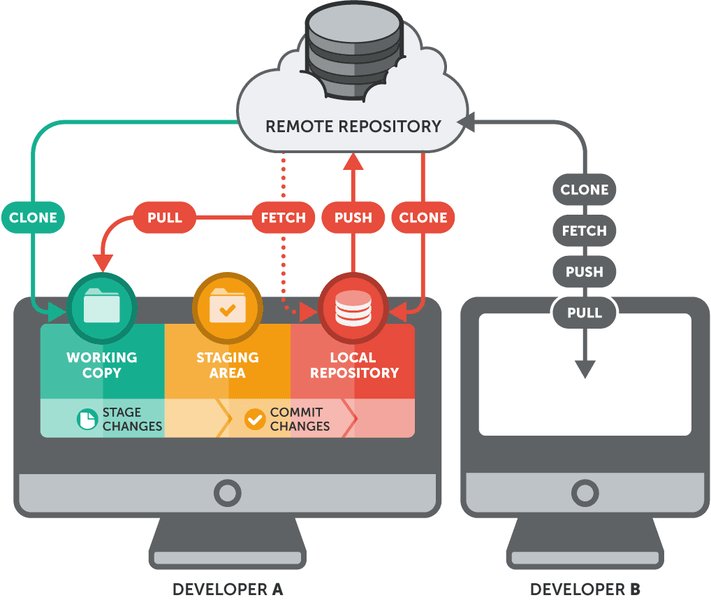
A visual representation of how Git enables parallel development through branching.
Why Embrace Git? The Compelling Advantages
The widespread adoption of Git isn't accidental. It offers a suite of benefits that streamline development workflows and enhance productivity:
- Track Changes Meticulously: Git records every modification, often down to the line level, making it easy to see precisely what changed, who made the change, and when. This detailed history is invaluable for debugging and auditing.
- Efficient Collaboration: Git's branching model allows multiple developers to work on different features or bug fixes simultaneously and in isolation. These independent lines of development can then be merged back into the main project.
- Maintain Comprehensive Project History: Every commit acts as a snapshot of the project at a specific point in time. This historical record is crucial for understanding code evolution and for reverting to previous stable states if necessary.
- Facilitate Open Source and Teamwork: Platforms built around Git, such as GitHub, GitLab, and Bitbucket, have revolutionized collaborative development, enabling teams worldwide to contribute to projects seamlessly.
- Recover from Mistakes with Ease: If errors are introduced or a feature doesn't work out as planned, Git makes it straightforward to roll back changes to a previously known good state, minimizing disruption.
- Speed and Performance: Most Git operations are performed locally, resulting in significantly faster actions compared to CVCSs that require network communication for nearly every command.
- Data Integrity: Git uses cryptographic hashing (SHA-1) to ensure the integrity of all data. Every file and commit is checksummed and retrieved by its checksum, making it impossible to change file contents or commit history without Git detecting it.
Core Concepts in the Git Universe
To effectively use Git, understanding its fundamental concepts is essential. These building blocks form the basis of all Git workflows.
- Repository (Repo): A directory that contains all your project files and the complete history of their changes. This history is stored in a special subdirectory named
.git. Repositories can be local (on your computer) or remote (hosted on a server like GitHub). - Commit: A snapshot of your project's files at a specific point in time. When you commit, you save the current state of your staged changes to the repository's history. Each commit has a unique ID and is accompanied by a descriptive message explaining the changes.
- Branch: A separate line of development within a repository. The main branch (often named
mainormaster) typically holds the stable version of the project. Developers create other branches (feature branches, bugfix branches) to work on new features or fixes in isolation without affecting the main codebase. - Merge: The process of combining changes from different branches. For example, after completing work on a feature branch, you would merge it into the
mainbranch to integrate the new feature. - Clone: The act of creating a local copy of a remote repository. This command downloads the entire repository, including all its files, branches, and history, to your machine.
- Push: Sending your committed changes from your local repository to a remote repository. This updates the remote repository with your latest work, making it accessible to other collaborators.
- Pull: Fetching changes from a remote repository and integrating them into your current local branch. This is how you update your local copy with changes made by others. It's essentially a
git fetchfollowed by agit merge. - Staging Area (Index): A preparatory area where you list changes you want to include in your next commit. Files must be "added" to the staging area before they can be committed. This allows you to craft commits precisely, including only relevant changes.
- HEAD: A special pointer that usually refers to the currently checked-out commit, typically the tip of the current branch.
Project container with history (.git)"] Local["Local Repo
On your machine"] Remote["Remote Repo
Hosted (e.g., GitHub)"] Commit["Commit
Snapshot of changes with a message"] Branch["Branch
Independent line of development"] main["main/master
Stable version"] feature["Feature Branch
New development"] Merge["Merge
Combine branch changes"] StagingArea["Staging Area (Index)
Prepare changes for commit"] WorkingDir["Working Directory
Your current project files"] Operations["Key Operations"] Clone["Clone
Copy remote to local"] Add["Add
Stage changes"] Push["Push
Local to remote"] Pull["Pull
Remote to local"] Fetch["Fetch
Get remote changes (don't merge)"] Checkout["Checkout
Switch branches/restore files"]
The mindmap above illustrates the interconnectedness of Git's core concepts, providing a visual overview of how they relate to each other within a typical version control workflow.
Getting Started: Your First Steps with Git
Embarking on your Git journey involves a few initial setup steps and learning basic commands to manage your projects.
Installation and Initial Configuration
Step 1: Install Git
First, download and install Git from the official Git website or use your operating system's package manager. Once installed, you can verify the installation by opening a terminal or command prompt and typing:
git --versionThis command should display the installed Git version, confirming it's ready for use.
Step 2: Configure Your Identity
Before you start making commits, it's crucial to tell Git who you are. This information will be associated with your commits. Use the following commands, replacing the placeholder text with your actual name and email address:
git config --global user.name "Your Name"
git config --global user.email "youremail@example.com"
The --global flag ensures these settings apply to all Git repositories on your system.
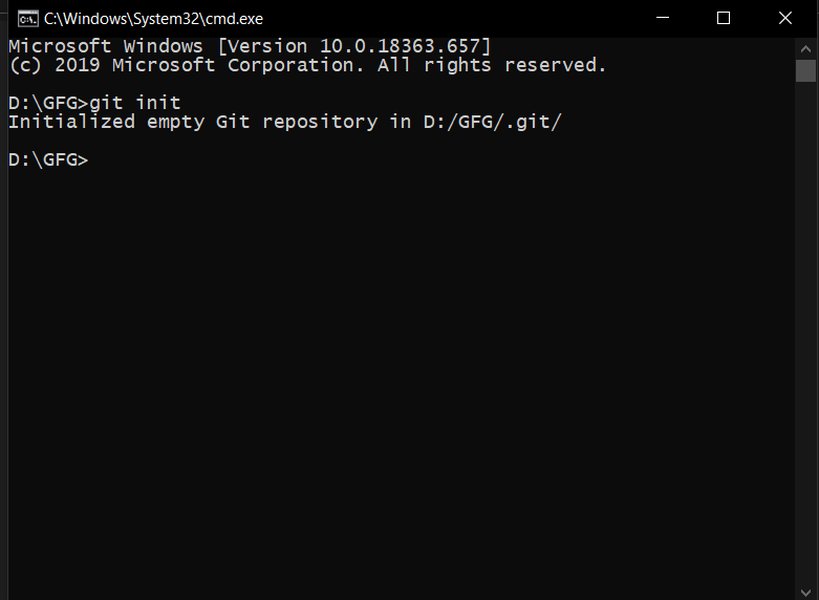
Example of the git init command being run in a project directory.
Initializing a Repository and Making Your First Commit
Step 1: Initialize a New Repository
To start tracking a project with Git, navigate to your project's root directory in the terminal and run:
git initThis command creates a new .git subdirectory in your project folder. This hidden directory contains all the necessary files and metadata for Git to track changes. Your project is now a Git repository.
Step 2: Adding Files to the Staging Area
Once your repository is initialized, you need to tell Git which files you want to track. This is done using the git add command, which moves changes from your working directory to the staging area.
To add a specific file:
git add <filename>To add all new or modified files in the current directory and its subdirectories:
git add .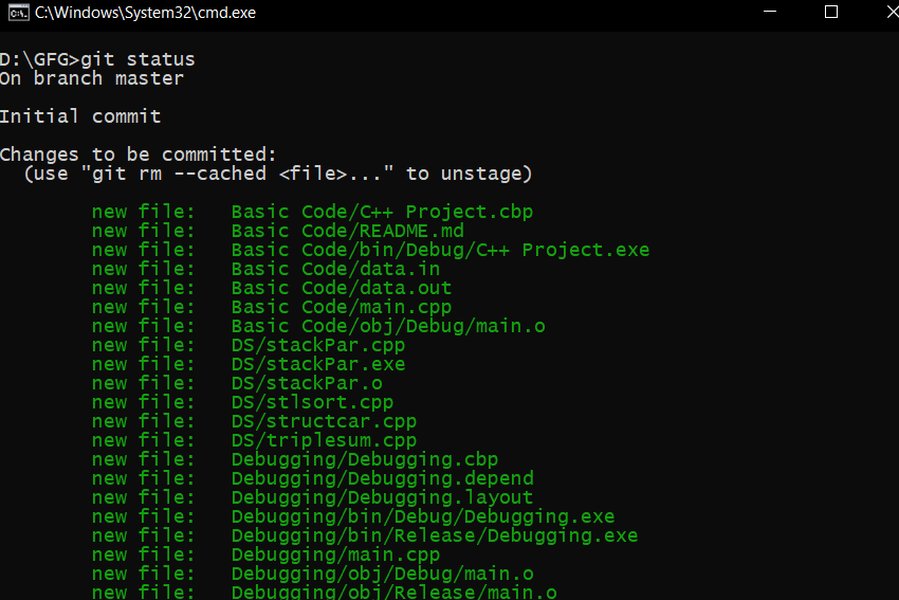
An example showing files being added to the staging area and checking the status with git status.
Step 3: Committing Your Changes
After staging the desired changes, you save them to the repository's history with a commit. Each commit should have a descriptive message explaining what changes were made.
git commit -m "Your descriptive commit message here"For example: git commit -m "Initial commit: Add project structure and README". Writing clear, concise commit messages is a crucial best practice.
Essential Git Commands and Workflows
Mastering a set of fundamental Git commands is key to efficiently managing your projects and collaborating with others.
Tracking Changes and History
git status: Shows the current state of your working directory and staging area. It lists which files are modified, staged for commit, or untracked. This is one of the most frequently used commands.git log: Displays the commit history for the current branch. It shows commit IDs, authors, dates, and commit messages. Various options can customize its output (e.g.,git log --oneline --graph).git diff: Shows the differences between various states. For example,git diffshows unstaged changes, whilegit diff --stagedshows changes in the staging area.
Branching and Merging: The Core of Collaboration
Branching is a cornerstone of Git, allowing developers to work on features, bug fixes, or experiments in isolated environments without affecting the main codebase until ready.
Creating and Switching Branches
- To create a new branch:
git branch <branch-name>(e.g.,git branch new-feature) - To switch to an existing branch:
git checkout <branch-name>(e.g.,git checkout new-feature) - A shorthand to create and switch to a new branch in one command:
git checkout -b <branch-name>(e.g.,git checkout -b new-feature) - To list all local branches (the current branch is marked with an asterisk):
git branch
Merging Branches
Once work on a branch is complete and tested, you can merge its changes into another branch (typically the main branch).
- Switch to the receiving branch:
git checkout main - Merge the feature branch into it:
git merge <branch-name>(e.g.,git merge new-feature)
Sometimes, Git cannot automatically merge changes if there are conflicting modifications in the same part of a file on both branches. This is known as a merge conflict. Git will mark the conflicting files, and you'll need to manually resolve the conflicts before completing the merge.
The radar chart above provides an opinionated visualization of Git's strengths across various attributes critical for version control. Attributes like "Collaboration Power," "Branching Capabilities," and "Data Integrity" score highly, reflecting Git's core design principles. "Ease of Learning" is rated moderately, acknowledging that while powerful, Git has a learning curve for beginners.
Working with Remote Repositories
Remote repositories, often hosted on platforms like GitHub, GitLab, or Bitbucket, are essential for collaboration and backing up your work.
Connecting to a Remote Repository
If you've initialized a local repository and want to connect it to a new remote repository (e.g., one you've created on GitHub):
git remote add origin <remote-repository-URL>origin is the conventional default name for the primary remote repository.
Pushing Changes to a Remote
To upload your local commits to the remote repository:
git push -u origin <branch-name>Example: git push -u origin main. The -u flag (short for --set-upstream) links your local branch with the remote branch, so in the future, you can simply use git push.
Pulling Changes from a Remote
To download changes from the remote repository and merge them into your current local branch:
git pull origin <branch-name>Example: git pull origin main. If you've set an upstream branch, git pull is often sufficient.
Cloning an Existing Remote Repository
If a remote repository already exists and you want to get a local copy:
git clone <remote-repository-URL>This command creates a new directory with the repository's name, copies all files and history, and automatically sets up the remote connection to origin.
A Glimpse into Advanced Workflows
git rebase: Used to reapply commits from one branch onto the tip of another branch. This can create a cleaner, linear project history compared to merging. It's powerful but should be used with caution on shared branches.git cherry-pick <commit-hash>: Applies a specific commit from one branch to another. Useful for bringing in individual bug fixes without merging an entire branch.git stash: Temporarily shelves (or stashes) changes you've made to your working copy so you can work on something else, and then come back and re-apply them later.
The embedded video, "Learn Git – Full Course for Beginners," offers a comprehensive introduction to Git, covering essential concepts and commands that are fundamental for anyone starting with version control. It's a valuable resource for visual learners looking to grasp Git's basics efficiently.
Key Git Commands at a Glance
The following table summarizes some of the most commonly used Git commands and their primary functions, serving as a quick reference:
| Command | Description |
|---|---|
git init |
Initializes a new, local Git repository in the current directory. |
git clone <url> |
Creates a local copy of a remote repository. |
git config --global user.name "[name]" |
Sets the name you want attached to your commit transactions. |
git config --global user.email "[email]" |
Sets the email you want attached to your commit transactions. |
git add <file> |
Adds a file to the staging area, preparing it for a commit. Use git add . to add all modified/new files. |
git commit -m "[message]" |
Records the staged changes to the local repository with a descriptive message. |
git status |
Shows the status of changes as untracked, modified, or staged. |
git log |
Displays the commit history for the current branch. |
git branch |
Lists all local branches. With <branch-name>, creates a new branch. |
git checkout <branch-name> |
Switches to the specified branch. Use -b <branch-name> to create and switch. |
git merge <branch-name> |
Merges the specified branch's history into the current branch. |
git pull |
Fetches changes from the remote repository and merges them into the current local branch. |
git push |
Uploads local commits from the current branch to the corresponding remote branch. |
git remote add origin <url> |
Connects a local repository to a remote server (often named 'origin'). |
Best Practices for Effective Git Usage
To make the most of Git and maintain a healthy, manageable project history, adhere to these best practices:
- Commit Frequently and Atomically: Make small, logical commits that represent a single unit of work. This makes it easier to understand changes and revert them if necessary.
- Write Meaningful Commit Messages: A well-crafted commit message explains the "what" and "why" of a change, not just the "how." Follow conventions like starting with a concise summary line.
- Use Branches for Everything New: Always create a new branch for new features, bug fixes, or experiments. This keeps the
mainbranch stable and allows for isolated development and testing. - Pull Before You Push: Before pushing your changes to a remote repository, always pull the latest changes from the remote to integrate any updates from collaborators and minimize merge conflicts.
- Review Merges Carefully: When merging branches, especially in a team environment, use pull requests (or merge requests on platforms like GitLab) for code review before integration.
- Keep Your
mainBranch Clean: Themain(ormaster) branch should always represent a stable, deployable version of your project. Avoid committing directly tomain. - Regularly Sync with Remote: Keep your local repository and branches up-to-date with the remote repository by fetching and pulling regularly.
Git Beyond Code: Versatility in Other Fields
While Git was born from the needs of software development, its powerful versioning capabilities are increasingly being recognized and utilized in other domains. For instance, writers can leverage Git for managing manuscripts, tracking revisions, and collaborating on documents.
Git for Writers
Writers can benefit from Git in several ways:
- Version Control for Drafts: Track every version of a chapter or article, making it easy to revert to earlier ideas or compare changes over time.
- Collaborative Editing: Multiple authors or editors can work on different sections (branches) of a document simultaneously. Pull requests can be used for reviewing and merging contributions.
- Organizing Content: Tools built around Git, or even Git itself, can help in structuring large writing projects, with branches representing chapters or sections.
- Change Tracking: Clearly see what changes were made, by whom, and when, which is invaluable for editorial workflows.
This highlights Git's flexibility as a general-purpose version control tool, applicable to any project where tracking changes and collaboration are important.
Frequently Asked Questions (FAQ)
What is the difference between Git and GitHub?
Git is the version control system itself – a command-line tool that tracks changes to files and manages project history locally on your computer. GitHub (and similar platforms like GitLab or Bitbucket) is a web-based hosting service for Git repositories. GitHub provides a remote place to store your Git repositories, along with collaboration features like pull requests, issue tracking, and project management tools. In essence, Git is the tool, and GitHub is a platform that uses Git.
Can I use Git offline?
Yes, absolutely. Because Git is a distributed version control system, you have a full copy of the repository's history on your local machine. This means you can commit changes, create branches, merge branches, view history, and perform most other Git operations entirely offline. You only need an internet connection when you want to synchronize your local repository with a remote repository (e.g., to `push` your changes or `pull` updates from others).
What is a "commit message" and why is it important?
A commit message is a brief description you provide when you save changes (commit) to the repository. It explains what changes were made in that particular commit. Good commit messages are crucial for several reasons: they help you and your collaborators understand the project's history, make it easier to find specific changes later, assist in debugging, and facilitate code reviews. A common convention is to write a short summary line (around 50 characters) followed by a more detailed explanation if needed.
What is a "merge conflict" and how do I resolve it?
A merge conflict occurs when Git is unable to automatically combine changes from different branches because there are conflicting modifications in the same part of the same file(s). For example, if you and another developer both changed the same line of code in different ways on separate branches. When a conflict happens during a `git merge` or `git pull`, Git will pause the process and mark the conflicting areas in the affected files. You need to manually open these files, inspect the conflicting sections (Git shows both versions), decide how to integrate the changes (e.g., keep one version, keep the other, or combine them), save the file, `git add` the resolved file to mark it as resolved, and then `git commit` to complete the merge.
Recommended Further Exploration
Continue your Git journey by exploring these related topics:
- What are some advanced Git techniques for managing complex project histories and workflows?
- How can I effectively use Git branching strategies like GitFlow for better team collaboration?
- Where can I find a detailed tutorial on resolving Git merge conflicts in different scenarios?
- What are the established best practices for writing clear and effective Git commit messages?
References
 javarevisited.blogspot.com
javarevisited.blogspot.com
javarevisited.blogspot.com
Last updated May 6, 2025