
Unlock Collaborative Coding: Your Comprehensive GitHub Guide
Master version control, teamwork, and project management with this step-by-step tutorial on GitHub's essential concepts and features.
Highlights
- Understand Core Concepts: Learn the difference between Git and GitHub, and grasp essential terms like repositories, branches, commits, and pull requests.
- Master Key Features: Explore GitHub's powerful features for version control, collaboration, issue tracking, project management, and automation (CI/CD).
- Get Hands-On: Follow step-by-step instructions for creating repositories, managing code changes, collaborating with others, and leveraging automation tools.
Decoding GitHub: Essential Concepts
Building a Foundation: Git vs. GitHub
Before diving into GitHub, it's crucial to understand its relationship with Git. Think of it this way:
- Git: This is the engine. Git is an open-source, distributed version control system (DVCS) installed locally on your computer. It's responsible for tracking changes to files within a project over time, allowing you to revert to previous states, see who changed what, and manage different versions simultaneously without interference.
- GitHub: This is the hub and interface. GitHub is a web-based platform that hosts Git repositories. It provides a user-friendly interface for Git, alongside powerful features for collaboration, project management, code review, automation, and hosting. While Git handles the version tracking locally, GitHub brings that power online, making it accessible and collaborative for teams anywhere.
Core Terminology Explained
Navigating GitHub requires familiarity with its key terms:
- Repository (Repo): Essentially a project's folder. It contains all your project files (code, documentation, images, etc.) and the entire history of revisions tracked by Git. Repositories live on GitHub (remote) and can be copied to your computer (local).
- Branch: A parallel version of your repository. Developers use branches to work on new features, bug fixes, or experiments in isolation without affecting the main, stable codebase (often called the
mainormasterbranch). Changes made on a branch can later be merged back into the main branch. - Commit: A snapshot of your repository at a specific point in time. When you make changes (add, modify, or delete files) and are ready to save them, you "commit" them. Each commit has a unique ID and requires a descriptive message explaining the changes made. Commits form the historical timeline of your project.
- Pull Request (PR): A fundamental collaboration feature. When you want to merge changes from one branch (e.g., your feature branch) into another (e.g., the
mainbranch), you open a Pull Request. This initiates a discussion where collaborators can review the code, suggest modifications, and approve the changes before they are officially merged. - Fork: Creating a personal copy of someone else's repository under your own GitHub account. This allows you to freely experiment with changes or prepare contributions to the original project without needing direct access. Changes from a fork can be proposed back to the original repository via a Pull Request.
- Clone: Downloading a copy of a remote repository from GitHub to your local machine. This allows you to work on the project files offline using Git commands.
Visualizing GitHub Concepts
This mindmap illustrates the relationship between key GitHub concepts, showing how Git forms the foundation and how repositories branch out into collaborative workflows using commits and pull requests.
(Parallel Development)"] id2b1a["Main / Master Branch"] id2b1b["Feature Branches"] id2b1c["Merging"] id2b2["Commits
(Snapshots of Changes)"] id2b2a["Commit Messages"] id2b2b["Change History"] id2b3["Pull Requests (PRs)
(Proposing Changes)"] id2b3a["Code Review"] id2b3b["Discussion"] id2b3c["Merging Approval"] id2b4["Forks
(Personal Copies)"] id2b4a["Contributing to
Open Source"] id2c["Project Management"] id2c1["Issues (Tracking Tasks/Bugs)"] id2c2["Project Boards"] id2c3["Milestones"] id2d["Automation & Hosting"] id2d1["GitHub Actions (CI/CD)"] id2d2["GitHub Pages (Static Sites)"] id2d3["Codespaces (Cloud IDE)"]
Exploring GitHub's Feature Set
GitHub extends beyond basic Git hosting, offering a rich suite of features to enhance development workflows:
- Version Control and Repositories: Securely host public or private code repositories with complete Git version history.
- Collaboration Tools: Facilitate teamwork through Pull Requests, code reviews, inline commenting, team mentions, and branch protection rules.
- Issue Tracking: Manage bugs, feature requests, and tasks using GitHub Issues. Organize work with labels, milestones, assignees, and project boards (Kanban-style).
- GitHub Actions: Automate software development workflows directly within your repository. Build, test, and deploy code (CI/CD), manage releases, automate issue labeling, and more, triggered by events like pushes or pull requests.
- GitHub Pages: Host static websites (like blogs, documentation, or portfolio sites) directly from a GitHub repository.
- GitHub Codespaces: Access a complete, configurable development environment hosted in the cloud, accessible directly from your browser or VS Code, eliminating local setup complexities.
- Security Features: Protect your code with features like dependency graph analysis, Dependabot alerts for outdated dependencies, secret scanning, and code scanning for potential vulnerabilities.
- GitHub Packages & Container Registry: Host and manage software packages and Docker container images privately or publicly alongside your source code.
- Wikis: Create and maintain documentation for your project directly within the repository using a simple wiki format.
- Gists: Share small code snippets, notes, or files quickly and easily, either publicly or privately.
Feature Relevance: Beginner vs. Advanced Users
While all GitHub features are valuable, their importance can vary based on user experience. This radar chart visualizes the typical focus areas for beginners compared to more advanced users. Beginners often concentrate on core version control and basic collaboration, while advanced users leverage automation, deeper security features, and integrated environments more heavily.
Getting Started: Common Tasks on GitHub
Here’s how to perform essential tasks on GitHub, combining web interface actions and basic Git commands.
Step 1: Setting Up Your Environment
Create a GitHub Account
- Go to github.com.
- Click "Sign up" and follow the instructions to create your free account using your email address.
- Configure your profile (add a picture, bio, etc.) to personalize your presence.
Install and Configure Git
- Download Git for your operating system from git-scm.com/downloads and install it.
- Open your terminal or command prompt.
- Configure Git with your name and email (use the same email as your GitHub account):
git config --global user.name "Your Name"
git config --global user.email "your_email@example.com"
Step 2: Creating and Managing Repositories
Create a New Repository on GitHub
- Log in to GitHub.
- Click the "+" icon in the top-right corner and select "New repository".
- Give your repository a short, memorable name (e.g.,
my-learning-project). - Add an optional description.
- Choose between "Public" (visible to anyone) or "Private" (you control access).
- Recommended: Initialize the repository with a README file. A README explains your project. You can also add a
.gitignorefile (to exclude certain files like temporary logs or dependencies) and choose a license. - Click "Create repository".
Clone the Repository to Your Local Machine
- On your repository page on GitHub, click the green "Code" button.
- Copy the HTTPS URL provided.
- Open your terminal, navigate to the directory where you want to store the project (
cd path/to/your/projects). - Run the clone command:
git clone COPIED_HTTPS_URL - Navigate into your newly cloned repository directory:
cd repository-name
Step 3: Making and Tracking Changes (The Basic Workflow)
This is the core cycle of working with Git and GitHub:
- Modify Files: Create new files or edit existing ones in your local repository using your code editor.
- Check Status: See which files have been changed:
git status - Stage Changes: Add the modified files to the staging area (preparing them for a commit). Stage specific files (
git add filename.txt) or all changes (git add .):git add . - Commit Changes: Save a snapshot of the staged changes to your local repository's history with a descriptive message:
git commit -m "Your descriptive commit message (e.g., Add initial project structure)" - Push Changes: Upload your local commits to the remote repository on GitHub.
originrefers to the remote repository, andmainis typically the default branch name:
(You might need to authenticate with GitHub the first time.)git push origin main - Pull Changes: If others are collaborating or you made changes elsewhere, update your local repository with changes from the remote repository:
git pull origin main
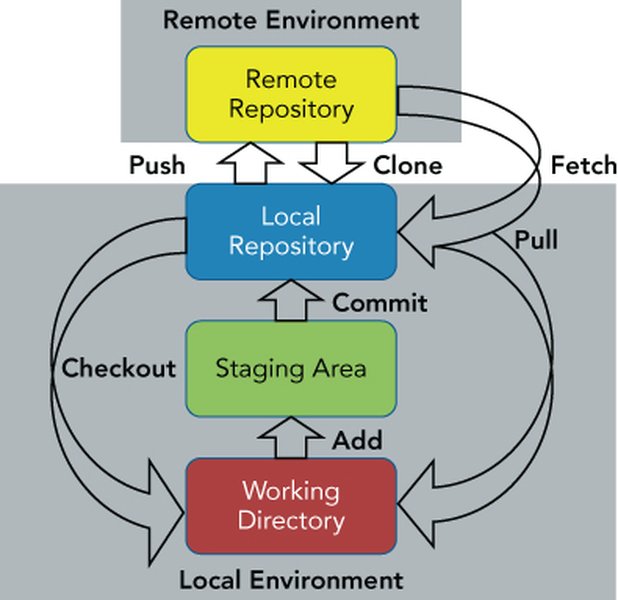
Basic Git Workflow Diagram
Step 4: Collaborating with Branches and Pull Requests
Create a New Branch
- Create a new branch and switch to it locally:
(Replacegit checkout -b new-feature-branchnew-feature-branchwith a descriptive name likeadd-user-loginorfix-navbar-bug)
Work on the Branch
- Make your changes (edit/add files) on this new branch.
- Stage and commit your changes as usual:
git add . git commit -m "Implement user login feature" - Push the new branch to GitHub:
git push origin new-feature-branch
Create a Pull Request (PR)
- Go to your repository on GitHub. You'll often see a prompt to create a PR for the recently pushed branch. Click "Compare & pull request".
- Alternatively, go to the "Pull requests" tab and click "New pull request".
- Select the
basebranch you want to merge into (e.g.,main) and thecomparebranch with your changes (e.g.,new-feature-branch). - Review the changes displayed.
- Add a clear title and description for your PR, explaining the purpose of the changes. You can @mention collaborators for review.
- Click "Create pull request".
Review and Merge a Pull Request
- Collaborators can review the PR, view file changes, leave comments, and suggest modifications.
- If changes are requested, make them on your local branch, commit, and push again to the same branch (
git push origin new-feature-branch). The PR will update automatically. - Once approved, the repository maintainer (or you, if it's your repo) can click "Merge pull request" and then "Confirm merge".
- Optionally, delete the branch after merging.
Step 5: Managing Issues and Projects
- Navigate to the "Issues" tab in your repository on GitHub.
- Click "New issue".
- Provide a title and detailed description for the bug report, feature request, or task.
- Use labels (e.g.,
bug,enhancement,documentation), assignees, and projects/milestones to organize and track progress. - Collaborators can comment and discuss the issue.
Git Commands vs. GitHub Features
This table summarizes common Git command-line actions and their corresponding functionalities within the GitHub web interface or related tools.
| Git Command | Description | GitHub Interface / Feature Equivalent |
|---|---|---|
git clone [url] |
Copy a remote repository locally | "Code" button -> Copy URL -> Run command locally OR Use GitHub Desktop "Clone repository" |
git add [file] or git add . |
Stage changes for commit | Checkboxes next to changed files in GitHub Desktop commit interface |
git commit -m "[message]" |
Save staged changes locally with a message | Commit message input field and "Commit" button in GitHub Desktop or web editor |
git push origin [branch] |
Upload local commits to remote repository | "Push origin" button in GitHub Desktop |
git pull origin [branch] |
Fetch and merge changes from remote | "Pull origin" button in GitHub Desktop |
git branch [name] |
Create a new branch | Branch dropdown -> Type new name -> "Create branch" option |
git checkout [branch] |
Switch to a different branch | Branch dropdown -> Select existing branch OR Use GitHub Desktop branch selector |
git merge [branch] |
Combine history from another branch into current branch | "Merge pull request" button within a Pull Request page |
| N/A (GitHub Concept) | Propose changes for review and merging | "Pull requests" tab -> "New pull request" button |
| N/A (GitHub Concept) | Track tasks, bugs, feature requests | "Issues" tab -> "New issue" button |
Video Tutorial: Getting Started
For a visual walkthrough of many fundamental Git and GitHub concepts and actions, check out this crash course:
Maximizing Your GitHub Experience: Useful Tips
- Write Clear, Concise Commit Messages: Follow conventions (e.g., start with a verb in imperative mood like "Fix login bug" not "Fixed login bug"). Good messages help understand project history.
- Commit Frequently, Push Often: Make small, logical commits. This makes it easier to track changes and revert if necessary. Push regularly to back up your work on GitHub.
- Use Branches Effectively: Always create a new branch for features or fixes. Keep your
mainbranch clean and deployable. Avoid committing directly tomain. - Leverage Pull Requests for Review: Even on solo projects, PRs offer a chance to review your own changes before merging. For teams, they are essential for quality control and knowledge sharing.
- Utilize
.gitignore: Create a.gitignorefile at the root of your repository to tell Git which files or directories (like dependency folders, build outputs, secrets, OS files) to ignore. GitHub provides templates for common languages/frameworks. - Master Markdown: Write informative README files, detailed issue descriptions, and clear PR summaries using Markdown syntax for formatting.
- Explore GitHub Desktop: If you prefer a graphical interface over the command line, GitHub Desktop offers a user-friendly way to manage repositories, commits, branches, and PRs.
- Protect Important Branches: In repository settings, configure branch protection rules for
main(or other key branches) to require PR reviews, status checks (like automated tests passing) before merging. - Embrace GitHub Actions: Automate repetitive tasks like testing, building, and deploying your code. Start with simple workflows and build up.
- Contribute to Open Source: Find projects you're interested in, fork their repositories, make improvements (fix bugs, add features, improve documentation), and submit Pull Requests. It's a great way to learn and build your profile.
- Learn Basic Git Commands: While GUIs like GitHub Desktop are helpful, understanding core Git commands (
status,log,diff,reset) provides deeper control and troubleshooting capabilities.
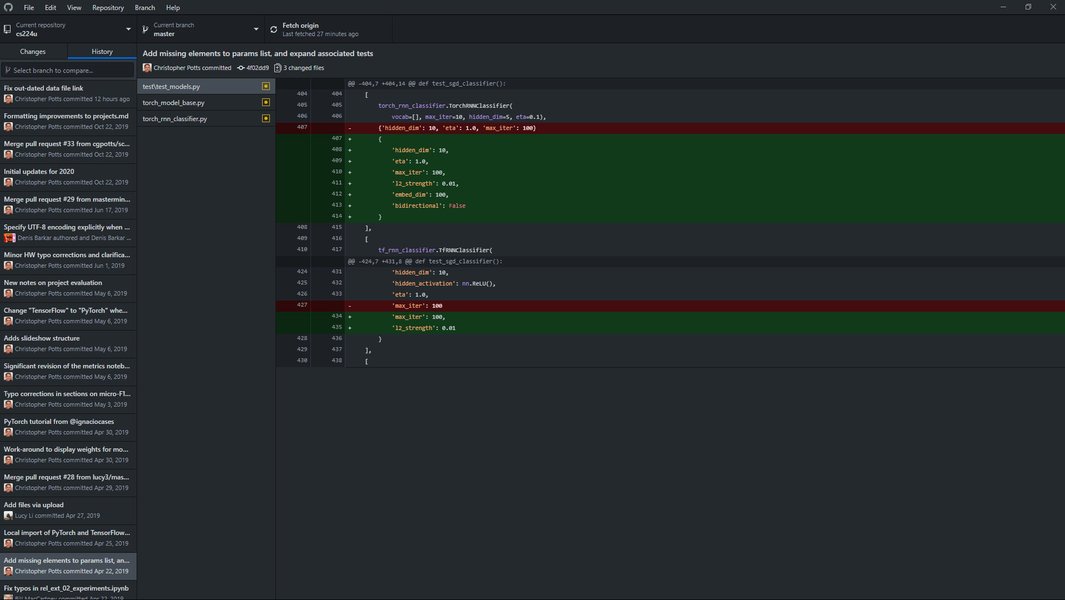
GitHub Desktop provides a graphical interface for Git operations.
Frequently Asked Questions (FAQ)
What's the main difference between Git and GitHub again?
Do I need to know command line Git to use GitHub?
What is a Fork used for?
Can I use GitHub for projects other than coding?
Recommended
- How can I resolve merge conflicts when working with branches in Git and GitHub?
- What are the best practices for writing effective Git commit messages?
- How do I get started with GitHub Actions for automating my build and test processes (CI/CD)?
- What is the standard workflow for contributing to open-source projects on GitHub using forks and pull requests?
References
Last updated April 29, 2025