
Navigating the Shift: Converting Legacy Boot to UEFI with Split System & Boot Disks
A detailed guide to successfully transition your multi-disk setup from traditional BIOS to modern UEFI firmware.
Key Highlights
- Data Backup is Non-Negotiable: Before initiating any conversion steps, create a comprehensive backup of all your data and system partitions. This is the most critical step to prevent potential data loss if unforeseen issues arise.
- Consolidation Simplifies the Process: While technically possible to convert with system and boot components on separate disks, moving the boot-related files (specifically, creating the EFI System Partition) onto the same disk as your Windows operating system is highly recommended for a smoother, more reliable UEFI transition.
- MBR2GPT is Your Primary Tool: Microsoft's
MBR2GPT.exeutility is the standard command-line tool for converting a disk from the Master Boot Record (MBR) partition style to the GUID Partition Table (GPT) style without data loss, a fundamental requirement for UEFI booting.
Transitioning your computer from a legacy BIOS boot system to the more modern UEFI (Unified Extensible Firmware Interface) offers numerous advantages, including faster boot times, enhanced security features like Secure Boot, and support for larger hard drives. However, this conversion can become particularly complex when your system partition (containing the Windows operating system) and your boot partition (containing the boot loader files) are located on different physical disks. This guide will walk you through the process, addressing the specific challenges of a multi-disk configuration.
Understanding the Core Concepts & Challenges
Before diving into the conversion, it's crucial to understand the terminology and why separate system and boot disks add complexity:
- Legacy BIOS (Basic Input/Output System): Older firmware that initializes hardware and loads the operating system. It typically uses the Master Boot Record (MBR) partitioning scheme, which has limitations on disk size (around 2TB) and the number of primary partitions (typically 4).
- UEFI (Unified Extensible Firmware Interface): Modern firmware that replaces BIOS. It supports the GUID Partition Table (GPT) scheme, allowing for much larger disks and more partitions (Windows supports up to 128). UEFI offers faster boot times and security features like Secure Boot.
- MBR (Master Boot Record): The partitioning style used by Legacy BIOS.
- GPT (GUID Partition Table): The partitioning style required by UEFI.
- System Partition (Windows OS Partition): The partition where the Windows operating system files (e.g., the
C:\Windowsfolder) are stored. - Boot Partition (Legacy Context) / EFI System Partition (ESP) (UEFI Context):
- In a Legacy BIOS setup, the "boot partition" (often called "System Reserved" or marked "Active") contains the boot loader files (like
BOOTMGR). - In a UEFI setup, the boot loaders, device drivers, and other pre-OS tools are stored on a dedicated partition called the EFI System Partition (ESP). This partition is typically formatted as FAT32 and is around 100-500MB.
- In a Legacy BIOS setup, the "boot partition" (often called "System Reserved" or marked "Active") contains the boot loader files (like
The Challenge with Separate Disks
UEFI firmware expects to find an ESP on the disk designated as the boot device in the firmware settings. When your legacy boot files and OS files are on separate disks, the MBR2GPT tool (designed primarily for single-disk OS installations) might not automatically create or configure the ESP correctly across multiple drives. You'll need to ensure that an ESP is present on the disk you intend to boot from in UEFI mode and that it contains the necessary Windows boot files pointing to your OS installation.
Pre-Conversion Essentials: Preparing Your System
Thorough preparation is key to a successful conversion. Do not skip these steps:
1. Comprehensive Data Backup
This is the most critical step. Create a full backup of all partitions on both disks involved. Use Windows Backup and Restore, or reliable third-party imaging software. If anything goes wrong, a backup will be your only way to recover your data and system state.
2. Verify Hardware UEFI Compatibility
Ensure your computer's motherboard firmware supports UEFI mode. Most modern computers do, but it's essential to confirm this. You can usually check this by entering your system's BIOS/firmware setup utility during startup (common keys are F2, F10, F12, Del, Esc). Look for options related to "Boot Mode," "UEFI," "Legacy," or "CSM (Compatibility Support Module)."
3. Check Current BIOS Mode and Partition Style
Verify your current setup:
- Press
Win + R, typemsinfo32, and press Enter. In the System Information window, check the "BIOS Mode." It should read "Legacy." - Open Disk Management (
diskmgmt.msc). Right-click on each disk (e.g., "Disk 0", "Disk 1") and select "Properties." Go to the "Volumes" tab and check the "Partition style." It should be "Master Boot Record (MBR)." Identify which disk holds your Windows OS (system partition, usually C:) and which holds the current boot files (often a small "System Reserved" partition).
4. Verify Windows Version
The MBR2GPT.exe tool is included in Windows 10 version 1703 (Creators Update) and later, including Windows 11. Ensure your OS meets this requirement.
5. Disable BitLocker (If Enabled)
If you use BitLocker drive encryption on your Windows partition, you must decrypt the drive and disable BitLocker before attempting the conversion. You can re-enable it after a successful conversion.
6. Ensure Sufficient Unallocated Space
The MBR2GPT tool typically requires some unallocated space on the OS disk to create the ESP if one doesn't exist or to accommodate GPT metadata. While it can often shrink partitions, having at least 100-500MB of unallocated space on the disk that will host the ESP is advisable. You can use Disk Management to shrink existing partitions if necessary.
The Conversion Roadmap: Step-by-Step
The recommended approach involves consolidating boot functions onto the OS disk. However, we'll cover the general steps applicable if you attempt to keep them separate, though this is more complex and prone to issues.
Strategy 1: Consolidate Boot and System Partitions (Highly Recommended)
This strategy involves ensuring the EFI System Partition (ESP) is created on the same disk as your Windows operating system. This is the most straightforward and reliable method.
- Identify Partitions: Clearly map out which disk contains your C: drive (Windows OS) and which currently holds the active boot partition (e.g., "System Reserved").
- Prepare the OS Disk:
- If your OS disk does not have a System Reserved partition (or equivalent active partition for boot files), you will need to create space for an ESP. Shrink your C: drive by about 300-500MB using Disk Management.
- The
MBR2GPT.exetool will attempt to create an ESP on the OS disk during conversion.
- Proceed to "Core Conversion Steps" below. The MBR2GPT tool, when run on the OS disk, should handle creating the ESP on that disk.
Strategy 2: Converting with Partitions on Separate Disks (Advanced & More Complex)
If you absolutely must keep the OS and the boot mechanism (ESP) on separate physical disks:
- Convert OS Disk to GPT: Use
MBR2GPT.exeto convert the disk containing your Windows installation (system partition) to GPT. This disk will *not* initially be bootable in UEFI mode if the ESP is intended for the other disk. - Prepare the Boot Disk: The disk that previously held your legacy boot partition and will now host the ESP must also be GPT. If it's MBR, you'll need to convert it (this may require backing up its data, cleaning it, and converting, or using MBR2GPT if it meets criteria and doesn't contain the OS).
- Create ESP on the Boot Disk:
- Use Disk Management or
diskpartto create a new partition (100-500MB) on this separate boot disk. - Format this partition as FAT32.
- Assign it a drive letter temporarily (e.g., S:).
- Using
diskpart, set the partition ID for ESP:select disk X (X is the number of your separate boot disk) select partition Y (Y is the number of the new FAT32 partition) set id="c12a7328-f81f-11d2-ba4b-00a0c93ec93b"
- Use Disk Management or
- Populate the ESP: Use the
bcdbootcommand to copy the UEFI boot files from your Windows installation (on the OS disk) to the newly created ESP on the separate boot disk. For example, if your Windows is on C: and your ESP is S::bcdboot C:\Windows /s S: /f UEFI - Proceed to "Changing Firmware Settings."
Core Conversion Steps (Using MBR2GPT.exe)
These steps primarily apply to converting the disk containing your Windows OS.
- Boot into Windows or Windows Recovery Environment (WinRE):
- You can run MBR2GPT from within a running Windows environment (if you have administrator privileges). This is done using the
/allowFullOSswitch. - However, it's often safer to run it from WinRE. To access WinRE, you can go to Settings > Update & Security > Recovery > Advanced startup > Restart now. Or, boot from a Windows installation USB/DVD and select "Repair your computer." Then navigate to Troubleshoot > Advanced options > Command Prompt.
- You can run MBR2GPT from within a running Windows environment (if you have administrator privileges). This is done using the
- Validate the Disk: Open Command Prompt as Administrator. Identify the disk number of your OS drive using
diskpartthenlist disk.
(Omitmbr2gpt /validate /disk:<disk_number> /allowFullOS/allowFullOSif running from WinRE). Replace<disk_number>with the actual number (e.g., 0 or 1). If validation fails, address the errors reported before proceeding. - Convert the Disk: If validation is successful:
(Again, omitmbr2gpt /convert /disk:<disk_number> /allowFullOS/allowFullOSif in WinRE). This process will convert the MBR disk to GPT and create an ESP if needed (typically by shrinking the OS partition and using that space).
Changing Firmware Settings (BIOS/UEFI)
- Restart your computer immediately after the MBR2GPT conversion completes successfully.
- Enter Firmware Setup: As the computer starts, press the appropriate key (e.g., F2, F12, Del, Esc – this varies by manufacturer) to enter the BIOS/UEFI firmware settings.
- Change Boot Mode:
- Locate the "Boot" or "Boot Order" settings.
- Change the "Boot Mode" from "Legacy" or "CSM" to "UEFI."
- Disable "CSM (Compatibility Support Module)" if it's a separate option, once UEFI mode is selected.
- Set Boot Order: Ensure that "Windows Boot Manager" (or the specific UEFI entry for your hard drive now configured with GPT and an ESP) is at the top of the boot priority list. If you used Strategy 2 with a separate boot disk, ensure that disk is prioritized.
- Enable Secure Boot (Optional but Recommended): If available and desired, you can now enable Secure Boot for enhanced security.
- Save Changes and Exit: Save your firmware settings and exit. The computer will restart.
Post-Conversion Verification and Troubleshooting
- Verify UEFI Mode: Once Windows boots, open System Information (
msinfo32). "BIOS Mode" should now report "UEFI." - Verify GPT Partition Style: Open Disk Management (
diskmgmt.msc). Right-click the converted disk(s), go to Properties > Volumes. "Partition style" should be "GUID Partition Table (GPT)." - Troubleshooting Boot Failures:
- If Windows fails to boot, access WinRE again (via installation media).
- Try "Startup Repair."
- If that fails, open Command Prompt in WinRE. You may need to re-run
bcdboot. First, identify your Windows partition letter (it might not be C: in WinRE) and your ESP letter (if it's not automatically mounted, usediskpartto assign one). Then:
(Replace X with your Windows drive letter and Y with your ESP drive letter).bcdboot X:\Windows /s Y: /f UEFI - Ensure the correct disk is set as the primary boot device in the UEFI firmware.
Visualizing Key Differences: Legacy BIOS vs. UEFI
The following chart highlights some core differences between Legacy BIOS and UEFI systems, illustrating why the transition is beneficial for modern computing.
This radar chart visually compares Legacy BIOS and UEFI across several key attributes. UEFI generally scores higher in areas like boot speed, security capabilities (e.g., Secure Boot), support for large storage drives, and the number of partitions it can handle. This modernization contributes to a more efficient and secure computing experience.
Legacy BIOS (MBR) vs. UEFI (GPT): A Detailed Comparison
Understanding the fundamental differences between these two firmware and partitioning technologies is key to appreciating the conversion process.
| Feature | Legacy BIOS (with MBR Partitioning) | UEFI (with GPT Partitioning) |
|---|---|---|
| Partitioning Scheme | MBR (Master Boot Record) | GPT (GUID Partition Table) |
| Maximum Disk Size | Approximately 2 TB for bootable drives | Effectively unlimited (zettabytes) |
| Maximum Partitions | 4 primary partitions (or 3 primary + 1 extended with logical drives) | 128 primary partitions (Windows default limit) |
| Boot Speed | Slower, sequential hardware initialization | Faster, parallel hardware initialization, direct OS loading |
| Security Features | Limited; vulnerable to bootkit malware | Enhanced; supports Secure Boot (prevents unauthorized bootloaders) |
| Firmware Interface | Typically text-based, keyboard-only | Can be graphical, mouse-driven, network-capable |
| OS Bootloader Location | Stored in the Master Boot Record and/or an active partition's boot sector | Stored in a dedicated EFI System Partition (ESP) |
| Hardware Compatibility | Older systems and peripherals | Modern systems; may offer legacy compatibility via CSM |
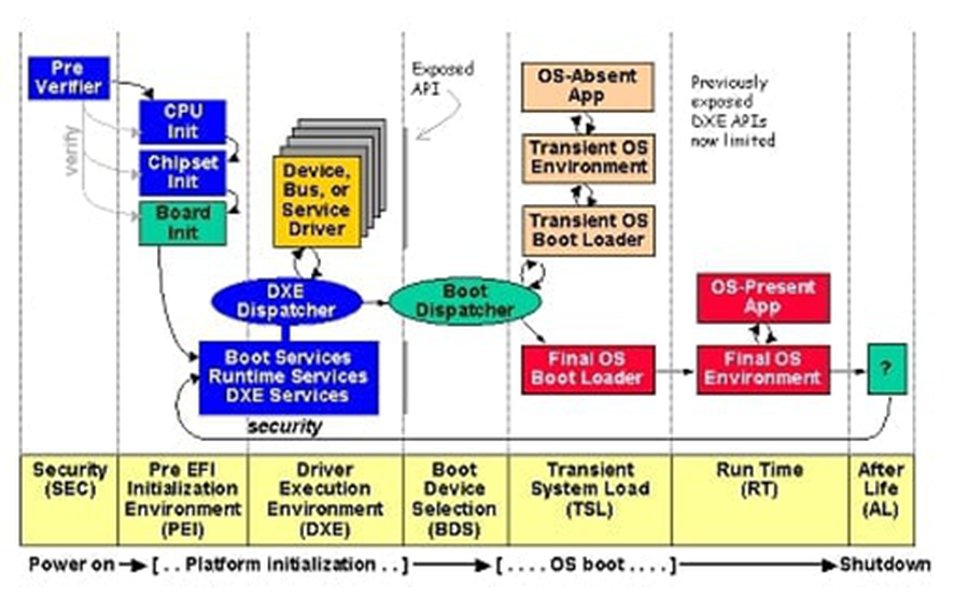
Diagram illustrating the phases of the UEFI boot process.
Visualizing the Conversion Path
This mindmap outlines the general flow of converting your system from Legacy BIOS to UEFI, particularly considering the complexities of separate system and boot disks.
(Split System/Boot Disks)"] id1["Preparation Phase"] id1a["Full Data & System Backup"] id1b["Verify Hardware UEFI Support"] id1c["Check Current BIOS Mode (Legacy)"] id1d["Identify System & Boot Partitions"] id1e["Disable BitLocker (if active)"] id2["Partition Strategy & ESP Setup"] id2a["Option 1: Consolidate (Recommended)"] id2a1["Ensure ESP will be on OS Disk"] id2a2["MBR2GPT handles ESP creation on OS Disk"] id2b["Option 2: Keep Separate (Complex)"] id2b1["Create ESP on separate Boot Disk (FAT32)"] id2b2["Set ESP Partition ID"] id2b3["Use `bcdboot` to populate ESP"] id3["Disk Conversion to GPT"] id3a["Validate OS Disk with `mbr2gpt /validate`"] id3b["Convert OS Disk with `mbr2gpt /convert`"] id3c["(If separate boot disk) Convert Boot Disk to GPT"] id4["Firmware Reconfiguration"] id4a["Reboot and Enter BIOS/UEFI Setup"] id4b["Change Boot Mode to 'UEFI'"] id4c["Disable CSM (Compatibility Support Module)"] id4d["Set 'Windows Boot Manager' as Primary Boot Device"] id4e["Enable Secure Boot (Optional)"] id5["Post-Conversion & Verification"] id5a["Verify 'BIOS Mode: UEFI' in System Info"] id5b["Verify 'Partition Style: GPT' in Disk Mgmt"] id5c["Troubleshoot (Startup Repair, `bcdboot`) if boot fails"]
This mindmap provides a high-level overview. Each step requires careful attention to detail, especially when dealing with the partition strategy for your specific multi-disk setup.
Video Walkthrough: General MBR to GPT Conversion
While this video provides a general overview of converting from Legacy BIOS to UEFI using the MBR2GPT tool, many of the core principles and commands apply to your situation. Remember that your multi-disk setup adds a layer of complexity regarding where the EFI System Partition (ESP) is created and configured.
The video demonstrates the use of `MBR2GPT.exe` which is crucial for converting your OS disk. Pay close attention to the validation and conversion commands. For your specific scenario, remember the extra steps needed to ensure the ESP is correctly located and populated, especially if you choose not to consolidate it onto the OS disk.
Frequently Asked Questions (FAQ)
What are the main risks of converting from Legacy BIOS to UEFI, especially with system and boot partitions on different disks?
Can I perform this conversion without reinstalling Windows?
What if MBR2GPT fails?
Do both disks (system partition disk and boot partition disk) need to be converted to GPT?
Conclusion
Converting from Legacy BIOS to UEFI when your system and boot partitions are on different disks is a more intricate procedure than a standard single-disk conversion. Success hinges on meticulous preparation, particularly comprehensive data backups, understanding your current disk layout, and carefully executing each step. While consolidating the EFI System Partition onto the OS disk is the recommended path for simplicity and reliability, it's technically feasible to manage it on a separate disk with careful use of tools like `MBR2GPT.exe` and `bcdboot.exe`. Always proceed with caution, and if unsure, consider seeking assistance from a knowledgeable technician.
Recommended Further Exploration
- What are common errors encountered during MBR2GPT conversion and how can I resolve them?
- Can you provide a detailed guide on manually creating and populating an EFI System Partition for a Windows installation?
- What are the specific security benefits and potential compatibility drawbacks of enabling Secure Boot after converting to UEFI?
- How does UEFI and GPT affect dual-booting or multi-booting scenarios with different operating systems?