
Navigating the Ubuntu 2024 Boot Process: Troubleshooting and Dual Boot Insights
Discover essential steps and strategies to effectively manage Ubuntu 2024 boot challenges
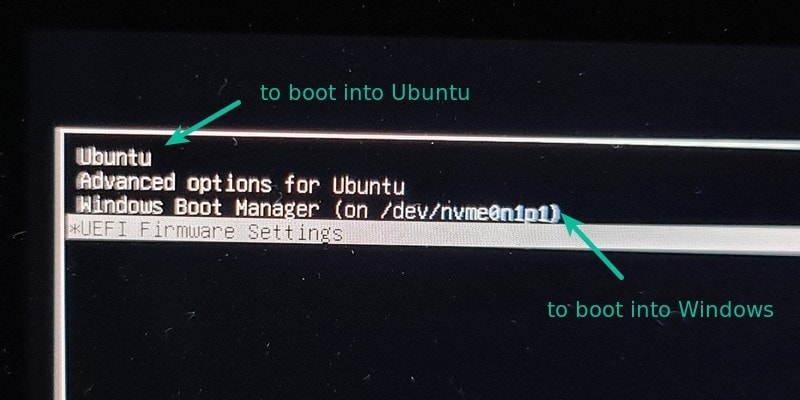
Key Highlights
- Boot Troubleshooting Tools: Learn how Boot Repair and recovery modes can resolve common boot issues.
- Dual Boot Considerations: Understand how to safely manage Ubuntu 2024 alongside Windows setups.
- Optimization and Configuration: Explore steps to configure GRUB, adjust BIOS/UEFI settings, and optimize boot times.
Understanding Ubuntu 2024 Boot Process
Ubuntu 2024, like its predecessors, follows a multi-stage boot process that involves initializing the system through BIOS or UEFI firmware, loading the bootloader (typically GRUB), and then eventually starting the operating system kernel and initial RAM disk (initrd). During this process, issues may arise from several sources such as hardware compatibility, bootloader configuration, and recent operating system updates. Users have reported various challenges ranging from dual boot configuration mishaps to kernel issues causing blank screens or slow boots.
Stages of the Boot Process
- BIOS/UEFI Initialization: The system first checks hardware components and firmware settings. In UEFI mode, secure boot settings may also affect loading Ubuntu properly.
- GRUB Bootloader: The bootloader takes over by presenting a menu for selecting which operating system or kernel version to boot. This is particularly critical in dual boot environments.
- Kernel and Initrd Loading: After selection, the Linux kernel along with the initial RAM disk is loaded, which includes necessary drivers and modules required to kickstart Ubuntu.
Common Boot Issues and How to Resolve Them
Boot Repair Tools and Recovery Mode
When encountering boot problems with Ubuntu 2024, the Boot Repair tool is highly recommended. This utility reinstalls GRUB and rectifies boot configuration issues. The process often involves booting from a live USB or DVD and then executing a simple set of commands:
# Add Boot Repair repository
sudo add-apt-repository ppa:yannubuntu/boot-repair
sudo apt-get update

# Install and run Boot Repair
sudo apt-get install -y boot-repair
sudo boot-repair
In addition, if the system displays a black screen or fails to load the default configuration, it is advised to access the GRUB menu by either pressing Esc or Shift during boot. From the GRUB menu you can select recovery mode, which provides options to repair broken packages, check file systems, and restore the bootloader.
Adjusting BIOS/UEFI and Boot Order
A key issue in Ubuntu boot problems, especially in dual boot setups, relates to the boot order configuration within BIOS or UEFI. Many modern systems, including those with Windows 11 coexisting with Ubuntu, might revert the default boot sequence back to Windows. To counteract this:
- Access BIOS/UEFI: Restart your computer and enter the BIOS/UEFI settings (usually by pressing F2, F10, Esc, or Del depending on your system).
- Set Boot Order: Ensure that the boot sequence prioritizes the Ubuntu bootloader (GRUB) over other operating systems.
- Disable Fast Startup: In dual boot scenarios, disabling Windows’ Fast Startup and hibernation helps avoid conflicts with shared partitions.
Kernel and Version Specific Issues
With Ubuntu 2024, some issues may be related to newly introduced kernel updates. Users have experienced problems such as boot hangs or complete system freezes when a new kernel version is employed. It is advisable to:
- Select Older Kernels: At the GRUB menu, choose an earlier kernel version if available.
- Update via Recovery Mode: Access recovery mode to repair broken dependencies or revert specific updates that might have triggered the issue.
- Consult Release Notes: Always review Ubuntu’s official release notes for any known kernel issues and corresponding fixes or workarounds.
Dual Boot and Encryption Considerations
For users setting up Ubuntu 2024 alongside Windows (dual boot), configuring the disk partitions correctly and setting up GRUB is crucial. Ubuntu’s installer typically provides options to install the operating system alongside Windows, creating separate partitions and automatically configuring the bootloader. More advanced users can opt to manually partition the disk for greater control.
Moreover, Ubuntu 2024 introduces improved support for encryption in dual boot environments. This involves:
- Using LVM Encryption: Ubuntu can be installed with Logical Volume Management combined with encryption to secure your filesystem.
- Windows BitLocker: Ensure that the encryption setups between Windows and Ubuntu (using BitLocker and LVM encryption respectively) are managed carefully to avoid boot conflicts or access issues.
Step-by-Step Troubleshooting and Dual Boot Setup
Comprehensive Troubleshooting Steps
Follow these detailed steps to troubleshoot and set up Ubuntu 2024 in a dual boot or single boot configuration:
Step 1: Preparing Your System
Before you begin, back up important files and ensure that:
- Your system firmware (BIOS/UEFI) is updated to the latest version.
- You are aware of the boot sequence setup within your BIOS/UEFI settings.
- For dual boot users, Windows is configured to disable Fast Startup and hibernation.
Step 2: Creating a Bootable USB Drive
Download the Ubuntu 2024 ISO from the official Ubuntu website and create a bootable USB using tools like Rufus or Etcher. Once created, insert the USB drive and reboot your computer.
Step 3: Booting and Using GRUB
Boot your system from the USB drive. If Ubuntu does not boot normally, use the GRUB menu as follows:
- Press Esc or Shift during startup to access GRUB.
- Select a kernel version or choose recovery mode if encountering a blank screen.
- Apply any boot parameter changes required for compatibility with your hardware.
Step 4: Installing Boot Repair
For systems that fail to boot properly or display bootloader errors, using Boot Repair can reinstate the GRUB configuration:
# From a live Ubuntu session:
sudo add-apt-repository ppa:yannubuntu/boot-repair
sudo apt-get update
sudo apt-get install -y boot-repair
sudo boot-repair
Step 5: Finalizing Dual Boot Setups
For dual boot users, correctly partition the hard drive:
- Shrink an existing Windows partition to free up space for Ubuntu.
- Install Ubuntu, ensuring you select the option to install alongside Windows.
- Configure GRUB to display both operating systems. Confirm that Windows and Ubuntu entries are present in the boot menu.
- Configure additional settings such as disk encryption if necessary.
Troubleshooting Tips and Performance Optimization
If your system experiences slow boot times or persistent boot errors, consider these additional tips:
- Disable Unnecessary Services: Identify and disable services that unnecessarily delay boot time. For instance, services like NetworkManager-wait-online may be disabled if not needed.
-
Check Logs for Errors: Use commands such as
journalctl -xbor inspect log files in/var/logto identify specific errors during the boot process. -
Kernel Parameter Tweaks: Sometimes, adding kernel parameters (like
nomodeset) in GRUB can resolve issues related to graphics cards or incompatible modules. - System Maintenance: Regularly update your Ubuntu installation and remove unused packages to keep the system streamlined.
Side-by-Side Comparison: Ubuntu Booting Strategies
The table below provides a comprehensive comparison of the key strategies to address boot issues and effectively set up a dual boot configuration.
| Aspect | Issues | Recommended Actions |
|---|---|---|
| BIOS/UEFI Settings | Boot order misconfiguration, fast startup conflicts | Adjust boot order in BIOS/UEFI, disable Windows Fast Startup, update firmware. |
| GRUB Bootloader | Missing OS entries, boot failures | Access GRUB menu, select recovery mode, use an earlier kernel version if necessary. |
| Boot Repair Tool | Corrupted bootloader, improper GRUB installation | Install and run Boot Repair via live USB session to automatically fix bootloader issues. |
| Kernel Version Issues | Black screen, boot hangs, kernel compatibility issues | Boot using an older kernel option via GRUB, review official release notes, update or roll back problematic kernel updates. |
| Dual Boot Configuration | OS conflicts, partition mismanagement, encryption complications | Manually adjust disk partitions, ensure GRUB lists all OS options, enable LVM encryption for Ubuntu if needed. |
Additional Resources and References
For further insights and detailed discussions on Ubuntu 2024 booting issues, you can explore the following resources:
- Ubuntu 24.04 Booting Process Issues - Ask Ubuntu
- Fixing Boot & GRUB Issues in Ubuntu - FossPost
- How to Fix Ubuntu Boot Problems - GeeksforGeeks
- Ubuntu Boot Repair Guide - Ubuntu Community Help
- Windows Update and Dual Boot Issues - Ask Ubuntu
Recommended Next Steps and Queries
To deepen your exploration of Ubuntu 2024 boot and dual boot configurations, consider these related queries:
Last updated March 25, 2025