
Unlock Your PDFs: Transform Static Documents into Dynamic PowerPoint Slides with Canva!
Discover the simple, free way to convert PDFs into fully editable PowerPoint presentations using Canva's online tools.
Key Highlights
- Free and Accessible: Canva offers a completely free online tool to convert PDF files into PowerPoint (PPTX) format without needing any software installation.
- Preserves Original Design: The converter is designed to maintain the layout, text formatting, images, and visual elements of your original PDF document.
- Fully Editable Output: Once converted, your presentation becomes fully editable within Canva or Microsoft PowerPoint, allowing for easy customization and updates.
Introduction: Why Convert PDFs to PowerPoint with Canva?
Transforming static PDF documents into dynamic, editable PowerPoint presentations can significantly enhance how you share information. Whether for business meetings, educational lectures, or project proposals, converting PDFs allows for greater flexibility, engagement, and customization. Canva, a popular and user-friendly online design platform, offers a seamless solution for this conversion.
Canva's PDF-to-PowerPoint converter leverages its design capabilities to interpret the structure and content of your PDF, converting each page into an individual, editable slide. This process saves considerable time compared to manually recreating slides and ensures that the core design and information from your PDF are carried over effectively.

Canva's user-friendly interface makes design tasks, including file conversions, intuitive.
Step-by-Step Guide: Converting Your PDF in Canva
Follow these simple steps to convert your PDF file into an editable PowerPoint presentation using Canva's free online tool:
Step 1: Access Canva and Log In/Sign Up
First, navigate to the Canva website (www.canva.com) or open the Canva application. If you already have an account, log in. If not, you'll need to sign up for a free account to access the platform's features, including the file converter.
Step 2: Upload Your PDF File
Once logged into your Canva dashboard, you need to upload the PDF you wish to convert. You can typically do this in a couple of ways:
- Click the "Upload" button (often found in the top right corner or via an "Uploads" tab on the side panel) and select the PDF file from your computer or cloud storage (like Google Drive or Dropbox).
- Alternatively, many Canva interfaces allow you to simply drag and drop your PDF file directly onto the Canva editor or designated upload area.
Canva will then process the uploaded PDF, preparing it for editing.
Step 3: Open and Edit Your Document in Canva
After the upload is complete, your PDF will appear in your "Uploads" or "Projects" section. Click on it to open it within the Canva editor. Canva automatically imports the PDF content, treating each page as a separate, editable slide within a new design project.
At this stage, you have the option to refine the presentation using Canva's extensive suite of design tools:
- Edit Text: Correct typos, change fonts, adjust text size and color.
- Modify Images: Reposition, resize, or replace images.
- Adjust Layouts: Rearrange elements on each slide for better flow or visual appeal.
- Add Elements: Incorporate graphics, icons, charts, or even videos from Canva's library.
- Apply Branding: Add your logo, brand colors, or specific fonts consistently across slides.
This editing step is crucial for transforming the static PDF content into a polished, presentation-ready format.
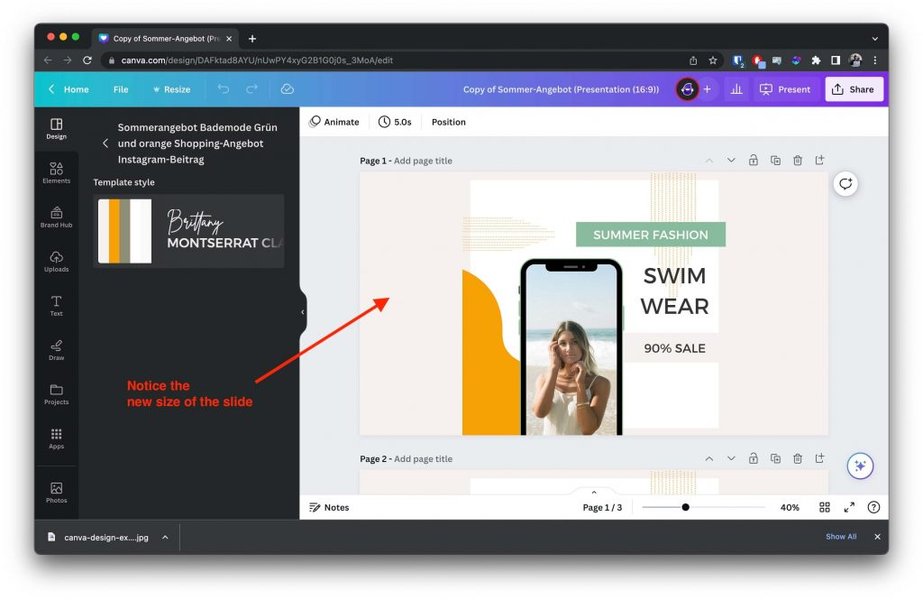
Editing the imported PDF content within the Canva editor interface.
Step 4: Convert and Download as a PowerPoint File
Once you are satisfied with the appearance and content of your slides in Canva, it's time to export the file as a PowerPoint presentation.
- Locate the "Share" or "Download" button, usually positioned in the top-right corner of the Canva editor.
- Click the button and look for the download options. Select "Microsoft PowerPoint" or choose the ".pptx" file format.
- You may have options to select specific pages (slides) or download the entire presentation. Choose according to your needs.
- Click the final "Download" button. Canva will process the conversion and save the PowerPoint (PPTX) file to your device.
You can now open this downloaded PPTX file using Microsoft PowerPoint, Google Slides, or other compatible presentation software for further editing or presenting.

Selecting the Microsoft PowerPoint (PPTX) format from Canva's download options.
Visualizing the Conversion Process
To help visualize the workflow, the following mindmap outlines the core stages involved in converting a PDF to PowerPoint using Canva:
Using Canva"] id1["Step 1: Access Canva"] id1_1["Sign Up (Free Account)"] id1_2["Log In"] id2["Step 2: Upload PDF"] id2_1["Use Upload Button"] id2_2["Drag and Drop File"] id2_3["Import from Cloud Storage"] id3["Step 3: Edit in Canva (Optional)"] id3_1["PDF Opens as Editable Slides"] id3_2["Adjust Text & Images"] id3_3["Modify Layouts"] id3_4["Add Canva Elements (Graphics, Icons)"] id3_5["Apply Branding"] id4["Step 4: Download as PPTX"] id4_1["Click Share / Download"] id4_2["Select Microsoft PowerPoint (.pptx) Format"] id4_3["Choose Pages (All or Specific)"] id4_4["Save File to Device"] id5["Outcome"] id5_1["Editable PowerPoint File"] id5_2["Preserved Layout & Visuals"] id5_3["Ready for Further Editing or Presentation"]
This mindmap summarizes the journey from uploading your static PDF to obtaining a flexible, editable PowerPoint presentation, highlighting the key actions at each stage.
Benefits of Using Canva for PDF-to-PPT Conversion
Choosing Canva for converting your PDFs to PowerPoint offers several distinct advantages:
- Cost-Effective: The core PDF-to-PPT conversion feature is available entirely for free, making it accessible to everyone without requiring software purchases or subscriptions.
- High Fidelity Conversion: Canva's technology is designed to accurately recognize and retain the original document's layout, formatting, fonts, images, and other visual elements, minimizing the need for extensive rework.
- Seamless Editing Experience: The conversion process integrates directly with Canva's powerful editor, allowing you to make immediate adjustments and enhancements using intuitive design tools before downloading the final PowerPoint file.
- User-Friendly Interface: Canva is renowned for its simplicity. The conversion process is straightforward, requiring just a few clicks, even for users with limited technical expertise.
- Time-Saving: Automating the conversion process significantly reduces the time and effort involved compared to manually copying content from a PDF into a new presentation slide by slide.
- Platform Independence: Being an online tool, Canva can be accessed from any device with an internet connection, offering flexibility in when and where you perform the conversion.
Evaluating Canva's Conversion Capabilities
This radar chart provides a visual assessment of Canva's PDF-to-PowerPoint conversion feature based on key performance aspects. The scores are relative estimates reflecting the general consensus from user experiences and reviews (higher score indicates better performance):
As the chart illustrates, Canva scores highly on ease of use, editing flexibility within its platform, and cost-effectiveness (being free). While generally good at preserving layouts and images, minor inaccuracies can occur with very complex PDF structures or specific text formatting, suggesting a quick review after conversion is always beneficial.
Tips for the Best Conversion Results
To ensure the smoothest conversion from PDF to PowerPoint using Canva, consider these tips:
- Check PDF Complexity: Extremely complex PDFs with intricate layouts, layers, or non-standard fonts might not convert perfectly. Simpler, well-structured PDFs tend to yield the best results.
- Review and Adjust: Always review the converted presentation in Canva before downloading. Check each slide for any formatting inconsistencies, text alignment issues, or misplaced elements and make necessary adjustments using Canva's tools.
- Font Handling: Canva attempts to match fonts, but if your PDF uses obscure or proprietary fonts, Canva might substitute them with similar available fonts. Be prepared to adjust fonts manually if needed for brand consistency.
- File Size Considerations: Very large PDF files (in terms of MB or page count) may take longer to upload and process. If you encounter issues, consider splitting the PDF into smaller parts or compressing it before uploading.
- Leverage Canva's Strengths: Don't just convert; enhance! Use Canva's templates, graphics library, and animation features (if exporting video or GIF, though not directly to PPTX) to elevate your presentation beyond the original PDF's limitations.
- Final Check in PowerPoint: After downloading the PPTX file, open it in Microsoft PowerPoint or your preferred software for a final check, especially if you plan to use PowerPoint-specific features like advanced animations or presenter notes.
Conversion Overview: Process, Benefits, and Considerations
This table summarizes the key aspects of using Canva to convert PDF files into PowerPoint presentations:
| Aspect | Description |
|---|---|
| Core Process | Upload PDF -> Open/Edit in Canva -> Download as PPTX file. |
| Primary Benefits | Free, easy to use, preserves original design elements, produces editable slides, saves time. |
| Editing Capabilities | Full editing of text, images, and layout within Canva before export; final PPTX editable in PowerPoint/Google Slides. |
| Potential Limitations | Minor inaccuracies possible with highly complex PDFs; font substitution may occur; requires an internet connection. |
| Best For | Converting reports, articles, existing slides, or documents into presentation format quickly and easily without specialized software. |
| Cost | Free for standard conversion. Canva Pro offers additional features but isn't required for basic PDF-to-PPT conversion. |
Watch the Process: Visual Tutorial
For a visual walkthrough of the conversion process, this video tutorial demonstrates how to convert a PDF to PowerPoint using Canva step-by-step. It covers uploading the file, making quick edits, and downloading the final PPTX presentation, reinforcing the instructions provided above.
Watching how it's done can often clarify the steps and show the ease with which Canva handles this task.
Frequently Asked Questions (FAQ)
Is it really free to convert PDF to PowerPoint in Canva?
Yes, Canva offers the PDF-to-PowerPoint conversion feature completely free. You do need a free Canva account to upload your file and use the converter, but there is no cost associated with the basic conversion process itself.
Will the formatting and layout of my PDF be preserved?
Canva's converter is designed to maintain the original layout, text formatting, images, and visual elements from your PDF as accurately as possible. However, for very complex PDFs with unusual formatting or non-standard fonts, some minor adjustments might be necessary after conversion. It's always recommended to review the result in Canva before downloading.
Can I edit the presentation after converting it from PDF?
Absolutely. Once the PDF is imported into Canva, each page becomes an editable slide. You can modify text, images, layouts, and add new elements using Canva's editor. After downloading the file as a PPTX, you can continue editing it using Microsoft PowerPoint, Google Slides, or other compatible software.
How long does the conversion process take?
The time required for conversion depends on the size and complexity of your PDF file, as well as your internet connection speed for uploading. Generally, for standard-sized PDFs, the upload and processing within Canva are quite fast, often taking just a few moments to a couple of minutes.
Recommended Further Exploration
- Explore how to effectively edit text and images in your converted PowerPoint presentation using Canva's tools.
- Discover best practices for designing visually appealing and engaging presentations directly within Canva.
- Investigate if Canva can convert other file types, such as Microsoft Word documents, into PowerPoint presentations.
- Learn about alternative online tools or software for converting PDF files to PowerPoint format.
References
Last updated April 27, 2025