
Fast Track Course to Mastering Bash
Accelerate your Bash scripting skills with this comprehensive guide
Key Takeaways
- Foundation Building: Grasp fundamental Bash concepts and commands essential for effective scripting.
- Practical Application: Engage with hands-on exercises and real-world projects to solidify your skills.
- Advanced Techniques: Explore advanced scripting practices, automation, and debugging strategies.
1. Introduction to Bash
Understanding the Shell Environment
Bash, short for Bourne-Again SHell, is a powerful command-line interpreter and scripting language widely used in Unix-like operating systems such as Linux and macOS. It serves as a bridge between the user and the operating system, enabling the execution of commands, automation of tasks, and creation of complex scripts to enhance productivity and efficiency.
Setting Up Your Bash Environment
Installing Bash
Most Unix-like systems come with Bash pre-installed. To verify, open your terminal and type:
bash --versionIf Bash is not installed, you can install it using your system's package manager. For example, on Debian-based systems:
sudo apt-get update
sudo apt-get install bash
Configuring the Shell
Customize your Bash environment by editing the .bashrc or .bash_profile files. These configuration files allow you to set environment variables, aliases, and functions that tailor the shell to your preferences.
2. Basic Command-Line Operations
Navigating the Filesystem
Effective navigation of the filesystem is fundamental to using Bash. Key commands include:
ls: Lists directory contents.cd: Changes the current directory.pwd: Displays the current working directory.mkdir: Creates a new directory.rmdir: Removes an empty directory.
Example usage:
cd /path/to/directory
mkdir new_folder
ls -la
File Operations
Managing files is a core aspect of Bash. Essential commands include:
cp: Copies files or directories.mv: Moves or renames files or directories.rm: Removes files or directories.touch: Creates empty files or updates file timestamps.
Example usage:
cp source.txt destination.txt
mv oldname.txt newname.txt
rm unwanted_file.txt
touch newfile.txt
Command-Line Options and Arguments
Many Bash commands accept options (flags) and arguments to modify their behavior. Options usually start with a hyphen (-) and alter how a command operates.
Example:
ls -l -a
grep "search_term" file.txt
3. Bash Scripting Fundamentals
Creating Your First Script
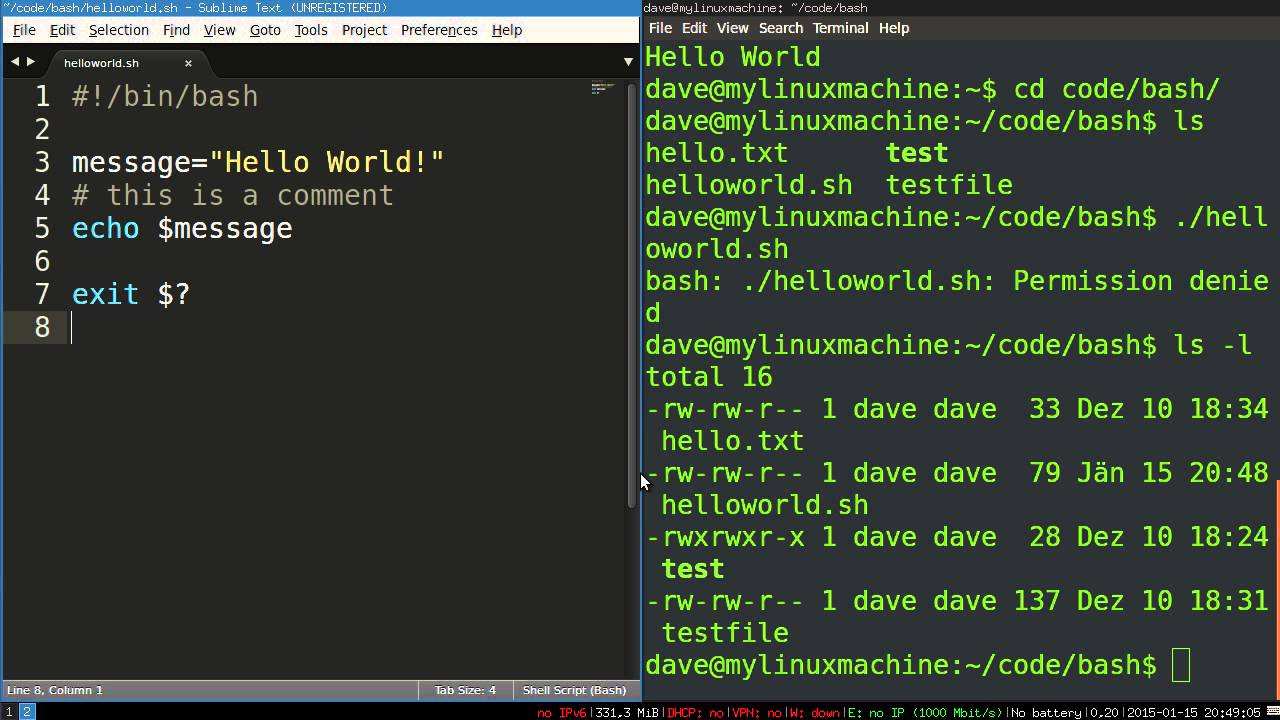
Start by writing a simple "Hello World" script to understand the basic structure.
#!/bin/bash
echo "Hello, World!"
Steps to execute the script:
- Create a file named
hello.shand add the above code. - Make the script executable:
- Run the script:
chmod +x hello.sh./hello.shUnderstanding Shebang
The shebang (#!) at the beginning of a script specifies the interpreter to execute the script. For Bash scripts, it's typically #!/bin/bash.
Variables and Data Types
Variables store data that can be used and manipulated within scripts.
- Declaration: Assign a value without spaces.
- Access: Use the dollar sign (
$) to access variable values.
name="Alice"
echo "Hello, $name"
Control Structures
Control structures allow scripts to make decisions and execute code conditionally.
If-Else Statements
if [ -f "file.txt" ]; then
    echo "File exists."
else
    echo "File does not exist."
fi
Loops
Loops enable the repetition of code blocks.
For Loop
for i in {1..5}; do
    echo "Number: $i"
done
While Loop
count=1
while [ $count -le 5 ]; do
    echo "Count: $count"
    count=$((count + 1))
done
4. Advanced Bash Scripting
Functions
Functions encapsulate reusable code blocks, enhancing script modularity and readability.
greet() {
    echo "Hello, $1!"
}

greet "Bob"
Arrays
Arrays store multiple values in a single variable, which can be accessed using indices.
fruits=("apple" "banana" "cherry")
echo ${fruits[1]}  # Outputs: banana
echo ${fruits[@]}  # Outputs all elements
Command Substitution
Command substitution allows the output of a command to be used as a variable.
current_date=$(date)
echo "Today's date is $current_date"
Input and Output Redirection
Redirection operators control where input and output of commands go.
>: Redirects standard output to a file.>>: Appends standard output to a file.<: Redirects standard input from a file.
echo "Hello World" > hello.txt
cat < hello.txt
Pipelines
Pipelines allow chaining of commands, where the output of one command serves as the input to the next.
ls -l | grep ".txt"Parameter Expansion
Parameter expansion provides ways to manipulate the values of variables.
filename="document.txt"
echo ${filename%.txt}  # Outputs: document
echo ${filename#*.}    # Outputs: txt
5. Scripting Best Practices
Code Readability
Write clear and maintainable code by following consistent formatting and naming conventions.
Comments and Documentation
Use comments to explain complex logic and document the purpose of scripts and functions.
#!/bin/bash
# This script backups important files

backup_dir="/backup"
source_dir="/home/user/documents"

cp -r $source_dir $backup_dir
echo "Backup completed successfully."
Error Handling
Implement error checks and handle unexpected scenarios gracefully using exit statuses and conditional statements.
#!/bin/bash
cp source.txt destination.txt
if [ $? -eq 0 ]; then
    echo "Copy successful."
else
    echo "Copy failed." >&2
    exit 1
fi
Using set Options
Enhance script reliability by using set options.
set -e: Exit immediately if a command exits with a non-zero status.set -x: Print commands and their arguments as they are executed.
#!/bin/bash
set -e
set -x

# Rest of the script
6. Automation and Scheduling
Cron Jobs
Cron is a time-based job scheduler in Unix-like systems. It allows you to run scripts or commands at specified times and intervals.
Setting Up a Cron Job
To edit the cron table, use:
crontab -eExample of a cron job that runs a backup script daily at midnight:
0 0 * * * /path/to/backup.shCron Syntax
| Field | Allowed Values | Meaning |
|---|---|---|
| Minute | 0-59 | The minute of the hour |
| Hour | 0-23 | The hour of the day |
| Day of Month | 1-31 | The day of the month |
| Month | 1-12 | The month of the year |
| Day of Week | 0-7 | The day of the week (0 or 7 is Sunday) |
7. Debugging Bash Scripts
Using set Options for Debugging
Bash provides built-in options to aid in debugging scripts.
set -x: Enables a mode of the shell where all executed commands are printed to the terminal.set -e: Causes the script to exit immediately if any command returns a non-zero status.
#!/bin/bash
set -e
set -x

# Script commands...
Logging and Echo Statements
Inserting echo statements can help trace variable values and the flow of execution.
echo "Starting the backup process."
# Backup commands
echo "Backup completed successfully."
8. Practical Exercises
Task 1: Automate File Backup
Create a script that copies important files to a backup directory and schedule it using cron.
#!/bin/bash
backup_dir="/backup/$(date +%Y-%m-%d)"
mkdir -p $backup_dir
cp -r /home/user/documents/* $backup_dir
echo "Backup completed on $(date)" >> /var/log/backup.log
Task 2: Monitor System Resources
Develop a script that checks CPU usage and sends an alert if usage exceeds a threshold.
#!/bin/bash
threshold=80
cpu_usage=$(top -bn1 | grep "Cpu(s)" | awk '{print $2 + $4}')
cpu_usage=${cpu_usage%.*}

if [ "$cpu_usage" -gt "$threshold" ]; then
    echo "CPU usage is above $threshold%. Current usage: $cpu_usage%." | mail -s "CPU Alert" admin@example.com
fi
Task 3: Automate User Creation
Write a script to create a new user with specific permissions.
#!/bin/bash
username=$1
password=$2

if id "$username" &>/dev/null; then
    echo "User $username already exists."
else
    useradd -m -s /bin/bash "$username"
    echo "$username:$password" | chpasswd
    usermod -aG sudo "$username"
    echo "User $username created and added to sudo group."
fi
9. Recommended Resources
Online Courses
- Bash Scripting 1-Hour Crash Course - Udemy
- Codecademy's Bash Scripting Course - Codecademy
- Learn Bash
- FreeCodeCamp Bash Command Line Tips
Books and Guides
Community and Support
10. Conclusion
Mastering Bash scripting opens doors to efficient system administration, automation, and enhanced productivity in Unix-like environments. By following this fast-track course, engaging with practical exercises, and leveraging the recommended resources, you can swiftly elevate your Bash skills to a proficient level. Consistent practice and exploration of advanced topics will further solidify your expertise, enabling you to craft robust and efficient scripts tailored to your specific needs. Embrace the power of Bash, and transform the way you interact with your system.
References
Last updated February 13, 2025