
Unlocking the Shell: When Does Bash Become Available During Linux Boot?
Discover the precise moments Bash springs to life in the intricate Linux startup sequence.
Understanding when the Bash shell becomes available during the Linux boot process is crucial for system administration, troubleshooting, and customizing startup behavior. The boot sequence is a multi-stage process, and Bash access depends heavily on which stage the system is in.
Highlights: Key Takeaways on Bash Availability
- Bash is not available in the early boot stages: During firmware initialization (BIOS/UEFI), bootloader execution (GRUB), and initial kernel loading, Bash is inactive.
- Non-interactive Bash for startup scripts: Bash can be invoked non-interactively by the init system (like systemd or SysV init) to run startup scripts before user login, but this isn't a full user shell.
- Interactive Bash arrives at login: The full, interactive Bash shell typically becomes available only after the system boot completes and a user logs in, either via a text console (TTY) or a graphical terminal emulator.
The Linux Boot Journey: A Step-by-Step Guide
The journey from power-on to a usable Linux system involves several critical phases. Bash availability is tied directly to the progress through these stages.
Phase 1: Firmware Initialization (BIOS/UEFI)
Powering Up and Hardware Checks
When you power on your system, the first code that runs is the firmware: BIOS (Basic Input/Output System) on older systems or UEFI (Unified Extensible Firmware Interface) on modern ones. Its primary jobs are:
- Performing a Power-On Self-Test (POST) to check essential hardware components.
- Initializing hardware.
- Locating and loading the bootloader program from a configured boot device (like a hard drive or SSD).
Bash Availability: Not available. The system is running low-level firmware code, far from the user-space environment where Bash resides.
Phase 2: Bootloader (GRUB/systemd-boot)
Loading the Operating System Kernel
The firmware hands control over to the bootloader, commonly GRUB (GRand Unified Bootloader). The bootloader's tasks include:
- Presenting a menu (if configured) allowing the user to select an operating system or kernel version.
- Loading the chosen Linux kernel image and the initial RAM disk (initrd/initramfs) into memory.
- Passing boot parameters and control to the kernel.
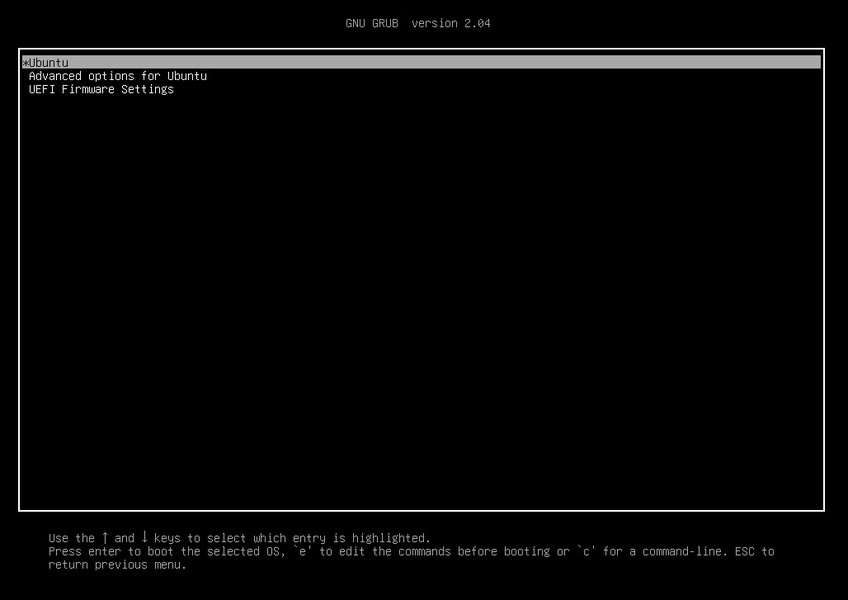
Example of a GRUB boot menu, an early stage before the main OS and Bash load.
Bash Availability: Not available. The bootloader operates in a pre-kernel environment focused solely on loading the OS kernel.
Phase 3: Kernel Initialization
Setting Up the Core System
The kernel, once loaded, takes control. It initializes core functionalities:
- Decompresses and sets itself up in memory.
- Initializes essential hardware drivers (CPU, memory, devices).
- Mounts the initial RAM filesystem (initramfs/initrd), a temporary root filesystem in memory containing necessary tools and drivers to mount the real root filesystem.
- Mounts the actual root filesystem (
/) specified by the bootloader. - Executes the first user-space process, known as the
initprocess (typically/sbin/init, which is often a link tosystemdon modern systems). This process has PID 1.
Bash Availability: Generally not available. While the initramfs might contain a minimal shell (like ash or sometimes a stripped-down bash) for specific early boot tasks or recovery modes, the full Bash environment isn't present yet. The main focus is transitioning from kernel space to user space.
Phase 4: Init System (systemd/SysV init)
Bringing the System to Life
The init process (PID 1) is the ancestor of all other user-space processes. Its role is to bring the system to a usable state based on configuration:
- SysV init (older systems): Executes scripts in sequence based on runlevels (e.g.,
/etc/rc.d/,/etc/init.d/). - systemd (modern systems): Manages system services concurrently using "units" (e.g.,
.service,.targetfiles located in/etc/systemd/system/,/usr/lib/systemd/system/). It brings the system to a specific "target" (likemulti-user.targetorgraphical.target).
During this phase, various system services (networking, logging, hardware management) are started.
Bash Availability: Available non-interactively for scripts. The init system can execute shell scripts as part of the startup sequence. These scripts might use /bin/sh (often a link to dash or bash) or explicitly specify /bin/bash with a shebang (#!/bin/bash). This allows administrators to automate tasks during boot. However, this is a non-interactive execution context – there's no user prompt or interactive session.
Phase 5: User Login
Accessing the Interactive Shell
Once the init system has started the necessary services and reached the target runlevel or state (e.g., multi-user mode), the system is ready for user interaction:
- Login prompts are presented on virtual consoles (TTYs) managed by
getty. - A graphical display manager (like GDM, LightDM, SDDM) starts, presenting a graphical login screen.
When a user successfully authenticates:
- The system starts a login shell for the user, as defined in
/etc/passwd(commonly/bin/bash). - Bash, when started as an interactive login shell, reads configuration files like
/etc/profile,~/.bash_profile,~/.bashrc, or~/.profileto set up the user's environment (variables, aliases, functions).
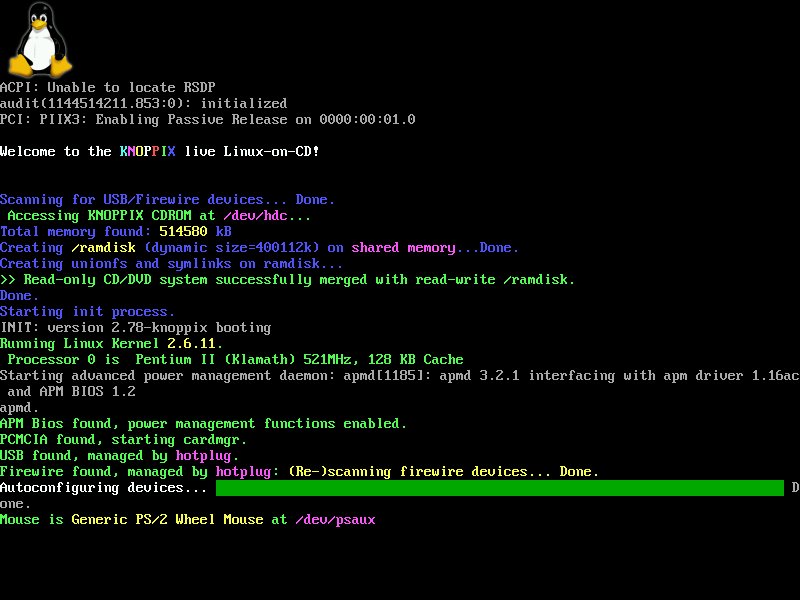
A typical text-based login prompt where entering credentials will start the user's default shell, often Bash.
Bash Availability: Fully available interactively. This is the point where most users encounter Bash – providing a command prompt for executing commands and interacting with the system.
Visualizing the Boot Process and Bash
Boot Sequence Mindmap
This mindmap illustrates the sequential nature of the Linux boot process and highlights where different shell environments, including Bash, become active.
Bash Contexts During Boot
Interactive vs. Non-Interactive Shells
It's important to distinguish between the different ways Bash can be invoked:
- Interactive Login Shell: Started after a user logs in. Reads login configuration files (
/etc/profile,~/.bash_profile, etc.) and provides a command prompt. This is the standard user experience. - Interactive Non-Login Shell: Started when you open a new terminal window within a graphical session. It reads
~/.bashrcbut typically not the profile files. - Non-Interactive Shell: Used to execute scripts. It doesn't read most interactive startup files (like
~/.bashrcunless specifically sourced or invoked in a certain way) and doesn't provide a prompt. This is how Bash is used for startup scripts managed by the init system.
Running Bash Scripts on Startup
While interactive Bash is only available late in the boot process, you can configure the system to run Bash scripts earlier using the init system:
- Using systemd: Create a service unit file (e.g.,
/etc/systemd/system/myscript.service) that specifies the Bash script to run usingExecStart=/bin/bash /path/to/your/script.sh. Enable and start the service. - Using SysV init / rc.local: On older systems or systems configured for compatibility, you might add commands or script paths to
/etc/rc.local. This file is typically executed late in the boot sequence, after most services are up but before the login prompt appears. - Using init.d scripts (SysV): Place a script in
/etc/init.d/and create symbolic links in the appropriate/etc/rcX.d/directories (where X is the runlevel number).
Video Tutorial: Running Startup Scripts with systemd
The following video provides a practical guide on how to configure a script (which could be a Bash script) to run automatically during the boot process using systemd, the init system used by most modern Linux distributions. Understanding this helps clarify how non-interactive Bash execution fits into the boot sequence before user login.
Learn how to configure startup scripts using systemd.
Bash Availability Timeline and Environment
Summary Table
This table summarizes when and how Bash (or a similar shell) might be available during the different stages of the Linux boot process.
| Boot Stage | Bash Availability | Context | Notes |
|---|---|---|---|
| BIOS/UEFI | No | Firmware | Hardware initialization only. |
| Bootloader (GRUB) | No | Pre-Kernel | Loads the kernel. |
| Kernel Initialization | No | Kernel Space | Core OS setup. |
| Initramfs | Minimal/Possible | Early User Space | Limited shell (often `ash` or busybox `sh`, sometimes `bash`) for early setup or recovery. Not the full environment. |
| Init System Startup (systemd/SysV) | Yes (Non-Interactive) | User Space (PID 1+) | Bash can be invoked by the init system to run startup scripts (`/etc/init.d/`, systemd units, `rc.local`). Limited environment, no user interaction. |
| User Login Prompt | Yes (Interactive) | User Space (Login Session) | Full interactive Bash shell starts after successful user login. Reads profile/rc files. |
Shell Environment Readiness Radar Chart
This radar chart provides a conceptual comparison of different points where a shell might become available during boot, evaluating them based on timing, environment completeness, interactivity, and typical use case suitability. Higher scores indicate later availability, a more complete environment, or better suitability for typical user tasks.
As the chart illustrates, the fully interactive Bash shell that users typically work with becomes available late in the boot process, offering the most complete environment and suitability for general tasks, coinciding with the availability of most system services.
Frequently Asked Questions (FAQ)
What is the very first process started by the Linux kernel?
The first user-space process started by the kernel is the `init` process, which always has Process ID (PID) 1. On modern Linux systems, this is usually `systemd`. On older systems, it was typically SysV `init`. This process is responsible for starting all other system services and user processes.
Can I make Bash the very first process (PID 1)?
Yes, although it's generally only done for recovery or troubleshooting. You can pass a kernel boot parameter like `init=/bin/bash` (usually done via the GRUB menu editor). This tells the kernel to start Bash as PID 1 instead of the standard init system. The system will boot to a root shell prompt, but many standard services won't be running, as the init system is bypassed.
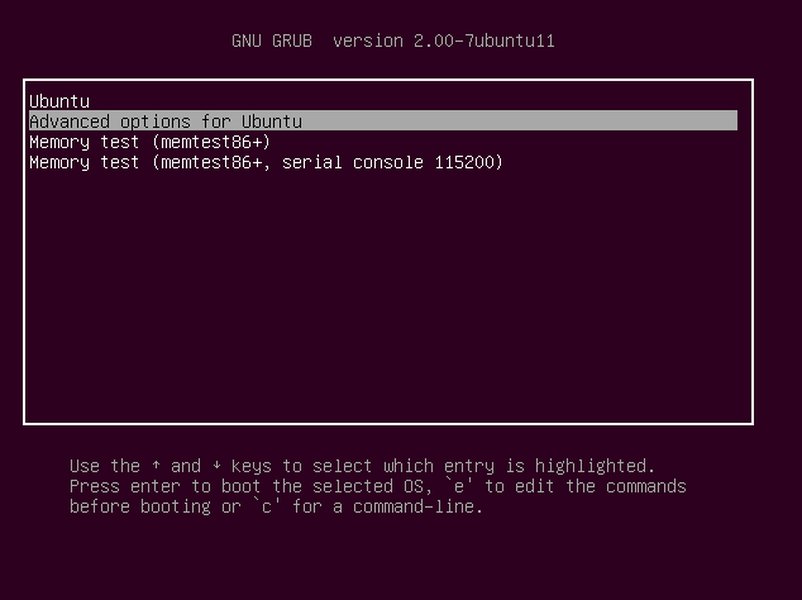
Example showing how to edit GRUB parameters to boot directly into a Bash shell.
What are Bash startup files like .bashrc and .bash_profile?
These are configuration scripts located in a user's home directory that Bash executes when it starts. They allow users to customize their shell environment by setting environment variables, defining aliases, creating functions, and running commands automatically.
/etc/profile: System-wide configuration, executed for login shells.~/.bash_profile,~/.bash_login,~/.profile: User-specific configuration, executed for login shells (Bash reads the first one it finds).~/.bashrc: User-specific configuration, executed for interactive non-login shells (like opening a new terminal window). Often sourced by `~/.bash_profile` as well./etc/bash.bashrc: System-wide configuration for interactive non-login shells (behavior varies by distribution).
These files are read *after* Bash itself has been started, typically during the user login phase, not during the early kernel or init system stages.
Is Bash the only shell available in Linux?
No, Bash is just one of many shells available for Linux. Others include:
- sh (Bourne Shell): The original Unix shell. On many Linux systems, `/bin/sh` is a symbolic link to another shell like `dash` or `bash` (running in POSIX compatibility mode). Many system scripts use `sh` for portability.
- dash (Debian Almquist Shell): A lightweight and fast POSIX-compliant shell, often used as the default `/bin/sh` on Debian/Ubuntu systems for faster script execution during boot.
- zsh (Z Shell): A powerful shell with many features extending Bash, popular among developers.
- fish (Friendly Interactive Shell): Known for its user-friendliness and features like auto-suggestions and syntax highlighting out-of-the-box.
- ksh (KornShell): Another influential shell combining features from Bourne shell and C shell.
While Bash is the default login shell on many distributions, system scripts might use `sh` (linked to `dash` or `bash`), and users can change their default shell.
Recommended Reading
- Explore a detailed explanation of the systemd boot process and target units.
- Learn how to automatically run a script at boot on Linux using systemd services.
- Understand the difference between interactive login shells and non-login shells in Bash.
- Discover what initramfs is and its specific role during the early stages of Linux boot.
References
Last updated May 3, 2025