
Understanding Bash Availability During the Linux Boot Process
A Deep Dive into the Linux Startup Sequence and Shell Initialization
Key Insights into Bash Availability
- Bash's Primary Role: While Bash is the default shell for many Linux distributions, it typically becomes fully available for user interaction much later in the boot process, primarily when a user logs in.
- Early Shell Usage: During the system's early boot stages, particularly with
initscripts orsystemdunits, other shells likesh(often symlinked tobashordash) are used for executing critical startup scripts, but not for direct user interaction. - Login Shells and Configuration: Upon successful login, Bash, if configured as the user's default shell, reads and executes commands from specific startup files like
~/.bashrcor~/.bash_profileto set up the user's environment.
The Linux boot process is a meticulously orchestrated series of stages, transforming raw hardware into a fully functional operating system ready for user interaction. Understanding when Bash (Bourne-Again SHell) becomes available during this intricate sequence is crucial for system administrators, developers, and enthusiasts alike. While Bash is a cornerstone of the Linux environment, its presence and functionality evolve throughout the boot cycle, from executing system-critical scripts to providing an interactive command prompt for users.
The Multi-Stage Linux Boot Process
From Power On to User Login
The Linux boot process can be broadly divided into several key stages, each with specific responsibilities. Bash's role, and its availability for direct use, differs significantly at each stage.
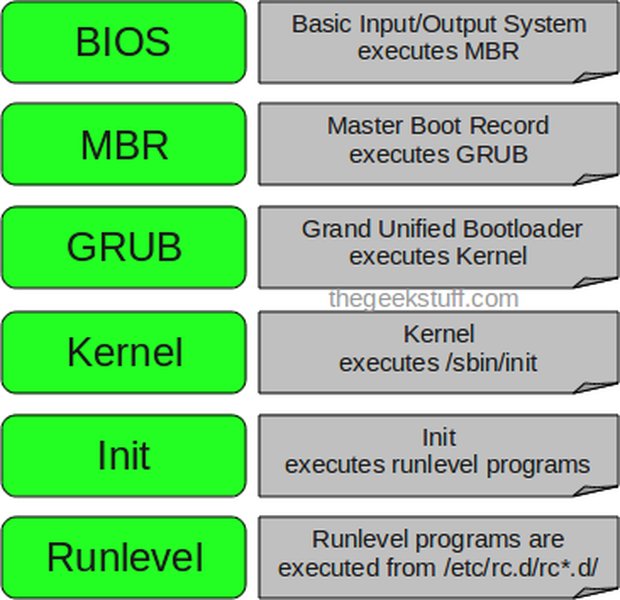
The Six Fundamental Stages of the Linux Boot Process.
Stage 1: BIOS/UEFI and POST
The very first step in the boot process begins even before Linux itself is involved. When you power on your computer, the system's firmware, either the Basic Input/Output System (BIOS) or the Unified Extensible Firmware Interface (UEFI), takes control. This stage involves the Power-On Self-Test (POST), which checks and initializes essential hardware components such as the CPU, memory, and storage devices. At this point, no operating system has been loaded, and therefore, no shell, including Bash, is available.
Stage 2: Bootloader Execution (GRUB)
Once the BIOS/UEFI completes its initial checks, it searches for a bootloader on a configured boot device (e.g., hard drive, USB, CD-ROM). For most modern Linux systems, this bootloader is GRUB (GRand Unified Bootloader). GRUB's primary responsibility is to load the Linux kernel and its initial RAM disk (initramfs) into memory. While GRUB itself has a command-line interface, it is not a full-fledged Bash shell. It's a specialized environment for selecting the kernel and passing boot parameters. You can even interrupt the boot process at the GRUB screen to modify boot parameters, which can be useful for troubleshooting.
Stage 3: Kernel Initialization
After GRUB loads the kernel and initramfs, control is handed over to the kernel. The kernel then begins its initialization, detecting and configuring hardware, mounting the root filesystem (initially as read-only for integrity checks), and loading necessary kernel modules. During this critical phase, the kernel operates in "kernelspace," and user-level shells like Bash are not yet running for direct user interaction. However, the kernel can be told to boot directly into a shell, typically init=/bin/bash, which can be used for recovery or debugging purposes before the full init system takes over.
Stage 4: Initramfs and Early Userspace
The initramfs (initial RAM filesystem) provides a minimal root filesystem in RAM that allows the kernel to mount the "real" root filesystem. This early userspace environment often runs a small script or program that handles tasks like loading essential drivers for storage devices, setting up LVM (Logical Volume Management), or decrypting encrypted filesystems. While these operations might involve simple shell scripts, they are executed by a basic shell environment (often sh, which could be a symlink to dash or a minimal bash without full interactive features) rather than a fully functional, interactive Bash shell available to a user.
Stage 5: Init System (systemd, SysVinit, Upstart)
Once the kernel and initramfs have prepared the system, control is passed to the primary initialization system (PID 1). In modern Linux distributions, this is predominantly systemd. Older systems might use SysVinit or Upstart. The init system is responsible for starting all the system services and daemons, setting up networking, managing runlevels (or targets in systemd), and ensuring the system reaches a stable state. Many of these services are started via shell scripts located in directories like /etc/init.d/ (for SysVinit) or configured through unit files (for systemd). These scripts are executed by a shell, commonly sh, bash, or dash. While these are shell environments, they are operating in the background to manage system services, not for user interaction.
Here's a breakdown of how the init system might interact with shell scripts:
| Init System | Configuration Mechanism | Role of Shell Scripts |
|---|---|---|
| systemd | Unit files (.service files in /etc/systemd/system/) |
Executes commands specified in ExecStart directives. These commands can be shell scripts or direct binary calls. While systemd prefers direct binary execution, shell scripts are often used for complex startup logic. |
| SysVinit | Runlevel scripts (/etc/rc?.d/ symlinks to /etc/init.d/) |
Each service is typically controlled by a shell script in /etc/init.d/ which takes start, stop, restart, status arguments. These scripts are explicitly written in shell (e.g., Bash or sh). |
| Upstart | Job configuration files (.conf files in /etc/init/) |
Defines events and tasks. Scripts can be embedded directly within the job files or call external shell scripts. |
Table summarizing the interaction of different init systems with shell scripts.
Stage 6: User Login and Interactive Shell
Bash becomes fully available for interactive use at the final stage of the boot process: the user login. Whether it's a text-mode login prompt or a graphical display manager, once a user successfully authenticates, their default shell is launched. For most Linux distributions, this default is Bash. When an interactive login shell starts, Bash reads and executes commands from a series of startup files to configure the user's environment, set aliases, define functions, and customize the prompt. These files include:
/etc/profile(system-wide login shell configuration)~/.bash_profile,~/.bash_login, or~/.profile(user-specific login shell configuration)/etc/bash.bashrc(system-wide interactive non-login shell configuration, e.g., for new terminal windows)~/.bashrc(user-specific interactive non-login shell configuration)
It is within these files that users often place commands they want to run every time a new Bash session starts. This is the point where Bash is truly ready for direct, interactive command execution by the user.
Key Factors Influencing Bash Availability
Understanding the Nuances
The Role of Initramfs
The initramfs (initial RAM filesystem) is a critical component for modern Linux systems. It's a compressed cpio archive that the kernel unpacks into a temporary root filesystem in memory. This mini-filesystem contains essential tools, modules, and scripts necessary to mount the actual root filesystem. While the scripts within initramfs are typically shell scripts (often sh or dash for performance), they are executed very early, before the full system environment is set up, and certainly before any user login. The purpose here is system bootstrapping, not providing a user shell.
init=/bin/bash Parameter
One notable exception where Bash can be made available extremely early is by passing init=/bin/bash as a kernel boot parameter via GRUB. This tells the kernel to run /bin/bash directly as the first user-space process (PID 1) instead of the standard init system. This is a powerful troubleshooting technique, often used when the system fails to boot normally or requires root access for repairs. In this scenario, you get a minimal root shell immediately after the kernel initializes, bypassing the entire init system startup. The filesystem is often mounted read-only (ro), and you might need to remount it as read-write (rw) to make changes.
linux /boot/vmlinuz-5.13.0-51-generic root=UUID=731597f6-ff21-48c3-ac3c-e7dfb0403fad ro quiet splash init=/bin/bash
This command line snippet demonstrates how init=/bin/bash is added to the kernel parameters in GRUB, allowing the system to boot directly into a Bash shell.
Running Bash Scripts at Boot Time
Methods for Automated Execution
While an interactive Bash shell is primarily a post-login feature, there are several ways to execute Bash scripts automatically during the boot sequence or at system startup, prior to a user logging in.
Various Methods to Execute Scripts Automatically at Linux Startup.
Systemd Services
For modern Linux distributions utilizing systemd, the most robust and recommended method is to create a custom systemd service unit file. This allows precise control over when your script runs, including dependencies on other services (e.g., network, filesystem) and execution order. A systemd service defines how a program or script is managed by the init system.
# Example systemd service file: myapp.service
[Unit]
Description=My Custom Startup Script
After=network.target # Ensures network is up before running

[Service]
ExecStart=/path/to/my/script.sh
Type=forking # Or simple, oneshot, etc.
RemainAfterExit=yes # If it's a script that runs and exits

[Install]
WantedBy=multi-user.target # Runs in multi-user mode
After creating this file (e.g., in /etc/systemd/system/), you would enable it with sudo systemctl enable myapp.service and start it with sudo systemctl start myapp.service. This ensures your script runs as part of the system's managed startup.
/etc/rc.local
Historically, and still available on some distributions (though often deprecated in favor of systemd), the /etc/rc.local file is a simple way to run commands or scripts at the very end of the boot process, after all other services have started. It's executed with root privileges, offering a straightforward approach for quick, non-service-oriented tasks. If this file doesn't exist, it might need to be created and made executable. On systemd systems, rc.local is typically managed by a systemd service unit called rc-local.service.
#!/bin/sh -e
#
# rc.local
#
# This script is executed at the end of each multiuser runlevel.
# Make sure that the script will "exit 0" on success or any other
# value on error.
#
# In order to enable or disable this script just change the execution
# bits.
#
# By default this script does nothing.

/path/to/my/script.sh & # Run your script in the background
exit 0
Cron with @reboot
The cron daemon can be used to schedule tasks, including running a script once at system startup using the @reboot directive. This method is user-specific if added to a user's crontab, or system-wide if added to /etc/crontab or /etc/cron.d/. It's a convenient option for simple scripts that don't require complex service management.
@reboot /path/to/my/script.sh
This entry in a crontab file will execute script.sh every time the system reboots.
Traditional Init Scripts (/etc/init.d)
For systems still relying on SysVinit, placing a script in /etc/init.d/ and creating symbolic links in the appropriate runlevel directories (/etc/rc?.d/) is the way to manage services at boot. These scripts are typically written in Bash or sh and adhere to a specific structure, allowing them to be started, stopped, or restarted. While systemd has largely replaced this, understanding its mechanism is valuable for older or specialized systems.
Bash Availability: A Holistic View
Comparing Different Startup Contexts
To better visualize when Bash is available and for what purpose, consider the following radar chart. This chart represents the "power" or "completeness" of Bash's availability across different stages and contexts of the Linux boot and operation. The further a point is from the center, the more complete or directly usable Bash is in that context.
This radar chart illustrates how Bash's capabilities and availability vary across different stages of the boot process and common execution methods. "Interactive Availability" indicates how readily a user can directly interact with Bash. "Script Execution Capability" refers to Bash's ability to execute automated scripts, whether for system tasks or user-defined commands. "Privilege Level" reflects the typical system privileges associated with Bash execution at that stage. As seen, Bash becomes fully interactive and powerful primarily at the user login stage, while earlier stages utilize its scripting capabilities for essential system functions, often with higher privileges but without direct user interaction.
Understanding Bash's Underlying Mechanisms
The "Shell" Versus "Bash" Distinction
It's important to differentiate between a "shell" in general and "Bash" specifically. The term "shell" refers to any command-line interpreter. The initial scripts run by the kernel or initramfs often use /bin/sh, which might be a symlink to a more lightweight shell like dash (Debian Almquist shell) in some distributions, rather than the full-featured bash. dash is often preferred for system scripts due to its faster execution speed and smaller footprint, whereas bash is popular for interactive user sessions due to its rich features like command history, tab completion, and advanced scripting capabilities. Bash gained widespread adoption and is commonly used as the default login shell for numerous Linux distributions.
A detailed explanation of the Linux Boot Process, step by step, including how shells function within it.
This video provides an excellent visual and auditory guide to the Linux boot process, helping to contextualize when different components, including shell execution, come into play. It highlights the progression from hardware initialization through to the user login, clarifying the environments in which Bash or other shells operate.
Detecting Boot Completion for Scripting
Ensuring Services are Ready
When writing scripts that need to run at boot, it's often critical to ensure that certain system services (like networking) are fully up and running before your script executes. Simply running a script "at boot" might mean it starts before its dependencies are met. Tools and techniques exist to detect when the boot sequence is truly "complete" or when specific services are available.
systemctl is-system-running
For systemd-based systems, the systemctl is-system-running command is invaluable. It reports the current state of the system. While booting, its output might be starting. Once the system has fully booted and is operational, it will typically return running or degraded (if some non-critical services failed). Scripts can loop and check this command until the desired state is reached.
#!/bin/bash
echo "Waiting for systemd to finish booting..."
while ! systemctl is-system-running | grep -qE "running|degraded"; do
    sleep 5
done
echo "System finished booting. Executing custom script."
# Your custom commands here
Runlevels (SysVinit)
In older SysVinit systems, the concept of "runlevels" indicates the system's operational state. Runlevel 2, 3, or 5 typically signify multi-user mode with networking. Scripts can check the current runlevel to determine if the system has reached a stable, multi-user state before proceeding. However, with the prevalence of systemd, this approach is less common for new deployments.
Frequently Asked Questions (FAQ)
When does the user get an interactive Bash prompt?
Are shell scripts used before Bash is interactively available?
/bin/sh, which might be dash or a minimal Bash) very early in the boot process to configure the system and start services.What is the purpose of init=/bin/bash?
init=/bin/bash kernel boot parameter forces the Linux kernel to launch /bin/bash as the very first user-space process (PID 1). This is primarily used for system recovery, debugging, or emergency access when the normal boot process fails, providing a root shell immediately after kernel initialization.How can I ensure my Bash script runs only after the network is up?
systemd, you can specify dependencies in your service unit file using After=network.target and Requires=network.target. For cron jobs with @reboot, you might need to add a sleep command and/or a loop that checks network connectivity within your script to ensure dependencies are met.What's the difference between .bashrc and .bash_profile?
.bash_profile (or .profile or .bash_login) is executed for interactive login shells (e.g., direct console login, SSH). .bashrc is executed for interactive non-login shells (e.g., opening a new terminal window after logging in). Typically, .bash_profile sources .bashrc to ensure consistent environment settings.Conclusion
The availability of Bash during the Linux boot process is not a single, instantaneous event but rather a progression through different contexts and functionalities. While Bash's scripting capabilities are leveraged early on by the system's core initialization processes, its full interactive power, complete with user-specific configurations, truly emerges once a user logs in. Understanding these distinct stages and Bash's role within each is fundamental to effectively managing, troubleshooting, and customizing a Linux system. From low-level firmware interactions to the dynamic user environment, Bash remains an indispensable tool, adapting its presence to meet the demands of each boot phase.
Recommended Further Exploration
- How to troubleshoot Linux boot failures.
- Deep dive into systemd service management.
- Understanding Linux kernel parameters.
- Advanced Bash scripting for system automation.
References
Last updated May 21, 2025