
Understanding Bash Availability During Linux Boot
A Deep Dive into the Linux Startup Sequence and Shell Execution
The question of when Bash becomes available during the Linux boot process is a common one, and its answer reveals the intricate layers of a Linux system's startup. While a shell, particularly Bash, is fundamental to user interaction and system scripting, it's not among the very first components to execute. Instead, it becomes accessible at different stages depending on the context—whether for system initialization scripts or direct user interaction.
Key Insights into Bash Availability
- Shell Execution for System Initialization: Bash (or a compatible shell like
sh) is implicitly involved in the early boot stages when the kernel executes initialization scripts, particularly those handled by traditionalinitsystems or modernsystemdservice units. These scripts, often written in shell scripting languages, are crucial for setting up the fundamental operating environment. - User Login and Interactive Shells: The most prominent time a Bash shell becomes available for direct user interaction is after the system has fully booted and a user logs in. Whether through a graphical display manager or a text-based terminal (TTY), the login process spawns a shell for the user session.
- Root Shell for Troubleshooting: In critical scenarios, it's possible to interrupt the boot process to gain access to a root shell (often Bash) before the full system environment loads. This powerful capability is primarily used for troubleshooting and system repair, bypassing normal login procedures.
The Linux Boot Process: A Foundation for Shell Availability
From Power-On to Operational System
To understand when Bash is available, it's essential to first grasp the sequential stages of the Linux boot process. This complex sequence transforms a powered-off machine into a fully operational system. Modern Linux systems typically separate this into two distinct phases: the "boot sequence" and the "startup process."
The Boot Sequence: Initializing the Hardware and Kernel
The boot sequence begins immediately upon power-on and culminates with the Linux kernel being loaded and initiating its core functions. This phase involves several critical steps:
- BIOS/UEFI Initialization (Firmware Stage): When you press the power button, the computer's firmware (either Basic Input/Output System or Unified Extensible Firmware Interface) performs a Power-On Self-Test (POST) to check hardware integrity. It then identifies and initializes various devices and searches for a bootable device.
- Bootloader Execution: The firmware hands over control to the bootloader, typically GRUB (GRand Unified Bootloader) on most Linux systems. The bootloader's primary role is to locate and load the Linux kernel image and the initial RAM disk (initramfs/initrd) into memory. GRUB also presents a boot menu, allowing users to select different kernels or operating systems.
- Kernel Initialization: Once loaded, the Linux kernel takes over. It initializes the CPU, memory, and essential hardware drivers. During this stage, the kernel unpacks the
initramfsinto a temporary root filesystem. Theinitramfsis crucial as it contains a minimal set of tools and drivers necessary for the kernel to mount the actual root filesystem.
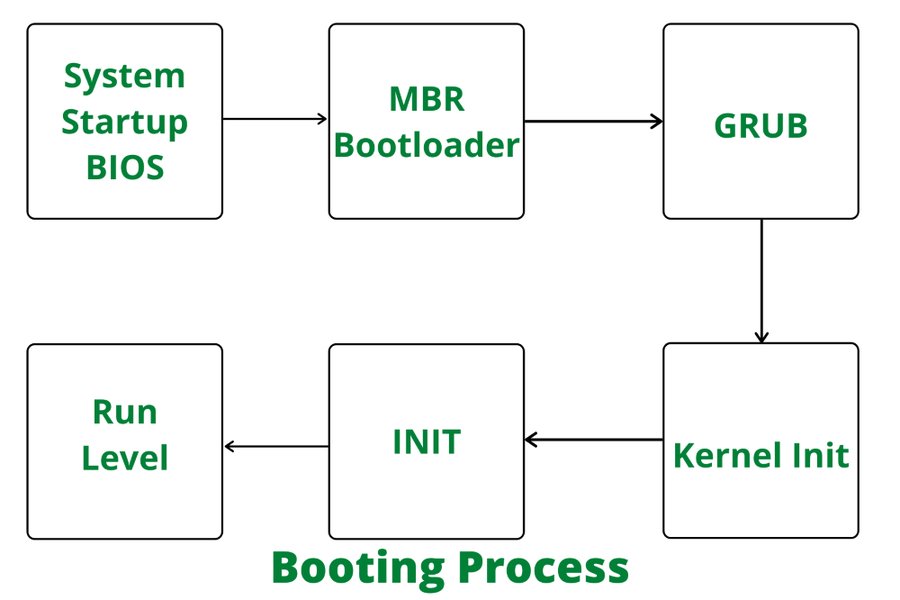
An illustration of the early stages of the Linux boot process, highlighting the role of the BIOS/UEFI, Bootloader, and Kernel.
The Startup Process: Bringing the System to Life
After the kernel has initialized, the "startup process" begins, handled by the init system (historically SysVinit, now predominantly systemd). This phase is responsible for bringing the Linux computer into an operational state, where services are running, and users can log in.
- Init System (PID 1): The kernel starts the very first user-space process, which always has a Process ID (PID) of 1. Traditionally, this was
init(SysVinit), but in modern distributions, it is almost universallysystemd. This process is the parent of all other processes on the system. - Execution of Initialization Scripts: The
initsystem then proceeds to execute various startup scripts. These scripts are vital for configuring network settings, mounting filesystems, starting system services (like web servers, SSH daemons, logging services), and preparing the system for user interaction. It's in these scripts that shells like Bash are first invoked to run commands. - Runlevels/Targets: Traditional
initsystems use "runlevels" (e.g., runlevel 3 for multi-user text mode, runlevel 5 for graphical mode) to define which services should start.systemduses "targets" which provide a more flexible and dependency-driven approach to service management. Bash scripts can be integrated into these mechanisms. For instance, scripts in directories like/etc/rc.local(though less common in systemd-centric distributions) or within/etc/init.d/were historically used to run custom commands at boot. - User Login Prompt: Finally, after all necessary services are started, the system presents a login prompt. This can be a text-based console (TTY) or a graphical display manager (like GDM, LightDM, SDDM).
When Bash Enters the Scene
Implicit vs. Explicit Shell Execution
Bash in System Initialization Scripts
During the startup process, Bash plays a crucial, albeit often implicit, role. Many of the initialization scripts executed by init or systemd are written as shell scripts. When these scripts are run, a shell interpreter (often /bin/sh, which is frequently symlinked to /bin/bash or /bin/dash) is invoked to execute their commands. This means that Bash is active in the background, performing essential system setup tasks, even before any user logs in.
For example, if you want to run a custom Bash script at boot, you might use systemd service units. Here's a simplified example of a .service file:
[Unit]
Description=My Custom Startup Script
After=network.target

[Service]
ExecStart=/path/to/your/script.sh
Type=forking

[Install]
WantedBy=multi-user.target
In this scenario, systemd would execute /path/to/your/script.sh, which would in turn be interpreted by Bash (assuming it has a shebang like #!/bin/bash).
Interactive Bash Shell for Users
The most "obvious" time Bash is available is when a user logs in. Whether you access a TTY directly (e.g., by pressing Ctrl+Alt+F1) or open a terminal emulator within a graphical desktop environment, a Bash shell is typically spawned for your session. The getty program (or its modern equivalent) handles the login prompt, and upon successful authentication, it starts the user's default shell as specified in /etc/passwd (which is commonly Bash).
Upon login, Bash also reads various startup files to configure the user's environment. These include global files like /etc/profile and /etc/bash.bashrc, and user-specific files in the home directory such as ~/.bash_profile, ~/.bashrc, and ~/.profile. These files allow for customization of prompts, aliases, environment variables, and functions.
Methods to Run Bash Scripts at Boot
Automating Tasks from Startup
Linux offers several robust mechanisms to execute Bash scripts automatically during the boot process. The choice of method often depends on the specific Linux distribution and the desired timing or user context.
Systemd Service Units (Modern Linux)
systemd is the default init system for most contemporary Linux distributions (e.g., Ubuntu, Fedora, Debian). It manages system services using "unit files" which are declarative configuration files. To run a Bash script at boot using systemd, you create a service unit file (e.g., my_script.service) in /etc/systemd/system/. This method is highly recommended for its flexibility, robust dependency management, and logging capabilities.
Steps:
- Create your Bash script (e.g.,
/usr/local/bin/my_startup_script.sh) and make it executable (chmod +x /usr/local/bin/my_startup_script.sh). - Create a
.servicefile (e.g.,/etc/systemd/system/my_startup_script.service):[Unit] Description=My custom script After=network.target # Ensures network is up before running [Service] ExecStart=/usr/local/bin/my_startup_script.sh Type=oneshot # Or 'simple', 'forking' depending on script behavior RemainAfterExit=yes # If it's a single-shot script you want to consider "active" [Install] WantedBy=multi-user.target # Runs in multi-user mode - Enable and start the service:
sudo systemctl enable my_startup_script.serviceandsudo systemctl start my_startup_script.service.
/etc/rc.local (Older/Specific Distributions)
Historically, the /etc/rc.local file was a popular and simple method to execute commands or scripts at the very end of the boot process. It's often run after all other system services have started. While many modern systemd distributions might have it disabled or deprecated by default, it can sometimes be re-enabled for compatibility.
Steps:
- Edit
/etc/rc.local(you might need to create it and make it executable if it doesn't exist). - Add your commands or script path before the
exit 0line:#!/bin/bash # My custom commands /path/to/your/script.sh & # The '&' runs it in the background exit 0 - Ensure the file is executable:
sudo chmod +x /etc/rc.local.
Init.d Scripts (SysVinit Systems)
For systems still using SysVinit or for managing services in a traditional way, scripts placed in /etc/init.d/ are used. These scripts typically include start, stop, and restart functions and are symlinked into runlevel-specific directories (e.g., /etc/rcS.d/ for single-user mode, /etc/rc2.d/ to /etc/rc5.d/ for multi-user modes). The naming convention (e.g., SXXmyscript or KXXmyscript) determines the start/kill order.
Steps:
- Create an LSB-compliant init script in
/etc/init.d/. - Use update-rc.d (Debian/Ubuntu) or chkconfig (Red Hat/CentOS) to enable the script for desired runlevels.
Cron with @reboot
The cron daemon is primarily for scheduling tasks, but it offers a special directive, @reboot, which executes a command or script once every time the system boots. This method is suitable for tasks that can run after the system is largely initialized and don't require strict dependency management.
Steps:
- Open your user's crontab for editing:
crontab -e. - Add the line:
@reboot /path/to/your/script.sh
Comparing Bash Script Execution Methods
A Practical Perspective
Choosing the right method for running a Bash script at boot depends on factors like the script's complexity, its dependencies, the timing required, and the specific Linux distribution. The following table provides a comparison of the primary methods:
| Method | Description | Typical Timing | Complexity | Advantages | Disadvantages |
|---|---|---|---|---|---|
| Systemd Service Unit | Declarative configuration files managed by systemd, the modern init system. | Flexible, can be timed relative to other services (e.g., after network, before GUI). | Medium | Robust, dependency management, logging, widely used. | Requires understanding systemd unit file syntax. |
/etc/rc.local |
A script executed at the very end of the traditional boot process. | Late in boot process, after most services are up. | Low | Simple to use for quick commands. | Deprecated in many modern distros, limited dependency handling, not as robust. |
| Init.d Script | Traditional SysVinit scripts, used for managing services in runlevels. | Managed by runlevels, can be configured for specific boot phases. | High (LSB compliance) | Full service control (start/stop/restart), well-defined structure. | More complex to write, largely replaced by systemd. |
Cron @reboot |
Schedules a task to run once when the system reboots. | After cron daemon starts, typically after core system services. | Low | Very simple for user-specific tasks. | Limited control over timing and dependencies, no direct service management. |
Visualizing Boot Process Priorities
A Radar Chart Perspective on Initialization Systems
To provide a more intuitive understanding of how different initialization systems and their associated shell script execution mechanisms compare, let's visualize their characteristics using a radar chart. This chart will evaluate methods based on factors like "Control over Timing," "Dependency Management," "Ease of Use," "Robustness," and "Compatibility (Legacy vs. Modern)." Higher values indicate greater capability in that aspect.
This radar chart illustrates that Systemd Service Units offer the most comprehensive control and robustness, making them the preferred method for complex startup tasks on modern Linux systems. Cron @reboot excels in ease of use for simple, user-level tasks, while /etc/rc.local provides simplicity but lacks modern features and robust dependency handling. Init.d Scripts offer good control but come with higher complexity.
Interrupting the Boot Process for a Root Shell
Accessing Bash for Emergency Troubleshooting
In critical situations, such as when you forget your root password or need to repair a corrupted filesystem, it's possible to interrupt the normal boot process to gain access to a root shell before the full operating system loads. This is a powerful troubleshooting technique that bypasses standard login procedures.
The general procedure involves interacting with the GRUB bootloader menu:
- Accessing the GRUB Menu: During boot, typically after the BIOS/UEFI screen but before the Linux splash screen, repeatedly press the
Shiftkey (for BIOS systems) or theEsckey (for UEFI systems) to bring up the GRUB menu. - Editing Boot Parameters: Once in the GRUB menu, select your desired Linux entry and press the
ekey to edit the boot parameters. - Modifying the Kernel Line: Look for the line that starts with
linuxorlinuxefi. This line specifies the kernel image and its parameters. You'll typically find parameters likero quiet splash. - Adding
init=/bin/bash: To boot directly into a root Bash shell, replace or addinit=/bin/bashat the end of thelinuxline. This tells the kernel to execute/bin/bashas the initial process (PID 1) instead of the normalinitsystem. - Booting with Modified Parameters: Press
Ctrl+xorF10to boot with the modified parameters. The system should then drop you directly into a root Bash prompt.
Once you are in this root shell, the filesystem is usually mounted in read-only mode. You'll need to remount it in read-write mode (e.g., mount -o remount,rw /) before you can make any changes, such as resetting a password or running disk checks (e.g., fsck).
Visualizing Emergency Shell Access
This video provides a practical demonstration of how to interrupt the boot process to gain a Bash shell, which is invaluable for system recovery and maintenance.
A demonstration of how to access the Bash prompt during the Linux boot process for troubleshooting.
The ability to access a root shell in this manner is a powerful feature for system administrators and advanced users, offering a pathway to resolve issues that prevent normal system startup.
Frequently Asked Questions
When does the kernel load Bash?
systemd or init. This init system then executes various startup scripts, many of which are Bash scripts or use Bash as their interpreter. Bash is explicitly loaded for user interaction when a user logs in, either via a text-based terminal or a graphical desktop environment.Can I boot directly into a Bash shell without a GUI?
systemd). For systemd, you can set the default target to multi-user.target instead of graphical.target (e.g., sudo systemctl set-default multi-user.target). Additionally, as described above, you can temporarily boot into a root Bash shell by modifying GRUB parameters during startup.What is the difference between a boot script and a login script?
systemd or SysVinit) during the overall system startup, before any user logs in. These scripts perform system-wide tasks such as mounting filesystems, starting daemons, and configuring network interfaces. A login script, on the other hand, is executed specifically when a user logs into their shell session (e.g., ~/.bashrc, ~/.profile). These scripts configure the user's environment, set aliases, define functions, and customize the shell prompt for that particular user.Conclusion
The availability of Bash during the Linux boot process is nuanced, occurring at different junctures depending on the context. Implicitly, Bash (or a compatible shell) is invoked by the init system to execute critical startup scripts, ensuring the operating environment is correctly established. Explicitly, an interactive Bash shell becomes available to users only after the system has largely completed its boot and startup phases, typically upon successful login. Furthermore, the ability to access a root Bash shell by interrupting the bootloader provides a powerful, low-level mechanism for system recovery and troubleshooting. Understanding these distinct phases and methods is key to effectively managing, automating, and debugging Linux systems.
Recommended Further Exploration
- How to manage Linux services with systemd?
- What are common troubleshooting steps for Linux boot failures?
- Can you provide advanced Bash scripting techniques for system automation?
- How can I customize the Linux initramfs for specific boot requirements?
References
Last updated May 21, 2025