
Unlocking WordPress Potential: Seamlessly Integrating Gemini AI-Generated HTML
Transform your WordPress site by harnessing Gemini's powerful HTML generation capabilities with these professional integration methods
Key Integration Approaches
- Plugin Integration: Use WordPress plugins like Insert HTML Snippet or AI Engine to easily incorporate Gemini-generated HTML
- Template Modification: Directly edit WordPress theme files to implement custom Gemini HTML structures
- Dynamic Content Generation: Create reusable shortcodes to dynamically display AI-generated content anywhere on your site
Understanding Gemini HTML Integration Methods
Integrating Gemini-generated HTML into WordPress provides a powerful way to enhance your website with AI-created content. There are several methods to achieve this integration, ranging from simple no-code approaches to more advanced developer techniques. Let's explore these options in detail to help you choose the right approach for your needs.
Method 1: Using WordPress Blocks (No-Code Solution)
This is the simplest approach that requires no technical knowledge:
Step-by-Step Block Implementation
- Generate your HTML content using Gemini AI
- Log into your WordPress dashboard
- Navigate to the page or post where you want to add the HTML
- Add a "Custom HTML" block using the block inserter (+)
- Paste the Gemini-generated HTML code into this block
- Click "Preview" to ensure it displays correctly
- Publish or update your page
This method is ideal for single-use HTML snippets that don't need to be reused across your site. The advantage is that you can easily edit the HTML directly within your WordPress editor whenever needed.
Method 2: Using WordPress Plugins
Several plugins allow you to manage HTML snippets more effectively:
Recommended Plugins for HTML Integration
- Insert HTML Snippet: This plugin allows you to create reusable HTML snippets that can be inserted via shortcodes, making it easy to update the content in one place.
- AI Engine: Specifically designed for AI integration, this plugin supports HTML blocks and provides shortcuts via MwaiAPI in both JavaScript and PHP.
- WP Code Snippets: A versatile plugin that helps manage HTML, CSS, and JavaScript snippets with conditional loading options.
| Plugin Name | Best For | Technical Difficulty | Key Features |
|---|---|---|---|
| Insert HTML Snippet | Simple reusable HTML blocks | Beginner | Shortcode integration, central management |
| AI Engine | Advanced AI integration | Intermediate | API connections, dynamic content generation |
| WP Code Snippets | Developer-focused snippets | Intermediate | Conditional loading, code library |
| Custom HTML Widget | Sidebar/widget areas | Beginner | Simple placement in widget-ready areas |
Method 3: Theme Template Modification
For more permanent integration or site-wide implementation, you can modify your WordPress theme templates:
Working With Theme Files
- Access your WordPress theme files via the Theme Editor (Appearance > Theme Editor) or FTP
- Identify the appropriate template file to modify:
page.php- For standard pagessingle.php- For blog postsheader.php- For site-wide header elementsfooter.php- For site-wide footer elements
- Insert your Gemini-generated HTML at the appropriate location in the file
- Save the changes and test your site to ensure everything displays correctly
Important: Always use a child theme when modifying theme files to prevent losing your changes during theme updates.
Creating Dynamic Gemini HTML Content
For more advanced implementations, you can create dynamic HTML content by connecting your WordPress site directly to the Gemini API. This approach allows you to generate fresh content on demand rather than using static HTML.
Implementing WordPress Shortcodes for Gemini Content
Shortcodes provide a flexible way to insert Gemini-generated HTML anywhere on your site:
// Add this to your theme's functions.php file or a custom plugin
function gemini_content_shortcode($atts) {
    // Extract attributes
    $attributes = shortcode_atts(
        array(
            'template' => 'default',
            'class' => 'gemini-content',
        ),
        $atts
    );

    // Your Gemini-generated HTML (could also be fetched from an API)
    $html_content = '
        <div class="' . esc_attr($attributes['class']) . '">
            <h2>This Content Was Generated by Gemini AI</h2>
            <p>This is an example of dynamic content that can be updated.</p>
            <!-- More Gemini-generated HTML here -->
        </div>
    ';

    // Return the HTML content
    return $html_content;
}
add_shortcode('gemini_html', 'gemini_content_shortcode');
Once created, you can use this shortcode in any page or post with: [gemini_html template="featured" class="special-content"]
Integrating Directly with the Gemini API
For truly dynamic content generation, you can connect directly to the Gemini API:
Setting Up API Integration
// Add this to your theme's functions.php file or a custom plugin
function fetch_gemini_content($prompt = 'Generate HTML for a product feature section') {
    // Your Gemini API credentials
    $api_key = 'YOUR_GEMINI_API_KEY';
    $api_url = 'https://generativelanguage.googleapis.com/v1beta/models/gemini-pro:generateContent';

    // Prepare the request
    $body = wp_json_encode([
        'contents' => [
            'parts' => [
                ['text' => $prompt]
            ]
        ],
        'generationConfig' => [
            'temperature' => 0.7,
            'maxOutputTokens' => 1000,
        ]
    ]);

    // Send request to Gemini API
    $response = wp_remote_post(
        $api_url . '?key=' . $api_key,
        [
            'headers' => ['Content-Type' => 'application/json'],
            'body' => $body,
            'timeout' => 60,
        ]
    );

    // Process the response
    if (is_wp_error($response)) {
        return 'Error: ' . $response->get_error_message();
    }

    $response_body = wp_remote_retrieve_body($response);
    $data = json_decode($response_body, true);

    // Extract the generated HTML content
    $generated_html = $data['candidates'][0]['content']['parts'][0]['text'] ?? '';

    return $generated_html;
}
You can then create a shortcode that uses this function to fetch and display fresh Gemini-generated HTML content.
The chart above compares the different methods of integrating Gemini-generated HTML into WordPress, evaluating each approach across seven key metrics. Direct API integration offers the highest flexibility and content freshness but requires more technical expertise, while the Custom HTML Block method provides the easiest implementation with less flexibility and reusability.
Creating a Custom Page Template for Gemini HTML Content
For maximum customization, you can create a dedicated WordPress page template specially designed to showcase Gemini-generated HTML content:
Step-by-Step Custom Template Creation
- Create a new file in your child theme directory named
template-gemini.php - Add the template information header:
<?php /** * Template Name: Gemini AI Content * Description: A custom page template for displaying Gemini-generated HTML */ get_header(); // Include the header ?> - Add your template structure:
<div class="gemini-ai-container"> <div class="gemini-content"> <?php // Check for custom field with Gemini HTML $gemini_html = get_post_meta(get_the_ID(), 'gemini_html_content', true); if (!empty($gemini_html)) { // Output the HTML content echo $gemini_html; } else { // Fallback content if no Gemini HTML is found echo '<p>No Gemini-generated content available for this page.</p>'; } ?> </div> </div> - Include the footer and close the PHP file:
<?php get_footer(); // Include the footer ?> - Save the file and you'll now see "Gemini AI Content" as an available template when editing pages
With this template in place, you can create a custom field called "gemini_html_content" for any page and paste your Gemini-generated HTML into this field. The template will automatically display this content within your site's design.
Visual Guide to Gemini-WordPress Integration
The mindmap above illustrates the various approaches to integrating Gemini-generated HTML into WordPress, from simple block editor methods to advanced API integration techniques. Each method offers different levels of complexity and flexibility to suit your specific needs.
Video Tutorial: Creating AI Tools with WordPress and Gemini
This video provides a step-by-step guide on creating free AI tools using WordPress and Gemini in just 3 minutes. It covers integration techniques and shows how to effectively implement Gemini-generated HTML into your WordPress website:
The tutorial demonstrates practical approaches to integrating Gemini with WordPress, showing how to create custom HTML structures and implement them within your WordPress environment.
Visual Examples of Gemini Integration
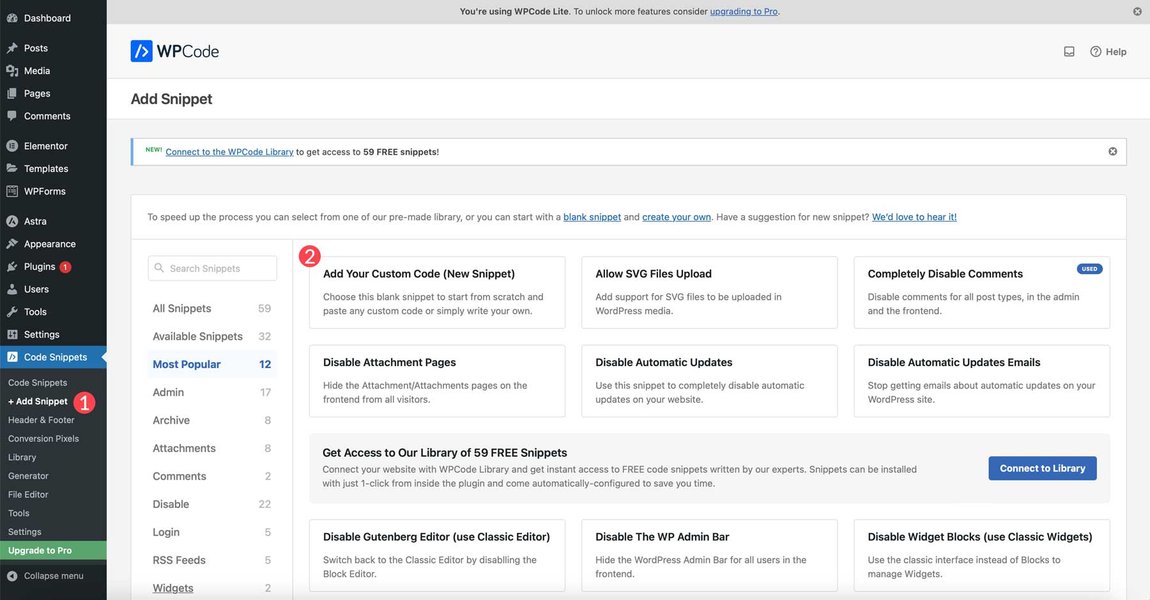
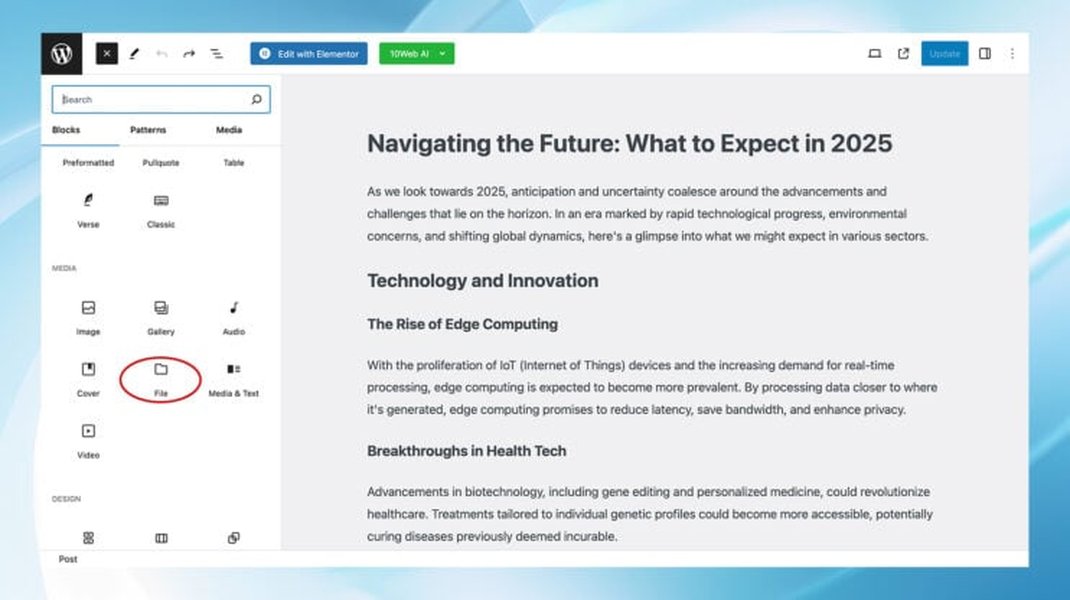
These images showcase the process of integrating AI-generated HTML into WordPress using various methods. The first image displays the concept of coding in WordPress with AI assistance, the second demonstrates adding code snippets with the WPCode plugin, and the third shows how to insert HTML file blocks directly in the Gutenberg editor.
Frequently Asked Questions
References
- Insert HTML Snippet - WordPress Plugin Directory
- AI Engine - WordPress Plugin Directory
- How to Convert Website to WordPress - 10Web Blog
- How to Use AI in WordPress - Elegant Themes
- Adding HTML to WordPress - InMotion Hosting Support
- How to Integrate Google's Gemini AI API with Your WordPress Site - Ege Dijital
- How to Build a Site With Google Gemini in 8 Steps - Hostinger Tutorials
Recommended Searches
Last updated April 8, 2025