
Unlock Conversational AI on Your Desktop: Build a Gemini-Powered KDE Plasma 6 Widget
A step-by-step guide to integrating Google's Gemini API into a custom Plasma 6 chat widget, complete with automation script.
Integrating cutting-edge AI like Google Gemini directly into your KDE Plasma 6 desktop offers a seamless way to access powerful conversational capabilities. This guide provides a comprehensive walkthrough for creating your own custom chat widget (Plasmoid), allowing you to interact with Gemini without leaving your desktop environment. We'll cover everything from setting up your development environment to handling API calls and packaging your widget.
Essential Highlights
Key Takeaways for Your Gemini Widget Project
- Direct Desktop Integration: Build a native Plasma 6 widget for quick access to Google Gemini chat features right from your desktop or panel.
- QML & JavaScript Focus: Leverage QML for a declarative UI and JavaScript for handling API interactions, offering a balance between ease of development and functionality.
- API Key Security is Paramount: Learn the importance of securely managing your Google Gemini API key, avoiding hardcoding, and considering safer storage methods.
Preparing for Development
Setting Up Your Environment and Getting API Access
Before diving into coding, you need to set up your development environment and obtain credentials for the Google Gemini API.
Development Environment Prerequisites
- KDE Plasma 6: Ensure you are running KDE Plasma 6.
- KDE Development Tools: Install the necessary packages for Plasma 6 development. The exact package names vary by distribution but often include
cmake,g++(or another C++ compiler),qt6-base-dev(or equivalent Qt 6 development libraries), andkf6-plasma-dev(or similar KDE Frameworks 6 development packages). - Text Editor/IDE: Use a code editor like VS Code, Kate, or an IDE like Qt Creator.
Obtaining a Google Gemini API Key
- Visit the Google AI for Developers website.
- Follow the instructions to sign up or log in and create a new project or use an existing one.
- Navigate to the API key generation section (often within Google AI Studio or Google Cloud Console under APIs & Services > Credentials).
- Generate an API key specifically for your project. Keep this key confidential!
- Familiarize yourself with the Gemini API documentation, particularly the Quickstart Guide and API Reference, to understand request formats, models (e.g.,
gemini-1.5-pro), and response structures.
Crucial Security Note: Never hardcode your API key directly into your source code, especially if you plan to share the widget. Consider using environment variables, a secure configuration file stored outside the main code, or KDE's KConfig framework for storing sensitive information.
Building Your Gemini Chat Widget: Step-by-Step
From Project Structure to API Integration
Let's walk through the process of creating the widget itself.
1. Create the Widget Project Structure
Plasma widgets require a specific directory layout. You can create this manually or use the automation script provided later.
- Create a main directory for your widget, e.g.,
gemini-chat-widget. - Inside it, create a
contentsdirectory. - Inside
contents, create auidirectory for your QML files. - Optionally, create a
codedirectory if you plan complex C++ backend logic, though we'll focus on JavaScript within QML here. - Place your main QML file (e.g.,
main.qml) insidecontents/ui/. - Create a metadata file in the root of your widget directory (e.g.,
gemini-chat-widget/metadata.desktop).
2. Define Widget Metadata (metadata.desktop)
This file tells Plasma about your widget. Create metadata.desktop in your widget's root directory:
[Desktop Entry]
Name=Gemini Chat Widget
Comment=Interact with Google Gemini AI
Icon=network-chat # Or another appropriate icon name
Type=Service
X-KDE-ServiceTypes=Plasma/Applet
X-KDE-PluginInfo-Author=Your Name
X-KDE-PluginInfo-Email=your.email@example.com
X-KDE-PluginInfo-Name=org.example.geminichatwidget # Unique identifier
X-KDE-PluginInfo-Version=1.0
X-KDE-PluginInfo-Website=https://yourwebsite.example
X-KDE-PluginInfo-Category=Utilities
X-KDE-PluginInfo-License=GPL-3.0+
X-KDE-PluginInfo-EnabledByDefault=true
X-Plasma-API=declarativeappletscript # Specifies QML/JS usage
X-Plasma-MainScript=contents/ui/main.qml # Path to your main QML file
3. Design the User Interface (contents/ui/main.qml)
Use QML to create the visual elements: an input field, a display area for the chat, and a send button.
import QtQuick 2.15
import QtQuick.Controls 2.15
import QtQuick.Layouts 1.15
import org.kde.plasma.core 2.0 as PlasmaCore
import org.kde.plasma.plasmoid 2.0 as PlasmaPlasmoid
import org.kde.kirigami 2 as Kirigami // For better styling options

PlasmaPlasmoid.Applet {
    id: root
    // Prefer Plasmoid settings for API key if possible
    // property string apiKey: "YOUR_API_KEY_HERE" // Avoid hardcoding! Read from secure config instead.
    property string chatHistory: "AI: Hello! How can I help you today?"

    // Use Kirigami theme for consistency
    Kirigami.Theme.colorSet: Kirigami.Theme.View

    // Main layout
    ColumnLayout {
        anchors.fill: parent
        spacing: units.smallSpacing // Use Kirigami units

        // Chat display area
        Kirigami.ScrollablePage {
            Layout.fillWidth: true
            Layout.fillHeight: true

            TextArea {
                id: chatArea
                text: root.chatHistory
                readOnly: true
                wrapMode: Text.WrapAnywhere
                background: Rectangle { color: "transparent" } // Use theme background
                font.pixelSize: Kirigami.Theme.smallFont.pixelSize
                // Auto-scroll to bottom (simplified example)
                onTextChanged: scrollArea.verticalScrollBar.value = scrollArea.verticalScrollBar.maximumValue
                property alias scrollArea: chatArea // Alias for parent ScrollablePage if needed
            }
        }

        // Input area
        RowLayout {
            Layout.fillWidth: true

            TextField {
                id: inputField
                Layout.fillWidth: true
                placeholderText: "Ask Gemini..."
                font.pixelSize: Kirigami.Theme.smallFont.pixelSize
                onAccepted: sendMessage() // Send on Enter key press
            }

            Button {
                text: "Send"
                icon.name: "mail-send" // Use a standard icon
                onClicked: sendMessage()
            }
        }
    }

    // JavaScript function to handle sending message and API call
    function sendMessage() {
        var userPrompt = inputField.text.trim();
        if (userPrompt === "") return;

        // Update chat history immediately with user message
        root.chatHistory += "\n\nYou: " + userPrompt;
        inputField.text = ""; // Clear input field

        // Call the function to interact with Gemini API
        callGeminiAPI(userPrompt);
    }

    // JavaScript function for Gemini API call
    function callGeminiAPI(prompt) {
        // --- IMPORTANT: Securely retrieve API Key here ---
        // Example: var apiKey = PlasmaCore.Plasmoid.configuration.apiKey; // If stored in Plasmoid settings
        var apiKey = "YOUR_GEMINI_API_KEY"; // Replace with secure retrieval method!

        if (!apiKey || apiKey === "YOUR_GEMINI_API_KEY") {
             root.chatHistory += "\n\nAI: Error - API Key not configured securely.";
             return;
        }

        var xhr = new XMLHttpRequest();
        // Use the correct Gemini API endpoint (v1beta is common)
        var endpoint = "https://generativelanguage.googleapis.com/v1beta/models/gemini-1.5-pro-latest:generateContent?key=" + apiKey;

        xhr.open("POST", endpoint);
        xhr.setRequestHeader("Content-Type", "application/json");

        xhr.onreadystatechange = function() {
            if (xhr.readyState === XMLHttpRequest.DONE) {
                if (xhr.status === 200) {
                    try {
                        var response = JSON.parse(xhr.responseText);
                        // Adjust parsing based on the actual Gemini API response structure
                        var aiResponse = response.candidates[0].content.parts[0].text;
                        root.chatHistory += "\n\nAI: " + aiResponse;
                    } catch (e) {
                         root.chatHistory += "\n\nAI: Error parsing response - " + e.message;
                         console.error("Gemini API Response Parse Error:", xhr.responseText);
                    }
                } else {
                    root.chatHistory += "\n\nAI: Error - " + xhr.status + ": " + xhr.statusText;
                     console.error("Gemini API Error:", xhr.status, xhr.responseText);
                }
            }
        };

        // Construct the request body according to Gemini API specs
        var requestBody = JSON.stringify({
            "contents": [{
                "parts": [{"text": prompt}]
            }]
            // Add generationConfig parameters if needed (temperature, maxOutputTokens, etc.)
            // "generationConfig": {
            //   "temperature": 0.7,
            //   "maxOutputTokens": 256
            // }
        });

        // IMPORTANT: Implement proper error handling and potentially use asynchronous patterns
        // The XMLHttpRequest here is inherently asynchronous due to onreadystatechange.
        xhr.send(requestBody);
    }
}
Note: This QML/JS code provides a basic structure. For production, enhance error handling (network issues, API errors, rate limits), implement asynchronous operations correctly to avoid UI freezes, parse the API response robustly, and manage conversation history if needed.
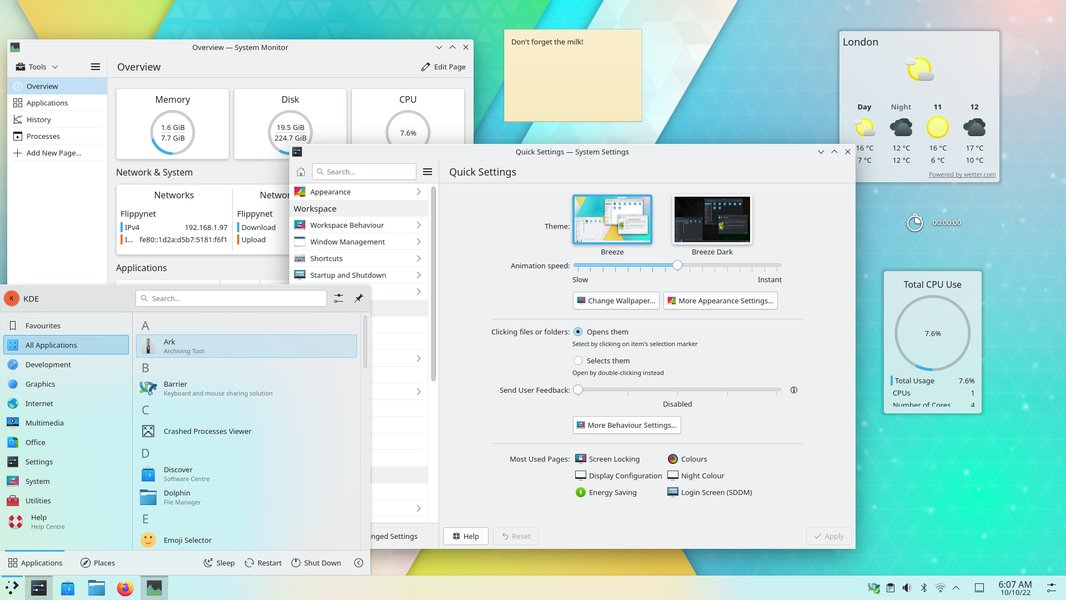
Example of a KDE Plasma desktop showcasing various widgets.
4. Build and Install
Plasma 6 widgets typically don't require explicit compilation if using only QML/JS. Installation involves placing the widget directory in the correct location:
- Copy your entire widget directory (e.g.,
gemini-chat-widget) to~/.local/share/plasma/plasmoids/. The final path would be something like~/.local/share/plasma/plasmoids/org.example.geminichatwidget/(using the unique name frommetadata.desktop). - You might need to restart Plasma for the widget to be recognized: Log out and log back in, or run
kquitapp6 plasmashell && kstartapp plasmashellin a terminal (use with caution).
5. Test and Debug
- Add the widget to your desktop or panel via the "Add Widgets..." menu.
- Use
plasmoidviewerfor isolated testing:plasmoidviewer -a org.example.geminichatwidget(replace with your widget's unique name). - Check Plasma's logs or use
journalctlfor debugging information if issues arise. Useconsole.log()orconsole.error()within your JavaScript functions for debugging output.
Development Approaches Comparison
QML/JavaScript vs. C++ Backend
While this guide focuses on QML/JavaScript, you could also use C++ for the backend logic. Here's a comparison:
The radar chart above visualizes the trade-offs. QML/JavaScript is generally easier for simpler widgets and faster prototyping, especially with direct UI integration. C++ offers better performance for heavy computation, more robust handling of complex logic or system integration, and potentially more secure ways to manage sensitive data if implemented carefully using KDE/Qt frameworks.
Widget Development Process Mindmap
Visualizing the Journey from Idea to Deployment
This mindmap outlines the key stages involved in creating your KDE Plasma 6 Gemini chat widget.
Development Process"] id1["1. Preparation"] id1a["Setup KDE Dev Env
(Qt6, KF6, CMake)"] id1b["Get Google Gemini API Key
(ai.google.dev)"] id1c["Understand Gemini API
(Docs, Endpoints, Models)"] id1d["Plan Security
(API Key Storage)"] id2["2. Widget Creation"] id2a["Create Project Folder"] id2b["Define Metadata
(metadata.desktop)"] id2c["Design UI
(main.qml - Input, Output, Button)"] id2d["Implement Logic (JS)"] id2d1["API Call Function
(XMLHttpRequest)"] id2d2["Parse Response (JSON)"] id2d3["Update UI (chatHistory)"] id2d4["Error Handling"] id3["3. Build & Install"] id3a["Copy to Plasmoids Dir
(~/.local/share/plasma/plasmoids/)"] id3b["Restart Plasma (if needed)"] id4["4. Testing & Debugging"] id4a["Add Widget to Desktop/Panel"] id4b["Use plasmoidviewer"] id4c["Check Logs / Use console.log()"] id5["5. Refinement"] id5a["Improve UI/UX"] id5b["Enhance Error Handling"] id5c["Secure API Key Storage
(KConfig, Env Vars)"] id5d["Consider Async Operations"]
Automation Script: Basic Structure Setup
Generating the Boilerplate Files
While a script cannot fully automate the complex logic of API integration and UI design, this bash script automates the creation of the basic directory structure and placeholder files. You will need to manually edit the metadata.desktop and especially the main.qml file to add the specific UI elements and JavaScript logic discussed earlier.
#!/bin/bash

# --- Configuration ---
WIDGET_NAME="Gemini Chat Widget"
WIDGET_ID="org.example.geminichatwidget" # IMPORTANT: Make this unique!
AUTHOR_NAME="Your Name"
AUTHOR_EMAIL="your.email@example.com"
# --- End Configuration ---

# Derive directory name from ID (replace dots with dashes for filesystem friendliness)
WIDGET_DIR_NAME=$(echo "$WIDGET_ID" | tr '.' '-')
PROJECT_ROOT="$HOME/kde-widgets/$WIDGET_DIR_NAME" # Create widgets in a dedicated folder

# Create directory structure
echo "Creating directory structure in $PROJECT_ROOT..."
mkdir -p "$PROJECT_ROOT/contents/ui"

# --- Create metadata.desktop ---
echo "Creating metadata.desktop..."
cat << EOF > "$PROJECT_ROOT/metadata.desktop"
[Desktop Entry]
Name=$WIDGET_NAME
Comment=Interact with Google Gemini AI
Icon=network-chat
Type=Service
X-KDE-ServiceTypes=Plasma/Applet
X-KDE-PluginInfo-Author=$AUTHOR_NAME
X-KDE-PluginInfo-Email=$AUTHOR_EMAIL
X-KDE-PluginInfo-Name=$WIDGET_ID
X-KDE-PluginInfo-Version=1.0
X-KDE-PluginInfo-Website=https://yourwebsite.example
X-KDE-PluginInfo-Category=Utilities
X-KDE-PluginInfo-License=GPL-3.0+
X-KDE-PluginInfo-EnabledByDefault=true
X-Plasma-API=declarativeappletscript
X-Plasma-MainScript=contents/ui/main.qml
EOF

# --- Create main.qml (Basic Placeholder) ---
echo "Creating basic contents/ui/main.qml..."
cat << EOF > "$PROJECT_ROOT/contents/ui/main.qml"
import QtQuick 2.15
import QtQuick.Controls 2.15
import QtQuick.Layouts 1.15
import org.kde.plasma.plasmoid 2.0 as PlasmaPlasmoid
import org.kde.kirigami 2 as Kirigami

PlasmaPlasmoid.Applet {
    id: root

    Kirigami.Theme.colorSet: Kirigami.Theme.View

    // Placeholder Label - Replace with actual UI (see guide example)
    Label {
        anchors.centerIn: parent
        text: "Gemini Chat Widget - Placeholder UI"
        wrapMode: Text.WordWrap
        horizontalAlignment: Text.AlignHCenter
    }

    // TODO: Replace the Label above with the ColumnLayout containing:
    // 1. Scrollable TextArea (chatArea) for displaying conversation.
    // 2. RowLayout with TextField (inputField) and Button (sendButton).
    // 3. Implement the sendMessage() and callGeminiAPI() JavaScript functions.
    // 4. Remember to handle API key security properly!

    /*
    Example structure reminder:
    ColumnLayout {
        anchors.fill: parent
        Kirigami.ScrollablePage { ... TextArea ... }
        RowLayout { ... TextField ... Button ... }
    }

    function sendMessage() { ... }
    function callGeminiAPI(prompt) { ... }
    */
}
EOF

echo "---"
echo "Basic widget structure created in: $PROJECT_ROOT"
echo "Next Steps:"
echo "1. Edit '$PROJECT_ROOT/contents/ui/main.qml' to add your UI elements and JavaScript logic."
echo "2. IMPORTANT: Implement secure handling for your Google Gemini API key inside main.qml."
echo "3. Copy the '$PROJECT_ROOT' directory to '~/.local/share/plasma/plasmoids/$WIDGET_ID/'"
echo "   (Command: cp -r '$PROJECT_ROOT' ~/.local/share/plasma/plasmoids/$WIDGET_ID)"
echo "4. Restart Plasma or use 'plasmoidviewer -a $WIDGET_ID' to test."
echo "---"
Save this script (e.g., create_widget.sh), make it executable (chmod +x create_widget.sh), and run it (./create_widget.sh). It will create the basic folder structure and files in ~/kde-widgets/your-widget-id-here/. Remember to customize the files significantly, especially main.qml, to implement the actual chat functionality.
Visualizing KDE Customization
Exploring Plasma Widgets and Setup
Understanding how widgets fit into the KDE Plasma ecosystem can be helpful. The following video provides an introduction to customizing Plasma 6, including the use of widgets, which sets the context for where your custom Gemini chat widget will live.
This video offers a beginner's guide to customizing KDE Plasma 6, showcasing how widgets enhance the desktop experience.
Feature Comparison: QML/JS vs C++ Backend
Choosing the Right Approach
Selecting the implementation method depends on your widget's complexity and performance needs. This table summarizes key differences:
| Feature | QML + JavaScript | QML + C++ Backend |
|---|---|---|
| Development Speed | Faster prototyping, easier for simple tasks. | Slower initial setup, requires build system (CMake). |
| Performance | Generally sufficient for UI and simple logic/API calls. Can struggle with heavy computation. | Better for performance-intensive tasks, complex data manipulation, or system-level interactions. |
| Complexity Handling | Can become complex to manage for very large applications. | Better suited for managing complex application logic and state. |
| API Integration | Straightforward for REST APIs using XMLHttpRequest or Fetch API (if available in QtWebEngine). | More robust options via Qt Network module, better handling of complex protocols or authentication. |
| Security | API keys in JS require careful handling (avoid hardcoding). Secure storage access might be limited. | Can leverage more secure system facilities (KWallet, KConfig) and compiled code offers some obfuscation (though not true security). |
| Access to KDE/Qt Features | Good access to QML-exposed features. | Full access to all KDE Frameworks and Qt C++ APIs. |
For a chat widget primarily making REST API calls, the QML/JavaScript approach is often sufficient and faster to develop, provided you prioritize API key security.
Frequently Asked Questions (FAQ)
Common Questions about Plasma Widget Development
How do I securely store my Gemini API Key?
My widget isn't showing up after installation. What should I do?
How can I make the API calls asynchronous to prevent UI freezes?
Can I use other Gemini models besides gemini-1.5-pro-latest?
Recommended Further Exploration
Dive Deeper into Related Topics
- How can I use KConfig for securely storing user settings like API keys in KDE Plasma widgets?
- What are some advanced QML techniques for creating more dynamic and responsive user interfaces in KDE Plasma?
- What is the process for integrating C++ backend logic with a QML frontend in a Plasma 6 widget?
- What are the best practices for implementing robust error handling and providing clear user feedback in KDE Plasma widgets interacting with web APIs?
References
Helpful Resources and Documentation
Last updated May 4, 2025