
Unlock Your iPhone's Voice: A Guide to Hearing Notifications Aloud
Discover how to make your iPhone read out notifications, keeping you informed hands-free.
In today's fast-paced world, staying updated with notifications without constantly glancing at your iPhone screen can be a game-changer. Whether you're driving, working out, or simply prefer an auditory experience, your iPhone has built-in features to read notifications aloud. This guide will walk you through the various settings and options available to customize how your device announces incoming alerts.
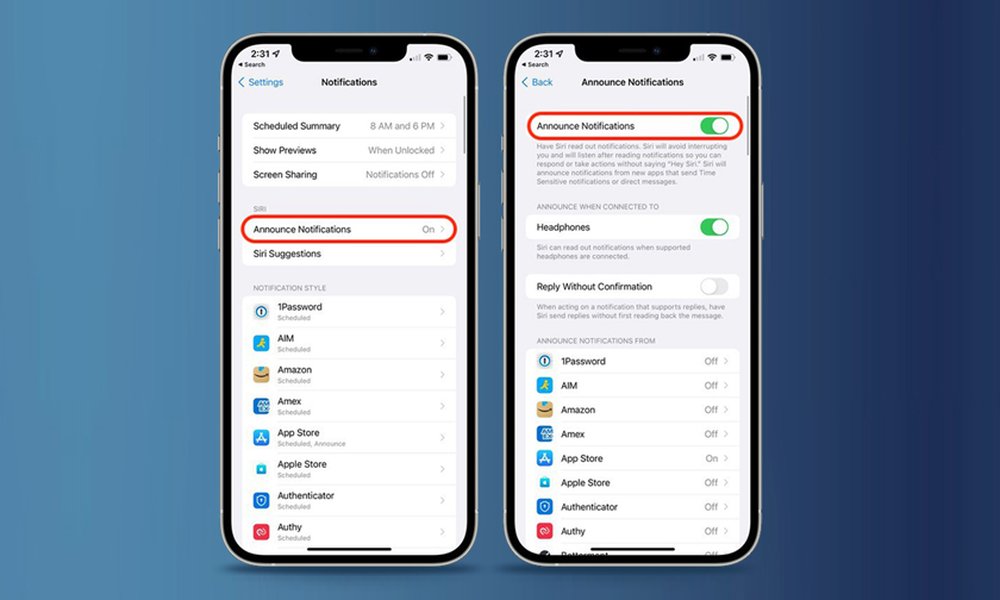
The "Announce Notifications" toggle within iPhone settings.
Key Insights: Hearing Your iPhone Notifications
- Siri's Announce Notifications: The primary method involves Siri reading your notifications, especially useful with compatible headphones like AirPods or Beats, or even through the iPhone's speaker.
- Customization is Key: You can choose which apps' notifications are announced and whether to hear all or only time-sensitive ones.
- Accessibility Options: Beyond Siri, specific accessibility settings like "Spoken Content" offer broader text-to-speech capabilities, including notifications.
Mastering "Announce Notifications" with Siri
The most common and integrated way to have your iPhone read notifications is through Siri's "Announce Notifications" feature. This allows Siri to intelligently announce incoming alerts from various apps, providing a seamless hands-free experience.
Enabling Announce Notifications
Setting up this feature is straightforward:
- Navigate to the Settings app on your iPhone.
- Scroll down and tap on Siri & Search.
- Select Announce Notifications.
- Toggle the main Announce Notifications switch to the ON position.
Once enabled, Siri will typically announce notifications when your iPhone is locked, its screen is off, and you are wearing compatible headphones. Compatible headphones include AirPods (2nd generation and later), AirPods Pro, AirPods Max, and various Beats headphone models. This feature also works with Made for iPhone hearing aids.
Customizing App-Specific Announcements
You have granular control over which apps can announce notifications. In the "Announce Notifications" settings screen, you'll see a list of your installed apps. You can tap on each app (e.g., Messages, Mail, third-party apps) to configure its announcement behavior. For some apps, you can choose to announce all notifications or only "Time Sensitive" or "Direct Messages."
Hearing Notifications via iPhone Speaker
If you're not using headphones, or prefer notifications to be read aloud through your iPhone's built-in speaker, you can enable this (available from iOS 16 onwards):
- Go to Settings > Accessibility.
- Scroll down and tap on Siri (under the General section).
- Toggle on Announce Notifications on Speaker.
Keep in mind that announcements via the speaker are not private and can be heard by anyone nearby.
Replying Hands-Free
For apps like Messages, when Siri announces a notification, you can often reply immediately using your voice. To streamline this, you can enable "Reply Without Confirmation" in the "Announce Notifications" settings. This allows Siri to send your dictated reply without reading it back to you for approval first.
The Future is Here: Summarize Notifications with Apple Intelligence
For users with iPhone 15 Pro, iPhone 15 Pro Max, and later Pro models running iOS 18.1 or later, Apple Intelligence introduces "Summarize Notifications." This advanced feature allows your iPhone to provide concise summaries of direct messages and groups of notifications, making them quicker to digest. These summaries appear in italics and can be expanded to view the full text.
How to Enable Summarize Notifications
- Open the Settings app.
- Tap Notifications.
- Turn on Summarize Notifications. You can then configure this for specific apps.
Furthermore, with iOS 18.4, Apple Intelligence can prioritize important and time-sensitive notifications, placing them at the top of your Notification Center.
Accessibility Spotlight: Spoken Content for Notifications
If you require more comprehensive spoken feedback, or if Siri's Announce Notifications doesn't quite meet your needs, the "Spoken Content" feature within Accessibility settings offers an alternative.
Activating Speak Notifications
- Open Settings.
- Go to Accessibility.
- Tap on Spoken Content.
- Toggle on Speak Notifications.
This feature is more general and can read out various content depending on your configuration. It's designed primarily for accessibility but can be used by anyone who prefers auditory notifications.
Visualizing Notification Reading Options
To better understand the strengths of each notification reading method, consider the following comparison. This chart evaluates different features based on criteria like hands-free convenience, customization, and overall user experience.
This chart highlights that while Siri's Announce Notifications via headphones offers high hands-free convenience and privacy, options like Summarize Notifications excel in information management, and Announce on Speaker provides an alternative when headphones aren't practical.
Navigating Notification Settings: A Mindmap
Understanding the iPhone's settings structure can help you quickly access and configure notification reading features. The mindmap below illustrates the key pathways to these settings.
(Settings > Siri & Search)"] id1a2["App-Specific Settings
(Choose apps, Time-sensitive/Direct)"] id1a3["With Headphones
(AirPods, Beats, etc.)"] id1a4["Reply Without Confirmation"] id1b["Summarize Notifications
(iOS 18.1+ Pro Models)"] id1b1["Settings > Notifications"] id2["Accessibility Features"] id2a["Announce Notifications on Speaker"] id2a1["Settings > Accessibility > Siri"] id2b["Spoken Content"] id2b1["Settings > Accessibility > Spoken Content"] id2b2["Speak Notifications toggle"] id3["Related Settings"] id3a["Focus Modes
(Can silence announcements)"] id3b["Notification Previews
(Visual display)"]
This mindmap shows that primary controls for spoken notifications are found within "Siri & Search" and "Accessibility" sections of the Settings app.
Visual guide on enabling Announce Notifications on iPhone.
The video above provides a step-by-step tutorial on how to enable and configure the Announce Notifications feature on your iPhone. It can be a helpful visual aid to complement the textual instructions, ensuring you can easily navigate the settings and customize them to your preference. Watching how to toggle options and select specific apps can clarify the process, especially for visual learners.
Quick Reference: Notification Reading Features
Here's a table summarizing the key ways to have your iPhone read notifications aloud:
| Feature | How to Enable | Key Characteristics |
|---|---|---|
| Announce Notifications (Siri) | Settings > Siri & Search > Announce Notifications | Primary method; works with compatible headphones (AirPods, Beats) or iPhone speaker; customizable per app; allows voice replies. |
| Announce Notifications on Speaker (Accessibility) | Settings > Accessibility > Siri > Announce Notifications on Speaker | Allows Siri to announce notifications through the iPhone's built-in speaker without headphones. (iOS 16+) |
| Summarize Notifications (Apple Intelligence) | Settings > Notifications > Summarize Notifications | Provides concise summaries of notifications; requires iPhone 15 Pro/Pro Max or later with iOS 18.1+. |
| Spoken Content (Speak Notifications) | Settings > Accessibility > Spoken Content > Speak Notifications | Broader accessibility feature; can read notifications and other screen content; less integrated than Siri's announcements. |
Troubleshooting Common Issues
If you encounter problems with your iPhone not announcing notifications, here are a few common troubleshooting steps:
- Check iPhone Lock Status: Announce Notifications typically works when your iPhone is locked and the screen is off. If you're actively using your device, Siri usually won't announce messages.
- Verify Siri is Enabled: Ensure Siri is fully enabled in Settings > Siri & Search.
- Review Focus Modes: Focus modes (like Do Not Disturb, Sleep, Work) can silence notifications, including announcements. Check your Focus settings (Settings > Focus) and ensure that notifications from desired apps are allowed, or that Announce Notifications is permitted within that Focus.
- Headphone Connection: If using headphones, ensure they are properly connected via Bluetooth and compatible. For AirPods, check their specific settings by going to Settings > [Your AirPods' Name].
- App-Specific Notification Settings: Confirm that the app in question has notifications enabled (Settings > Notifications > [App Name] > Allow Notifications) and that Announce Notifications is configured for it.
- Volume Levels: Ensure your iPhone's volume is not muted or set too low.
- Toggle Off and On: Try toggling the "Announce Notifications" feature (and "Announce Notifications on Speaker" if applicable) off and then back on.
- Restart Your iPhone: A simple restart can often resolve minor software glitches.
- Software Updates: Ensure your iPhone is running the latest version of iOS, as updates often include bug fixes and improvements. Check via Settings > General > Software Update.
Frequently Asked Questions (FAQ)
Which iPhone models support Announce Notifications?
Can Siri announce notifications from all apps?
Will notifications be announced if my iPhone is unlocked?
Does Announce Notifications work with CarPlay?
What if I don't want all notifications read aloud, only important ones?
Conclusion
Setting up your iPhone to read notifications aloud is a powerful way to stay informed without being tethered to your screen. By leveraging Siri's "Announce Notifications," customizing settings for specific apps, and exploring accessibility options like "Spoken Content," you can tailor the experience to your exact needs. Whether you're looking for hands-free convenience during a commute, workout, or simply prefer auditory alerts, your iPhone offers robust tools to make it happen. Remember to explore the settings, especially with newer iOS versions that bring enhanced intelligence to notification management.
Recommended Further Exploration
To delve deeper into related iPhone functionalities, consider exploring these topics:
- How can I customize Focus modes on my iPhone for better notification management during different activities?
- What are the most advanced features and capabilities of Siri in the latest iOS version beyond announcing notifications?
- What other iPhone accessibility features are available for users who prefer or require auditory interaction with their device?
- How do I effectively manage iMessage read receipts on my iPhone, both for individual contacts and globally?
References
 tenorshare.com
Last updated May 21, 2025