
Troubleshooting Laravel Sail and Docker Metadata Errors
Resolving the "failed to resolve source metadata" and "failed to fetch oauth token" issues
Encountering issues when trying to run Laravel Sail, particularly errors related to loading metadata for Docker images like docker.io/library/ubuntu:24.04 and failures to fetch OAuth tokens, is a common problem developers face. These errors often point towards underlying network configuration issues, problems with Docker or WSL (Windows Subsystem for Linux) setup, or authentication glitches with Docker Hub. This comprehensive guide will delve into the possible causes and provide detailed solutions to help you get your Laravel Sail environment up and running.
Key Insights and Solutions
- Network and DNS Issues: The error message "dial tcp: lookup auth.docker.io on 172.21.160.1:53: read udp 172.21.173.160:49090->172.21.160.1:53: i/o timeout" strongly suggests a problem with DNS resolution or network connectivity from your environment to Docker Hub.
- Docker and WSL Configuration: Incorrect configurations in Docker Desktop, especially regarding WSL integration on Windows, or issues with the Docker daemon itself can prevent images from being pulled or built correctly.
- Authentication Problems: Failures to fetch OAuth tokens indicate potential issues with your Docker login status or corrupted configuration files.
Understanding the Error Message
Let's break down the error message you're seeing:
ERROR [laravel.test internal] load metadata for docker.io/library/ubuntu:24.04
failed to solve: ubuntu:24.04: failed to resolve source metadata for docker.io/library/ubuntu:24.04: failed to authorize: failed to fetch oauth token: Post "https://auth.docker.io/token": dial tcp: lookup auth.docker.io on 172.21.160.1:53: read udp 172.21.173.160:49090->172.21.160.1:53: i/o timeout
This message indicates a multi-step failure during the process of building the laravel.test service, which relies on a Docker image based on ubuntu:24.04. The key parts are:
load metadata for docker.io/library/ubuntu:24.04: Docker is trying to retrieve information about the specified Ubuntu image from Docker Hub.failed to resolve source metadata: It couldn't successfully get this information.failed to authorize: failed to fetch oauth token: The authorization step, which involves obtaining an OAuth token from Docker Hub's authentication service (auth.docker.io), failed. This token is necessary to pull images.Post "https://auth.docker.io/token": dial tcp: lookup auth.docker.io on 172.21.160.1:53: read udp 172.21.173.160:49090->172.21.160.1:53: i/o timeout: This is the most specific part of the error. It shows that when trying to contactauth.docker.ioto get the token, a network issue occurred. Specifically, it failed to perform a DNS lookup forauth.docker.iousing the DNS server at172.21.160.1, resulting in an I/O timeout.
In essence, your system is unable to connect to Docker Hub to get the necessary authorization to pull the Ubuntu image, most likely due to a DNS or network connectivity problem.
Common Causes and Solutions
Network and DNS Resolution Issues
As highlighted by the error message, network and DNS problems are frequently the root cause. Here's how to address them:
Check Your Internet Connection
Ensure you have a stable internet connection and can access external websites.
Verify DNS Settings
The error points to a specific DNS server (172.21.160.1:53). This might be a DNS server configured within your Docker or WSL environment. You need to ensure that DNS resolution is working correctly from within the environment where Docker is running.
- For WSL2 users: WSL2 manages its own network configuration, including DNS. Sometimes, after system updates (like upgrading Ubuntu), WSL2's DNS settings can become misconfigured. You might need to manually configure DNS within your WSL distribution or restart the WSL service.
- For all users: Check your system's overall DNS configuration. You could try temporarily switching to a public DNS server like Google DNS (8.8.8.8 and 8.8.4.4) or Cloudflare DNS (1.1.1.1) to see if that resolves the issue.
Firewall or Proxy Interference
Firewalls or proxy servers can block outbound connections to Docker Hub or its authentication server. Ensure that your firewall is not blocking traffic to auth.docker.io or registry.docker.io on ports 443 (HTTPS) and 80 (HTTP). If you are behind a proxy, you might need to configure Docker to use the proxy settings.
# Example of configuring proxy for Docker (Linux)
# Edit the Docker daemon configuration file (usually /etc/docker/daemon.json)
# Add or modify the "https_proxy" and "http_proxy" entries
// {
//   "https_proxy": "http://your.proxy.server:port",
//   "http_proxy": "http://your.proxy.server:port"
// }

# Restart Docker service
# sudo systemctl daemon-reload
# sudo systemctl restart docker
For Docker Desktop, proxy settings are typically configured through the application's settings menu.
Clear DNS Cache
Clearing your system's DNS cache can sometimes resolve issues related to outdated or incorrect DNS information.
- Windows: Open Command Prompt and run
ipconfig /flushdns. - Linux: The command varies depending on the distribution and DNS service used (e.g.,
sudo systemctl restart systemd-resolved,sudo service network-manager restart). - macOS: Open Terminal and run
sudo dscacheutil -flushcache; sudo killall -HUP mDNSResponder.
Docker and WSL Configuration Issues
Restart Docker and WSL
A simple restart of Docker Desktop and/or your WSL distribution can often resolve temporary glitches.
- Docker Desktop: Use the "Restart" option in the Docker Desktop menu.
- WSL2 (Windows): Open Command Prompt or PowerShell and run
wsl --shutdown. Then, restart your WSL distribution.
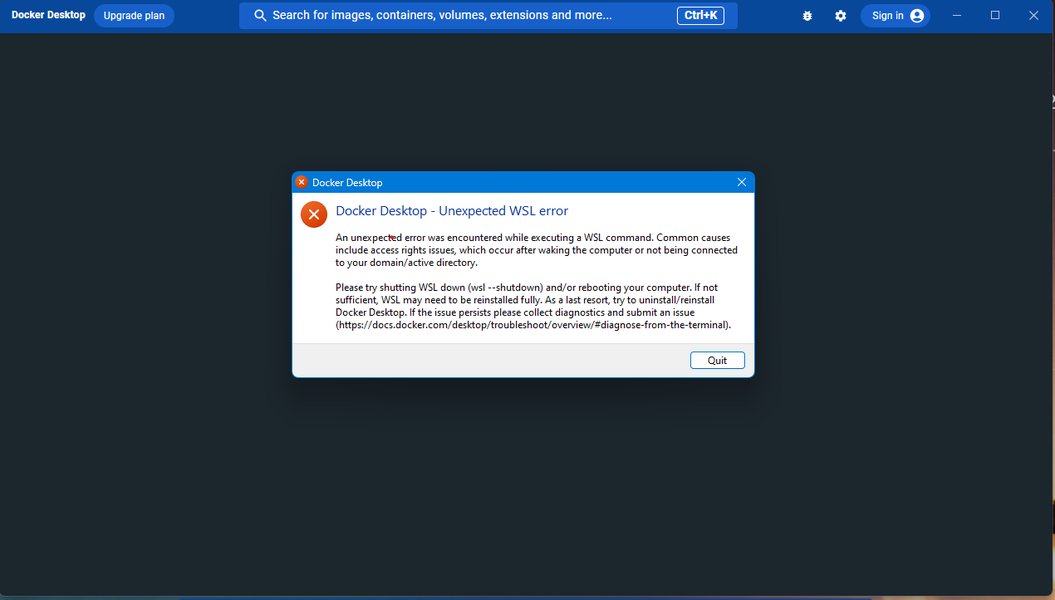
Potential WSL command execution error that could impact Docker.
Check Docker Context
Ensure that Docker is using the correct context, especially if you're using Docker Desktop for Linux or have multiple Docker environments setup.
docker context use defaultThis command sets the default Docker context.
Clean Docker Cache
Corrupted Docker build cache can sometimes cause issues. You can clean the build cache to force Docker to re-download dependencies.
docker builder pruneCheck WSL Integration (Windows)
If you are on Windows using WSL2, ensure that the WSL integration is correctly configured in Docker Desktop settings. Go to Settings -> Resources -> WSL Integration and make sure your Ubuntu distribution is enabled.
Docker Authentication Problems
Docker Login Status
While the error specifically mentions fetching an OAuth token, which doesn't strictly require you to be logged in for public images, ensuring you can log in can help rule out broader authentication or connectivity issues with Docker Hub.
docker loginTry logging out and logging back in.
docker logout
docker login
Remove Docker Configuration File
A corrupted Docker configuration file (config.json) can sometimes interfere with authentication and image pulling.
rm ~/.docker/config.jsonAfter removing the file, try running your Sail command again. Docker will regenerate this file.
Laravel Sail Specific Considerations
Laravel Sail is a wrapper around Docker Compose, providing a convenient way to manage your Laravel development environment. When Sail fails, it's often due to underlying Docker issues, but here are some Sail-specific things to consider:
Ensure Sail is Installed Correctly
Verify that Laravel Sail is properly installed in your project's vendor/bin directory.
ls vendor/bin/sailIf the file is missing, you may need to reinstall Sail using Composer:
composer require laravel/sail --dev
php artisan sail:install
Check .env File and Service Configuration
Ensure your .env file is correctly configured, especially the APP_SERVICE variable if you've customized your Docker Compose setup. Also, check the docker-compose.yml file for any syntax errors or incorrect image names.
Run Sail Commands with ./vendor/bin/sail
Always run Sail commands using the full path or by adding an alias to your shell configuration (like ~/.bashrc or ~/.zshrc).
alias sail='bash vendor/bin/sail'Then, you can simply use sail up, sail shell, etc.
Advanced Troubleshooting Steps
Manually Pull the Image
Attempt to manually pull the problematic Ubuntu image using the standard Docker command. This can help isolate whether the issue is with Docker itself or how Sail is invoking Docker.
docker pull ubuntu:24.04If this command also fails with a similar network or authorization error, it confirms an issue with your Docker installation or network configuration.
Check Docker Logs
Examine the Docker daemon logs for more detailed error information. The location of these logs varies depending on your operating system.
-
Docker Desktop: Access logs through the Docker Desktop application (often in the "Troubleshoot" section).
-
Linux: Check logs using
journalctl -u docker.serviceor by looking in/var/log/syslogor/var/log/daemon.log.
Specify Platform (if on different architecture)
If you are running Docker on a machine with a different architecture than the image you are trying to pull (e.g., an ARM-based Mac trying to pull an AMD64 image), you might need to specify the platform.
docker build --platform="linux/amd64" ...This is less likely to be the issue given the DNS error, but it's worth considering in some scenarios.
Reinstall Docker or WSL
If none of the above solutions work, you might consider a clean reinstallation of Docker Desktop and/or your WSL distribution. This should be a last resort as it can be time-consuming.
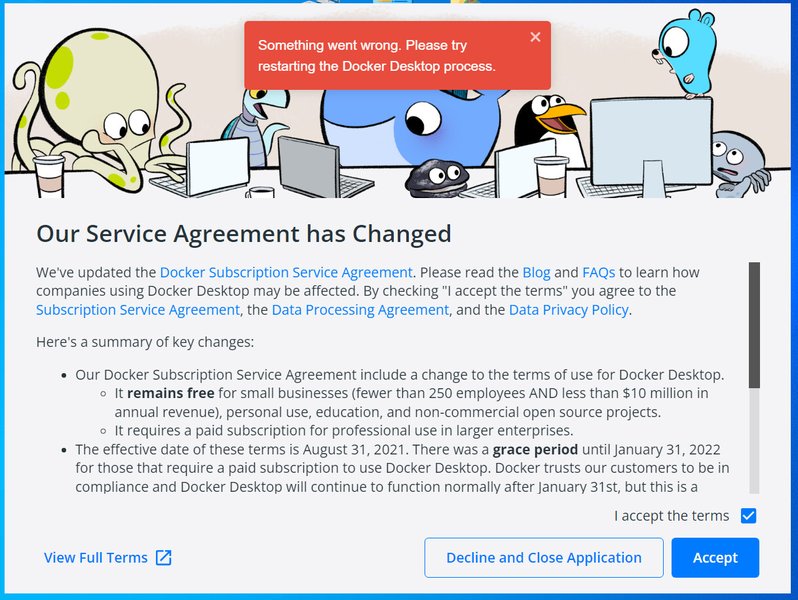
Example of an error that might necessitate reinstalling Docker Desktop.
Relevant Table: Potential Causes and Solutions Summary
Here's a summary of the common causes and their corresponding solutions for the observed error:
| Error Symptom | Potential Cause | Proposed Solutions |
|---|---|---|
failed to fetch oauth token, dial tcp: lookup auth.docker.io, i/o timeout |
Network connectivity or DNS resolution issues | Check internet connection, verify DNS settings (system and WSL), check firewall/proxy, clear DNS cache. |
failed to resolve source metadata |
Problems communicating with Docker Hub registry | Check network/DNS, ensure Docker daemon is running, clear Docker cache. |
| General build failures with Sail | Incorrect Docker or WSL configuration, Sail installation issues | Restart Docker/WSL, check Docker context, verify Sail installation, check .env and docker-compose.yml. |
| Authentication errors | Issues with Docker login or configuration file | Try docker login, remove ~/.docker/config.json. |
Frequently Asked Questions (FAQ)
Why does Docker need to fetch an OAuth token to pull a public image?
Even for public images, Docker interacts with Docker Hub's API and authentication services to retrieve metadata and manage rate limiting. The process involves obtaining a token, even if it's an anonymous one, to authorize the request for image information.
What is the role of the DNS server mentioned in the error (e.g., 172.21.160.1)?
This IP address is likely the DNS server that your Docker or WSL environment is configured to use. The error indicates that your system within that environment is unable to reach this DNS server to resolve the domain name auth.docker.io.
Can a VPN cause these types of errors?
Yes, a VPN can definitely interfere with network connectivity and DNS resolution, potentially leading to these errors. Try temporarily disabling your VPN to see if the issue is resolved.
I'm using Windows with WSL2. How can I manually configure DNS in WSL?
You can edit the /etc/resolv.conf file within your WSL distribution. However, be aware that WSL2 often manages this file automatically. You might need to set generateResolvConf = false in your %USERPROFILE%\.wslconfig file to prevent WSL from overwriting your changes. Then, you can manually add nameserver entries to /etc/resolv.conf (e.g., nameserver 8.8.8.8).
Could a system upgrade (like Ubuntu 23.10 to 24.04) cause this?
Yes, system upgrades can sometimes alter network configurations, including DNS settings, which could lead to these issues, especially within WSL2. The provided sources include mentions of Docker desktop issues after upgrading Ubuntu to 24.04.
Relevant Video
While not directly addressing the "failed to fetch oauth token" error, this video discusses troubleshooting connectivity issues that can arise when working with Docker and Laravel Sail, which can be related to the underlying network problems:
This video focuses on resolving "Port Already Allocated Error," which, while different from your specific error, is another common connectivity problem encountered with Docker and Laravel Sail, highlighting the importance of proper Docker setup.
References
Last updated May 7, 2025