
Mastering Directory Visualization and Management in Linux with the Tree Command
Unlock the full potential of your Linux filesystem through effective visualization and management techniques.
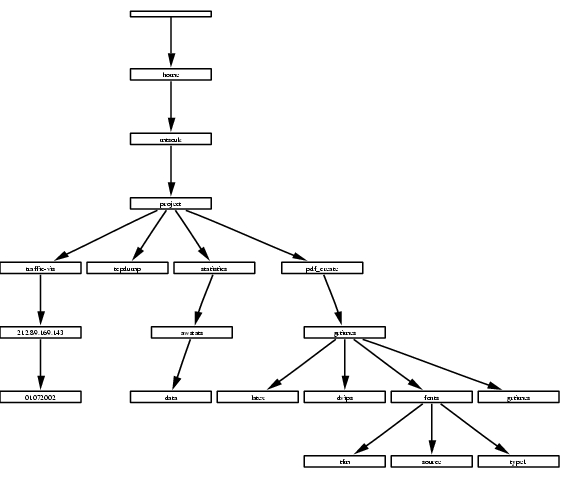
Key Takeaways
- Comprehensive Visualization: The tree command provides a clear, hierarchical view of directory structures, enhancing file system navigation.
- Flexible Management Options: With numerous flags and options, tree allows users to customize outputs to suit various management tasks.
- Integration and Automation: Tree can be seamlessly integrated into scripts and workflows, streamlining directory management processes.
Introduction to the Tree Command
In the Linux ecosystem, managing and visualizing directory structures efficiently is paramount for both system administrators and everyday users. The tree command stands out as a powerful tool that provides a recursive directory listing in a tree-like format, offering a clear and concise visualization of the filesystem hierarchy.
What is the Tree Command?
The tree command is a recursive directory listing program that produces a depth-indented listing of files. Unlike the traditional ls command, which lists files and directories in a single level, tree displays the hierarchical structure, making it easier to understand the organization of directories and subdirectories.
Installation of the Tree Command
While many Linux distributions come with the tree command pre-installed, there are instances where you might need to install it manually. Here's how you can install tree on various distributions:
Debian/Ubuntu-Based Systems
sudo apt update
sudo apt install tree
Red Hat/CentOS/Fedora Systems
sudo yum install tree
Arch Linux
sudo pacman -S tree
Basic Usage of the Tree Command
Understanding the fundamental usage of the tree command is the first step towards leveraging its full potential. Here's a breakdown of how to use tree for basic directory visualization.
Syntax
tree [options] [directory]
- options: Flags that modify the behavior of the tree command.
- directory: The target directory you wish to visualize. If omitted, tree defaults to the current directory.
Basic Command Examples
Visualize the Current Directory
tree
This command will display the hierarchical structure of the current directory, including all its subdirectories and files.
Visualize a Specific Directory
tree /path/to/directory
Replace /path/to/directory with the actual path of the directory you wish to visualize.
Limit the Depth of Traversal
tree -L 2
The -L option sets the maximum display depth of the tree. In this example, the tree will display up to two levels deep.
Advanced Options and Flags
To maximize the utility of the tree command, it's essential to understand its various options and flags. These modifiers allow users to tailor the output to their specific needs.
Commonly Used Flags
| Flag | Description |
|---|---|
-a |
All files are printed including those starting with a dot. |
-d |
List directories only. |
-f |
Print the full path prefix for each file. |
-h |
Print the size of each file in a more human-readable way. |
-p |
Print the protections for each file. |
-s |
Print the size of each file in bytes. |
-C |
Enable colorized output. |
--du |
Show the cumulative size of each directory. |
Combining Flags for Customized Output
Users can combine multiple flags to refine the output of the tree command. Here's how different combinations can be used:
Hidden Files and Directories
tree -a
Displays all files and directories, including those that are hidden (names starting with a dot).
Directories Only
tree -d
Lists only directories, excluding all files from the output.
Full Path Display
tree -f
Shows the full path for each file and directory, providing a complete view of their locations within the filesystem.
Human-Readable Sizes
tree -h
Displays the size of each file in a format that is easier to read (e.g., KB, MB, GB).
Colorized Output
tree -C
Enhances readability by adding color to different file types and directories.
Practical Examples and Use Cases
Applying the tree command in various scenarios can significantly enhance directory management and visualization. Here are some practical examples demonstrating its versatility.
Example 1: Displaying Directory Structure with File Sizes
tree -h
This command will display the directory structure of the current directory, including the sizes of each file in a human-readable format.
Example 2: Listing Only Directories Up to a Specific Depth
tree -d -L 3
This will list only directories up to three levels deep, providing a clear view of the directory hierarchy without cluttering the output with files.
Example 3: Exporting Directory Structure to a File
tree -a -C > directory_structure.txt
By redirecting the output to a file, you can save the directory structure for documentation or sharing purposes.
Example 4: Displaying Full Paths with File Permissions
tree -f -p
This command provides a comprehensive view by showing full paths and the permissions associated with each file and directory.
Example 5: Filtering Output with Grep
tree -L 2 | grep "src"
By piping the output to grep, you can filter the directory tree to display only lines containing the keyword "src".
Integrating Tree into Scripts for Automation
The tree command's versatility extends beyond manual usage. It can be integrated into shell scripts to automate directory management and reporting tasks.
Creating a Directory Structure Report
#!/bin/bash

# Define the target directory
TARGET_DIR="/path/to/target"

# Define the output file
OUTPUT_FILE="/path/to/output/report.txt"

# Generate the tree report
tree -a -C "$TARGET_DIR" > "$OUTPUT_FILE"

# Notify the user
echo "Directory structure report has been saved to $OUTPUT_FILE"
This script automates the generation of a directory structure report, saving it to a specified file for later review or distribution.
Automating Cleanup Based on Directory Structure
#!/bin/bash

# Define the directory to analyze
TARGET_DIR="/path/to/target"

# Find and delete empty directories
find "$TARGET_DIR" -type d -empty -delete

# Generate a tree report after cleanup
tree "$TARGET_DIR" > /path/to/output/cleanup_report.txt

echo "Cleanup completed and report generated."
This script not only uses the tree command to report the directory structure but also incorporates find to clean up empty directories, streamlining filesystem maintenance.
Exporting and Customizing Tree Output
The ability to export the output of the tree command allows for further analysis and integration with other tools. Understanding how to customize and export the tree output is crucial for advanced directory management.
Exporting to Different Formats
While the default output is text-based, you can manipulate tree's output for use in various formats.
Exporting to JSON
tree -J > directory_structure.json
The -J flag outputs the directory structure in JSON format, facilitating integration with web applications and other software that consume JSON data.
Exporting to HTML
tree -H "." -o directory_structure.html
The -H option generates an HTML file representing the directory structure, complete with clickable links for easy navigation.
Using Tree with Other Tools
Combining tree with other command-line tools can enhance its functionality.
Piping Tree Output to Less for Easy Viewing
tree -a | less
Piping the output to less allows for easy navigation through large directory trees without overwhelming your terminal.
Using Tree with AWK for Customized Reporting
tree -f | awk '/src/ {print $0}' > src_directories.txt
This command filters the tree output to include only lines containing "src" and saves them to a file, enabling targeted reporting.
Limitations and Considerations
While the tree command is exceptionally powerful, it's important to be aware of its limitations and best practices to use it effectively.
Performance with Large Directories
Displaying very large directory trees can lead to performance issues, including slow response times and extensive memory usage. To mitigate this:
- Use the
-Lflag to limit the depth of the tree. - Combine with the
-dflag to list directories only. - Redirect output to a file instead of the terminal.
Handling Special Characters and Permissions
Files and directories with special characters or restrictive permissions might not display correctly or at all. Ensure you have the necessary permissions to access all targeted directories and consider using sudo if necessary.
Output Readability
For very deep or wide directory structures, the tree output can become cluttered. Using colorized output (-C) and human-readable sizes (-h) can enhance readability, but it's essential to find a balance that maintains clarity without overwhelming the user.
Alternatives and Complementary Tools
While tree is a robust tool for directory visualization, other commands and tools can complement its functionality or serve as alternatives in specific scenarios.
Alternatives to Tree
- ls: The standard directory listing command, offering various flags for customization.
- find: A powerful tool for searching and manipulating files and directories.
- du: Provides disk usage information, useful for identifying large directories.
Complementary Tools
-
ncdu: An interactive disk usage analyzer, allowing users to navigate and manage disk space efficiently.
-
htop: While primarily a system monitor, it can provide insights into system processes that may affect directory management.
-
midnight commander (mc): A text-based file manager with a dual-pane interface, enhancing file and directory management.
Best Practices for Directory Management Using Tree
To effectively utilize the tree command for directory management, consider the following best practices:
- Regular Audits: Periodically generate directory trees to monitor changes and maintain organization.
- Script Integration: Incorporate
treeinto automation scripts for routine directory reporting and maintenance tasks. - Customized Output: Tailor the
treeoutput using appropriate flags to meet specific management needs. - Backup Planning: Use the directory structure insights from
treeto plan and manage backups effectively. - Collaborative Documentation: Share
treeoutputs with team members to ensure consistent understanding of the filesystem hierarchy.
Conclusion
The tree command is an indispensable tool for anyone looking to gain a deeper understanding and control over their Linux directory structures. Its ability to provide clear, customizable, and comprehensive views of the filesystem makes it a go-to choice for both novices and experienced users. By mastering its various options and integrating it into everyday workflows, users can enhance their efficiency and maintain a well-organized filesystem.
Additional Resources
For further reading and advanced usage scenarios, consider exploring the official tree manual and various online tutorials that delve into the more intricate aspects of directory management using the tree command.
Last updated January 28, 2025