
Mastering the Linux Tree Command
Visualize and Manage Your Directory Structures with Ease
Key Takeaways
- Comprehensive Visualization: The
treecommand provides a clear, hierarchical view of directory structures, simplifying navigation through complex file systems. - Highly Customizable: With a multitude of options, users can tailor the output to display hidden files, limit directory depth, and include detailed file information.
- Cross-Distribution Availability: The
treecommand is available across most Linux distributions and can be easily installed via package managers if not present by default.
Introduction to the Tree Command
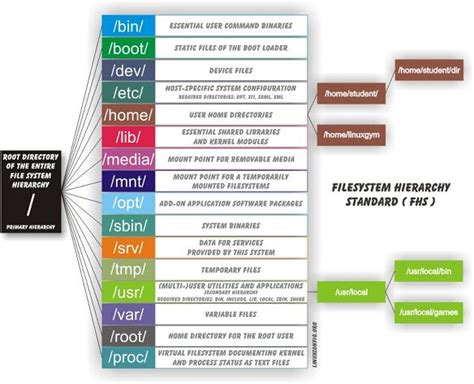
The tree command in Linux is a versatile utility designed to display the contents of directories and their subdirectories in a visually hierarchical, tree-like format. This command is invaluable for system administrators, developers, and users who need to navigate and understand the organization of complex file systems efficiently.
Purpose and Usage
Visualizing Directory Structures
The primary purpose of the tree command is to provide a recursive directory listing that presents the file system in an indented, tree-like structure. This visualization aids in quickly grasping the hierarchical relationships between directories and files, making it easier to navigate through nested folders.
Basic Usage
Executing the tree command without any arguments will list the contents of the current working directory, displaying all nested subdirectories and files in a structured format. For example:
treeThis command will output a tree structure showing all directories and files starting from the current directory.
Installation
Installing Tree on Various Linux Distributions
The tree command may not be installed by default on all Linux distributions. However, it can be easily installed using the system's package manager. Below are the installation commands for some popular distributions:
- Debian/Ubuntu:
sudo apt-get install tree - RHEL/CentOS/Fedora:
sudo yum install treeFor RHEL 9 and later, use:
sudo dnf install tree - Arch Linux:
sudo pacman -S tree - Apple macOS (using Homebrew):
brew install tree
After installation, the tree command can be accessed from the terminal.
Options and Customization
Flexible Command Options
The tree command offers a wide range of options to customize its output according to user preferences and requirements. Below are some of the most commonly used options:
| Option | Description |
|---|---|
-a |
Includes hidden files and directories (those starting with a dot) in the output. |
-d |
Lists directories only, omitting files from the display. |
-f |
Displays the full path prefix for each file and directory. |
-L n |
Sets the maximum display depth to n levels deep. |
-P pattern |
Includes only those files matching the specified wildcard pattern. |
--prune |
Prunes empty directories from the output. |
-p |
Prints the file type and permissions for each file. |
-u |
Prints the username (or UID if no username is available) for each file. |
-g |
Prints the group name (or GID if no group name is available) for each file. |
-s |
Prints the size of each file in bytes. |
-h |
Prints the size of each file in a human-readable format. |
-D |
Displays the date of the last modification time for each file and directory. |
--du |
Reports the size of each sub-directory as the accumulation of sizes of all its files and subdirectories. |
Advanced Customizations
Beyond basic options, the tree command allows for more advanced customizations to enhance usability:
-
Colorized Output: By default,
treemay use color to differentiate between file types, enhancing readability. -
Exporting to HTML: The
-Hoption enables exporting the directory structure to an HTML file, which can be useful for documentation purposes. -
Filtering Output: Combining options like
-Pand-Iallows users to include or exclude specific file patterns, respectively. -
Integration with Other Tools: The output of
treecan be piped into other commands or scripts for further processing.
Practical Usage Examples
Basic Directory Listing
To list the contents of the current directory in a tree format:
treeIncluding Hidden Files
To display all files, including hidden ones:
tree -aDisplaying Directories Only
To list directories without files:
tree -dLimiting Display Depth
To limit the output to 2 levels deep:
tree -L 2Displaying Full Path Prefix
To show the full path for each file and directory:
tree -fExporting to an HTML File
To export the directory structure to an HTML file:
tree -H . -o tree.htmlDisplaying File Permissions and Sizes
To include file permissions and sizes in the output:
tree -p -sPruning Empty Directories
To exclude empty directories from the display:
tree --pruneAdvanced Features
Integration with Scripting
The tree command can be integrated into shell scripts to automate directory structure reporting. For example, generating a directory tree report as part of a backup process:
#!/bin/bash
# Backup script with directory tree report

backup_dir="/path/to/backup"
report_file="/path/to/report/tree_report.txt"

# Perform backup (dummy command)
cp -r /source/directory "$backup_dir"

# Generate directory tree report
tree "$backup_dir" > "$report_file"
Mathematical Representation of Directory Size
Using the --du option, the tree command can represent directory sizes mathematically:
For a directory D containing subdirectories and files with sizes Si, the total size Dtotal can be expressed as:
$$ D_{\text{total}} = \sum_{i=1}^{n} S_i $$
Benefits of Using the Tree Command
Enhanced Readability
The tree-like structure provided by the tree command offers a more intuitive understanding of directory hierarchies compared to traditional linear listing commands like ls.
Efficiency in Navigation
By visualizing the directory structure, users can quickly locate files and directories without navigating through multiple layers manually.
Versatility in Customization
The extensive range of options allows users to customize the output to meet specific needs, whether it's for documentation, reporting, or system administration tasks.
Integration with Other Tools
The ability to export the directory tree to formats like HTML or PDF facilitates seamless integration with other tools and workflows, enhancing productivity.
Conclusion
The tree command is an indispensable tool in the Linux ecosystem, providing users with a powerful means to visualize and manage directory structures effectively. Its flexibility, combined with ease of installation and use, makes it a go-to utility for both beginners and seasoned professionals. Whether you're documenting your project's architecture, performing system audits, or simply exploring your file system, the tree command offers the clarity and functionality needed to streamline your tasks.
References
Last updated January 11, 2025