
Crafting Compelling Presentations with the Aid of AI
Leveraging Artificial Intelligence to Enhance Your PowerPoint Creations
In today's fast-paced world, creating impactful and engaging presentations is crucial for effectively conveying information, whether for educational, business, or personal purposes. While traditional presentation software like Microsoft PowerPoint offers a wide range of tools, the emergence of Artificial Intelligence (AI) has revolutionized the creation process, offering new levels of efficiency and creativity. This guide explores how to leverage AI to build compelling presentations, offering insights into popular AI-powered tools and best practices for effective slide design and delivery.
Key Highlights of AI-Powered Presentation Creation
- AI assists in generating content and design: Tools like Microsoft Copilot and Canva's Magic Design can automatically create slide drafts based on simple text prompts or existing documents, significantly reducing the initial setup time.
- Focus on visual appeal and clarity: Effective presentations prioritize clear visuals, minimal text per slide, and consistent design elements to maintain audience engagement.
- Beyond creation: AI tools and best practices extend to structuring, refining, and delivering presentations for maximum impact.
Getting Started with AI Presentation Generators
Artificial intelligence is transforming the way we approach presentation creation. Several platforms now offer AI-powered features that can automate various aspects of the design and content generation process. These tools can be particularly helpful for individuals who are new to presentation design or those looking to streamline their workflow.
Popular AI Presentation Tools
The market for AI presentation generators is growing, with different tools offering unique features and capabilities. Some notable options include:
- Microsoft Copilot in PowerPoint: Integrates directly into Microsoft 365, allowing users to generate presentation outlines, create slides, and refine content using AI. It can even work with existing documents like Word files to kickstart your presentation.
- Canva Magic Design for Presentations: This feature within the popular design platform Canva enables users to quickly generate various design drafts for presentations based on a text prompt, offering a visually appealing starting point.
- SlidesAI: A dedicated AI presentation maker that focuses on generating customizable slides from text prompts, suitable for various users including students and businesses.
- AutoPPT and MagicSlides: These tools often allow users to input a topic or upload documents to instantly generate a presentation draft, offering a fast way to get initial slides created.
- Presentations.AI: Pitched as "ChatGPT for Presentations," this tool aims to effortlessly create engaging presentations, including infographics, charts, and timelines.
How AI Tools Streamline Creation
AI presentation generators typically work by taking your input, such as a topic, outline, or even existing text from a document, and using algorithms to generate a series of slides. This process can involve:
- Suggesting slide layouts and structures.
- Generating initial text content for slides based on the topic.
- Incorporating placeholder images or suggesting relevant visuals.
- Applying design themes and color schemes for visual consistency.
While AI can provide a strong foundation, it's important to remember that these are often starting points. Users should review and edit the generated content and design to ensure accuracy, relevance, and adherence to their specific presentation goals.
Designing for Impact: Best Practices for Effective Slides
Regardless of whether you use AI to initiate your presentation, adhering to fundamental design principles is crucial for creating slides that are both visually appealing and effective in conveying your message. Poorly designed slides can distract the audience and undermine your presentation's impact.
Visual Consistency and Aesthetics
A cohesive visual identity throughout your presentation helps maintain audience focus and enhances professionalism. Key elements to consider include:
- Consistent Theme or Template: Utilize a consistent template or theme throughout your presentation. This provides a unified look and feel.
- Color Palette: Limit the number of colors used on a single slide and throughout the presentation. Choose a color scheme with sufficient contrast between text and background for readability. Built-in PowerPoint themes often provide well-tested color combinations.
- Fonts: Select legible fonts and maintain consistency in font styles and sizes. Headers should be easily distinguishable from body text.
- Image Usage: Use high-quality images that are relevant to your content and avoid cluttering slides with too many visuals. Ensure images retain quality when projected.
Minimizing Text and Maximizing Clarity
One of the most common pitfalls in presentations is overloading slides with too much text. Slides should serve as visual aids, complementing your spoken narrative, not replacing it.
- Limit Text Per Slide: Avoid paragraphs of text. Use concise bullet points or short phrases to highlight key information. Some experts even suggest one slide per sentence for maximum brevity.
- Focus on Key Points: Your slides should present the most important ideas, allowing you to elaborate during your presentation.
- Visuals Over Text: Whenever possible, use charts, graphs, diagrams, and relevant images to convey information visually rather than relying solely on text.
Structuring and Refining Your AI-Generated Presentation
While AI can generate initial slides, the real work lies in structuring, refining, and personalizing the content to ensure it aligns with your objectives and resonates with your audience. Think of the AI output as a draft that needs your expert touch.
Organizing Your Narrative
A well-structured presentation guides the audience through your information logically. Consider the flow of your slides and how they build upon each other.
- Develop a Clear Outline: Even if AI provides an initial outline, refine it to ensure a logical progression of topics.
- One Idea Per Slide: Generally, focus on presenting one main idea or concept per slide to avoid overwhelming the audience.
- Logical Sequence: Arrange your slides in a sequence that tells a clear story or presents information in a hierarchical or chronological order.
Refining Content and Design
After generating initial slides, dedicate time to refining both the content and the design.
- Edit AI-Generated Text: Review the text for accuracy, clarity, and conciseness. Rephrase or add information as needed.
- Customize Design Elements: Adjust fonts, colors, layouts, and image placements to match your desired aesthetic and branding.
- Incorporate Relevant Visuals: Replace placeholder images with specific, high-quality visuals that support your points. Consider using built-in icon libraries or reputable stock photo sources.
- Use Slide Master: Utilize the Slide Master feature in PowerPoint to ensure consistent formatting for headers, footers, and other elements across all slides. This saves time and maintains a professional look.
Enhancing Engagement and Delivery
Creating great slides is only half the battle; delivering the presentation effectively is equally important. Consider how your slides will support your spoken presentation and engage your audience.
Adding Visual Elements Strategically
Visuals can significantly enhance understanding and engagement. Use them purposefully to illustrate complex ideas or add visual interest.
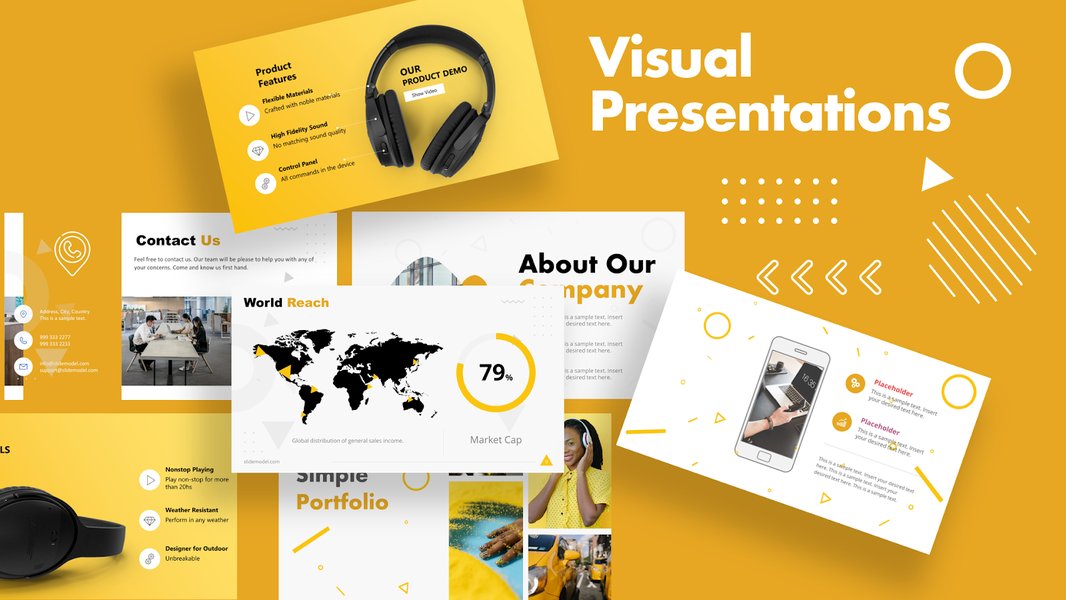
Effective use of visuals in presentations.
- Charts and Graphs: Present data visually using charts and graphs to make it easier for the audience to interpret.
- Icons and Diagrams: Use icons and simple diagrams to break down information and make it more digestible.
- Limit Animations and Transitions: While tempting, excessive animations and transitions can be distracting. Use them sparingly and consistently if at all.
Practicing Your Delivery
Your delivery is key to a successful presentation. Practice using your slides as a guide.
-
Don't Read Your Slides: Your slides are there to support your talk, not to be read verbatim.
-
Use Presenter View: Utilize PowerPoint's Presenter View to see your notes and the upcoming slide without displaying them to the audience.
-
Pacing: Avoid rushing through your slides. A common guideline is approximately one minute per slide, but adjust based on content complexity.
Integrating Data and Information
Many presentations require the inclusion of data, statistics, or information from external sources. Effectively integrating this content into your AI-generated slides is crucial.
Incorporating Tables and Charts
Tables and charts are excellent ways to present numerical data in a clear and organized manner. You can create these directly within PowerPoint or import them from other applications.
| Feature | AI Tool A | AI Tool B | AI Tool C |
|---|---|---|---|
| Content Generation | Yes | Partial | Yes |
| Design Automation | Yes | Yes | Partial |
| Document Upload | Yes | No | Yes |
| Customization Options | Extensive | Moderate | Moderate |
Example of a comparison table for AI presentation tools.
When incorporating tables or charts, ensure they are easy to read and understand. Use clear labels and keep the data focused on the most important points.
Adding Information from Documents
If you have information in Word documents or PDFs that you want to include in your presentation, some AI tools can help. Alternatively, you can manually extract key information and incorporate it into your slides, summarizing and adapting it for the presentation format.
When copying text from other sources, be sure to format it correctly within PowerPoint to maintain visual consistency and avoid clutter.
Leveraging AI for Specific Presentation Types
AI can be particularly useful for specific types of presentations, helping to structure content and suggest relevant visuals.
Educational Presentations
For educational content, AI can help structure lessons, suggest definitions, and even propose quiz questions. Visuals are key here to help explain concepts.
Business Presentations
In a business context, AI can assist with market analysis summaries, financial report visualizations, and project timeline generation. Clarity and conciseness are paramount.
Frequently Asked Questions
Can AI tools create a presentation entirely on their own?
AI tools can generate initial drafts and content suggestions, but they typically require human input and refinement to create a polished and effective presentation that fully meets your specific needs and objectives.
Are AI-generated presentations customizable?
Yes, most AI presentation tools allow for significant customization. You can edit text, change designs, add or remove slides, and incorporate your own visuals and branding.
How can I ensure my AI-generated presentation is engaging?
Focus on clear visuals, minimal text, and a compelling narrative. Use the AI output as a starting point and then apply best practices for design and content to enhance engagement.
Can AI help with presentation delivery?
While AI primarily assists in the creation phase, tools like Microsoft's Presenter Coach (not strictly a presentation generator but a related AI feature) can offer feedback on your delivery based on practice runs.
References

Last updated May 7, 2025