
Unlocking Seamless MDM Enrollment on Azure AD Windows Devices
Discover how device join instantly triggers Intune enrollment and streamlines IT management.
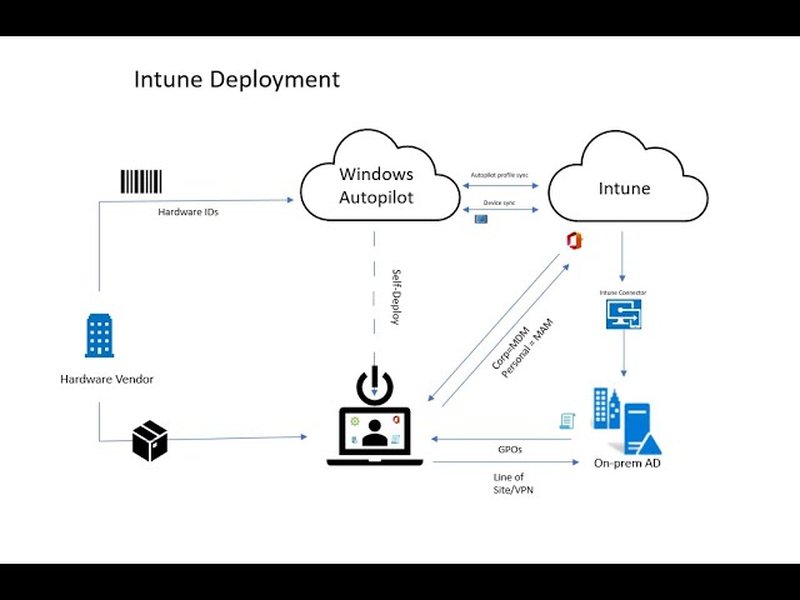
Highlights
- Immediate MDM Enrollment: Windows devices joining Azure AD trigger automatic enrollment in Intune.
- Streamlined IT Management: Minimal manual intervention ensures devices are policy-compliant from the start.
- Comprehensive Configuration: Steps include Azure portal settings, group policy configurations, and verification processes.
Overview
The process of automatic Mobile Device Management (MDM) enrollment for Windows devices when joining Azure Active Directory (Azure AD) is designed to simplify IT management, enhance security, and ensure compliance. As soon as a user logs in with their work or school credentials, the device is automatically recognized by Microsoft Intune, which then applies the necessary policies, settings, and applications. This article combines a comprehensive analysis of established procedures, practical group policy setups, and key considerations to deliver a detailed guide for immediate MDM enrollment.
Step-by-Step Configuration Guide
1. Prerequisites and Preparations
Before initiating automatic MDM enrollment, ensure that your environment meets the following prerequisites:
- Active Microsoft Entra ID (formerly Azure AD) subscription with P1, P2, or Premium trial rights.
- Microsoft Intune subscription with appropriate licenses for all users/devices.
- Proper administrative rights (Global Administrator role usually required).
- A Windows client device running at least Windows 10 version 1709 (preferably newer versions like Windows 10 1903 or Windows 11).
- The devices should be hybrid joined (registered to both on-premises Active Directory and Azure AD) if Group Policy is to be used for integration.
2. Configuring Azure AD for Automatic Enrollment
Accessing the Azure Portal
Begin by signing into the Azure portal with your administrative credentials. Navigate to the Microsoft Entra Admin Center (formerly Azure AD portal).
Setting Up MDM Enrollment Options
Within the portal:
- Go to the Mobility (MDM and MAM) section located in the left-hand navigation pane.
- Select the Microsoft Intune app from the list of MDM solutions.
- Configure the MDM User Scope by choosing whether all users or only a specific set of users (via custom groups) should be automatically enrolled.
- Click Save after making your selections.
3. Using Group Policy for Domain-Joined Devices
For organizations that manage devices through an on-premises Active Directory, the use of Group Policy helps to enforce automatic MDM enrollment on Windows devices.
Configuring Group Policy
- Open the Group Policy Management Editor on your domain controller.
- Navigate to: Computer Configuration → Policies → Administrative Templates → Windows Components → MDM.
- Locate and enable the setting: Enable automatic MDM enrollment using default Azure AD credentials.
- This setting prompts a scheduled task on the client device that recurs every five minutes (for up to one day) to verify and trigger the enrollment process if not already enrolled.
4. Device Join Process and Enrollment Verification
After configuring the above settings, here is how the device enrollment process unfolds:
- When a Windows device is turned on and the user is prompted to log in using their work or school credentials, the Azure AD join process commences.
- Immediately after the device is joined to Azure AD, it triggers an automatic enrollment task that registers the device in Microsoft Intune.
- Intune then applies the necessary policies, ensures the device is compliant with company standards, and makes available any required applications or updates from the Company Portal.
- You can monitor the status of enrollment via the Microsoft Endpoint Manager admin center, where active devices are listed along with their compliance and configuration details.
5. Additional Considerations
While setting up automatic enrollment, it is important to note:
- The MDM enrollment process may differ slightly based on whether the device is a corporate-owned versus a BYOD (Bring Your Own Device) scenario.
- Different enrollment credential options exist. Windows 10 and later versions support updated device credentials combined with the user's login information.
- Browser compatibility: For complete functionality including app assignments, it is recommended to use Microsoft Edge for access to the Company Portal.
- Ensure that users are aware and have access to the Company Portal, as it is the gateway for viewing assignments and ensuring compliance after enrollment.
Visualizing the MDM Enrollment Process
The radar chart below displays various components involved in the automatic MDM enrollment process. Each dataset represents a dimension of the enrollment process, from initial device join and policy application to ongoing compliance checks. The chart has been synthesized using analyzed opinions and serves as a visual tool to understand where the key strengths lie in the overall system configuration.
MDM Enrollment Process Comparison
The table below summarizes the key steps involved in configuring and verifying the automatic MDM enrollment process for Windows devices when joined to Azure AD. This side-by-side comparison helps in understanding the integration points and responsibilities of both the Azure Portal and Group Policy configurations.
| Configuration Aspect | Azure Portal | Group Policy |
|---|---|---|
| User Scope Configuration |
|
|
| Enrollment Trigger |
|
|
| Device Requirements | Windows 10 (>= 1709) and Windows 11 | Applies to Active Directory domain-joined devices |
| Post-Enrollment Actions |
|
|
Intune Auto Enrollment in Action
The embedded video below offers an excellent visual demonstration of setting up automatic enrollment for Windows devices. It explains the configuration in both the Azure Portal and through the use of Group Policy. Watching this video will provide additional practical insight for IT administrators who need a step-by-step guide.
FAQ Section
What is Automatic MDM Enrollment?
Automatic MDM Enrollment is a feature that automatically enrolls a Windows device in Microsoft Intune as soon as it joins Azure Active Directory. This eliminates the need for manual intervention by IT personnel and ensures that all devices conform to corporate security policies.
How is the enrollment triggered?
The enrollment is triggered immediately after a Windows device is joined to Azure AD. Whether by direct Azure AD join or via Hybrid Azure AD join using Group Policy, the device automatically starts the MDM enrollment process with Microsoft Intune.
What roles and licenses are required?
You will need a Microsoft Entra ID subscription with P1 or P2 rights (or a Premium trial), along with a Microsoft Intune subscription. Additionally, appropriate admin rights (such as Global Administrator) are necessary to configure these settings.
Can Group Policy be used for auto-enrollment?
Yes, Group Policy can be configured to automatically enroll domain-joined Windows devices into Intune. This involves enabling the Enable automatic MDM enrollment using default Azure AD credentials policy under the MDM settings in the Group Policy Management Editor.
References
- Enable MDM automatic enrollment for Windows | Microsoft Learn
- Enroll a Windows device automatically using Group Policy | Microsoft Learn
- Automatic MDM Enrollment in Microsoft Intune | Microsoft Learn
-
Microsoft Entra Blog on MDM Enrollment | Tech Community
- GPO Implementation for Automatic Enrollment | Manish Bangia
Recommended Related Queries
Last updated April 3, 2025