
Renaming Files in Python: Removing the .txt Extension
A Comprehensive Guide to Stripping Extensions from Files Using Python
Removing file extensions is a common task when working with files, particularly for organization or preparing files for further processing. In Python, you have several powerful and flexible methods to accomplish this, ranging from built-in modules to more modern libraries. This guide will focus specifically on renaming files with the '.txt' extension to remove that extension, providing practical examples and explaining the underlying concepts.
Key Highlights for Renaming Files
- The
os.pathmodule, specificallyos.path.splitext(), is a traditional and widely used method for separating the filename from its extension. - The
pathlibmodule, introduced in Python 3.4, offers an object-oriented approach to path manipulation, with methods likestemandwith_suffix('')providing clean ways to handle extensions. - The
os.rename()function is the core function used to actually perform the renaming operation after you have determined the new filename.
Understanding File Extensions in Python
A file extension is the suffix at the end of a filename, typically following a period (.). It helps the operating system and applications identify the file type and determine how to handle it. Common examples include '.txt' for text files, '.jpg' for images, and '.pdf' for documents. While extensions provide useful information, there are scenarios where you might want to remove them, such as when creating a cleaner display list of files or standardizing filenames for a specific workflow.
Python provides tools to work with file paths and extensions efficiently. Understanding how to manipulate these parts of a filename is crucial for effective file management using Python scripts.
An illustration showing the filename and its extension.
Method 1: Using the os.path Module
Leveraging os.path.splitext()
The os.path module is a fundamental part of Python's standard library for interacting with the operating system. The os.path.splitext(path) function is particularly useful for our task. It splits a path into a tuple containing the root (everything before the last period) and the extension (including the period).
To remove the '.txt' extension from a file, you can use os.path.splitext() to get the filename without the extension and then use os.rename() to rename the file.
Example using os.path.splitext() for a single file:
import os

filename = "my_document.txt"
name_without_extension, extension = os.path.splitext(filename)

if extension == ".txt":
    new_filename = name_without_extension
    try:
        os.rename(filename, new_filename)
        print(f"Renamed '{filename}' to '{new_filename}'")
    except FileNotFoundError:
        print(f"Error: File '{filename}' not found.")
    except FileExistsError:
        print(f"Error: A file named '{new_filename}' already exists.")
else:
    print(f"'{filename}' does not have a .txt extension.")
This code snippet first checks if the file has the '.txt' extension before attempting to rename it. It also includes basic error handling for cases where the file might not exist or a file with the new name already exists.
Handling Multiple Files in a Directory with os
To rename all '.txt' files in a directory, you can iterate through the files in the directory using os.listdir() and apply the os.path.splitext() and os.rename() logic to each file.
Example renaming all .txt files in a directory:
import os

directory_path = "/path/to/your/directory" # Replace with the actual directory path

try:
    for filename in os.listdir(directory_path):
        if filename.endswith(".txt"):
            old_filepath = os.path.join(directory_path, filename)
            name_without_extension, extension = os.path.splitext(filename)
            new_filename = name_without_extension
            new_filepath = os.path.join(directory_path, new_filename)

            try:
                os.rename(old_filepath, new_filepath)
                print(f"Renamed '{filename}' to '{new_filename}' in '{directory_path}'")
            except FileExistsError:
                print(f"Error: A file named '{new_filename}' already exists in '{directory_path}'. Skipping '{filename}'.")

except FileNotFoundError:
    print(f"Error: Directory '{directory_path}' not found.")
This script lists all entries in the specified directory. For each entry that ends with '.txt', it constructs the old and new file paths and then renames the file. Error handling is included to inform the user if the directory doesn't exist or if a file with the target name already exists.
Method 2: Using the pathlib Module
An Object-Oriented Approach with pathlib
The pathlib module, introduced in Python 3.4, provides an object-oriented way to handle filesystem paths. It offers a more intuitive and cleaner syntax compared to the string-based operations in the os.path module.
With pathlib, you can represent file paths as Path objects and use their methods and attributes to manipulate path components. The stem attribute gives you the filename without the last extension, and the with_suffix('') method allows you to change or remove the extension.
Example using pathlib for a single file:
from pathlib import Path

file_path = Path("my_other_document.txt")

if file_path.suffix == ".txt":
    new_file_path = file_path.with_suffix('')
    try:
        file_path.rename(new_file_path)
        print(f"Renamed '{file_path.name}' to '{new_file_path.name}'")
    except FileNotFoundError:
        print(f"Error: File '{file_path.name}' not found.")
    except FileExistsError:
        print(f"Error: A file named '{new_file_path.name}' already exists.")
else:
    print(f"'{file_path.name}' does not have a .txt extension.")
This example demonstrates how to create a Path object and use the suffix attribute to check the extension and with_suffix('') to get the new path with the extension removed. The rename() method of the Path object is then used to perform the renaming.
Renaming Multiple Files in a Directory with pathlib
Similar to the os module, you can iterate through files in a directory using pathlib and apply the renaming logic. The iterdir() method of a Path object allows you to iterate over the contents of a directory.
Example renaming all .txt files in a directory using pathlib:
from pathlib import Path

directory_path = Path("/path/to/your/directory") # Replace with the actual directory path

try:
    for file_path in directory_path.iterdir():
        if file_path.is_file() and file_path.suffix == ".txt":
            new_file_path = file_path.with_suffix('')
            try:
                file_path.rename(new_file_path)
                print(f"Renamed '{file_path.name}' to '{new_file_path.name}' in '{directory_path}'")
            except FileExistsError:
                print(f"Error: A file named '{new_file_path.name}' already exists in '{directory_path}'. Skipping '{file_path.name}'.")

except FileNotFoundError:
    print(f"Error: Directory '{directory_path}' not found.")
This script iterates through the items in the specified directory. For each item that is a file and has a '.txt' suffix, it determines the new path and renames the file using the rename() method. Error handling for existing files is included.
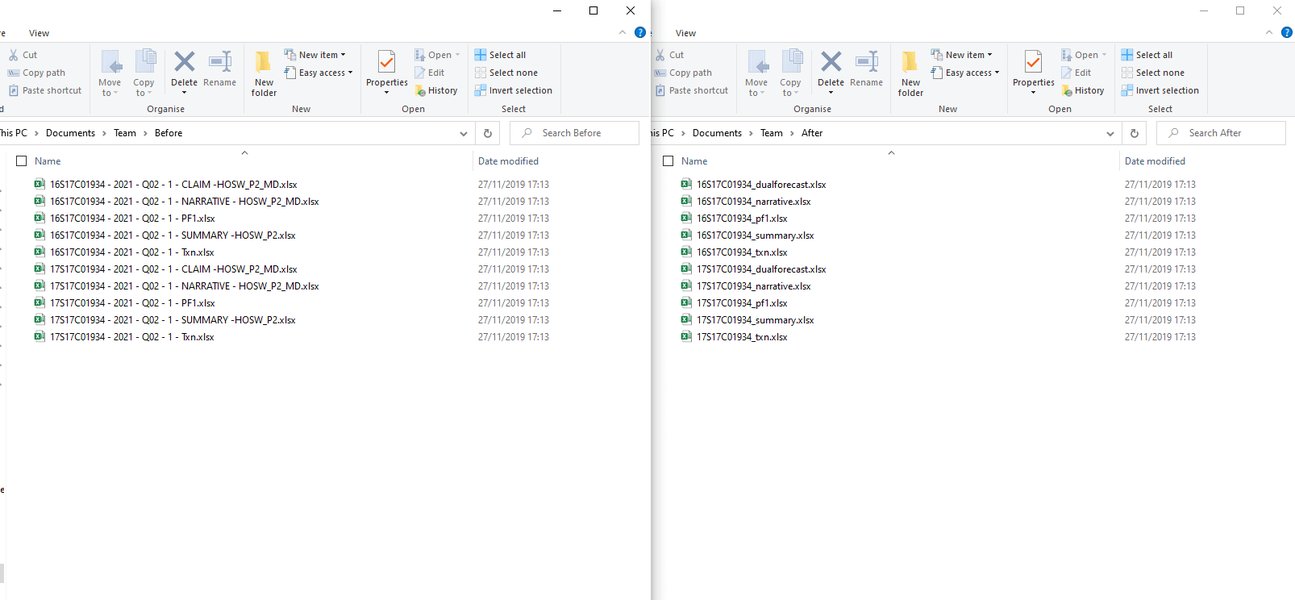
Visualizing files before and after a batch renaming operation.
Handling Multiple Extensions
The methods discussed so far, particularly os.path.splitext() and pathlib.Path.stem, primarily handle the last extension in a filename. If you have files with multiple extensions, like 'archive.tar.gz', and you want to remove all extensions to get just 'archive', you'll need a slightly different approach.
Removing All Extensions
One way to remove all extensions is to repeatedly apply the with_suffix('') method from pathlib until no suffix remains.
Example removing all extensions using pathlib:
from pathlib import Path

filename = Path("archive.tar.gz")

while filename.suffix:
    filename = filename.with_suffix('')

print(filename.name)
This code snippet demonstrates a loop that continues to remove the suffix as long as a suffix exists, effectively stripping all extensions.
Considering Edge Cases and Best Practices
When renaming files programmatically, it's important to consider potential issues and follow best practices:
-
Error Handling: Always include error handling (e.g., using
try...exceptblocks) to gracefully handle situations like files not being found (FileNotFoundError) or a file with the new name already existing (FileExistsError). -
Permissions: Ensure your script has the necessary permissions to read the directory and rename files.
-
Backup: Before performing batch renaming operations on critical files, it's highly recommended to create a backup of the files or test the script on a copy of the directory.
-
Hidden Files: Be mindful of hidden files (files starting with a dot on Unix-like systems).
os.path.splitext()handles these correctly by returning an empty extension, but string manipulation methods likersplit('.', 1)might treat the entire filename as the base name if there's no other dot.
Comparison of Methods
Here's a brief comparison of the primary methods for removing file extensions:
| Method | Pros | Cons | Best For |
|---|---|---|---|
os.path.splitext() |
Built-in, widely compatible (including older Python versions), simple for single extensions. | String-based, less object-oriented, primarily handles the last extension. | Simple cases, compatibility with older Python codebases. |
pathlib (stem, with_suffix) |
Object-oriented, cleaner syntax, more intuitive for path manipulation, handles multiple extensions with a loop. | Requires Python 3.4+, stem only removes the last extension by default. |
Modern Python projects, complex path manipulations, removing all extensions. |
Both methods are effective for removing the last extension. For removing multiple extensions or for a more modern, object-oriented approach, pathlib is generally preferred in Python 3.4 and later.
Visualizing File Renaming
While we can't directly show the file system changing with an image here, the process of renaming involves taking an existing file and changing its name. Imagine a file icon labeled "report.txt" being transformed into an icon labeled simply "report". This change is handled by the operating system at the request of our Python script.
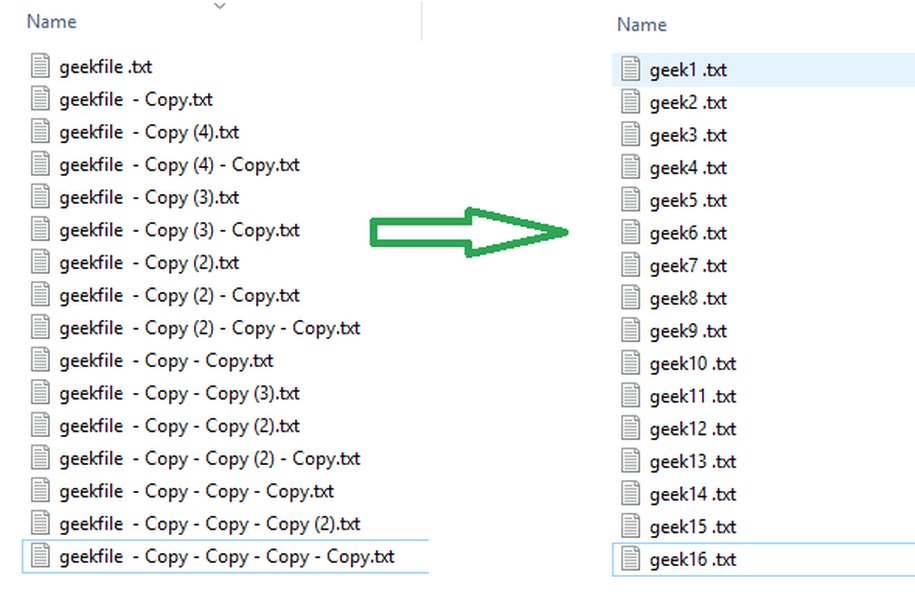
A representation of a file before renaming.
FAQ
Can I remove extensions other than '.txt'?
Yes, the methods discussed are not limited to '.txt'. You can adapt the code to check for and remove any specific extension by changing the string comparison (e.g., if file_path.suffix == ".csv":).
What if a file doesn't have an extension?
os.path.splitext() will return an empty string for the extension if a file has no extension. pathlib.Path.suffix will also return an empty string. The code examples provided check for the presence of the '.txt' extension, so files without this extension will be skipped.
Is it safe to run these scripts on a large number of files?
For a large number of files, the performance of these methods is generally efficient. However, it's always wise to test your script on a smaller subset of files first and ensure you have backups before processing a large dataset.
How can I add an extension instead of removing one?
To add an extension, you would typically get the filename without the current extension (or the full name if there's no extension) and then concatenate the desired new extension. With pathlib, you can use the with_suffix('.new_extension') method.
Can I rename files based on a list or pattern?
Yes, you can combine these techniques with other Python functionalities to rename files based on a list of old and new names, or by applying regular expressions to match patterns in filenames.
References
Last updated May 6, 2025