
Unlock Your Own Live Streams: Build a Powerful RTMP Server with Raspberry Pi!
Transform your Raspberry Pi into a robust live video streaming and restreaming hub with this comprehensive guide.
The Raspberry Pi, a credit-card-sized computer, is surprisingly capable of hosting your very own Real-Time Messaging Protocol (RTMP) server. This allows you to ingest live video streams from cameras or software like OBS Studio and then either view them locally, restream them to popular platforms like YouTube or Twitch, or serve them via other protocols like HLS. This guide will walk you through setting up an RTMP server using NGINX on your Raspberry Pi.
Key Highlights
- Cost-Effective Streaming Solution: Leverage the affordable and low-power Raspberry Pi to create a dedicated streaming server without relying on expensive third-party services.
- NGINX Power & Flexibility: Utilize the robust NGINX web server with its RTMP module for a reliable, configurable, and high-performance streaming backbone.
- Versatile Streaming Applications: Your Raspberry Pi RTMP server can be used for private local streams, restreaming to multiple online platforms simultaneously, or even converting streams to HLS for broader web browser compatibility.
Understanding Your Raspberry Pi RTMP Server
An RTMP server acts as a central point for receiving live video and audio feeds. When you stream from a device (like a camera or a computer running OBS), you send the data to this server. The server can then make this stream available for viewing or push it to other destinations. Using a Raspberry Pi for this purpose is ideal for small-scale projects, personal use, or as a learning platform due to its low cost and energy efficiency.
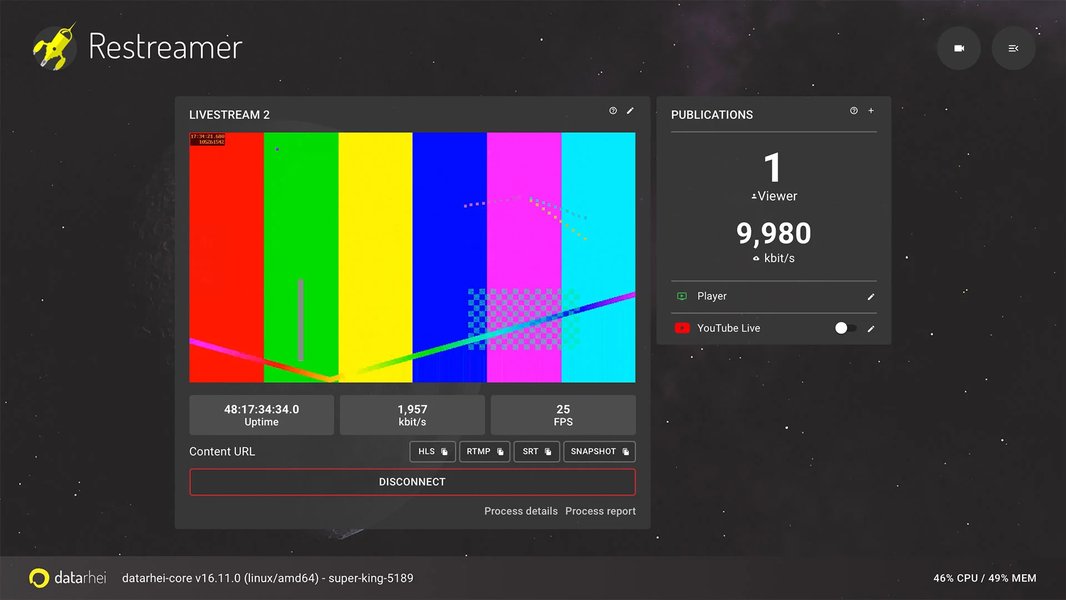
A conceptual dashboard for managing streams, similar to what advanced setups might achieve.
Prerequisites
Before you begin, ensure you have the following:
- Raspberry Pi: A Raspberry Pi 3B+, 4, or 5 is recommended for better performance. Older models might struggle with higher resolution streams.
- microSD Card: At least 8GB, flashed with the latest version of Raspberry Pi OS (formerly Raspbian).
- Power Supply: A stable power supply appropriate for your Raspberry Pi model.
- Network Connection: An Ethernet connection is recommended for stability, though Wi-Fi can also work.
- Peripherals (for initial setup): Monitor, keyboard, and mouse, or SSH access configured.
Step 1: Preparing Your Raspberry Pi
Update Your System
First, ensure your Raspberry Pi's operating system and packages are up to date. Open a terminal window (or connect via SSH) and run the following commands:
sudo apt update
sudo apt upgrade -y
This process might take some time depending on the number of updates available.
Basic Configuration (Optional)
You might want to make some initial configuration changes using the Raspberry Pi Configuration tool. This can be accessed via the main menu (Preferences > Raspberry Pi Configuration) or by running sudo raspi-config in the terminal. Here you can set your localization options (keyboard layout, timezone), enable SSH for remote access, or change the hostname.
Step 2: Installing NGINX and the RTMP Module
NGINX is a powerful open-source web server that can also function as a reverse proxy, load balancer, and HTTP cache. With the addition of the RTMP module, NGINX can handle live video streams. Fortunately, recent versions of Raspberry Pi OS provide a pre-compiled NGINX package that includes the RTMP module, simplifying the installation process significantly.
In your terminal, execute the following commands to install NGINX and the necessary RTMP module:
sudo apt update
sudo apt install nginx libnginx-mod-rtmp -y
This command installs the NGINX web server and the libnginx-mod-rtmp package, which provides the RTMP functionality.
Step 3: Configuring NGINX for RTMP Streaming
After installing NGINX, you need to configure it to act as an RTMP server. This involves editing the main NGINX configuration file, typically located at /etc/nginx/nginx.conf.
Open the configuration file with a text editor like nano:
sudo nano /etc/nginx/nginx.confScroll to the very end of the file, outside the existing http { ... } block. Add the following rtmp block:
rtmp {
    server {
        listen 1935; # Default RTMP port
        chunk_size 4096;

        application live {
            live on;        # Enable live streaming
            record off;     # Disable recording by default (saves disk space)
                            # To enable recording, change to 'record all;' or other options.
            # Optional: Restrict publishing to localhost for basic security
            # allow publish 127.0.0.1;
            # deny publish all;
        }

        # Example for a restreaming application (optional)
        # application restream {
        #     live on;
        #     record off;
        #     # Push to YouTube
        #     push rtmp://a.rtmp.youtube.com/live2/YOUR_YOUTUBE_STREAM_KEY;
        #     # Push to Twitch
        #     push rtmp://live.twitch.tv/app/YOUR_TWITCH_STREAM_KEY;
        # }
    }
}
This basic configuration sets up an RTMP server listening on port 1935. It defines an application named live. You will stream to an address like rtmp://YOUR_PI_IP/live/YOUR_STREAM_KEY.
Save the file and exit nano (Ctrl+O, Enter, then Ctrl+X).
Test Your NGINX Configuration
Before restarting NGINX, it's crucial to test your configuration for any syntax errors:
sudo nginx -tIf the test is successful, you'll see a message like:
nginx: the configuration file /etc/nginx/nginx.conf syntax is ok
nginx: configuration file /etc/nginx/nginx.conf test is successful
If there are errors, the output will indicate the problematic line in the configuration file. Re-edit the file to correct them.
Step 4: Starting and Managing the NGINX Service
Once your configuration is correct, you can restart NGINX to apply the changes:
sudo systemctl restart nginxTo check the status of the NGINX service and ensure it's running correctly (it should mention listening on port 1935 if you check netstat or ss):
sudo systemctl status nginxTo enable NGINX to start automatically on boot:
sudo systemctl enable nginxStep 5: Streaming to Your Raspberry Pi RTMP Server
To stream to your new server, you'll need your Raspberry Pi's IP address. You can find this by running hostname -I in the terminal on your Pi.
Let's assume your Pi's IP address is 192.168.1.105 and you used the application name live in your NGINX configuration.
Using Streaming Software (e.g., OBS Studio)
In your streaming software (like OBS Studio, Streamlabs, or FFmpeg):
- Set the service/server type to "Custom..." or "RTMP".
- For the Server URL (or RTMP URL), enter:
rtmp://192.168.1.105/live - For the Stream Key, you can use any value, for example,
my_stream. The NGINX RTMP module, by default, doesn't require specific stream keys unless configured to do so.
So, the full effective path your encoder streams to would be conceptually similar to rtmp://192.168.1.105/live/my_stream.
Streaming from a Raspberry Pi Camera (using FFmpeg)
If you have a camera module connected to your Raspberry Pi, you can use ffmpeg to capture video and stream it directly to the local RTMP server:
# This is a basic example, raspivid options may vary based on camera version and desired settings.
# Ensure ffmpeg is installed: sudo apt install ffmpeg
raspivid -o - -t 0 -w 1280 -h 720 -fps 25 -b 2000000 | ffmpeg -i - -c:v copy -f flv rtmp://localhost/live/pi_camera_stream
This command captures video from the Pi camera (1280x720, 25fps) and pipes it to FFmpeg, which then streams it to rtmp://localhost/live/pi_camera_stream.
Step 6: Viewing Your Stream
You can view your live stream using any media player that supports RTMP, such as VLC Media Player.
- Open VLC.
- Go to "Media" > "Open Network Stream..." (or Ctrl+N).
- Enter the RTMP URL of your stream:
rtmp://192.168.1.105/live/YOUR_STREAM_KEY(e.g.,rtmp://192.168.1.105/live/my_streamif that was the key you used in OBS). - Click "Play".
You should now see your live stream playing in VLC.
Raspberry Pi Model Suitability for RTMP Streaming
Different Raspberry Pi models offer varying levels of performance, which can impact their suitability as RTMP servers, especially when handling multiple streams or higher resolutions. The radar chart below provides a conceptual comparison across key attributes. Higher values generally indicate better suitability for demanding streaming tasks. Note that 'Cost' is inverted for this comparison; a higher bar means more cost-effective.
While older models can work, a Raspberry Pi 4 or 5 will provide a smoother experience, especially if you plan to transcode video, serve multiple clients, or restream to multiple platforms simultaneously. Network speed is also critical, so using a wired Ethernet connection is highly recommended over Wi-Fi for stream stability.
Visualizing the RTMP Server Setup
The mindmap below illustrates the key components and workflow involved in setting up and using your Raspberry Pi as an RTMP server. It covers everything from initial hardware and software preparation to configuration, streaming, and eventual stream viewing and security considerations.
apt update && apt upgrade)"]
NginxInstall["Install NGINX (nginx)"]
RTMPModuleInstall["Install RTMP Module (libnginx-mod-rtmp)"]
NginxConfig["NGINX Configuration (/etc/nginx/nginx.conf)"]
RTMPBlock["Add rtmp Block"]
ServerListen["server { listen 1935; ... }"]
ApplicationLive["application live { live on; record off; }"]
AppRestream["Optional: application restream { ... push ...; }"]
ConfigTest["Test Configuration (sudo nginx -t)"]
ServiceMgmt["NGINX Service Management"]
StartRestart["sudo systemctl restart nginx"]
CheckStatus["sudo systemctl status nginx"]
EnableBoot["sudo systemctl enable nginx"]
StreamingProcess["Streaming Workflow"]
Encoder["Source/Encoder (OBS, FFmpeg, Camera)"]
StreamTo["Sends stream to rtmp://PI_IP/application_name/stream_key"]
PiServer["Raspberry Pi RTMP Server"]
Ingest["Receives Incoming Stream"]
Process["Handles Stream (e.g., restreaming if configured)"]
Viewer["Client/Viewer (VLC, Web Player)"]
ViewFrom["Accesses stream via rtmp://PI_IP/application_name/stream_key"]
AdvFeatures["Advanced Features & Considerations"]
HLS["HTTP Live Streaming (HLS) for Web"]
Security["Security (Firewall, Authentication)"]
Performance["Performance Optimization (Stream quality vs. Pi resources)"]
This visualization helps in understanding the interconnectedness of each step and component in building your own streaming server.
Optional: Enabling HLS for Browser Playback
HTTP Live Streaming (HLS) is an alternative protocol that breaks the stream into small HTTP-based file segments. This makes it compatible with most web browsers and mobile devices without special plugins. You can configure NGINX to convert your RTMP stream into HLS.
Modify your rtmp block in /etc/nginx/nginx.conf:
application live {
    live on;
    record off;

    # HLS settings
    hls on;                     # Enable HLS
    hls_path /tmp/hls/live;     # Directory to store HLS segments and playlist for this app
                                # Ensure this directory exists and NGINX has write permissions:
                                # sudo mkdir -p /tmp/hls/live
                                # sudo chown -R www-data:www-data /tmp/hls
    hls_fragment 3s;            # Duration of each HLS segment
    hls_playlist_length 30s;    # Length of the HLS playlist
}
Then, you need to add an http server block (or modify an existing one) in /etc/nginx/nginx.conf to serve these HLS files. This block should be outside the rtmp block.
http {
    # ... other http settings ...

    server {
        listen 8080; # Or any other port, e.g., 80

        location /hls {
            types {
                application/vnd.apple.mpegurl m3u8;
                video/mp2t ts;
            }
            root /tmp; # Matches the parent of hls_path (e.g. /tmp/hls -> /tmp)
            add_header Cache-Control no-cache;
            add_header Access-Control-Allow-Origin *; # Allow cross-origin requests if needed
        }
    }
}
After saving and testing (sudo nginx -t), restart NGINX (sudo systemctl restart nginx). You can then access the HLS stream using a URL like: http://YOUR_PI_IP:8080/hls/live/YOUR_STREAM_KEY.m3u8 (e.g., http://192.168.1.105:8080/hls/live/my_stream.m3u8). Many HTML5 video players support HLS.
Key NGINX RTMP Directives
Understanding the core NGINX RTMP directives can help you customize your server further. Here's a table summarizing some common ones:
| Directive | Description | Example Value(s) |
|---|---|---|
listen |
Specifies the port number for the RTMP server to listen on. | 1935 |
chunk_size |
Sets the maximum size of chunks for RTMP messages, affecting latency and overhead. | 4096, 8192 |
application [name] |
Defines a new application block for specific stream configurations. Streams are typically addressed via this name. | live, mystream, hls_app |
live |
Enables live streaming mode for the application. | on, off |
record |
Controls server-side recording of incoming streams. Can record all, audio only, video only, or just keyframes. | off, all, audio, video, keyframes |
record_path |
Specifies the directory where recorded FLV files will be saved. | /var/rec |
push [url] |
Forwards (restreams) the incoming stream to another RTMP server. Multiple push directives can be used. | rtmp://destination.com/app/key |
allow publish [ip/subnet] |
Restricts which IP addresses or subnets are allowed to publish (send) streams to this application. | 127.0.0.1, 192.168.1.0/24 |
deny publish [ip/subnet] |
Denies specified IP addresses or subnets from publishing streams. Often used with all. |
all |
hls |
Enables HTTP Live Streaming (HLS) output for the application. | on, off |
hls_path [path] |
Directory to store HLS manifest (.m3u8) and segment (.ts) files. | /tmp/hls, /var/www/html/hls |
hls_fragment [duration] |
Sets the duration of each HLS segment (e.g., video chunk). | 3s, 5s |
Security Considerations
When setting up any server, especially one accessible from the internet, security is paramount:
- Firewall: Use a firewall like UFW (Uncomplicated Firewall) to restrict access to necessary ports (e.g., 1935 for RTMP, 8080 for HLS if used, 22 for SSH).
sudo apt install ufw sudo ufw allow ssh # Port 22 sudo ufw allow 1935/tcp # RTMP sudo ufw allow 8080/tcp # HLS (if configured on this port) sudo ufw enable - Strong Passwords: Ensure your Raspberry Pi has a strong password for the user account.
- Restrict Publishing: Use NGINX directives like
allow publishanddeny publishwithin your application block to limit who can stream to your server. For example, only allow your local network or specific IP addresses. - Obscure Stream Keys/Application Names: While not true security, using long, random strings for application names or requiring specific stream keys (if you implement more advanced checks) can deter casual unauthorized streaming.
- Regular Updates: Keep your Raspberry Pi OS and NGINX packages updated to patch security vulnerabilities.
- VPN: If accessing your server remotely, consider using a VPN for a secure connection to your local network.
Video Tutorial: Setting up a Raspberry Pi Streaming Server
For a visual walkthrough, the following video provides an excellent overview of setting up a Raspberry Pi as a streaming server, covering RTMP and other protocols. While specific commands or software versions might vary slightly over time, the core concepts remain highly relevant to this guide.
This video, "Raspberry Pi RTMP (Streaming) Server" by Vincent, demonstrates how to configure a Raspberry Pi for streaming, including RTMP, RTSP, and Apple HLS outputs. It complements the steps outlined here by showing the process in action and discussing related streaming technologies, offering practical insights into the setup and potential uses of such a server.
Alternative: MediaMTX (formerly rtsp-simple-server)
While NGINX with the RTMP module is a popular and robust solution, an alternative worth considering is MediaMTX. It's a ready-to-use, zero-dependency real-time media server that supports various protocols including RTMP, RTSP, HLS, WebRTC, and SRT. It's known for its ease of setup and can be a good option if you need a more feature-rich media server out-of-the-box or plan to work with multiple protocols extensively.
Frequently Asked Questions (FAQ)
Which Raspberry Pi model is best for an RTMP server? ▼
For best performance, especially if handling multiple streams, higher resolutions, or transcoding (like for HLS), a Raspberry Pi 4 Model B or a Raspberry Pi 5 is recommended due to their more powerful CPUs, increased RAM options, and faster Gigabit Ethernet. A Raspberry Pi 3B+ can work for basic single-stream setups at moderate resolutions.
Can I stream to multiple platforms like YouTube and Twitch simultaneously? ▼
Yes, this is called restreaming. You can configure NGINX's RTMP module to "push" the incoming stream to multiple RTMP destinations. In your nginx.conf file, within an application block, you can add multiple push rtmp://destination_url/stream_key; lines for each platform you want to stream to.
How do I find my Raspberry Pi's IP address? ▼
Open a terminal on your Raspberry Pi and type the command hostname -I. This will display the IP address(es) assigned to your Pi on the local network. You might also find it by logging into your router's administration page and looking at the list of connected devices.
Is it possible to record the streams on the Raspberry Pi? ▼
Yes, the NGINX RTMP module supports recording. In your application block within nginx.conf, you can change record off; to directives like record all; (records audio and video), record video;, or record audio;. You'll also want to specify record_path /path/to/recordings; and ensure the directory exists and NGINX has write permissions. Be mindful of storage space on your microSD card.
How can I secure my RTMP server from unauthorized access? ▼
Several methods include:
- Firewall: Use
ufwto allow only necessary ports (e.g., 1935 for RTMP) and specific IPs if possible. - NGINX Access Control: Use
allow publish IP_ADDRESS;anddeny publish all;directives in your RTMP application block to restrict who can send streams. - Strong Passwords: For your Pi itself.
- Obscure URLs: Using complex application names or stream keys (though this is not true security).
- VPN: Access your server over a VPN if it's for private use.
- The NGINX RTMP module also has more advanced access control features like
on_publishwhich can call an external script/URL to authenticate publishers.
What are the alternatives to NGINX for an RTMP server on Raspberry Pi? ▼
One notable alternative is MediaMTX (formerly rtsp-simple-server). It's a standalone, ready-to-use media server that supports RTMP, RTSP, HLS, WebRTC, and SRT. It's often praised for its ease of setup and broad protocol support, making it a strong contender, especially if you need more than just RTMP or prefer a zero-dependency solution.
Recommended Next Steps & Further Learning
Once you have your basic RTMP server running, you might be interested in exploring these related topics:
- How to optimize Raspberry Pi performance for video streaming?
- Advanced NGINX RTMP configurations for low latency streaming?
- Setting up HLS alongside RTMP on Raspberry Pi for wider compatibility?
- Securing a publicly accessible Raspberry Pi RTMP server with authentication?
References
Last updated May 9, 2025