
Unlocking Seamless User Experiences: Mastering Responsive Grid Layouts
Discover essential best practices to create adaptable, intuitive, and visually stunning web designs using the power of grids.
Key Insights for Effective Responsive Grid Design
- Embrace Flexibility: Prioritize relative units (like
fr,minmax()) and CSS Grid's auto-placement features (auto-fit,auto-fill) for fluid layouts that adapt effortlessly to any screen size. - Strategic Structure: Plan your grid with a clear visual hierarchy, often starting with a versatile 12-column system, and define consistent gutters and margins for optimal readability and aesthetics.
- Synergize and Test: Combine CSS Grid with Flexbox for comprehensive layout control, and rigorously test your designs across diverse devices and browsers to ensure a flawless user experience.
The Blueprint: Planning Your Responsive Grid
A successful responsive grid design begins with meticulous planning. Before writing any code, sketching a rough page layout helps visualize how content blocks will be organized and how modules will dimensionally relate to each other. This foundational step is crucial for establishing a clear visual order that guides the user's eye effectively through the content.
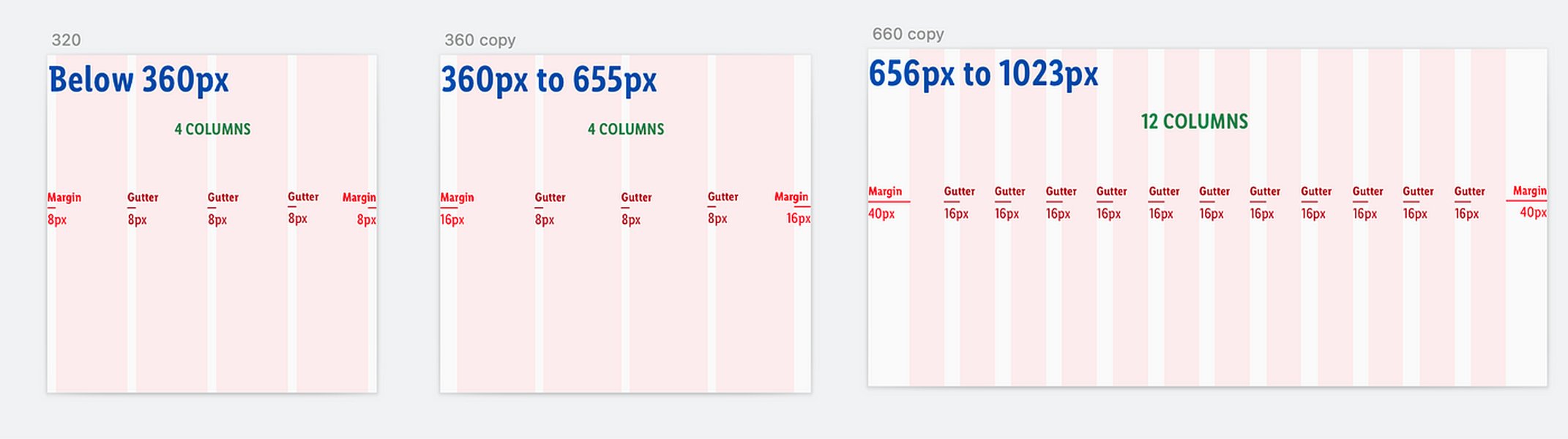
A visual guide illustrating how responsive grids adapt content across various screen sizes.
The Anatomy of a Grid: Columns, Gutters, and Margins
Every grid, regardless of its complexity, is built upon three fundamental components:
- Columns: These are the vertical divisions that structure the content areas of your layout. The number and width of columns significantly influence how content is presented and perceived.
- Gutters: The spaces between columns (and rows, in a two-dimensional grid) are known as gutters. Consistent gutter widths are vital for visual rhythm and separation of content, enhancing readability.
- Margins: These are the spaces surrounding the entire grid content area, providing a buffer between the grid and the edges of the viewport or parent container.
Properly balancing these elements is key to creating a harmonious and easy-to-navigate layout.
Choosing Your Grid's Foundation: Structure and Columns
Common Column Structures
The choice of column structure depends heavily on the complexity and nature of your content. While options like 8, 16, or even 20 columns exist, the 12-column grid is overwhelmingly popular due to its remarkable flexibility. It can be easily divided into halves, thirds, quarters, and sixths, accommodating a wide array of layout configurations. For most designs, exceeding 12-16 columns can lead to cluttered and difficult-to-read layouts.
Grid Types
Consider different grid types based on your design goals:
- Symmetric Grids: Feature equal-width columns, promoting clean, balanced, and predictable layouts.
- Asymmetric Grids: Employ columns of varying widths for more dynamic and visually interesting designs, though they require careful planning to maintain balance.
- Modular Grids: Define both columns and rows, creating a matrix of cells ideal for complex interfaces requiring precise placement of elements, such as dashboards or image galleries.
Visual Hierarchy and Content Flow
A primary goal of grid design is to establish a clear visual hierarchy that guides users intuitively through the page. The arrangement of elements within the grid should reflect their importance and logical sequence. Think about how users will scan the page and ensure your grid facilitates this natural flow, making information easy to find and digest.
Core Techniques for Fluid Adaptability
True responsiveness lies in the grid's ability to adapt fluidly to various screen sizes and orientations. Modern CSS provides powerful tools to achieve this without overly complex code.
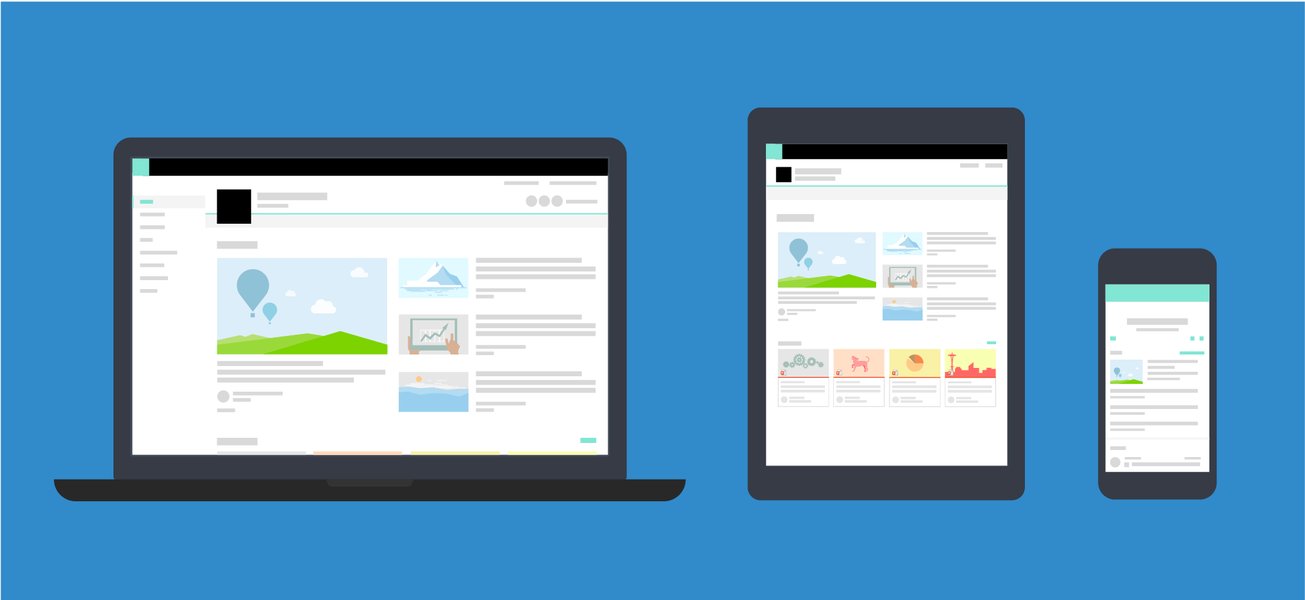
An example showcasing the reflow of grid content from a wider desktop view to a compact mobile layout.
The Power of Flexible Units: fr and minmax()
Abandon fixed pixel values for grid tracks (columns and rows) in favor of flexible units. This is paramount for creating layouts that resize proportionally and gracefully.
- The
frunit: Represents a fraction of the available space in the grid container. For example,grid-template-columns: 1fr 2fr;creates two columns where the second is twice as wide as the first, both adapting to the container's width. - The
minmax()function: Defines a size range, greater than or equal to min and less than or equal to max. For instance,minmax(200px, 1fr)ensures a grid item will be at least 200px wide but can expand to take up one fraction of the available space if larger. This is incredibly useful for responsive item sizing.
Dynamic Layouts with auto-fit and auto-fill
CSS Grid offers keywords like auto-fit and auto-fill for the repeat() function, enabling intrinsically responsive layouts often without needing extensive media queries. When combined with minmax(), you can create grids that automatically adjust the number of columns based on available space:
.grid-container {
  display: grid;
  grid-template-columns: repeat(auto-fit, minmax(250px, 1fr));
  gap: 1rem;
}
In this example, columns will be at least 250px wide. As the viewport widens, more columns will fit. If space is insufficient, columns will wrap. auto-fit collapses empty tracks, while auto-fill preserves them, which can be useful in different scenarios.
Strategic Use of Media Queries and Breakpoints
While CSS Grid's inherent flexibility reduces reliance on media queries, they remain essential for fine-tuning layouts at specific breakpoints—points where the design needs significant adjustment (e.g., mobile to tablet, tablet to desktop). Breakpoints are typically defined based on common device widths or content-driven needs.
Use media queries to:
- Change the number of columns (e.g., from 1 column on mobile to 3 on desktop).
- Adjust
gapsizes. - Modify
grid-template-areasfor entirely different structural arrangements. - Alter font sizes or spacing for optimal readability on different screens.
A mobile-first approach is often recommended: design the simplest layout for small screens first, then use media queries with min-width to add complexity for larger screens.
Leveraging CSS Grid for Precision and Control
CSS Grid provides a rich set of properties to define and control your layouts with remarkable precision. Understanding these properties is key to harnessing the full power of grid-based design.
Defining Grid Tracks and Spacing
grid-template-columns and grid-template-rows
These are the fundamental properties for defining the structure of your grid. You specify the size and number of columns and rows, respectively. Values can be fixed lengths, percentages, or the flexible fr unit.
.container {
  display: grid;
  grid-template-columns: repeat(3, 1fr); /* Three equal-width columns */
  grid-template-rows: auto 1fr auto;    /* Header, main content (flexible), footer */
}
The gap Property
The gap property (shorthand for row-gap and column-gap; formerly grid-gap) sets the size of the gutters between grid tracks. Consistent gaps improve visual separation and rhythm.
.container {
  display: grid;
  gap: 20px; /* 20px gap between all rows and columns */
  /* Or specify individually: */
  /* row-gap: 10px; */
  /* column-gap: 15px; */
}
Comparative Overview of Grid Structures
The following table compares common grid structures, offering insights into their typical use cases, flexibility, complexity, and considerations for responsiveness. Understanding these differences can help you choose the most appropriate foundation for your specific design needs.
| Feature | 8-Column Grid | 12-Column Grid | 16-Column Grid | CSS Grid auto-fit / minmax() |
|---|---|---|---|---|
| Primary Use Case | Simpler layouts, often suitable for mobile-first approaches or designs with fewer distinct sections. | Highly versatile for complex web applications, editorial sites, and e-commerce platforms due to its divisibility. | Designs requiring very fine-grained control over element placement, often on larger screens. | Dynamic content displays like card layouts, galleries, product listings where item count varies. |
| Flexibility | Moderate (divisible by 2, 4). | High (divisible by 2, 3, 4, 6), allowing for diverse content arrangements. | Very High (divisible by 2, 4, 8), offering precise control. | Extremely High, as it adapts to both content size and available container space automatically. |
| Complexity | Low setup complexity. | Moderate setup, but widely understood and supported by frameworks. | Moderate to High, can become complex to manage many columns manually. | Low to Moderate initial learning curve, but simplifies responsive logic significantly. |
| Responsiveness | Good for simple stacking on smaller screens, may require more explicit media query definitions for varied layouts. | Excellent when combined with media queries to redefine column spans and layouts at breakpoints. | Best suited for large, complex displays; may require significant adjustments for smaller screens. | Inherently responsive, often requiring fewer or simpler media queries for common scenarios. |
| Typical Gutter Size | Relative to column width or viewport, often defined consistently. | Typically 16px-32px, can be responsive (e.g., using rem or vw units or adjusted via media queries). |
Similar to 12-column, adjusted for overall design scale. | Defined by the CSS gap property, can be static or responsive (e.g., clamp()). |
Aligning Content within the Grid
CSS Grid provides powerful alignment capabilities for both the grid items within their cells and the grid tracks within the container:
- For items within cells:
justify-self(inline/row axis) andalign-self(block/column axis) control individual item alignment. These can be set on parent usingjustify-itemsandalign-items. - For tracks within container:
justify-content(inline/row axis) andalign-content(block/column axis) distribute space among grid tracks when the total size of tracks is less than the grid container.
Semantic Layouts with grid-template-areas
For more complex or descriptive layouts, grid-template-areas allows you to name grid areas and assign items to them. This makes the CSS highly readable and maintainable, as the layout structure is visually represented in the code.
.container {
  display: grid;
  grid-template-columns: 1fr 3fr;
  grid-template-rows: auto 1fr auto;
  grid-template-areas:
    "header header"
    "sidebar main"
    "footer footer";
  min-height: 100vh;
}
.header { grid-area: header; }
.sidebar { grid-area: sidebar; }
.main { grid-area: main; }
.footer { grid-area: footer; }
This approach is particularly powerful when combined with media queries to redefine the areas for different screen sizes, allowing for significant layout shifts with minimal code changes.
Impact of Grid Design Principles on Layout Quality
This radar chart illustrates how key responsive grid design principles contribute to critical aspects of a successful layout. Each axis represents a desired outcome: Adaptability, Maintainability, Performance, User Experience, and Development Speed. The plotted lines compare different approaches, highlighting the significant gains from comprehensively applying modern CSS Grid best practices versus more traditional or limited methods. Adopting these practices leads to more robust, flexible, and user-friendly designs.
Synergies and Advanced Strategies
CSS Grid and Flexbox: A Powerful Partnership
It's a common misconception that CSS Grid replaces Flexbox. In reality, they are complementary tools designed for different layout tasks. CSS Grid excels at two-dimensional layouts (arranging items in rows and columns simultaneously), forming the overall page structure. Flexbox, on the other hand, is ideal for one-dimensional layouts (arranging items along a single line, either as a row or a column), perfect for component-level arrangements like navigation bars, button groups, or aligning items within a grid cell.
Combining them allows for sophisticated and highly controllable responsive designs. For example, use Grid for the main page sections and then apply Flexbox to align content within a header or sidebar defined by a grid area.
Extending Beyond the Grid: Bleeds and Overlays
While grids provide structure, sometimes design elements need to "bleed" off the grid or extend to the full viewport width (e.g., hero images, full-width banners, footers). This can be achieved by ensuring the grid container itself doesn't constrain these specific elements, or by using negative margins or absolute positioning for specific items, while the main content adheres to the grid columns.
Clarity and Collaboration: Semantic Naming
For maintainability, especially in team environments, adopting clear and semantic naming conventions for your grid lines or areas (using grid-template-areas) is highly beneficial. Names like main-content-start, article-body, or area names like "header", "sidebar", "content" make the CSS more readable and easier for others (and your future self) to understand and modify. Documenting your grid system and sharing it with developers is crucial for consistency between design and implementation.
Practical Application: A Video Guide to Responsive CSS Grid
For a practical demonstration of building responsive layouts, the following video provides a step-by-step guide to using CSS Grid effectively. It covers fundamental concepts and techniques that can help you translate theory into practice, showing how to create adaptive designs that work well across various devices.
Visualizing Key Concepts in Responsive Grid Design
This mindmap provides a visual overview of the interconnected best practices in responsive grid design. It branches out from the central theme to cover core principles like flexibility and user-centricity, key techniques such as using fr units and media queries, essential implementation steps from planning to testing, and the ultimate benefits achieved, including enhanced user experience and efficient development. Understanding these relationships helps in holistically approaching responsive design challenges.
(e.g., 12-column)"] id2b["Use Flexible Units
(fr, minmax())"] id2c["Leverage CSS Grid Properties
(grid-template-columns, gap, areas)"] id2d["Employ Media Queries Strategically"] id2e["Combine Grid with Flexbox"] id2f["Manage Spacing
(Gutters, Margins, Whitespace)"] id3["Implementation Steps"] id3a["Plan & Sketch Layout"] id3b["Define Breakpoints"] id3c["Code Semantically"] id3d["Test Across Devices"] id3e["Optimize for Performance"] id4["Benefits"] id4a["Improved User Experience"] id4b["Consistent Design Across Devices"] id4c["Efficient Development"] id4d["Better Accessibility"]
Ensuring Excellence: Testing, Accessibility, and Performance
Creating a visually appealing and functional grid is only part of the job. Ensuring it performs well, is accessible to all users, and works reliably across environments is equally important.
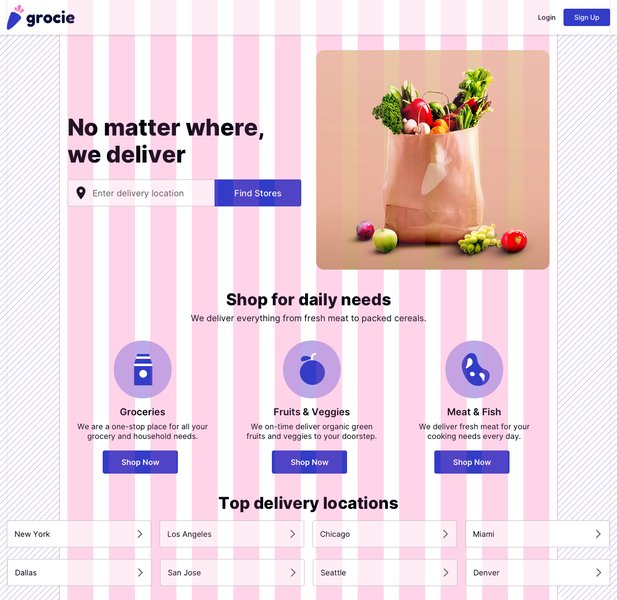
Illustrating the structural elements of a responsive grid, including columns and gutters, adapting to different device widths.
Cross-Device and Browser Validation
Thorough testing is non-negotiable. What looks perfect on one browser or device might break on another.
- Test on a variety of real devices (smartphones, tablets, desktops) if possible.
- Utilize browser developer tools to emulate different screen sizes and orientations.
- Employ cross-browser testing tools (like LambdaTest) to check compatibility across different browsers (Chrome, Firefox, Safari, Edge) and their versions.
- Pay attention to how the grid behaves during viewport resizing.
Designing for All Users: Accessibility and Usability
A responsive grid must be accessible and usable for everyone, including users with disabilities.
- Logical Content Order: Ensure the source order of your HTML content makes sense, as screen readers navigate based on this order, which might differ from the visual order created by the grid.
- Sufficient Touch Targets: On touch devices, ensure interactive elements within the grid are large enough and have adequate spacing to be easily tapped.
- Keyboard Navigation: Verify that all interactive elements can be navigated and operated using a keyboard.
- Readability: Maintain good color contrast and ensure text reflows appropriately without requiring horizontal scrolling.
- White Space: Ample white space (achieved through well-proportioned gutters and margins) improves readability and reduces cognitive load. Avoid using empty columns solely for padding; use CSS `padding` or `margin` properties on elements instead.
Optimizing for Speed and Efficiency
While CSS Grid itself is highly performant, complex layouts can impact load times if not managed carefully.
- Minimize Nesting: Avoid overly deep nesting of grid containers if simpler structures can achieve the same result.
- Efficient CSS: Write clean, concise CSS. Modern grid features can often achieve complex layouts with less code than older methods.
- Image Optimization: Ensure images within the grid are appropriately sized and optimized for different screen resolutions using techniques like responsive images (
<picture>element orsrcsetattribute).
By keeping these considerations in mind, you can create responsive grid layouts that are not only technically sound and visually appealing but also inclusive and performant.
Frequently Asked Questions (FAQ)
What is a 12-column grid and why is it so popular for responsive design?
A 12-column grid divides the available horizontal space into 12 equal-width columns. It's popular because 12 is highly divisible (by 1, 2, 3, 4, 6, and 12), offering great flexibility for designers to create varied layouts. For example, you can easily create layouts with two, three, or four equal sections, or combinations like a wider main content area with a narrower sidebar. This versatility makes it adaptable across different screen sizes when combined with responsive techniques like media queries to adjust column spans.
How do fr units in CSS Grid contribute to responsiveness?
The fr unit stands for "fraction" and represents a fraction of the available space in the grid container. When you define grid columns or rows using fr units, they proportionally distribute the remaining space after accounting for any fixed-size tracks or gaps. This makes layouts inherently flexible and responsive because as the container size changes, the fr-unit tracks automatically resize to fill the available space according to their fractional values, maintaining proportions without explicit pixel calculations.
When should I use CSS Grid versus Flexbox, or can I use them together?
CSS Grid is primarily designed for two-dimensional layouts—meaning it handles both columns and rows simultaneously. It's best for overall page structure, like defining header, main content, sidebar, and footer areas. Flexbox is designed for one-dimensional layouts—arranging items in a single row or a single column. It excels at aligning items within a container or distributing space among items along one axis.
They are not mutually exclusive and work best together. A common best practice is to use CSS Grid for the larger page layout and then use Flexbox to arrange and align content within individual grid items or for smaller UI components like navigation menus or form elements.
Are media queries still necessary when using modern CSS Grid features like auto-fit?
Features like repeat(auto-fit, minmax(min_val, 1fr)) can create highly responsive layouts that automatically adjust the number of columns based on available space, significantly reducing the need for media queries for many common patterns (like card galleries). However, media queries are often still necessary for more complex layout changes or fine-tuning at specific breakpoints. For instance, you might want to change grid-template-areas, alter font sizes, adjust significant spacing, or switch between entirely different layout paradigms (e.g., a sidebar collapsing into a top menu) that go beyond simple column wrapping. So, while their usage might decrease, they remain a valuable tool.
What's the best way to test my responsive grid layouts effectively?
Effective testing involves a multi-faceted approach:
- Browser Developer Tools: Use the responsive design mode in your browser's dev tools to simulate various screen sizes, resolutions, and device orientations. Inspect the grid overlay features to understand how items are placed.
- Real Devices: Whenever possible, test on actual physical devices (smartphones, tablets, different desktop monitors) as emulators don't always capture every nuance of rendering or user interaction.
- Cross-Browser Testing Platforms: Services like LambdaTest, BrowserStack, or Sauce Labs allow you to test your site on a wide range of browser versions and operating systems.
- Manual Resizing: Simply resizing your browser window can quickly reveal how the layout adapts across a continuous range of widths.
- User Testing: If resources allow, observe real users interacting with your site on different devices to identify usability issues related to the responsive layout.
Focus on content readability, touch target sizes, navigation, and absence of horizontal scrollbars at all key breakpoints and in-between sizes.
Recommended Further Exploration
- What are some advanced CSS Grid techniques for building highly complex and asymmetrical layouts?
- How can I ensure my responsive grid layouts are fully accessible to users with various disabilities?
- What is the performance impact of using CSS Grid versus older layout methods like floats or Flexbox for entire page structures?
- How do CSS Container Queries complement responsive grid design, and when should I use them?
References
Last updated May 7, 2025