
Streamlining Shipping Operations: A Case Study in Document Management Efficiency
Discover how Revver EDMS and Ricoh scanners revolutionized document handling at a Mombasa shipping department.
Key Highlights of the Revver EDMS Implementation
- Successful Deployment: Revver EDMS customization, implementation, and training were completed for users in the shipping department in Mombasa.
- Enhanced Document Management: Two Ricoh scanners were configured, enabling the efficient scanning, indexing, and uploading of approximately 4,000 shipping department documents.
- Historical Data Integration: Documents spanning from January 2018 to March 2025 were successfully digitized and integrated into the Revver EDMS.
Revolutionizing Document Management with Revver EDMS and Ricoh Scanners
The successful implementation of Revver EDMS (Enterprise Document Management System) in the shipping department in Mombasa marks a significant leap forward in operational efficiency and document management. By integrating Revver's advanced automation and workflow capabilities with the reliable scanning functionality of Ricoh scanners, the department has transitioned from a potentially burdensome, paper-intensive environment to a streamlined, digital workspace.
Understanding the Revver EDMS Solution
Revver is an award-winning, cloud-based platform designed to digitize and automate document-dependent work. It is suitable for organizations of all sizes and across various industries. By implementing Revver, businesses can improve efficiency, enhance security, and free up valuable resources to focus on growth initiatives. Revver excels in automating various aspects of document workflows, including storage, data extraction, security, and compliance.
Core Benefits of Revver EDMS
- Automation and Workflow: Revver stands out with its robust automation and workflow features, making it a top choice for businesses seeking to streamline document processes.
- Efficiency Gains: Customers experience significant efficiency improvements by automating repetitive, time-consuming tasks, allowing them to focus on strategic growth initiatives.
- Security and Compliance: Revver helps mitigate risks and ensures that valuable files and information are securely managed.
- Customization: The platform can be tailored to meet specific business needs, ensuring that the system is set up to serve the organization effectively.
Ricoh Scanners: The Hardware Backbone
Ricoh scanners play a vital role in converting paper documents into digital formats that can be seamlessly integrated into the Revver EDMS. Known for their reliability and advanced features, Ricoh scanners ensure high-quality image capture and efficient document processing.
Key Features of Ricoh Scanners
- Auto Detect: Some Ricoh printers support Auto Detect, which automatically selects the appropriate paper size and orientation, preventing content loss.
- Network Scanning: Ricoh scanners can connect via USB or wired Ethernet, enabling network scanning capabilities.
- PaperStream IP: The PaperStream IP scanner driver automatically converts images into clean, high-quality documents, even when scanning worn documents.
- Versatile Document Handling: Many Ricoh scanners can handle a wide range of documents, including plastic cards, A3-sized documents, and multi-layered documents, without requiring a carrier sheet.
Implementation Process: From Paper to Digital
The implementation of Revver EDMS and Ricoh scanners involved a structured approach to ensure a smooth transition and optimal results. The process typically includes discovery, solution mapping, implementation, and value expansion.
Key Stages of Implementation
- Discovery: Solution experts gather information about the organization's current digital transformation maturity, objectives, and desired business outcomes.
- Solution Mapping: Experts map out how the Revver platform will address the organization's unique needs and goals.
- Implementation: The professional services team deploys and configures the Revver platform, providing any necessary business process transformation services.
- Value Expansion: The customer success team partners with the organization to maximize the potential of the Revver platform through enhanced adoption and identification of new opportunities.
Practical Steps for Setting Up Scan to Folder on Ricoh Copiers
To effectively utilize Ricoh scanners with Revver EDMS, setting up the "Scan to Folder" feature is crucial. This allows scanned documents to be directly saved to a network folder, which can then be accessed and managed within Revver.
Configuring Scan to Folder
- Access User Tools: On the Ricoh copier's control panel, press the "User Tools/Counter" button to access the User Tools menu.
- Program New Scan Destination: Look for options like "Email address" or "Contacts" to program a new scan destination.
- Add User to Address Book: Add the user to the address book, ensuring all necessary information is correctly entered.
- Test the Setup: Have the user log in and use the copier to verify that their information has been successfully added and that scanning to the designated folder works correctly.
Overcoming Potential Challenges
While the integration of Revver EDMS and Ricoh scanners offers numerous benefits, it's essential to address potential challenges that may arise during implementation and operation.
Common Issues and Solutions
-
User Authentication Errors: Ensure that the correct user credentials and permissions are set up on both the Ricoh copier and the network folder.
-
Scanning Issues: Verify that the scanner settings, such as paper size and orientation, are correctly configured to avoid content loss or skewed images.
-
Connectivity Problems: Check network connections and ensure that the Ricoh copier is properly connected to the network.
-
Compatibility Issues: Confirm that the Ricoh copier's firmware and software are compatible with the network environment and the Revver EDMS.
Illustrative Table: Comparing Document Management Solutions
The following table compares Revver with other document management solutions, highlighting its strengths in automation, integration, and ease of use. These factors contributed to its successful deployment in the Mombasa shipping department.
| Feature | Revver | Legacy DMS | Other EDMS |
|---|---|---|---|
| Automation Capabilities | Extensive, including storage, data extraction, and security | Limited to basic document routing | Varies, but often less comprehensive than Revver |
| Integration | Integrates with DocuSign, Microsoft Office, Salesforce | May have limited integration capabilities | Varies depending on the platform |
| Implementation Time | 4-6 weeks | Potentially longer | Varies depending on complexity |
| User Interface | Action- and use-case-oriented | May be less intuitive | Varies depending on the platform |
| Pricing | Multiple packages to suit different business needs | May be costly, especially for small businesses | Varies depending on the platform |
Visualizing the Impact: Document Scanners in Action
Here are some examples of document scanners used in similar document management setups, showcasing the hardware that powers efficient digitization processes.
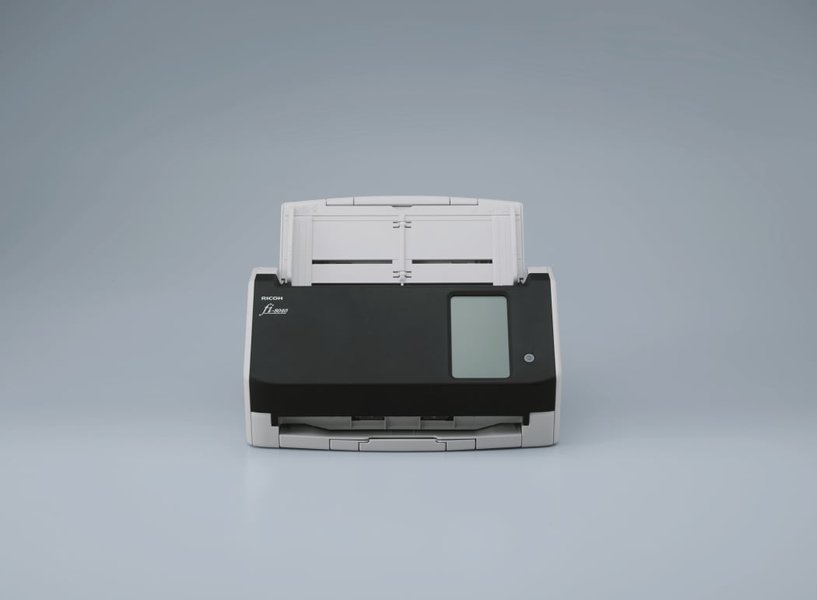
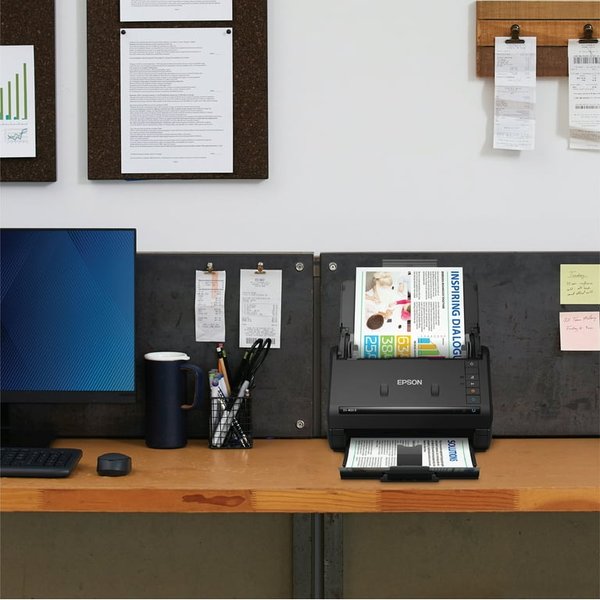
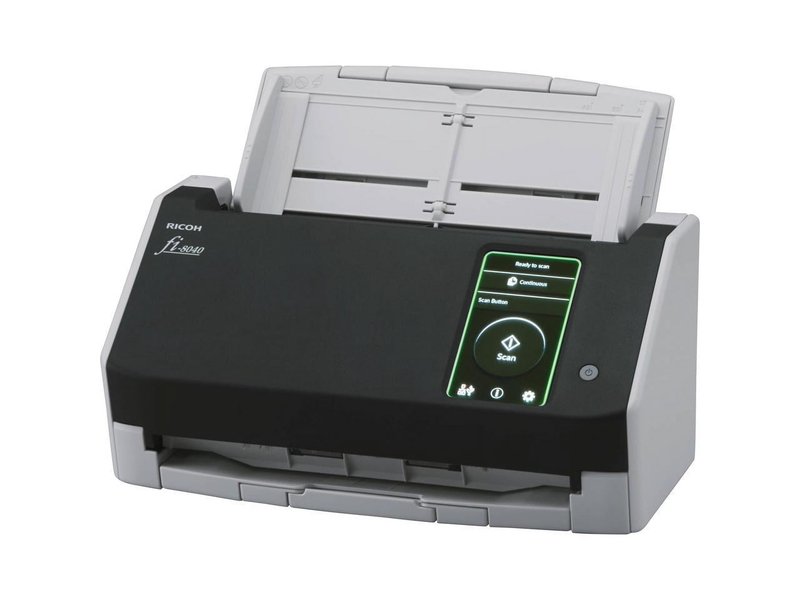
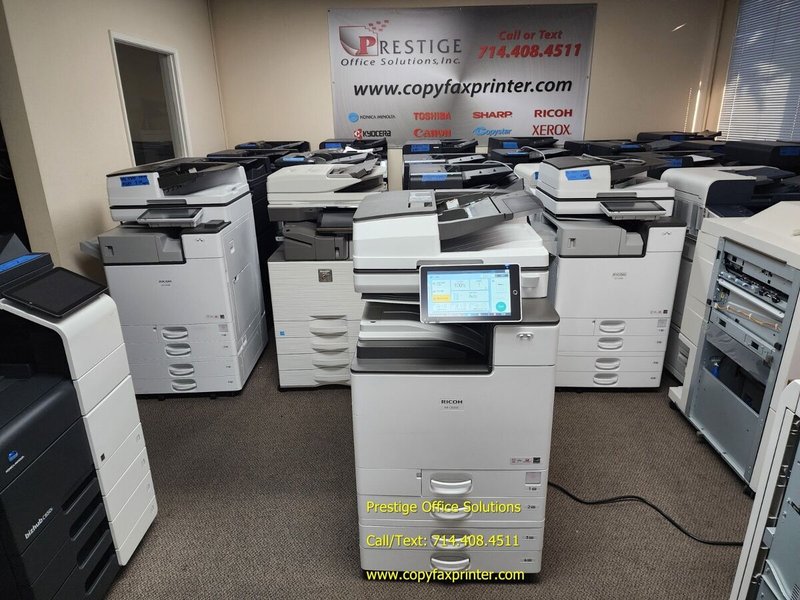
These images represent the types of hardware that can be integrated into a modern EDMS solution. Scanners like the Ricoh fi-8040 and Epson WorkForce ES-400 II are designed for desktop use and offer features like duplex scanning and auto document feeders. Larger multifunction printers, such as the Ricoh IM C6000, provide scanning, printing, and copying functionalities, suitable for handling large volumes of documents in a busy office environment. Proper integration of these scanning devices with software like Revver is key to streamlining document workflows and enhancing productivity.
Video Tutorial: Setting Up Scan to Folder on Ricoh Devices
Here's a helpful video demonstrating how to configure the "Scan to Folder" feature on Ricoh devices, which is essential for seamless document integration with Revver EDMS.
This video provides a step-by-step guide on setting up the "Scan to Folder" feature on Ricoh copiers, covering network setup and address book configuration. The process involves accessing the User Tools menu, programming a new scan destination, and adding users to the address book. By following these instructions, users can streamline their document scanning process and ensure seamless integration with document management systems like Revver EDMS, enhancing overall efficiency and productivity.
Conclusion: A Transformative Solution
The implementation of Revver EDMS and Ricoh scanners in the Mombasa shipping department showcases the transformative potential of modern document management solutions. By digitizing and automating document workflows, organizations can achieve significant efficiency gains, reduce costs, and enhance overall productivity. This case study serves as a valuable example for other businesses looking to optimize their document management processes.
What is Revver EDMS?
Revver is an award-winning, cloud-based platform designed to digitize and automate document-dependent work. It helps organizations improve efficiency, enhance security, and free up resources for growth.
How long does Revver implementation take?
Implementation typically takes four to six weeks, depending on the organization's internal structure and specific needs.
What are the key benefits of using Ricoh scanners?
Ricoh scanners offer features like Auto Detect for paper size, network scanning capabilities, and PaperStream IP for high-quality image conversion, ensuring efficient and accurate document digitization.
How do I set up Scan to Folder on a Ricoh copier?
To set up Scan to Folder, access the User Tools menu on the Ricoh copier, program a new scan destination, add the user to the address book, and test the setup to ensure it functions correctly.
What should I do if I encounter user authentication errors when scanning?
Ensure that the correct user credentials and permissions are set up on both the Ricoh copier and the network folder. Verify that the user account has the necessary access rights to the destination folder.
References
Last updated April 10, 2025