
Troubleshooting DL380 Gen8 to Gen9 Hard Disk Transition
Detailed guidance on resolving BIOS access issues after transplanting hard disks
Key Insights
- Check Physical and Power Connections: Ensure all cables and connections are secure and properly seated.
- BIOS & Firmware Configuration: Verify and update BIOS settings, boot order, and firmware compatibility.
- RAID and Peripheral Considerations: Confirm RAID configuration and remove non-essential peripherals for minimal configuration testing.
Understanding the Issue
When migrating hard disks from an HPE ProLiant DL380 Gen8 server to a DL380 Gen9, users may face significant challenges including not being able to access the BIOS. This situation generally stems from differences in hardware architecture, firmware revisions, and configuration settings between the two server generations. Recognizing that Gen8 and Gen9 servers have evolved in terms of RAID controller compatibility, BIOS defaults (legacy vs. UEFI boot), and peripheral device interactions is critical to resolving this boot problem.
Step-by-Step Troubleshooting Guide
1. Physical Connections and Hardware Verification
a. Secure All Cabling
The first step is to ensure that every physical connection is adequately secured. Since the hard disks are being transferred from an older Gen8 server, it is imperative to check if the power and data cables (SAS or SATA) are properly connected to the DL380 Gen9 chassis. Unplug and reconnect each cable, making sure that there is no frayed wiring or loose connections that could be causing the system to mis-detect the disks.
b. Inspect the Drive Carriers
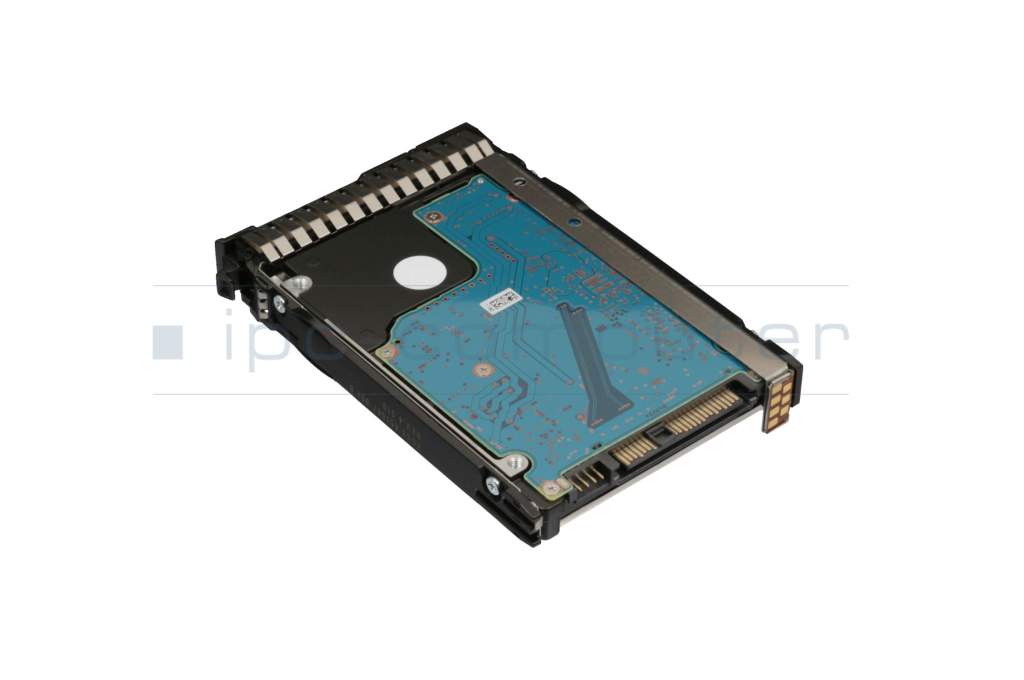
Even if the physical connections seem intact, verify that the carrier modules or caddies that hold the drives are intact and compatible with the Gen9 chassis. Although Gen8 and Gen9 use similar drive patterns, slight differences may lead to improper seating or communication issues with the DL380 Gen9 controller.
2. BIOS Settings and Boot Order Adjustments
a. Accessing the BIOS
On boot-up, the Gen9 system might fail to present the BIOS interface due to the hard disks being set as the default boot device. You can try forcing the system to display the BIOS prompt by repeatedly pressing the appropriate setup key (commonly F9 on HPE servers) immediately after power-up. If the screen remains blank or only shows a cursor, this may indicate a conflict between the connected drives and the inherent BIOS configuration.
b. Reviewing Boot Order Configuration
Once you manage to access the BIOS setup:
- Verify the boot order: Ensure the boot priority isn’t mistakenly set to a non-bootable device such as a disconnected drive or an incorrect RAID array.
- If available, switch between UEFI and Legacy boot modes: Prior configurations on the Gen8 might have used the legacy BIOS, whereas the Gen9 by default might be set to UEFI. Switching the boot mode to accommodate the older disk setups could solve the boot issue.
3. Firmware and BIOS Update Considerations
a. Updating BIOS on the Gen9
Firmware incompatibility is commonly at the root of issues when transferring disks between different server models. Check for the latest BIOS and firmware versions for the DL380 Gen9. Visit the HPE support website to download and install any required updates, ensuring that the server can correctly interpret and interact with disk metadata configured in the Gen8 environment.
b. Resetting BIOS Settings
If your server continues to fail in BIOS access, consider resetting the BIOS settings to the default configuration. This can often be accomplished by:
- Powering off the server and disconnecting it from the mains.
- Holding down the power button for an extended duration (approximately 15 seconds) to discharge any residual power.
- Reconnecting and powering the server on, then seeing if the BIOS screen appears.
Some DL380 Gen9 systems come with a System Maintenance DIP switch on the motherboard. Switching the relevant switch (often switch 6) to the ON position during boot can perform a configuration reset. Once rebooted, revert the switch to the original position.
4. RAID and Storage Configuration
a. RAID Controller Compatibility
A frequent cause of boot failure after a hard disk transfer involves RAID controller discrepancies. The RAID configuration set up in the Gen8 might not be recognized by the Gen9’s controller if the configurations differ. Check:
- If your Gen8 system was using a hardware RAID configuration with a dedicated Smart Array controller, that RAID configuration should ideally migrate correctly. However, if it used the integrated controller, the Gen9 might require you to reinitialize or update the RAID configuration.
- Access RAID configuration utility (accessible via Intelligent Provisioning or BIOS tools) to verify that the logical drives are correctly recognized. If necessary, re-configure the RAID volumes to align with the Gen9 hardware specifications.
b. Booting with Minimal Configuration
To isolate the issue, remove all non-essential hard disks and peripheral devices temporarily, leaving only one disk connected. Attempt to boot the server and access the BIOS with this minimal configuration. If successful, this will indicate that one or more of the moved drives or attached devices are causing a conflict with BIOS access.
5. Peripheral and External Device Checks
a. Removing Non-Essential Hardware
Sometimes peripheral devices (such as PCIe add-on cards or network adapters) can conflict with the boot sequence. Remove any newly installed devices that were not present in your Gen8 environment. Once the server is stripped back to its essentials (motherboard, CPU, one hard disk), try to boot into the BIOS again.
b. Testing with Alternate Input Devices
It is also worthwhile to test with a different keyboard. Some servers may not recognize certain USB keyboards early in the boot sequence, which can impede the ability to enter BIOS settings. A PS/2 keyboard, if available, can be a useful alternative.
6. Additional Troubleshooting Tips
a. Clear NVRAM and CMOS
Clearing the NVRAM can sometimes reset underlying hardware recognition issues related to your disks. The DL380 Gen9 might have a method to clear the NVRAM, either through a jumper on the motherboard or through certain key combinations at boot. Consult your server’s documentation for specific instructions for your model.
b. Bootable Media and Diagnostics
If you are still unable to access BIOS, consider creating a bootable USB drive with manufacturer diagnostics or firmware updating utilities. Many HPE servers support booting into Intelligent Provisioning—a built-in set of tools that can also aid in diagnosing hardware issues and updating firmware. Use these tools to further investigate the root cause of the boot failure.
c. Wait for System Stabilization
Occasionally, a temporary power issue such as "flea power" may hinder boot-up. If you have attempted a power cycle repeatedly and the server remains unresponsive, allow the system to remain powered down for 5 to 10 minutes before powering up again. This can help dissipate any residual charge that might interfere with the boot sequence.
Comprehensive Overview Table
| Area | Recommendations | Notes |
|---|---|---|
| Physical Connections | Check cables, drive carriers, secure connections | Loose connections lead to BIOS non-detection |
| BIOS Settings | Enter BIOS with F9, verify boot order, toggle UEFI/Legacy | Old configurations in Gen8 may conflict with Gen9 |
| Firmware Updates | Update BIOS and RAID firmware from HPE support | Ensure compatibility between Gen8 disk configuration and Gen9 firmware |
| RAID Configuration | Reset RAID settings via Intelligent Provisioning, minimal configuration boot | Reconfigure RAID arrays if necessary |
| Peripheral Removal | Remove non-essential hardware, test with alternate keyboard | Identifies peripheral interference problems |
| NVRAM/Clear CMOS | Use DIP switches or jumpers to reset NVRAM | Resets stored configuration that might block BIOS access |
| Bootable Media & Diagnostics | Create USB boot drives, use Intelligent Provisioning | Helps diagnose and possibly update firmware via bootable tools |
Additional Considerations
Hardware Compatibility
The transfer of hard disks between different server generations, while generally straightforward, often necessitates careful attention to the nuances between generation-specific hardware. While both DL380 Gen8 and Gen9 servers support SAS and SATA drives, it is essential to verify that the disk drives are housed in compatible carriers and that they are recognized by the Gen9 system’s RAID controller.
The Gen9’s built-in Smart Array controllers might demand a more contemporary firmware interface compared to what was present in the Gen8. Therefore, confirming that the RAID metadata and configuration are intact is important before attempting reinitialization. Where necessary, updating the RAID controller’s firmware can bridge the compatibility gap.
Firmware and BIOS Defaults
Modern servers are increasingly designed to leverage UEFI for faster boot times and enhanced security features. However, if your hard disks were previously configured under a legacy BIOS environment on the Gen8 server, boot issues may arise when attempting to boot the Gen9 system under a UEFI default. In such cases, it is advisable to either switch the Gen9 BIOS to legacy mode or to reconfigure the drives so they are fully compliant with UEFI boot protocols.
Additionally, the “Secure Boot” feature might block the disks from initiating a boot if the disk’s configuration does not meet secure boot standards. If you are utilizing an operating system such as Windows Server 2022, consider temporarily disabling Secure Boot to evaluate if that improves the boot sequence.
Power Cycle and Stability
An often overlooked but crucial step in resolving boot issues is to allow the system to fully reset its power state. This “flea power” phenomenon—where residual power continues to influence hardware behavior—can inhibit proper initialization of connected devices, including the RAID arrays and disk drives. Disconnecting the server from the power supply for a period of 5 to 10 minutes, and then allowing a full reboot, can often help clear such transient states.
Additionally, performing a minimal configuration boot (with only one necessary hard disk and essential peripherals attached) can isolate hardware components and clarify whether a particular disk or component is causing the problem.
References
- Hardware RAID5 Move from HP Proliant – Reddit
- DL380 Gen9 Doesn’t Boot – HPE Community
- DL380 Gen9 Cycling Issues – Spiceworks
- BIOS/UEFI PXE Boot Issue – GitHub
-
Secure Boot Issue with Windows Server - Microsoft Tech Community
Recommended Related Queries
Last updated March 24, 2025