
Streamline Travel Management: Building a Comprehensive SharePoint App
Unlocking seamless data interaction for employee travel with integrated Microsoft tools.
Key Insights for Your Travel Management App
- Leverage Power Apps for Dynamic Forms: Power Apps offers the most robust solution for creating custom forms with advanced search, edit, and create functionalities, providing a user-friendly interface for your SharePoint list.
- Seamless SharePoint Integration: Your SharePoint list serves as the central data repository, easily connecting with Power Apps for front-end interaction and Power Automate for backend automation.
- Flexible Data Export Options: Utilize SharePoint's native "Export to Excel" feature for quick downloads, or implement Power Automate flows for automated and more complex data export scenarios to spreadsheets.
Creating a functional and user-friendly application for managing employee travel information within SharePoint is highly achievable by leveraging the robust capabilities of the Microsoft 365 ecosystem. This guide will walk you through building a comprehensive app (form) that allows users to search, edit, and create new records, along with exporting data to a spreadsheet. The primary tools for this endeavor are SharePoint Online, Power Apps, and Power Automate.
Establishing Your Data Foundation: The SharePoint List
The core of your travel management solution will be a well-structured SharePoint Online list. This list acts as your database, storing all essential employee travel information. Ensure your list includes relevant columns such as:
- Employee Name
- Travel Dates (Start and End)
- Destination
- Purpose of Travel
- Estimated Expenses
- Approval Status
- Attachments (for receipts, itineraries, etc.)
Proper column setup and data types are crucial for efficient searching, filtering, and reporting within your application.
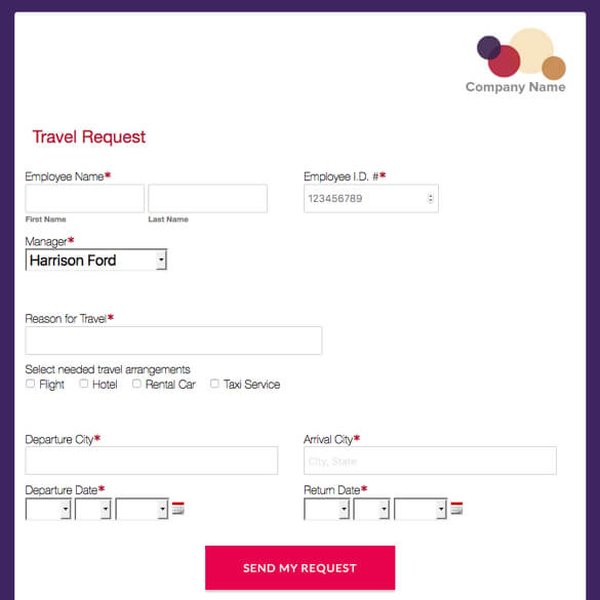
An example of a structured travel request form, highlighting key information fields.
Building the Interactive App with Power Apps
Power Apps is the recommended tool for crafting a dynamic and responsive user interface for your SharePoint list. It allows for rich customization, far beyond what basic SharePoint forms offer, and provides a seamless experience whether accessed via desktop or mobile devices.
Initiating Your Power Apps Project
To begin, navigate to your SharePoint list. On the command bar, select Integrate > Power Apps. You have two main options:
- Customize forms: This creates a custom form that replaces the default SharePoint New, Edit, and Display forms for that specific list. It's ideal for a direct form replacement.
- Create an app: This generates a standalone canvas app connected to your SharePoint list, providing more flexibility for multiple screens, advanced navigation, and broader application features.
Both options will open Power Apps Studio with your SharePoint list already configured as a data source.
Implementing Search Functionality
To enable users to search existing data effectively, you'll integrate search controls into your Power Apps interface.
Designing the Search Interface
Add a Text input control to your app screen (e.g., named TextInputSearch). Below this, include a Gallery control (e.g., GalleryTravelRecords) to display the search results.
Configuring Search Logic
Set the Items property of your GalleryTravelRecords to filter the SharePoint list based on the text input. A common formula for this is:
Filter(
    'YourSharePointListName',
    StartsWith('Employee Name', TextInputSearch.Text) ||
    "Destination" in TextInputSearch.Text ||
    "Purpose" in TextInputSearch.Text
)
This formula allows users to search by employee name (starting with the input) or by keywords within the destination or purpose fields. You can expand the Concatenate or Or conditions to include more searchable fields.
Enabling Editing of Existing Records
Once a record is found through the search, users should be able to select and edit it.
Linking Search Results to an Edit Form
Add an Edit form control (e.g., EditFormTravel) to a separate screen or as a hidden control that appears upon selection. Set the Item property of this form to the currently selected item in your gallery:
EditFormTravel.Item = GalleryTravelRecords.Selected
Include a button or an icon within each gallery item that navigates to the edit screen and sets the form to edit mode (EditForm(EditFormTravel)).
Saving Changes
On the edit screen, add a button (e.g., "Save Changes"). Set its OnSelect property to:
SubmitForm(EditFormTravel);
Navigate(BrowseScreen, ScreenTransition.None)
This saves the changes back to your SharePoint list and navigates the user back to the main search screen.
Creating New Records
Allowing users to submit new travel requests is a core function.
Designing the New Record Form
Similar to the edit functionality, use a New form control (e.g., NewFormTravel) on a dedicated screen. Provide an "Add New Record" button on your main screen. Set its OnSelect property to:
NewForm(NewFormTravel);
Navigate(NewRecordScreen, ScreenTransition.None)
Submitting New Data
On the new record screen, add a "Submit" button. Its OnSelect property should be:
SubmitForm(NewFormTravel);
Navigate(BrowseScreen, ScreenTransition.None)
This sends the new data to your SharePoint list and returns the user to the main view. For more granular control, you can use the Patch function for both creating and updating records.
Patch('YourSharePointListName', Defaults('YourSharePointListName'), {
    'Employee Name': EmployeeNameInput.Text,
    'Destination': DestinationInput.Text,
    'Travel Date': TravelDatePicker.SelectedDate
    // ... add all other fields
})
This radar chart illustrates the perceived strengths of different tools in managing your SharePoint travel data, offering a visual comparison of their capabilities across various features.
Exporting Data to a Spreadsheet
The ability to export data is essential for reporting, analysis, and sharing outside the SharePoint environment. You have several effective options:
Direct Export from SharePoint List
The simplest method is to use SharePoint's native "Export to Excel" feature.
How to Use Native Export
From your SharePoint list view, click the Export button on the command bar, and then select Export to Excel. This downloads a .iqy file, which, when opened, pulls the list data directly into an Excel spreadsheet. This Excel file maintains a one-way connection to your SharePoint list, allowing users to refresh the data in Excel to get the latest information.
This video demonstrates the straightforward process of exporting a SharePoint list to an Excel spreadsheet, a quick and convenient method for data analysis or sharing.
Considerations for Native Export
- This method exports the current view of the list, so if you apply filters or select specific columns in SharePoint, only that filtered/viewed data will be exported.
- There might be limitations for very large lists (e.g., over 30,000 items), where you might need to export in smaller batches or use Power Automate.
Automated Export with Power Automate
For more complex or automated export needs, such as scheduled exports, generating specific reports, or handling large datasets, Power Automate (formerly Microsoft Flow) is an invaluable tool.
Creating an Export Flow
You can design a Power Automate flow that:
- Triggers: Can be manual (initiated by a button in Power Apps or Power Automate portal), scheduled (e.g., daily/weekly), or based on an event (e.g., new item created).
- Retrieves Data: Uses the "Get items" action for SharePoint to fetch records based on your criteria (all items, filtered by date, etc.).
- Creates/Updates Excel File: Utilizes actions like "Create file" or "Add a row into a table" for Excel Online (Business) to populate a spreadsheet in SharePoint or OneDrive.
- Distributes (Optional): Can send the generated Excel file as an email attachment or upload it to a specific SharePoint document library.
This method offers greater control over the export process, making it suitable for recurring reporting requirements.
(Employee Travel Info)"] id3["Columns
(Name, Dates, Destination, Purpose, Expenses)"] id4["Power Apps (User Interface)"] id5["Custom Forms"] id6["New Record Form"] id7["Edit Record Form"] id8["Search & Display Form"] id9["Functionality"] id10["Search & Filter
(Gallery, Text Input)"] id11["Create New Records
(SubmitForm/Patch)"] id12["Edit Existing Records
(EditForm/Patch)"] id13["Responsive Design"] id14["Data Export (Spreadsheet)"] id15["SharePoint Native Export"] id16["'Export to Excel' Button"] id17[".iqy File (Live Connection)"] id18["Power Automate for Advanced Export"] id19["Automated Flows"] id20["Scheduled Exports"] id21["Conditional Data Export"] id22["Create/Update Excel in Cloud"]
This mindmap illustrates the interconnected components of your SharePoint travel management solution, showing how the SharePoint list, Power Apps, and Power Automate work together to achieve search, edit, create, and export functionalities.
Comparative Overview of Implementation Approaches
Here's a table summarizing the tools and techniques for each required functionality:
| Feature | Primary Tool/Method | Description & Key Considerations |
|---|---|---|
| Data Storage | SharePoint Online List | The foundational database for all employee travel information. Ensure proper column setup and data types. |
| App/Form Creation | Power Apps (Canvas App or Custom Forms) | Provides a rich, interactive, and customizable user interface for all data interactions. Offers significantly more flexibility than default SharePoint forms. |
| Search Existing Data | Power Apps (Gallery + Filter Function) | Implement text input controls linked to a Power Apps Gallery using the Filter function for dynamic, real-time searching within the app. |
| Edit Existing Data | Power Apps (Edit Form control) | Configure an Edit Form control. Set its Item property to the selected record from your search results. Include submission buttons for saving changes. |
| Create New Records | Power Apps (New Form control or Patch function) | Design a dedicated form for new entries. Use NewForm() to prepare the form and SubmitForm() or Patch() to save the data to the SharePoint list. |
| Export Data to Spreadsheet | SharePoint Native "Export to Excel" or Power Automate | Native: Quick and easy for current views. Downloads a connected Excel file. Power Automate: Ideal for automated, scheduled, or complex exports, especially for large datasets. |
| Automated Workflows (Optional) | Power Automate | Beyond export, Power Automate can handle approval processes, notifications, and other background tasks related to travel requests. |
Frequently Asked Questions
Can I use only SharePoint's built-in features without Power Apps?
What are the limitations when exporting large SharePoint lists to Excel?
Can I integrate approval workflows for travel requests?
Is it possible to attach documents like receipts or itineraries to travel records?
Conclusion
By strategically combining the capabilities of SharePoint Online for data storage, Power Apps for a rich user interface, and Power Automate for advanced export and automation, you can successfully build a powerful and intuitive employee travel information management app. This solution empowers users to efficiently search, modify, create new records, and export data, significantly streamlining your organization's travel processes.
Recommended Further Exploration
- How to customize SharePoint list forms with Power Apps?
- Implementing advanced search filters in Power Apps for SharePoint.
- Building automated Excel export flows using Power Automate.
- Integrating Power Apps with Power Automate for comprehensive solutions.