
Unlock Online Freedom & Security: Your Ultimate Guide to Simple VPN Setup
Navigate the digital world privately and securely with this easy-to-follow VPN configuration guide.
A Virtual Private Network (VPN) is an essential tool in today's digital landscape. It establishes a secure, encrypted connection—often called a "tunnel"—between your device and the internet. This process masks your actual IP address and encrypts your data traffic, significantly enhancing your online privacy, securing your information from prying eyes (especially on public Wi-Fi), and allowing you to bypass geo-restrictions to access content from around the globe. This guide will walk you through setting up a simple VPN, focusing on user-friendly methods suitable for everyone.
Essential Insights: Quick VPN Setup Highlights
Key takeaways for getting your VPN up and running swiftly.
- Prioritize Reputable Providers: For the simplest and most reliable VPN experience, choosing a well-regarded VPN service provider is paramount. They offer user-friendly applications and handle the complex technical aspects.
- App-Based Setup is Easiest: Most top VPN providers offer dedicated apps for all major platforms (Windows, macOS, Android, iOS), making installation and connection a matter of a few clicks.
- Verify Your Connection: After setup, always confirm your VPN is working correctly by checking your IP address and testing access to geo-restricted content if that's a primary use case.
Understanding Your VPN Setup Options
Decide which VPN approach best suits your needs.
Before diving into the setup, it's important to understand the different ways you can implement a VPN. Each has its own set of advantages and technical requirements.
1. Using a VPN Service Provider (Recommended for Simplicity)
This is the most popular and straightforward method, ideal for most users. You subscribe to a service, download their software, and connect. These providers manage a global network of servers and offer dedicated applications that simplify the entire process.
- Pros: Easy to set up and use, wide range of server locations, dedicated apps for various devices, customer support, often includes advanced features like kill switches and ad-blocking.
- Cons: Requires a subscription fee (though some offer limited free tiers), trust is placed in the provider's privacy policies.
- Popular Providers: NordVPN, ExpressVPN, Surfshark, Proton VPN, CyberGhost.
2. Setting Up Your Own VPN Server (Advanced)
For users seeking maximum control and privacy, self-hosting a VPN server is an option. This typically involves using a Virtual Private Server (VPS) or dedicated hardware like a Raspberry Pi.
- Pros: Complete control over your data and configuration, potentially lower long-term costs if using existing hardware.
- Cons: Requires significant technical expertise, time-consuming setup and maintenance, limited server locations (usually just one, unless you set up multiple servers).
3. Configuring VPN on Your Router (Network-Wide Protection)
Setting up a VPN directly on your router extends protection to all devices connected to your home network, including smart TVs, gaming consoles, and IoT devices that may not support VPN apps natively.
- Pros: Protects all connected devices with a single setup, "always-on" protection.
- Cons: Can be more complex to configure, requires a VPN-compatible router or custom firmware (like OpenWrt or DD-WRT), might slightly reduce internet speed for all devices due to router processing overhead.
For the purpose of this "simple VPN setup" guide, we will primarily focus on using a VPN service provider, as it's the most accessible method.
Choosing a VPN Protocol
Understanding the technology that powers your secure connection.
VPN protocols are the sets of rules that determine how your data is encrypted and routed. While most provider apps handle protocol selection automatically, it's good to be aware of the common ones:
- WireGuard: Widely recommended for 2025 due to its exceptional speed, modern security, and relative simplicity. It's increasingly becoming the default for many VPN providers.
- OpenVPN: A highly secure and configurable open-source protocol. It has been a gold standard for years and is known for its reliability, though it can be slightly slower than WireGuard.
- IKEv2/IPSec: Known for its stability, especially on mobile devices, as it can re-establish a VPN connection quickly if you switch between Wi-Fi and mobile data.
For a simple setup, you can usually rely on the "automatic" or recommended protocol setting within your VPN provider's app, which often defaults to WireGuard or selects the best option for your network.
Step-by-Step: Setting Up Your VPN with a Service Provider
The easiest path to VPN protection.
This is the most common and user-friendly approach. Follow these steps to get your VPN operational in minutes.
Step 1: Select a Reputable VPN Provider
Research and choose a VPN service that aligns with your needs. Consider factors like privacy policy (especially a strict no-logs policy), server locations, speed, device compatibility, number of simultaneous connections, and price. Reputable providers like NordVPN, ExpressVPN, and Surfshark are popular choices known for their ease of use and strong security features.
Step 2: Sign Up and Subscribe
Visit the chosen provider's official website. Create an account by providing an email address and choosing a password. Select a subscription plan that suits you. Many offer money-back guarantees, allowing you to try the service risk-free.
Step 3: Download and Install the VPN Application
Once subscribed, navigate to the "Downloads" section of the provider's website or your device's app store:
- Windows: Download the
.exeinstaller file. Run it and follow the on-screen prompts. - macOS: Download the
.dmgfile. Open it and drag the VPN app icon to your Applications folder. - Android: Search for the VPN provider's app in the Google Play Store and tap "Install."
- iOS (iPhone/iPad): Search for the VPN provider's app in the Apple App Store and tap "Get" or the cloud icon.
Always download software directly from the official provider's website or official app stores to avoid malicious versions.
Step 4: Log In and Configure the Application
Launch the installed VPN application on your device. You'll be prompted to log in with the credentials you created during sign-up. Upon first launch, the app might ask for necessary permissions (e.g., to create VPN configurations on your system). Grant these permissions.
Most apps offer features like:
- Server Selection: Choose a server location. For general privacy and speed, pick a server geographically close to you. To bypass geo-restrictions, select a server in the country whose content you wish to access.
- Kill Switch: This crucial feature blocks all internet traffic if your VPN connection unexpectedly drops, preventing data leaks. It's highly recommended to enable it.
- Auto-connect: Configure the VPN to connect automatically when your device starts or when you connect to untrusted networks like public Wi-Fi.
- Protocol Selection: Usually set to "Automatic," but you can manually choose a protocol if needed.
Step 5: Connect to a VPN Server
After configuring any desired settings, simply click the "Connect" button within the app. The app will establish a secure connection to the selected server. You should see a visual confirmation (e.g., the button turns green, a status message says "Connected," or a VPN icon appears in your device's status bar).
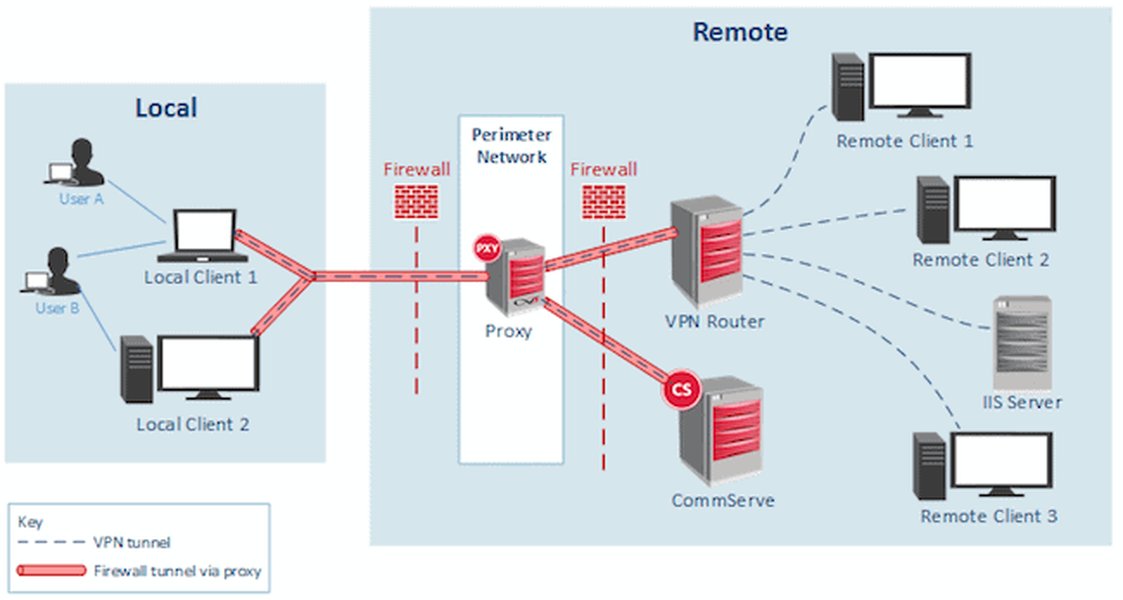
A diagram illustrating the encrypted tunnel a VPN creates between your device and the internet.
Comparing VPN Provider Features
Visualizing Key Strengths of Popular VPN Services
When selecting a VPN provider, several factors come into play. The radar chart below offers a generalized, opinion-based comparison of three popular VPN services—ProtonVPN, NordVPN, and Surfshark—across key attributes. These ratings are subjective and intended for illustrative purposes, reflecting common perceptions of these services in terms of speed, security features, ease of use, server network size, and commitment to privacy (no-logs policy). Actual performance can vary based on your location, internet connection, and chosen server.
This chart helps visualize how different providers might excel in various areas. For instance, one might offer slightly better raw speed, while another has a more extensive server network or a particularly strong emphasis on audited privacy policies. Your choice will depend on which factors are most important to you.
Visualizing the VPN Setup Journey
A Mindmap of Your VPN Configuration Path
To help you conceptualize the process of setting up a VPN, the mindmap below outlines the key decision points and steps involved, from choosing an approach to connecting and testing. This visual guide can clarify the overall journey, especially distinguishing between using a VPN service provider (the focus of our "simple" setup) and more advanced options.
(Recommended for Simplicity)"] id1_1_1["1. Select Provider
(e.g., NordVPN, ExpressVPN)"] id1_1_2["2. Sign Up & Subscribe"] id1_1_3["3. Download & Install App
(Windows, macOS, Android, iOS)"] id1_1_4["4. Log In & Configure
(Server, Kill Switch)"] id1_1_5["5. Connect to Server"] id1_2["Self-Hosted VPN Server
(Advanced)"] id1_2_1["1. Choose Hardware/VPS"] id1_2_2["2. Install VPN Software
(e.g., WireGuard, OpenVPN)"] id1_2_3["3. Configure Server & Clients"] id1_2_4["4. Set Firewall Rules"] id1_3["VPN on Router
(Network-Wide)"] id1_3_1["1. Check Router Compatibility"] id1_3_2["2. Access Router Admin Panel"] id1_3_3["3. Enter VPN Provider Details
or Self-Hosted Config"] id1_3_4["4. Enable & Test"] id2["Select VPN Protocol
(Often Automatic)"] id2_1["WireGuard (Fast, Modern)"] id2_2["OpenVPN (Reliable, Secure)"] id2_3["IKEv2/IPSec (Mobile Stability)"] id3["Test Your VPN Connection"] id3_1["Check IP Address
(e.g., ipleak.net)"] id3_2["Verify Location Change"] id3_3["Test for DNS Leaks"] id3_4["Check Connection Speed"] id4["Enable Security Features"] id4_1["Kill Switch"] id4_2["Auto-Connect on Untrusted Networks"] id4_3["Ad/Tracker Blocking (if available)"]
This mindmap provides a high-level overview of the pathways you might take. For a simple setup, you'll primarily follow the "VPN Service Provider" branch.
Step 6: Test Your VPN Connection
Ensuring your VPN is working as expected.
After connecting, it's crucial to verify that your VPN is functioning correctly and protecting your privacy:
- Check Your IP Address: Visit a website like
ipleak.netorwhatismyipaddress.com. The displayed IP address and location should match those of the VPN server you connected to, not your actual IP and location. - Test for DNS Leaks: Some VPN testing sites also offer DNS leak tests. A DNS leak can reveal your actual ISP and potentially your location, even when connected to a VPN. Ensure your DNS requests are also routed through the VPN. Most reputable VPN apps protect against this.
- Verify Geo-Unblocking (if applicable): If you're using the VPN to access content restricted to a specific region, try accessing that content to ensure it works.
- Check Connection Speed: Run an internet speed test (while connected to the VPN and disconnected) to see the impact on your connection speed. Some speed reduction is normal, but it shouldn't be drastic with good providers.
Video Guide: Setting Up a VPN in Minutes
Visual walkthrough of a typical VPN setup process.
For those who prefer a visual demonstration, the video below provides a step-by-step tutorial on how to set up a VPN quickly. It covers the general process of subscribing to a service, downloading the application, and connecting to a server, which aligns well with the simple VPN setup method discussed in this guide. Watching a practical demonstration can often clarify any remaining questions about the installation and initial configuration.
This video can be a helpful supplement to the written instructions, especially for visual learners, showcasing how straightforward the process can be with a modern VPN provider.
Summary of VPN Setup Steps
A quick reference table for the setup process.
This table summarizes the key actions involved in setting up a VPN, particularly when using a VPN service provider, which is the simplest method for most users.
| Step | Action | Notes |
|---|---|---|
| 1 | Choose Setup Type | Using a paid VPN service provider is recommended for ease of use. Self-hosting or router-based VPNs are more advanced options. |
| 2 | Pick VPN Protocol (Optional) | Most apps select automatically. WireGuard is preferred in 2025 for speed and security if manual selection is available/needed. |
| 3 | Select Provider, Subscribe & Install VPN App | Choose a reputable provider, sign up on their website, download, and install their app on your device(s). This is the easiest method. |
| 4 | Log In & Configure | Open the app, log in, enable features like Kill Switch, and choose a server location. |
| 5 | Connect to VPN Server | Click the "Connect" button in the app. |
| 6 | Test Connection | Verify your IP address has changed, check for DNS leaks, and test internet speed. |
Tips for a Secure and Optimal VPN Experience in 2025
Best practices for maximizing your VPN's effectiveness.
- Always Opt for a No-Logs Policy: Choose a VPN provider that has a independently audited strict no-logs or zero-logs policy. This means they don't store records of your online activity.
- Enable the Kill Switch: This is a critical security feature that prevents your real IP address from being exposed if the VPN connection drops unexpectedly.
- Keep Software Updated: Regularly update your VPN client app, your operating system, and your router firmware to benefit from the latest security patches and features.
- Be Wary of "Free" VPNs: While tempting, many free VPNs come with significant drawbacks, such as slow speeds, data limits, intrusive ads, or even logging and selling user data. Reputable paid services are generally safer and more reliable.
- Select Servers Strategically: For the best speed, connect to a server geographically close to you. If you need to bypass geo-restrictions, choose a server in the target country. Don't hesitate to switch servers if one is slow or problematic.
- Understand Local Laws: Be aware that while VPNs are legal in most countries, their use for illicit activities remains illegal. Also, some countries have strict regulations or bans on VPN use.
Frequently Asked Questions (FAQ)
Your common VPN queries answered.
Recommended Further Exploration
Dive deeper into related VPN topics.
- What are the detailed benefits of setting up a VPN on my home router?
- How do I choose the best VPN protocol like WireGuard or OpenVPN for my needs?
- Compare the pros and cons of self-hosting a VPN versus using a commercial VPN service.
- What are the most important security features to look for in a VPN provider in 2025?
References
Sources used for this guide.
- How to Set Up and Use a VPN - PCMag
- How to Set Up a VPN: Complete Guide with Steps | NinjaOne - NinjaOne
- How to Set Up and Install a VPN - Security.org
- Connect to a VPN in Windows - Microsoft Support
- How to set up a VPN: a step-by-step guide | NordVPN - NordVPN
- You need a router-based VPN in 2025. Here's why and how to set one up - ZDNet
- Guide To Set Up & Configure OpenVPN Client/Server VPN - OpenVPN
Unlock Online Freedom & Security: Your Ultimate Guide to Simple VPN Setup
Navigate the digital world privately and securely with this easy-to-follow VPN configuration guide.
A Virtual Private Network (VPN) is an essential tool in today's digital landscape. It establishes a secure, encrypted connection—often called a "tunnel"—between your device and the internet. This process masks your actual IP address and encrypts your data traffic, significantly enhancing your online privacy, securing your information from prying eyes (especially on public Wi-Fi), and allowing you to bypass geo-restrictions to access content from around the globe. This guide will walk you through setting up a simple VPN, focusing on user-friendly methods suitable for everyone.
Essential Insights: Quick VPN Setup Highlights
Key takeaways for getting your VPN up and running swiftly.
- Prioritize Reputable Providers: For the simplest and most reliable VPN experience, choosing a well-regarded VPN service provider is paramount. They offer user-friendly applications and handle the complex technical aspects.
- App-Based Setup is Easiest: Most top VPN providers offer dedicated apps for all major platforms (Windows, macOS, Android, iOS), making installation and connection a matter of a few clicks.
- Verify Your Connection: After setup, always confirm your VPN is working correctly by checking your IP address and testing access to geo-restricted content if that's a primary use case.
Understanding Your VPN Setup Options
Decide which VPN approach best suits your needs.
Before diving into the setup, it's important to understand the different ways you can implement a VPN. Each has its own set of advantages and technical requirements.
1. Using a VPN Service Provider (Recommended for Simplicity)
This is the most popular and straightforward method, ideal for most users. You subscribe to a service, download their software, and connect. These providers manage a global network of servers and offer dedicated applications that simplify the entire process.
- Pros: Easy to set up and use, wide range of server locations, dedicated apps for various devices, customer support, often includes advanced features like kill switches and ad-blocking.
- Cons: Requires a subscription fee (though some offer limited free tiers), trust is placed in the provider's privacy policies.
- Popular Providers: NordVPN, ExpressVPN, Surfshark, Proton VPN, CyberGhost.
2. Setting Up Your Own VPN Server (Advanced)
For users seeking maximum control and privacy, self-hosting a VPN server is an option. This typically involves using a Virtual Private Server (VPS) or dedicated hardware like a Raspberry Pi.
- Pros: Complete control over your data and configuration, potentially lower long-term costs if using existing hardware.
- Cons: Requires significant technical expertise, time-consuming setup and maintenance, limited server locations (usually just one, unless you set up multiple servers).
3. Configuring VPN on Your Router (Network-Wide Protection)
Setting up a VPN directly on your router extends protection to all devices connected to your home network, including smart TVs, gaming consoles, and IoT devices that may not support VPN apps natively.
- Pros: Protects all connected devices with a single setup, "always-on" protection.
- Cons: Can be more complex to configure, requires a VPN-compatible router or custom firmware (like OpenWrt or DD-WRT), might slightly reduce internet speed for all devices due to router processing overhead.
For the purpose of this "simple VPN setup" guide, we will primarily focus on using a VPN service provider, as it's the most accessible method.
Choosing a VPN Protocol
Understanding the technology that powers your secure connection.
VPN protocols are the sets of rules that determine how your data is encrypted and routed. While most provider apps handle protocol selection automatically, it's good to be aware of the common ones:
- WireGuard: Widely recommended for 2025 due to its exceptional speed, modern security, and relative simplicity. It's increasingly becoming the default for many VPN providers.
- OpenVPN: A highly secure and configurable open-source protocol. It has been a gold standard for years and is known for its reliability, though it can be slightly slower than WireGuard.
- IKEv2/IPSec: Known for its stability, especially on mobile devices, as it can re-establish a VPN connection quickly if you switch between Wi-Fi and mobile data.
For a simple setup, you can usually rely on the "automatic" or recommended protocol setting within your VPN provider's app, which often defaults to WireGuard or selects the best option for your network.
Step-by-Step: Setting Up Your VPN with a Service Provider
The easiest path to VPN protection.
This is the most common and user-friendly approach. Follow these steps to get your VPN operational in minutes.
Step 1: Select a Reputable VPN Provider
Research and choose a VPN service that aligns with your needs. Consider factors like privacy policy (especially a strict no-logs policy), server locations, speed, device compatibility, number of simultaneous connections, and price. Reputable providers like NordVPN, ExpressVPN, and Surfshark are popular choices known for their ease of use and strong security features.
Step 2: Sign Up and Subscribe
Visit the chosen provider's official website. Create an account by providing an email address and choosing a password. Select a subscription plan that suits you. Many offer money-back guarantees, allowing you to try the service risk-free.
Step 3: Download and Install the VPN Application
Once subscribed, navigate to the "Downloads" section of the provider's website or your device's app store:
- Windows: Download the
.exeinstaller file. Run it and follow the on-screen prompts. - macOS: Download the
.dmgfile. Open it and drag the VPN app icon to your Applications folder. - Android: Search for the VPN provider's app in the Google Play Store and tap "Install."
- iOS (iPhone/iPad): Search for the VPN provider's app in the Apple App Store and tap "Get" or the cloud icon.
Always download software directly from the official provider's website or official app stores to avoid malicious versions.
Step 4: Log In and Configure the Application
Launch the installed VPN application on your device. You'll be prompted to log in with the credentials you created during sign-up. Upon first launch, the app might ask for necessary permissions (e.g., to create VPN configurations on your system). Grant these permissions.
Most apps offer features like:
- Server Selection: Choose a server location. For general privacy and speed, pick a server geographically close to you. To bypass geo-restrictions, select a server in the country whose content you wish to access.
- Kill Switch: This crucial feature blocks all internet traffic if your VPN connection unexpectedly drops, preventing data leaks. It's highly recommended to enable it.
- Auto-connect: Configure the VPN to connect automatically when your device starts or when you connect to untrusted networks like public Wi-Fi.
- Protocol Selection: Usually set to "Automatic," but you can manually choose a protocol if needed.
Step 5: Connect to a VPN Server
After configuring any desired settings, simply click the "Connect" button within the app. The app will establish a secure connection to the selected server. You should see a visual confirmation (e.g., the button turns green, a status message says "Connected," or a VPN icon appears in your device's status bar).
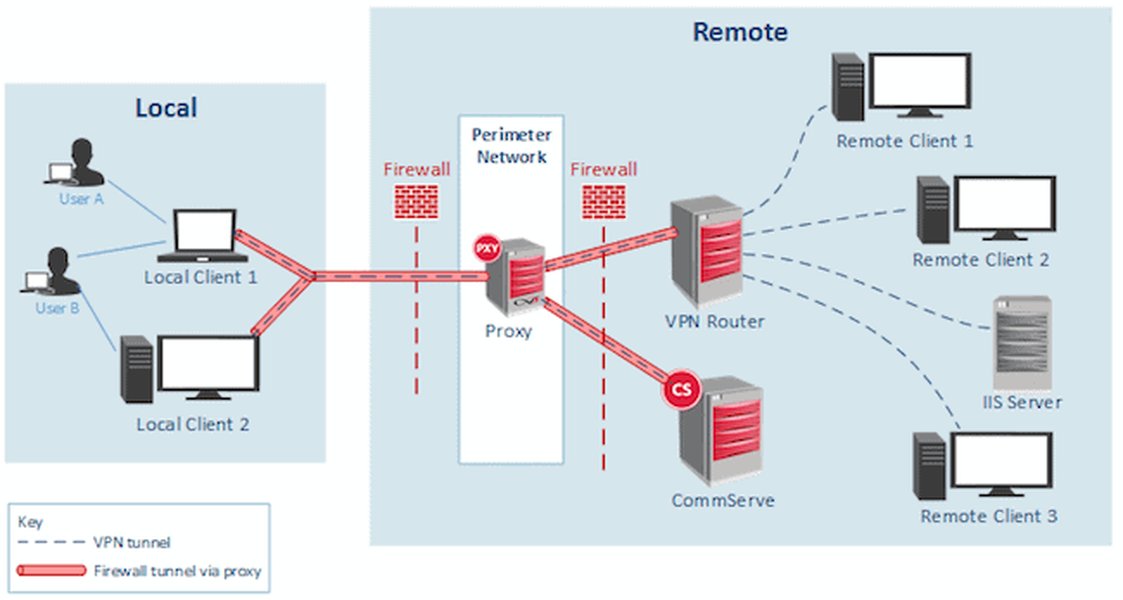
A diagram illustrating the encrypted tunnel a VPN creates between your device and the internet.
Comparing VPN Provider Features
Visualizing Key Strengths of Popular VPN Services
When selecting a VPN provider, several factors come into play. The radar chart below offers a generalized, opinion-based comparison of three popular VPN services—ProtonVPN, NordVPN, and Surfshark—across key attributes. These ratings are subjective and intended for illustrative purposes, reflecting common perceptions of these services in terms of speed, security features, ease of use, server network size, and commitment to privacy (no-logs policy). Actual performance can vary based on your location, internet connection, and chosen server.
This chart helps visualize how different providers might excel in various areas. For instance, one might offer slightly better raw speed, while another has a more extensive server network or a particularly strong emphasis on audited privacy policies. Your choice will depend on which factors are most important to you.
Visualizing the VPN Setup Journey
A Mindmap of Your VPN Configuration Path
To help you conceptualize the process of setting up a VPN, the mindmap below outlines the key decision points and steps involved, from choosing an approach to connecting and testing. This visual guide can clarify the overall journey, especially distinguishing between using a VPN service provider (the focus of our "simple" setup) and more advanced options.
(Recommended for Simplicity)"] id1_1_1["1. Select Provider
(e.g., NordVPN, ExpressVPN)"] id1_1_2["2. Sign Up & Subscribe"] id1_1_3["3. Download & Install App
(Windows, macOS, Android, iOS)"] id1_1_4["4. Log In & Configure
(Server, Kill Switch)"] id1_1_5["5. Connect to Server"] id1_2["Self-Hosted VPN Server
(Advanced)"] id1_2_1["1. Choose Hardware/VPS"] id1_2_2["2. Install VPN Software
(e.g., WireGuard, OpenVPN)"] id1_2_3["3. Configure Server & Clients"] id1_2_4["4. Set Firewall Rules"] id1_3["VPN on Router
(Network-Wide)"] id1_3_1["1. Check Router Compatibility"] id1_3_2["2. Access Router Admin Panel"] id1_3_3["3. Enter VPN Provider Details
or Self-Hosted Config"] id1_3_4["4. Enable & Test"] id2["Select VPN Protocol
(Often Automatic)"] id2_1["WireGuard (Fast, Modern)"] id2_2["OpenVPN (Reliable, Secure)"] id2_3["IKEv2/IPSec (Mobile Stability)"] id3["Test Your VPN Connection"] id3_1["Check IP Address
(e.g., ipleak.net)"] id3_2["Verify Location Change"] id3_3["Test for DNS Leaks"] id3_4["Check Connection Speed"] id4["Enable Security Features"] id4_1["Kill Switch"] id4_2["Auto-Connect on Untrusted Networks"] id4_3["Ad/Tracker Blocking (if available)"]
This mindmap provides a high-level overview of the pathways you might take. For a simple setup, you'll primarily follow the "VPN Service Provider" branch.
Step 6: Test Your VPN Connection
Ensuring your VPN is working as expected.
After connecting, it's crucial to verify that your VPN is functioning correctly and protecting your privacy:
- Check Your IP Address: Visit a website like
ipleak.netorwhatismyipaddress.com. The displayed IP address and location should match those of the VPN server you connected to, not your actual IP and location. - Test for DNS Leaks: Some VPN testing sites also offer DNS leak tests. A DNS leak can reveal your actual ISP and potentially your location, even when connected to a VPN. Ensure your DNS requests are also routed through the VPN. Most reputable VPN apps protect against this.
- Verify Geo-Unblocking (if applicable): If you're using the VPN to access content restricted to a specific region, try accessing that content to ensure it works.
- Check Connection Speed: Run an internet speed test (while connected to the VPN and disconnected) to see the impact on your connection speed. Some speed reduction is normal, but it shouldn't be drastic with good providers.
Video Guide: Setting Up a VPN in Minutes
Visual walkthrough of a typical VPN setup process.
For those who prefer a visual demonstration, the video below provides a step-by-step tutorial on how to set up a VPN quickly. It covers the general process of subscribing to a service, downloading the application, and connecting to a server, which aligns well with the simple VPN setup method discussed in this guide. Watching a practical demonstration can often clarify any remaining questions about the installation and initial configuration.
This video can be a helpful supplement to the written instructions, especially for visual learners, showcasing how straightforward the process can be with a modern VPN provider.
Summary of VPN Setup Steps
A quick reference table for the setup process.
This table summarizes the key actions involved in setting up a VPN, particularly when using a VPN service provider, which is the simplest method for most users.
| Step | Action | Notes |
|---|---|---|
| 1 | Choose Setup Type | Using a paid VPN service provider is recommended for ease of use. Self-hosting or router-based VPNs are more advanced options. |
| 2 | Pick VPN Protocol (Optional) | Most apps select automatically. WireGuard is preferred in 2025 for speed and security if manual selection is available/needed. |
| 3 | Select Provider, Subscribe & Install VPN App | Choose a reputable provider, sign up on their website, download, and install their app on your device(s). This is the easiest method. |
| 4 | Log In & Configure | Open the app, log in, enable features like Kill Switch, and choose a server location. |
| 5 | Connect to VPN Server | Click the "Connect" button in the app. |
| 6 | Test Connection | Verify your IP address has changed, check for DNS leaks, and test internet speed. |
Tips for a Secure and Optimal VPN Experience in 2025
Best practices for maximizing your VPN's effectiveness.
- Always Opt for a No-Logs Policy: Choose a VPN provider that has a independently audited strict no-logs or zero-logs policy. This means they don't store records of your online activity.
- Enable the Kill Switch: This is a critical security feature that prevents your real IP address from being exposed if the VPN connection drops unexpectedly.
- Keep Software Updated: Regularly update your VPN client app, your operating system, and your router firmware to benefit from the latest security patches and features.
- Be Wary of "Free" VPNs: While tempting, many free VPNs come with significant drawbacks, such as slow speeds, data limits, intrusive ads, or even logging and selling user data. Reputable paid services are generally safer and more reliable.
- Select Servers Strategically: For the best speed, connect to a server geographically close to you. If you need to bypass geo-restrictions, choose a server in the target country. Don't hesitate to switch servers if one is slow or problematic.
- Understand Local Laws: Be aware that while VPNs are legal in most countries, their use for illicit activities remains illegal. Also, some countries have strict regulations or bans on VPN use.
Frequently Asked Questions (FAQ)
Your common VPN queries answered.
Recommended Further Exploration
Dive deeper into related VPN topics.
- What are the detailed benefits of setting up a VPN on my home router?
- How do I choose the best VPN protocol like WireGuard or OpenVPN for my needs?
- Compare the pros and cons of self-hosting a VPN versus using a commercial VPN service.
- What are the most important security features to look for in a VPN provider in 2025?
References
Sources used for this guide.
 docs.aws.amazon.com
Last updated May 9, 2025