
Unlocking Ubuntu's Bootstrapping and Boot Trace Process
A deep dive into Ubuntu’s sequential startup and trace analysis techniques
Highlights
- Step-by-Step Boot Process: Understand each phase from firmware initialization to the init system starting.
- Tracing Techniques: Tools like systemd-analyze, bootchart, and kernel tracing with ftrace are key for monitoring boot performance.
- Advanced Analysis: Combining visualizations, kernel parameters, and boot logs enables detailed troubleshooting and optimization.
Overview of Ubuntu Bootstrapping
Ubuntu’s bootstrapping process is a distinct sequence of events that starts the moment you power on your machine until the operating system is completely loaded and managed by the init system. This process is critical for both system reliability and performance tuning. At its essence, bootstrapping involves loading the most essential components of the OS to prepare the system for user interaction. It is commonly divided into several stages:
1. Firmware Initialization: BIOS/UEFI
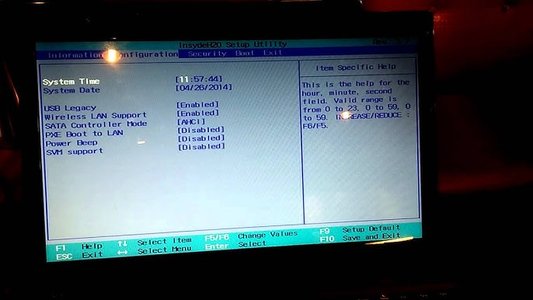
The boot process begins with the system firmware, which is either the traditional BIOS or the more modern UEFI. During this phase, the firmware performs a Power-On Self-Test (POST) to verify the health and readiness of system hardware, including CPU, memory, and disk drives. The firmware's role is to identify and prepare devices, define a boot sequence, and then hand control off to the designated boot loader.
2. Boot Loader: GRUB’s Role
Ubuntu typically employs the GRUB (Grand Unified Bootloader) as its primary boot loader. GRUB is responsible not only for presenting a menu to select between multiple operating systems—if available—but also for loading the Linux kernel into memory. It efficiently locates the kernel, loads the initial RAM filesystem (initramfs) required for early userspace tasks, and passes essential parameters for further kernel configuration.
3. Kernel Loading and Initialization
Once invoked by GRUB, the Linux kernel takes charge by initializing the system hardware, setting up memory management, and preparing the environment for user-level processes. The kernel then leverages the temporary filesystem provided by initramfs to load necessary modules and drivers. At this stage, key hardware components are recognized, and the system's architecture is defined.
4. Switching to the Real Root Filesystem
With the kernel operational and all essential drivers loaded, the system transitions from initramfs to the actual root filesystem. This step unifies the temporary environment with the complete file structure of the installed operating system. It is a critical juncture where the system confirms that all required drivers and files are stable and accessible.
5. Starting the Init System
The final major stage of the boot process involves launching the init system, which in modern Ubuntu installations is typically managed by systemd. This component initiates essential services and daemons that form the backbone of the system’s operations, ranging from network configuration and user authentication to resource allocation. The process with a process ID (PID) of 1 becomes the root through which all further processes are spawned.
Tracing the Ubuntu Boot Process
Diagnosing and optimizing the boot process is crucial for ensuring quick startup times and diagnosing performance issues. Ubuntu offers several robust tools and techniques that help administrators and advanced users trace and log various components of the boot sequence.
Using systemd-analyze
The systemd-analyze command is a primary tool used in modern Ubuntu systems to obtain a detailed overview of the boot time distribution. Its functionalities include:
Measuring Overall Boot Time
Running systemd-analyze without extra parameters provides a simple text output indicating the total time taken from system start-up to when the user is prompted for login. This output splits the boot process into firmware time, loader time, and the time taken by the kernel and services:
systemd-analyzeIdentifying Slower Services
With the command systemd-analyze blame, users can list system services sorted by the time each service took to initialize. This feature is especially useful to pinpoint and then optimize or troubleshoot components that delay the boot process:
systemd-analyze blameVisualizing Dependencies and Sequence
For a graphical representation of the entire boot process, you can execute:
systemd-analyze plot > boot.svgThis command generates an SVG graphic where the dependencies and timings of each process are visually mapped out, offering clear insights into any congestion points during startup.
Advanced Boot Tracing Techniques
For deeper insights and further optimization, Ubuntu provides additional tools and methods that complement systemd-analyze:
Bootchart
Bootchart is another effective tool that produces detailed graphs representing CPU, memory utilization, and disk I/O during boot time. By analyzing these charts, administrators can identify not just which services are slow but also understand resource usage patterns that might overload system components. Bootchart is especially useful when used in conjunction with kernel boot parameters that reveal more verbose logs about the boot process.
Kernel-Level Tracing with Ftrace
For users who require an even more granular view beyond the user-space tools, kernel-level tracing via ftrace is available. Ftrace is a powerful kernel feature that allows tracking of kernel function calls, interrupts, and other low-level details:
Through kernel boot parameters, you can activate ftrace and configure it to log the desired events during the boot sequence. This micro-level insight helps in understanding issues that only affect the kernel or hardware initialization times. It is widely used by developers who wish to expand the precision of the boot tracing beyond what systemd-analyze can offer.
Utilizing Boot Parameters for Tracing
Kernel boot parameters can be set via GRUB to modify the behavior of the kernel during startup. Parameters for verbose logging or for instructing the kernel to trigger specific tracing events give users the flexibility to tailor the boot trace to the required diagnostic depth. When combined with tools like ftrace or systemd debugging options, these parameters enable a comprehensive log of the entire boot process.
Mapping the Boot Process: A Comparative Table
| Stage | Description | Key Tools/Commands |
|---|---|---|
| Firmware (BIOS/UEFI) | Performs hardware initialization and POST. Searches and hands off to the boot loader. |
POST logs, BIOS/UEFI diagnostics
|
| Boot Loader (GRUB) | Loads the Linux kernel and initramfs; presents menu for OS selection. | GRUB configuration files |
| Kernel Loading | Initializes hardware drivers and modules for the OS, ensures memory setup. |
Kernel logs, dmesg
|
| Initramfs and Root Filesystem | Transitions from temporary filesystem to the main OS filesystem and resources. |
init scripts, filesystem mounting logs
|
| Init System (systemd) | Starts key services, manages boot sequence, and displays the login prompt. |
systemd-analyze, systemctl
|
Boot Process Tracing: Practical Implementation and Tips
Step-by-Step Tracing Overview
To trace the boot process on an Ubuntu system effectively, you can follow these practical steps:
Step 1: Begin with systemd-analyze
Start by running systemd-analyze immediately after boot. This command will provide a quick summary of the total time distribution among firmware, boot loader, kernel, and services. Look out for unexpected delays.
Step 2: Identify Bottlenecks
Use systemd-analyze blame to list the system services that take the most time. This command sorts the services based on the duration they required to start. Identifying these services can pinpoint where optimizations are needed.
Step 3: Visual Analysis with Bootchart
Enable bootchart by setting the appropriate kernel boot parameter or using the gadget snap on Ubuntu Core. Once enabled, the resulting chart will graphically display CPU utilization, memory loading status, and disk I/O throughout the boot process, offering visual cues on resource intensiveness.
Step 4: Advanced Tracing with Ftrace
For those needing a finer-grained approach, employ ftrace to monitor and record specific kernel events during boot. Adjust the kernel parameters in GRUB to activate ftrace logging. The resulting traces will capture minute details regarding kernel function calls and hardware events that might be causing delays.
Step 5: Analyze and Tweak Boot Parameters
Experiment with kernel boot parameters to enable or enhance debugging output. These adjustments can allow for a more detailed log of the boot process, aimed at troubleshooting particularly problematic segments. The enhanced logs combined with systemd-analyze output can help refine boot times.
Challenges and Considerations in Boot Tracing
Common Boot Issues
While tracing the boot process allows for detailed diagnosis, some common challenges may include hardware compatibility issues, driver initialization problems, or misconfigurations within GRUB. Certain peripherals might also contribute to longer boot times. Regular firmware updates and driver patches are essential to ensure that the components of the boot process interact seamlessly.
Fine-Tuning for Optimal Boot Performance
After identifying delays and bottlenecks, it is critical to tweak system services, disable unnecessary daemons, and review kernel parameters for areas of improvement. Over time, monitoring the boot process helps inform whether hardware upgrades or software patches can further streamline the startup chain.
Real-World Use Cases and Best Practices
Many system administrators and developers regularly trace the Ubuntu boot process to ensure that the systems are optimized for performance and stability. Notable use cases include troubleshooting slow boot times in virtualized environments, enhancing startup efficiency in embedded systems, or simply auditing system logs to identify abnormal delays. Using a combination of tools like systemd-analyze, bootchart, and ftrace provides a comprehensive view that helps in diagnosing both systemic and transient issues.
These practices are also instrumental during system upgrades or when deploying custom kernels. Understanding these steps helps maintain system integrity and ensures that resources are allocated optimally from the earliest moments of boot.
References
- From Power On to Login: The Linux Boot Process - Medium
- The Linux Booting Process - freeCodeCamp
- Booting - Ubuntu Wiki
- Exact Booting Process of Ubuntu? - Ask Ubuntu
- Linux Booting Process Step-by-Step Tutorial - Slashroot
Recommended
Last updated March 26, 2025