
Building a Fingerprint-Controlled System with Arduino UNO R3 and a Relay
A Comprehensive Guide to Interfacing and Coding
This guide provides a comprehensive overview and the necessary code to interface an Arduino UNO R3 with a fingerprint sensor and a single-channel relay module. This setup is a common foundation for various security and access control projects, such as fingerprint-activated door locks or systems that require biometric authentication to power a device. We will delve into the required components, the wiring process, and the Arduino code needed to enroll fingerprints and control the relay based on fingerprint verification.
Key Highlights
- Serial Communication is Crucial: Fingerprint sensors typically communicate with the Arduino using serial communication. While the Arduino UNO has hardware serial on pins 0 and 1, it's often necessary to use the SoftwareSerial library on other digital pins to avoid conflicts with the USB communication.
- The Adafruit Fingerprint Sensor Library Simplifies Coding: The Adafruit Fingerprint Sensor Library is widely used and provides essential functions for managing fingerprint templates (enrollment, deletion) and performing fingerprint recognition. Installing this library in the Arduino IDE is a necessary first step.
- Relays Act as Electronic Switches: A single-channel relay module allows the Arduino to control a higher-voltage or higher-current device (like a solenoid lock or a light) using its low-voltage digital output. The relay acts as an electrically operated switch.
Essential Components
To embark on this project, you will need the following components:
- Arduino UNO R3 board
- Optical Fingerprint Sensor Module (such as R307, AS608, or similar that communicates via serial)
- Single Channel 5V Relay Module
- Jumper wires
- Breadboard (optional, but recommended for easier prototyping)
- Power supply for the Arduino (USB cable or a 7-12V adapter)
Selecting the Right Fingerprint Sensor
There are various fingerprint sensor modules available, but most communicate with a microcontroller like the Arduino via a serial interface (TX/RX pins). Popular models include the R307, AS608, and those compatible with the Adafruit Fingerprint Sensor Library. Ensure the sensor you choose operates at 5V or is compatible with the Arduino's voltage levels.
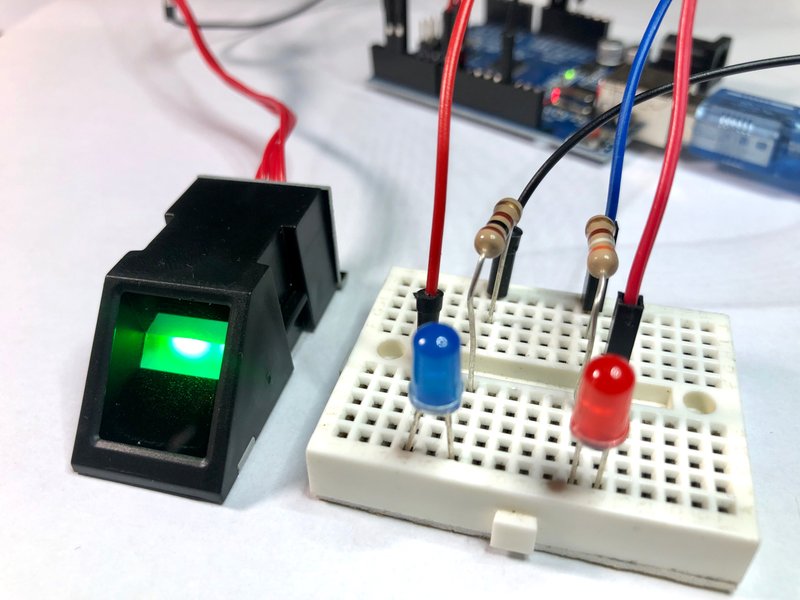
An optical fingerprint sensor module commonly used with Arduino.
Understanding the Single Channel Relay Module
A relay module is an electromechanical switch. It uses an electromagnet to operate a switch mechanism, thereby switching a separate circuit. Single channel relays have one independent switch. They typically have connections for power (VCC and GND), a control signal input (IN), and the switch terminals (normally open, normally closed, and common). The Arduino's digital output pin will connect to the IN pin of the relay module to control its state.
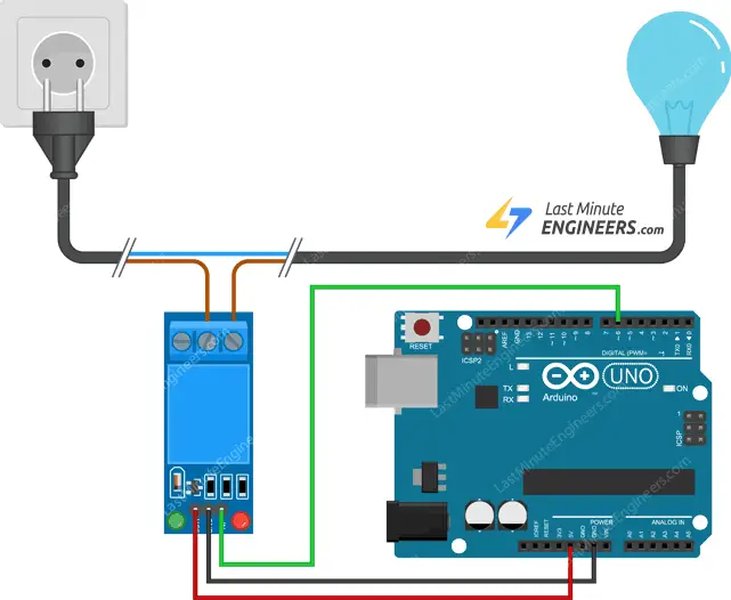
Typical wiring of a single channel relay module to an Arduino.
Wiring the Components
Connecting the fingerprint sensor and the relay module to the Arduino UNO R3 involves establishing both power and communication lines. Since the hardware serial pins (0 and 1) on the Arduino UNO are used for communication with the computer via USB, it is standard practice to use the SoftwareSerial library to create a virtual serial port on other digital pins for the fingerprint sensor.
Fingerprint Sensor to Arduino UNO R3 Wiring
The exact pinout of the fingerprint sensor may vary slightly depending on the model, but the fundamental connections are power (VCC and GND) and serial communication (TX and RX).
Here’s a common wiring configuration using SoftwareSerial on pins 2 and 3:
| Fingerprint Sensor Pin | Arduino UNO R3 Pin | Description |
|---|---|---|
| VCC (or 5V) | 5V | Provides power to the sensor. |
| GND | GND | Common ground connection. |
| TX (Transmit) | Digital Pin 2 (SoftwareSerial RX) | Sensor's transmit pin connects to Arduino's SoftwareSerial receive pin. |
| RX (Receive) | Digital Pin 3 (SoftwareSerial TX) | Sensor's receive pin connects to Arduino's SoftwareSerial transmit pin. |
Relay Module to Arduino UNO R3 Wiring
The relay module requires power and a digital input from the Arduino to switch its state.
Here’s a typical wiring for a single channel relay:
| Relay Module Pin | Arduino UNO R3 Pin | Description |
|---|---|---|
| VCC (or DC+) | 5V | Provides power to the relay module's control circuit. |
| GND (or DC-) | GND | Common ground connection. |
| IN (or Signal) | Digital Pin (e.g., Pin 7 or 8) | Connects to an Arduino digital output pin to control the relay. |
Choose any available digital pin on the Arduino UNO R3 for the relay control signal, ensuring it's not used by the fingerprint sensor or other components. Digital pin 7 or 8 are frequently used in examples.
Setting Up the Arduino IDE
Before writing and uploading the code, you need to set up your Arduino IDE:
Installing the Adafruit Fingerprint Sensor Library
This library provides the necessary functions to communicate with the fingerprint sensor.
- Open the Arduino IDE.
- Go to
Sketch>Include Library>Manage Libraries... - In the Library Manager search box, type "fingerprint".
- Look for the "Adafruit Fingerprint Sensor Library" by Adafruit and click
Install.
Installing the SoftwareSerial Library
The SoftwareSerial library is typically included with the Arduino IDE, but it's good to ensure it's available. If you used hardware serial pins (0 and 1) for the fingerprint sensor and are not using the USB for serial communication with your computer during operation, you might not need SoftwareSerial. However, for prototyping and debugging while connected to the computer, SoftwareSerial is highly recommended.
The SoftwareSerial library allows communication on other digital pins.
Arduino Code for Fingerprint Enrollment and Relay Control
The Arduino code will consist of two main parts: one for enrolling new fingerprints into the sensor's memory and another for verifying a scanned fingerprint and controlling the relay based on the verification result.
Enrollment Code
You need to enroll fingerprints before they can be recognized. This code will guide you through the process of adding a new fingerprint template to the sensor's database.
#include <Adafruit_Fingerprint.h>
#include <SoftwareSerial.h>

// Software serial pins for the fingerprint sensor
#define fserialTx 2
#define fserialRx 3

SoftwareSerial fingerSerial(fserialRx, fserialTx);

Adafruit_Fingerprint finger = Adafruit_Fingerprint(&fingerSerial);

void setup() {
  Serial.begin(9600);
  while (!Serial); // Wait for serial monitor to open

  Serial.println("Adafruit Fingerprint Sensor enrollment example");

  // set the data rate for the sensor serial port
  fingerSerial.begin(57600);

  if (finger.verifyPassword()) {
    Serial.println("Found fingerprint sensor!");
  } else {
    Serial.println("Did not find fingerprint sensor :(");
    while (1); // Don't proceed if sensor is not found
  }

  Serial.println("Reading sensor parameters");
  finger.getParameters();
  Serial.print("Status: 0x"); Serial.println(finger.status_reg, HEX);
  Serial.print("Capacity: "); Serial.println(finger.capacity);
  Serial.print("Packet len: "); Serial.println(finger.packet_len);

  // Find the next available ID for enrollment
  uint8_t fingerID = 0;
  Serial.println("Finding the next available fingerprint ID...");
  while (finger.loadTemplate(fingerID) != FINGERPRINT_BADTEMPLATE) {
    fingerID++;
    if (fingerID >= finger.capacity) {
      Serial.println("Sensor is full. Cannot enroll more fingerprints.");
      while(1);
    }
  }
  Serial.print("Next available ID: "); Serial.println(fingerID);

  enrollFinger(fingerID);
}

void loop() {
  // Enrollment is typically a one-time setup process.
  // This loop can be empty or used for other functions after enrollment.
}

void enrollFinger(uint8_t id) {
  Serial.print("Waiting for finger on sensor to enroll ID: ");
  Serial.println(id);

  while (! getFingerprintEnroll() ) {
    delay(100);
  }

  Serial.println("\n\nEnrollment successful!");
}

uint8_t getFingerprintEnroll() {
  int p = -1;
  Serial.print("Waiting for finger to be placed on sensor...");
  while (p != FINGERPRINT_OK) {
    p = finger.getImage();
    switch (p) {
      case FINGERPRINT_OK:
        Serial.println("Image taken");
        break;
      case FINGERPRINT_NOFINGER:
        Serial.println(".");
        break;
      case FINGERPRINT_PACKETRECIEVEERR:
        Serial.println("Communication error");
        break;
      case FINGERPRINT_IMAGEFAIL:
        Serial.println("Imaging error");
        break;
      default:
        Serial.println("Unknown error");
        break;
    }
  }

  p = finger.image2Tz(1);
  switch (p) {
    case FINGERPRINT_OK:
      Serial.println("Image converted");
      break;
    case FINGERPRINT_IMAGEMESS:
      Serial.println("Image too messy");
      return p;
    case FINGERPRINT_PACKETRECIEVEERR:
      Serial.println("Communication error");
      return p;
    case FINGERPRINT_FEATUREFAIL:
      Serial.println("Could not find fingerprint features");
      return p;
    case FINGERPRINT_INVALIDIMAGE:
      Serial.println("Invalid image");
      return p;
    default:
      Serial.println("Unknown error");
      return p;
  }

  Serial.println("Remove finger");
  delay(2000);
  p = 0;
  while (p != FINGERPRINT_NOFINGER) {
    p = finger.getImage();
  }
  Serial.print("Waiting for same finger again...");

  p = -1;
  while (p != FINGERPRINT_OK) {
    p = finger.getImage();
    switch (p) {
      case FINGERPRINT_OK:
        Serial.println("Image taken");
        break;
      case FINGERPRINT_NOFINGER:
        Serial.print(".");
        break;
      case FINGERPRINT_PACKETRECIEVEERR:
        Serial.println("Communication error");
        break;
      case FINGERPRINT_IMAGEFAIL:
        Serial.println("Imaging error");
        break;
      default:
        Serial.println("Unknown error");
        break;
    }
  }

  p = finger.image2Tz(2);
  switch (p) {
    case FINGERPRINT_OK:
      Serial.println("Image converted");
      break;
    case FINGERPRINT_IMAGEMESS:
      Serial.println("Image too messy");
      return p;
    case FINGERPRINT_PACKETRECIEVEERR:
      Serial.println("Communication error");
      return p;
    case FINGERPRINT_FEATUREFAIL:
      Serial.println("Could not find fingerprint features");
      return p;
    case FINGERPRINT_INVALIDIMAGE:
      Serial.println("Invalid image");
      return p;
    default:
      Serial.println("Unknown error");
      return p;
  }

  p = finger.createModel();
  if (p == FINGERPRINT_OK) {
    Serial.println("Prints matched!");
  } else if (p == FINGERPRINT_PACKETRECIEVEERR) {
    Serial.println("Communication error");
    return p;
  } else if (p == FINGERPRINT_ENROLLMISMATCH) {
    Serial.println("Fingerprints did not match");
    return p;
  } else {
    Serial.println("Unknown error");
    return p;
  }

  Serial.print("ID "); Serial.println(id);
  p = finger.storeModel(id);
  if (p == FINGERPRINT_OK) {
    Serial.println("Stored!");
  } else if (p == FINGERPRINT_PACKETRECIEVEERR) {
    Serial.println("Communication error");
    return p;
  } else if (p == FINGERPRINT_BADLOCATION) {
    Serial.println("Could not store in that location");
    return p;
  } else if (p == FINGERPRINT_FLASHERR) {
    Serial.println("Error writing to flash");
    return p;
  } else {
    Serial.println("Unknown error");
    return p;
  }

  return FINGERPRINT_OK;
}
Upload this code to your Arduino UNO R3. Open the Serial Monitor (set to 9600 baud) and follow the instructions to enroll your fingerprints. Each enrolled fingerprint will be assigned a unique ID. Note these IDs for the verification code.
Verification and Relay Control Code
This code will scan a fingerprint, compare it to the enrolled templates, and activate the relay if a match is found.
#include <Adafruit_Fingerprint.h>
#include <SoftwareSerial.h>

// Software serial pins for the fingerprint sensor
#define fserialTx 2
#define fserialRx 3

SoftwareSerial fingerSerial(fserialRx, fserialTx);

Adafruit_Fingerprint finger = Adafruit_Fingerprint(&fingerSerial);

// Pin connected to the relay module's IN pin
#define RELAY_PIN 7 // Change this to the digital pin you used

void setup() {
  Serial.begin(9600);
  while (!Serial); // Wait for serial monitor to open

  pinMode(RELAY_PIN, OUTPUT);
  digitalWrite(RELAY_PIN, LOW); // Ensure relay is off initially

  Serial.println("Fingerprint Sensor and Relay Control");

  // set the data rate for the sensor serial port
  fingerSerial.begin(57600); // Match the baud rate to your sensor

  if (finger.verifyPassword()) {
    Serial.println("Found fingerprint sensor!");
  } else {
    Serial.println("Did not find fingerprint sensor :(");
    while (1); // Don't proceed if sensor is not found
  }

  Serial.println("Enrolled fingerprints will activate the relay.");
}

void loop() {
  getFingerprintID();
  delay(50); // Small delay
}

uint8_t getFingerprintID() {
  uint8_t p = finger.getImage();
  switch (p) {
    case FINGERPRINT_OK:
      Serial.println("Image taken");
      break;
    case FINGERPRINT_NOFINGER:
      //Serial.println("No finger detected"); // Uncomment for constant monitoring
      return -1;
    case FINGERPRINT_PACKETRECIEVEERR:
      Serial.println("Communication error");
      return -1;
    case FINGERPRINT_IMAGEFAIL:
      Serial.println("Imaging error");
      return -1;
    default:
      Serial.println("Unknown error");
      return -1;
  }

  // OK success!

  p = finger.image2Tz();
  switch (p) {
    case FINGERPRINT_OK:
      Serial.println("Image converted");
      break;
    case FINGERPRINT_IMAGEMESS:
      Serial.println("Image too messy");
      return -1;
    case FINGERPRINT_PACKETRECIEVEERR:
      Serial.println("Communication error");
      return -1;
    case FINGERPRINT_FEATUREFAIL:
      Serial.println("Could not find fingerprint features");
      return -1;
    case FINGERPRINT_INVALIDIMAGE:
      Serial.println("Invalid image");
      return -1;
    default:
      Serial.println("Unknown error");
      return -1;
  }

  // OK converted!
  p = finger.fingerSearch();
  if (p == FINGERPRINT_OK) {
    Serial.println("Found a print match!");
  } else if (p == FINGERPRINT_NOFINGER) {
    Serial.println("No match found");
    digitalWrite(RELAY_PIN, LOW); // Keep relay off if no match
    return -1;
  } else if (p == FINGERPRINT_PACKETRECIEVEERR) {
    Serial.println("Communication error");
    return -1;
  } else if (p == FINGERPRINT_NOTFOUND) {
    Serial.println("Did not find a match");
    digitalWrite(RELAY_PIN, LOW); // Keep relay off if no match
    return finger.fingerID;
  } else {
    Serial.println("Unknown error");
    return -1;
  }

  // Found a match!
  Serial.print("Found ID #"); Serial.print(finger.fingerID);
  Serial.print(" with confidence of "); Serial.println(finger.confidence);

  digitalWrite(RELAY_PIN, HIGH); // Activate the relay
  delay(5000); // Keep the relay active for 5 seconds (adjust as needed)
  digitalWrite(RELAY_PIN, LOW); // Deactivate the relay

  return finger.fingerID;
}
In this code:
- The
RELAY_PINis defined to control the relay. Make sure this matches the pin you used for wiring. - The
setup()function initializes serial communication and sets the relay pin as an output. - The
loop()function continuously callsgetFingerprintID()to scan for fingerprints. - The
getFingerprintID()function captures a fingerprint image, converts it to a template, and attempts to match it with the enrolled templates in the sensor's memory. - If a match is found (
FINGERPRINT_OK), the relay is activated for a specified duration (5 seconds in this example) and then deactivated. If no match is found (FINGERPRINT_NOFINGERorFINGERPRINT_NOTFOUND), the relay remains off.
Demonstration and Further Customization
Once you have uploaded the verification code, power your Arduino UNO R3. The system is now ready to scan fingerprints. When an enrolled finger is placed on the sensor, the serial monitor will indicate a match, and the relay will activate. If an unenrolled finger is used, the serial monitor will indicate no match, and the relay will remain inactive.
This setup serves as a basic framework. You can expand upon this by:
- Adding an LCD or OLED display to provide user feedback (e.g., "Place Finger", "Access Granted", "Access Denied").
- Integrating a buzzer or LED for audible or visual indicators.
- Connecting the relay to control a specific device, such as a door strike, a light, or a motor.
- Implementing a menu system using buttons to switch between enrollment and verification modes.
- Storing more user information associated with each fingerprint ID.
Video Demonstration
The following video demonstrates a similar project, showcasing the interaction between a fingerprint sensor, an Arduino, and a solenoid lock controlled by a relay. While the exact components or code might differ slightly, it provides a visual representation of the system's functionality.
Demonstration of a fingerprint-controlled solenoid door lock system using Arduino and a relay.
FAQ
Frequently Asked Questions
What kind of fingerprint sensors are compatible with Arduino?
Most optical fingerprint sensor modules that communicate via a serial interface are compatible with Arduino. Popular models include the R307, AS608, and modules supported by the Adafruit Fingerprint Sensor Library. Ensure the sensor operates at 5V or has compatible voltage levels.
Why do I need the SoftwareSerial library?
The Arduino UNO R3 has only one hardware serial port (on pins 0 and 1), which is used for communication with your computer via USB. To communicate with the fingerprint sensor simultaneously, you need to use the SoftwareSerial library to create a virtual serial port on other digital pins.
How do I enroll more than one fingerprint?
Use the enrollment code provided. Each time you run the enrollment process, the code will find the next available ID in the sensor's memory and store the new fingerprint template under that ID. Repeat the process for each fingerprint you want to enroll.
How does the relay module work?
A relay module uses an electromagnet to mechanically switch a separate circuit. When the Arduino sends a high signal to the relay's IN pin, the electromagnet is energized, closing or opening the internal switch contacts. This allows the Arduino's low-voltage output to control higher-voltage or higher-current devices.
Can I control different devices with the relay?
Yes, the relay acts as a switch. You can connect various devices to the relay's switch terminals, such as a solenoid lock, a DC motor, an AC light bulb (with appropriate safety precautions and voltage considerations), or any other device that can be controlled by switching power.
Recommended Searches
- How to add an LCD display to an Arduino fingerprint sensor project?
- Build a fingerprint-controlled door lock system with Arduino.
- Explore more examples for the Adafruit Fingerprint Sensor Library.
- Learn about various applications of Arduino with relay modules.
References

Last updated May 17, 2025