
Unlock Your Caddy Server: Seamless External Access Even Behind CGNAT
Discover how to use LocalXpose and Cloudflare to make your Windows-hosted Caddy server globally accessible, bypassing ISP limitations.
If you're running a Caddy web server on a Windows machine but find yourself behind an ISP that uses Carrier-Grade NAT (CGNAT), you've likely encountered the frustration of not being able to port forward. This effectively isolates your server from the public internet. Fortunately, with tools like LocalXpose and the capabilities of Caddy, combined with your Cloudflare domain, you can establish reliable external access. This guide will walk you through the process step-by-step.
Key Highlights: Your Path to Caddy Accessibility
- Bypass CGNAT: Learn how LocalXpose creates a secure tunnel from your Windows server to a public endpoint, effectively making CGNAT restrictions irrelevant for accessing Caddy.
- Seamless Caddy Integration: Configure Caddy to work in tandem with LocalXpose, continuing to serve your sites and applications reliably.
- Cloudflare DNS for Robust HTTPS: Utilize your Cloudflare DNS API token with Caddy to automate SSL/TLS certificate issuance and renewal via the DNS-01 challenge, ensuring secure connections without needing open inbound ports 80/443 on your local network for certificate validation.
Understanding the Challenge: CGNAT and Its Implications
Why Port Forwarding Fails with CGNAT
Carrier-Grade Network Address Translation (CGNAT) is a mechanism used by ISPs to conserve IPv4 addresses. Instead of assigning a unique public IP address to each customer, ISPs place multiple customers behind a single public IP. While this solves the IP address scarcity problem for ISPs, it means your router doesn't have its own unique public IP address. Consequently, traditional port forwarding rules you set up on your router won't work because there's no direct path from the public internet to your specific device; the ISP's CGNAT device is the one facing the internet.
LocalXpose creates a bridge from your local server to the internet.
How LocalXpose Provides a Solution
LocalXpose offers a clever workaround. It's a tunneling service that allows you to expose your locally hosted servers (like Caddy) to the internet. Here’s how it works:
- You install the LocalXpose client on your Windows server.
- This client establishes an outbound, secure connection (a tunnel) to LocalXpose's cloud servers.
- LocalXpose then provides you with a public URL (e.g.,
your-chosen-name.loclx.ioor a custom domain). - When someone accesses this public URL, LocalXpose routes the traffic through the established tunnel directly to your Caddy server running on your Windows machine.
This method bypasses CGNAT because the connection is initiated from your server *outbound* to LocalXpose, a type of connection typically permitted by firewalls and NATs. No inbound port forwarding is required on your router or the ISP's CGNAT.
Step-by-Step: Exposing Caddy with LocalXpose and Cloudflare
Follow these steps to make your Caddy server accessible from the internet.
Step 1: Prepare Your Caddy Server
Ensure Caddy is Installed and Running
First, make sure Caddy is installed on your Windows server and configured to serve your desired content or applications. Caddy typically listens on port 80 for HTTP and port 443 for HTTPS by default.
- You can download Caddy from the official website.
- It's highly recommended to run Caddy as a Windows service for reliability, ensuring it starts automatically with your server. Instructions can be found in the Caddy documentation.
Configure Caddy with Cloudflare DNS for HTTPS
Since you have a Cloudflare domain and can obtain a DNS API token, you can configure Caddy to use Cloudflare for issuing and renewing SSL/TLS certificates via the DNS-01 challenge. This is ideal because it doesn't require your server to be directly reachable on port 80 from the internet for HTTP-01 challenges.
1. Obtain a Cloudflare API Token: Go to your Cloudflare dashboard, navigate to "My Profile" -> "API Tokens". Create a custom token with "Zone - DNS - Edit" and "Zone - Zone - Read" permissions for the specific zone (your domain) you want to use. Copy this token securely.
2. Update Your Caddyfile:
Edit your Caddyfile (usually located in the same directory as your Caddy executable or C:\ProgramData\Caddy if installed as a service) to include your domain and the Cloudflare DNS provider.
yourdomain.com {
    tls {
        dns cloudflare {env.CLOUDFLARE_API_TOKEN}
    }
    # Example: Reverse proxy to a local service
    reverse_proxy localhost:8080
    # Or, serve static files
    # root * /srv/mysite
    # file_server
}
Replace yourdomain.com with your actual domain and localhost:8080 with the address of the local service Caddy should proxy to, or configure it to serve static files as needed.
3. Set the Environment Variable:
Caddy will look for the Cloudflare API token in an environment variable named CLOUDFLARE_API_TOKEN. You need to set this variable on your Windows server.
Open PowerShell as Administrator and run:
[System.Environment]::SetEnvironmentVariable("CLOUDFLARE_API_TOKEN", "YOUR_COPIED_API_TOKEN", "Machine")Replace YOUR_COPIED_API_TOKEN with the actual token. Setting it at the "Machine" scope makes it available to services like Caddy. You might need to restart your Caddy service or the server for this change to take effect.
Test Caddy Locally
Before proceeding, ensure Caddy is working correctly by accessing it from a browser on your local network (e.g., http://localhost or https://yourdomain.com if DNS is already pointing to your local IP for testing, though this won't be the final public access method).
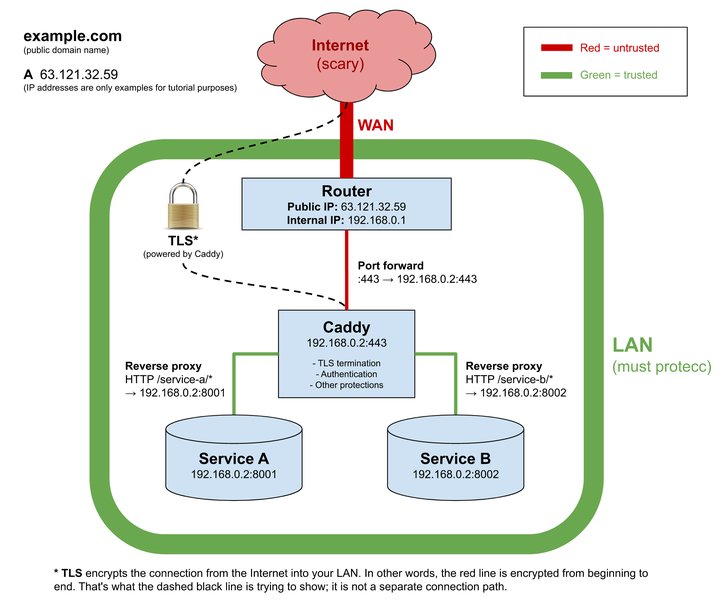
Caddy can act as a powerful reverse proxy for your internal services.
Step 2: Install and Configure LocalXpose
Download and Install LocalXpose
If you haven't already, download the LocalXpose client for Windows from the LocalXpose download page and install it.
Authenticate LocalXpose
Open a command prompt or PowerShell and authenticate LocalXpose with your account. You'll typically do this once:
loclx account loginFollow the on-screen instructions, which usually involve opening a browser window to log in.
Create a Tunnel to Your Caddy Server
Now, create a tunnel that points to the port Caddy is listening on. If Caddy is handling HTTPS and listening on port 443 (which is common when Caddy manages its own certificates), you'll tunnel to port 443. If Caddy is configured for HTTP on port 80 (and LocalXpose will provide the HTTPS termination), tunnel to port 80.
To expose Caddy's HTTPS port (e.g., 443) using the TCP protocol (suitable for HTTPS traffic):
loclx tunnel http --to localhost:443 --subdomain your-caddy-serverOr, if Caddy is listening on HTTP (e.g., port 80):
loclx tunnel http --to localhost:80 --subdomain your-caddy-server- Replace
localhost:443orlocalhost:80with the actual host and port Caddy is listening on (usuallylocalhostand Caddy's configured port). - Replace
your-caddy-serverwith a unique subdomain you'd like to use for your LocalXpose public URL (e.g.,https://your-caddy-server.loclx.io). - LocalXpose offers different tunnel types (HTTP, HTTPS, TCP, UDP). For web servers like Caddy, an HTTP(S) tunnel is often preferred as LocalXpose can handle HTTPS termination at its edge or pass raw TCP traffic. If Caddy is managing its own SSL certificate for
yourdomain.com, a TCP tunnel to Caddy's HTTPS port (443) might be more appropriate if you want end-to-end SSL controlled by Caddy. However, an HTTP tunnel where LocalXpose provides the initial HTTPS layer (e.g.,https://your-caddy-server.loclx.io) which then forwards to Caddy (potentially over HTTP locally) is also a common setup. Consult LocalXpose documentation for advanced options like custom domains if you have a paid plan.
Once the tunnel is active, LocalXpose will display the public URL (e.g., https://your-caddy-server.loclx.io) that now points to your Caddy server.
For long-term use, consider running LocalXpose as a Windows service. The LocalXpose documentation or community resources might provide guidance on this.
Step 3: Access and Test Your Caddy Server Externally
Use the public URL provided by LocalXpose (e.g., https://your-caddy-server.loclx.io or your custom domain if configured) to access your Caddy server from any device on the internet. If everything is configured correctly, you should see the content served by Caddy.
If you configured Caddy to use yourdomain.com with Cloudflare DNS for SSL, ensure your Cloudflare DNS records for yourdomain.com point to the LocalXpose endpoint if you are using LocalXpose's custom domain feature, or simply use the .loclx.io URL provided. If Caddy is handling SSL for yourdomain.com and you are tunneling directly to Caddy's HTTPS port, accessing https://yourdomain.com should work, provided DNS is correctly set up for Caddy to be recognized via the LocalXpose tunnel (this usually involves a CNAME from yourdomain.com to the LocalXpose public hostname, if supported by your LocalXpose plan for custom domains).
Step 4: Troubleshooting and Best Practices
- Firewall: Ensure your Windows Firewall allows outbound connections for LocalXpose and inbound connections for Caddy on the ports it's using locally (e.g., 80, 443).
- Logs: Check Caddy's logs and LocalXpose's CLI output for any error messages.
- Caddy as a Service: For production or continuous use, ensure Caddy is running as a service on Windows.
- LocalXpose as a Service: Similarly, investigate options for running the LocalXpose client as a service for uninterrupted tunneling.
- Domain Configuration: If using your own domain, ensure DNS records (like CNAME) are correctly pointing to the LocalXpose-provided endpoint if you're using LocalXpose's custom domain functionality. If Caddy is handling SSL for
yourdomain.comthrough the tunnel, access should be viahttps://yourdomain.com.
Visualizing the Setup Components
The following chart provides a qualitative comparison of the key aspects involved in this setup, highlighting the strengths of each component and the combined solution.
This radar chart illustrates how LocalXpose excels at CGNAT bypass, while Caddy combined with Cloudflare DNS provides strong HTTPS automation and custom domain flexibility. The combined solution leverages the strengths of both, offering a robust way to host your services.
Workflow Overview: From User to Your Caddy Server
This mindmap illustrates the flow of a user request to your Caddy server, which is hidden behind CGNAT but made accessible via LocalXpose. It also shows how Cloudflare can optionally integrate for DNS-based TLS certificate management by Caddy.
The mindmap shows how the user connects to a public LocalXpose URL. This request is then securely tunneled to the LocalXpose client on your Windows server, which forwards it to your Caddy instance. Caddy processes the request, potentially using its Cloudflare integration for SSL certificate management if you're using your own domain.
Key Configuration Parameters
Here's a summary of important configuration details you'll encounter:
| Parameter | Tool | Example Value / Command | Notes |
|---|---|---|---|
| Caddy Listening Port | Caddy | 80, 443, or custom (e.g., 8080) |
Configured in your Caddyfile or via Caddy's defaults. |
| Cloudflare API Token Env Var | Caddy / Windows | CLOUDFLARE_API_TOKEN |
Set as a machine-level environment variable in Windows. |
| Caddyfile TLS Block | Caddy | |
Enables DNS-01 challenge with Cloudflare. |
| LocalXpose Login | LocalXpose CLI | loclx account login |
Authenticates your LocalXpose client. |
| LocalXpose Tunnel Creation | LocalXpose CLI | loclx tunnel http --to localhost:443 --subdomain mycaddy |
Adjust port and subdomain as needed. Consider tunnel type (http, tcp). |
| LocalXpose Public URL | LocalXpose | https://mycaddy.loclx.io |
The URL to access your Caddy server externally. |
Enhance Your Caddy Knowledge
Understanding Caddy's capabilities, especially its automatic HTTPS features, can be very beneficial. This video provides an excellent overview of setting up Caddy with a focus on its "one-click" HTTPS, which is a core strength, especially when paired with DNS providers like Cloudflare.
While the video might not specifically cover LocalXpose or CGNAT, the principles of Caddy's HTTPS setup are highly relevant. When Caddy uses the DNS-01 challenge with your Cloudflare API token, it handles certificate acquisition and renewal seamlessly, even when the server itself isn't directly exposed on standard ports, which aligns perfectly with the LocalXpose tunneling scenario.
Frequently Asked Questions (FAQ)
What is CGNAT and why does it prevent port forwarding?
CGNAT (Carrier-Grade Network Address Translation) is a technology used by ISPs to share a single public IPv4 address among multiple customers. Because you don't have a unique public IP address assigned directly to your router, you cannot configure port forwarding rules that would allow external traffic to reach your local network services directly. The ISP's network equipment, not your router, is what faces the public internet.
How does LocalXpose bypass CGNAT?
LocalXpose works by creating an outbound secure tunnel from your server (running the LocalXpose client) to LocalXpose's public cloud servers. Since this connection is initiated from your network outwards, it typically bypasses CGNAT restrictions and firewall rules that block unsolicited inbound connections. LocalXpose then provides a public URL that routes incoming external traffic through this established tunnel to your local Caddy server.
Do I absolutely need the Cloudflare DNS API token for Caddy?
While not strictly mandatory for Caddy to function, using the Cloudflare DNS API token is highly recommended if you want Caddy to automatically manage HTTPS certificates for your custom domain (e.g., yourdomain.com). The DNS-01 challenge method, facilitated by this token, allows Caddy to prove domain ownership and obtain SSL certificates from Let's Encrypt (or other CAs) without requiring your server to be reachable on port 80 (for HTTP-01 challenge). This is especially useful in CGNAT scenarios or when port 80 is blocked. If you only use the .loclx.io URL provided by LocalXpose, LocalXpose itself can often provide an HTTPS layer.
Can I use my custom Cloudflare domain with LocalXpose instead of a .loclx.io address?
Yes, LocalXpose typically offers custom domain support, often as part of its paid plans. You would usually configure a CNAME record in your Cloudflare DNS settings to point your custom domain (e.g., caddy.yourdomain.com) to the endpoint provided by LocalXpose. This allows users to access your Caddy server via your branded domain name. Check the LocalXpose documentation for the specific steps and plan requirements for setting up custom domains.
What port should LocalXpose tunnel to on my Caddy server?
This depends on your Caddy configuration.
If Caddy is managing its own SSL certificates for your custom domain and listening for HTTPS traffic on port 443, you would typically configure LocalXpose to tunnel to localhost:443. In this case, a TCP tunnel might be appropriate.
If Caddy is serving HTTP locally (e.g., on port 80) and you intend for LocalXpose to handle the HTTPS termination (i.e., users connect to LocalXpose via HTTPS, and LocalXpose connects to Caddy via HTTP), then you would tunnel to localhost:80. An HTTP/S tunnel type in LocalXpose would be suitable here.
Always match the LocalXpose tunnel destination to the actual port Caddy is listening on for the intended protocol.
Recommended Further Exploration
- How can I ensure Caddy runs reliably as a service on my Windows server?
- What are the advanced options for configuring LocalXpose with custom domains or static tunnel endpoints?
- What are common troubleshooting steps if Caddy encounters issues obtaining SSL certificates using the Cloudflare DNS provider?
- What security measures should I consider when exposing local services to the internet, even through a secure tunnel?
References
Last updated May 7, 2025