
CherryTree on Ubuntu: The Ultimate Hierarchical Note-Taking Solution
A powerful open-source tool for organizing notes, code snippets, and ideas in a tree-like structure
CherryTree Essentials
- Hierarchical organization - Create nested nodes for structured note-taking and organization
- Rich text and code support - Format text and benefit from syntax highlighting for over 80 programming languages
- Multiple storage options - Store notes in a single XML/SQLite file or across multiple files and directories
CherryTree is a powerful hierarchical note-taking application available for Ubuntu and other Linux distributions. It excels at organizing information in a tree-like structure, with parent and child nodes that make it perfect for complex projects, research, or simply keeping your thoughts organized.
The application combines rich text editing capabilities with programmer-friendly features like syntax highlighting, making it particularly popular among developers and technical users who need to store and organize code snippets alongside regular notes.
Installation Methods for Ubuntu
There are several ways to install CherryTree on your Ubuntu system, each with its own advantages:
Using the Snap Store (Recommended)
The simplest and most reliable method for Ubuntu 16.04 LTS and later is via Snap:
sudo snap install cherrytreeThis method ensures you get the latest version with all dependencies included and automatic updates.
Using PPA (Personal Package Archive)
For users who prefer traditional package management:
sudo add-apt-repository ppa:giuspen/ppa
sudo apt update
sudo apt install cherrytree
Ubuntu Software Center
For a graphical installation experience:
- Open Ubuntu Software Center
- Search for "CherryTree"
- Click "Install"
Installation Considerations
When choosing an installation method, consider the following:
- Snap packages are containerized, ensuring all dependencies are included
- PPA installations might provide more recent versions in some cases
- On Ubuntu 20.04 and newer, the Snap method is typically preferred due to potential dependency issues with older package versions
Key Features and Capabilities
| Feature Category | Capabilities | Best For |
|---|---|---|
| Text Formatting | Rich text editing, fonts, colors, tables, lists | Creating polished documents and detailed notes |
| Code Support | Syntax highlighting for 80+ languages, code blocks | Programmers and developers storing code snippets |
| Media Handling | Images, file attachments, hyperlinks | Creating comprehensive documentation |
| Organization | Node-based hierarchy, tags, bookmarks | Complex projects requiring structured organization |
| Security | Password protection via 7-zip encryption | Protecting sensitive information |
| Interoperability | Import/export to various formats (HTML, PDF, plaintext) | Sharing content across different platforms |
Exploring CherryTree's Interface
CherryTree's interface is divided into two main sections:
- The left pane displays your hierarchical tree of nodes
- The right pane shows the content of the currently selected node
Each node can contain formatted text, code with syntax highlighting, images, tables, and more. Nodes can be organized in a parent-child relationship, allowing for logical grouping of related information.
Storage Options
CherryTree offers flexible storage choices:
- Single File Storage: Store all your notes in one XML or SQLite file
- Directory-Based Storage: Spread your notes across multiple files in a directory structure
Feature Comparison with Other Note-Taking Applications
This chart compares CherryTree with other popular note-taking applications across several key features. CherryTree particularly excels in hierarchical organization and code support, making it an excellent choice for developers and technical users on Ubuntu.
CherryTree Workflow and Organization
The mindmap above illustrates a typical organization structure possible with CherryTree. Its hierarchical design allows you to create deeply nested categories for various types of content, from development projects and code snippets to personal notes and reference materials.
Visual Overview of CherryTree
Here are some images showing CherryTree's interface and capabilities:
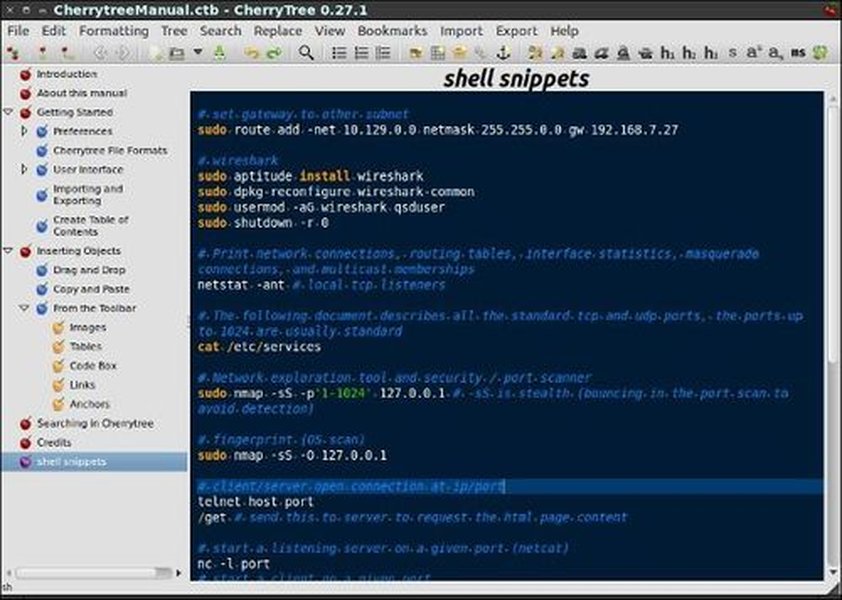
CherryTree's code editing interface with syntax highlighting for programmers

CherryTree's main interface showing hierarchical node structure
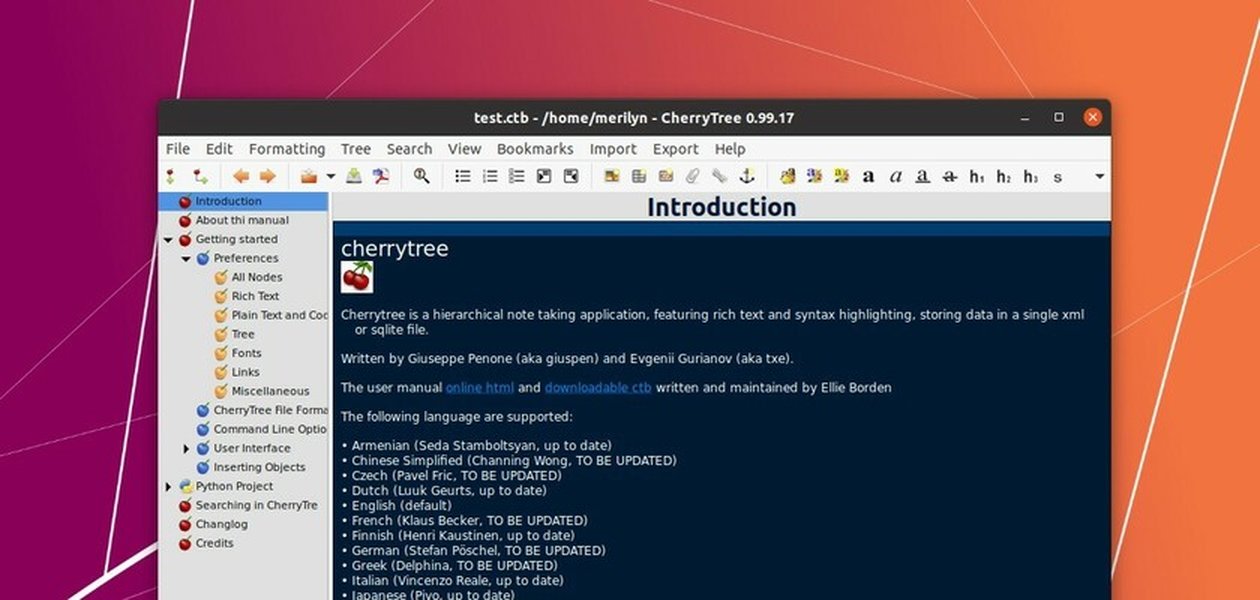
CherryTree's rich text formatting capabilities
Video Tutorial: Installing and Using CherryTree on Ubuntu
This comprehensive tutorial walks through the process of installing CherryTree on Ubuntu and demonstrates its primary features. The video covers basic installation methods, initial setup, and how to begin organizing your notes effectively. It's particularly helpful for new users who want to quickly get up to speed with CherryTree's capabilities.
Frequently Asked Questions
References
- Install CherryTree on Ubuntu using the Snap Store - Snapcraft
- CherryTree Official Website - giuspen.net
- CherryTree: Best Ubuntu Note-Taking App for Programmers - Ubuntu Handbook
- Install Note Taking App 'CherryTree' via PPA in Ubuntu - FosTips
- CherryTree GitHub Repository - GitHub
- CherryTree: A Powerful Notepad For Easy Note Taking - Make Tech Easier
- CherryTree Takes the Pits Out of Pruning Your Notes - Linux Insider
Recommended Searches
Last updated April 7, 2025