
Comparing C++ Code Function by Function
A comprehensive guide to the best tools and techniques
Key Takeaways
- Tool Variety: Numerous tools, both free and commercial, specialize in comparing differences in C++ code at a function level.
- IDE Integration: Visual Studio and Visual Studio Code offer integrated diff tools that make function-by-function comparisons more efficient.
- Specialized Options: Some dedicated tools offer semantic comparison and code analysis, going beyond mere text differences.
Introduction
Comparing source files function by function is a common requirement when tracking changes, diagnosing bugs, or reviewing refactored code in C++. The challenge lies in the fact that many diff tools treat files as plain text and may not be designed to intelligently identify and compare function boundaries within code structure. However, leveraging the right tools can greatly streamline this process.
Tools and Techniques
General Purpose Diff Tools
General purpose diff tools work well when you need a quick visual representation of differences between two source files. They are especially useful for quickly spotting line-by-line changes. Some recommended tools include:
WinMerge
WinMerge is an open-source tool that allows you to visually compare and merge files. While it does not inherently structure its view by function boundaries, you can locate individual functions by scrolling through the diff output. It is particularly useful for smaller to mid-sized projects where function delineations are clear.
DiffMerge
DiffMerge provides similar capabilities to WinMerge. It visually highlights differences and enables side-by-side comparison, which can be seamlessly used to focus on function-level changes.
Integrated Development Environment (IDE) Solutions
IDEs such as Visual Studio and Visual Studio Code include built-in comparison tools that offer robust support for C++ source file comparisons. These tools are designed to work within the context of your project, allowing for a more contextual and organized analysis of changes.
Visual Studio
Visual Studio provides several approaches to file comparison:
- Compare Selected: By selecting two files in the Solution Explorer and choosing "Compare Selected", you can view the differences side-by-side.
- Compare With...: Right-clicking on a file and selecting “Compare With...” to choose an external file makes it simple to track function changes.
Such integration means that you can quickly navigate through large codebases and focus on specific functions to identify changes, ensuring that even subtle modifications are not overlooked.
Visual Studio Code
Visual Studio Code (or its open-source variant VSCodium) simplifies the comparison process. Users can right-click a file to "Select for Compare" and then compare it with another file. This integrated feature provides a clear view of modifications and can be particularly effective when working with projects that have numerous function implementations.
Specialized Tools for Function-Level Analysis
Beyond general diff tools, certain specialized applications focus on semantic differences. These tools not only highlight textual changes but also can be configured to ignore formatting differences (such as comments or whitespace), allowing for a deeper analysis of functional changes.
CppDepend
CppDepend provides semantic analysis and comparison of C++ code variations. It is designed to analyze older and newer versions of files by focusing on the function signatures and method bodies. This elevated approach helps developers see beyond mere syntax changes and identify logical differences between two versions of the same function.
Araxis Merge
Araxis Merge offers capabilities to perform file revisions comparison with options for synchronization links to navigate directly to relevant functions. It is particularly effective in professional development environments where understanding the evolution of a function is key.
Clang-Based Analysis Tools
For more technical audiences, leveraging Clang’s parsing capabilities can be invaluable. Tools built upon Clang, such as some GitHub projects, parse the source files to extract function definitions and then perform comparisons based on the code semantics. This approach helps in isolating and identifying changes within complex functions that might otherwise be missed by general-purpose diff tools.
Command Line Tools
Command line solutions are particularly useful in automated build processes or in development environments where scripting can enhance the overall workflow.
Unix diff & Windows fc
On Unix-like systems, the diff command is a staple for comparing files elementally. Similarly, Windows users can utilize the fc (file compare) command. These tools are less interactive than GUI solutions, but can be powerful when integrated into scripts that focus the diff operation on designated function ranges.
Comparison Tools Overview
Below is a comprehensive table summarizing the tools and methods discussed:
| Tool/Method | Type | Key Features | Platform/Integration |
|---|---|---|---|
| WinMerge | General Diff Tool | Visual comparison, open-source, line-by-line diff | Windows |
| DiffMerge | General Diff Tool | Side-by-side comparison, visual differencing | Cross-platform |
| Visual Studio | IDE | Compare Selected/With, built-in integration, navigation by function | Windows |
| Visual Studio Code | IDE | Right-click diff, integrated file comparison | Cross-platform |
| CppDepend | Specialized Analysis | Semantic comparison, function-level analysis | Windows, integrated with IDEs |
| Araxis Merge | Specialized Diff Tool | Revisions comparison, synchronization links for functions | Cross-platform |
| Clang-Based Tools | Parser/Analyzer | Function extraction, semantic comparisons | Cross-platform |
| diff / fc | Command-Line Tools | Basic file comparison, scriptable for specific ranges | Unix-like / Windows |
Steps to Compare C++ Functions
Whether you are a developer looking to verify code integrity or a team lead overseeing code quality, a structured approach will yield the best results.
Step 1: Identification
Manually or with the help of code parsing tools, identify the specific functions in both source files. This can be achieved by searching for function signatures or using regular expressions to match common patterns in C++.
Step 2: Selection of Tool
Choose the appropriate tool based on your project's requirements. For quick visual checks, general diff tools like WinMerge and DiffMerge often suffice. For more detailed semantic analysis, consider using a tool like CppDepend or specialized Clang-based solutions.
Step 3: Comparison and Analysis
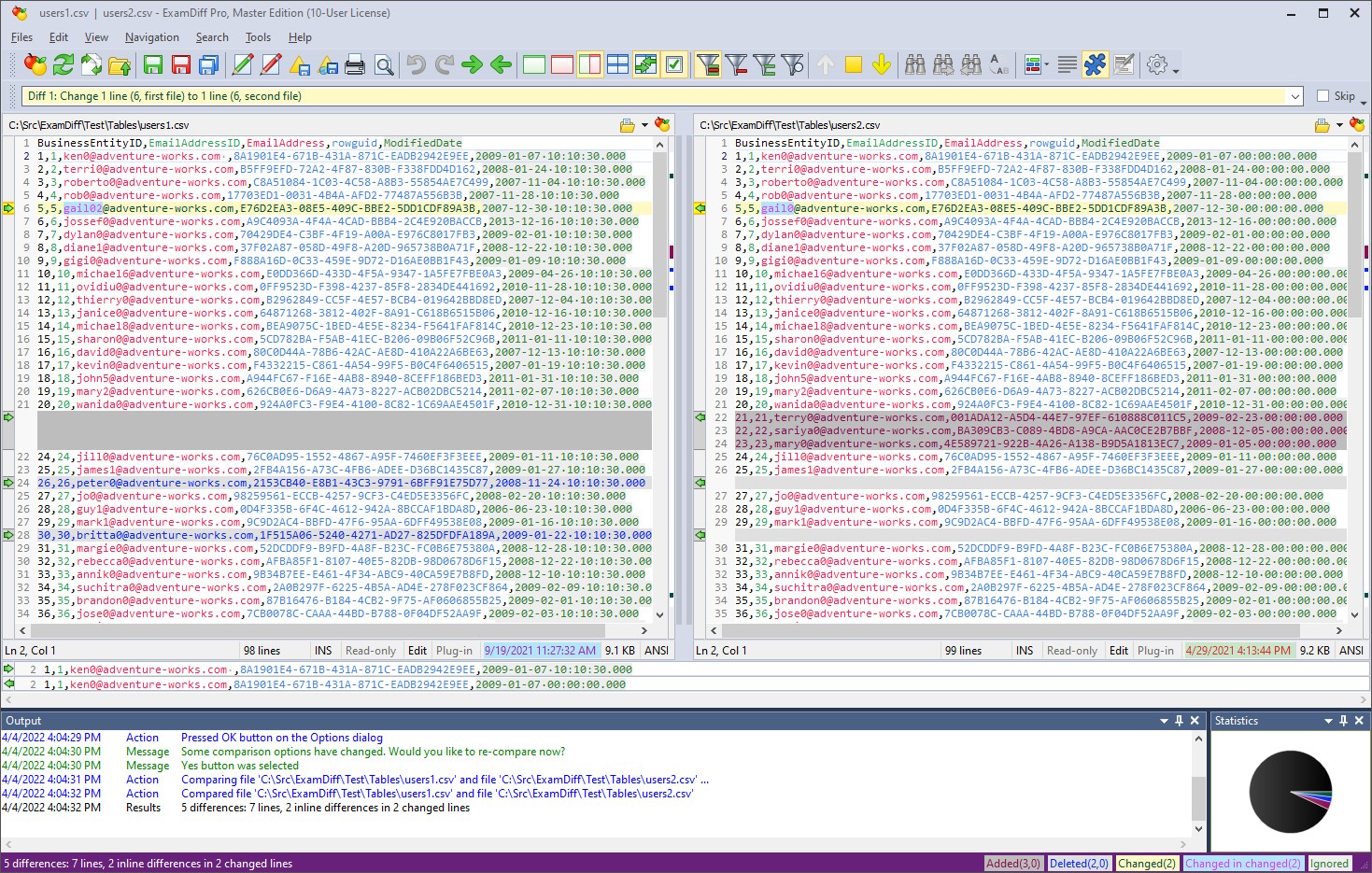
Load both source files into your chosen tool. If using an IDE, navigate to the diff view and manually focus on the function sections. In graphical tools, the differences are highlighted in color-coded maps which make it easier to spot modifications in the code logic versus superficial changes such as formatting.
Step 4: Verification
After the initial diff, verify the results by inspecting the changes. Ensure that your comparison process has not mistakenly highlighted non-function changes like comments or whitespace. Tools with semantic capabilities will assist in filtering out these variations.
Additional Considerations
It’s important to recognize that when comparing against more complex codebases some challenges might arise. Function overloading, different coding styles, and the use of macros or template functions can complicate the comparison. In such cases, combining the use of a general diff tool with a semantic analysis tool will provide the most thorough results.
Moreover, many of these tools allow for further customization, such as ignoring non-functional changes like whitespace, comments, or variable renaming. This ensures that the focus remains on meaningful differences in the code’s logic.
References
- Open Source C Code Comparison Tool - Software Recommendations
- Tool for Comparing Versions of the Same C++ Function - StackOverflow
- Compare With in Visual Studio - Microsoft Docs
- CppDepend Documentation - C++ Code Analysis
- HDiffPatch on GitHub - C/C++ Diff Tool
Recommended Related Queries
Last updated March 18, 2025