
Unlock Your Keyboard's Potential: A Guide to Customizing GMK/VIA Wireless Keyboards
Dive into the world of QMK and VIA to personalize your wireless typing experience, from simple key remaps to complex custom firmware.
If you're looking to "write code" or customize your GMK/VIA compatible wireless keyboard, you're venturing into a realm of powerful personalization. This guide will walk you through understanding the core technologies, the methods of customization, and how to harness them for your wireless keyboard. Whether you're aiming for simple key remapping or deep firmware modifications, we've got you covered.
Key Highlights of Keyboard Customization
- Understanding the Trio: GMK is renowned for high-quality keycaps and also produces keyboards. VIA is user-friendly software for real-time keyboard configuration. QMK is powerful open-source firmware that underpins many customizable keyboards, enabling deep modifications.
- Two Paths to Customization: You can easily remap keys, create macros, and adjust lighting using the VIA configurator (often without writing any code), or delve into QMK firmware development using C programming for more advanced features and control.
- Wireless Freedom with Configuration Power: Many modern keyboards offer wireless connectivity (Bluetooth and/or 2.4GHz) alongside VIA and QMK compatibility, allowing you to enjoy a cable-free setup with personalized functionality. Configurations made are typically stored on the keyboard's memory.
Core Technologies: QMK, VIA, and Wireless Integration
To effectively customize your keyboard, it's crucial to understand the roles of QMK, VIA, and how wireless functionality fits in.
QMK Firmware: The Engine of Customization
QMK (Quantum Mechanical Keyboard) is an open-source firmware project that allows for extensive customization of keyboard behavior. It's the backbone for many high-end and custom mechanical keyboards. With QMK, you can:
- Remap any key to any other key, or to complex macros.
- Create multiple layers of keymaps.
- Control RGB lighting effects.
- Implement unique features like tap-dance keys (different actions for tap vs. hold vs. double-tap) or mouse keys.
Modifying QMK firmware typically involves writing or editing C code and then compiling and flashing the new firmware onto your keyboard's microcontroller.
VIA Configurator: User-Friendly Customization
VIA is a graphical user interface (GUI) tool that works with QMK-powered keyboards. If your keyboard's firmware has VIA support enabled, you can:
- Remap keys on the fly without needing to recompile or reflash firmware.
- Create and assign macros easily.
- Adjust lighting and other settings in real-time.
VIA communicates with the keyboard (usually over USB, though some support wireless configuration after initial setup) and changes are often saved directly to the keyboard's onboard memory. This makes it an accessible option for users who don't want to delve into coding.
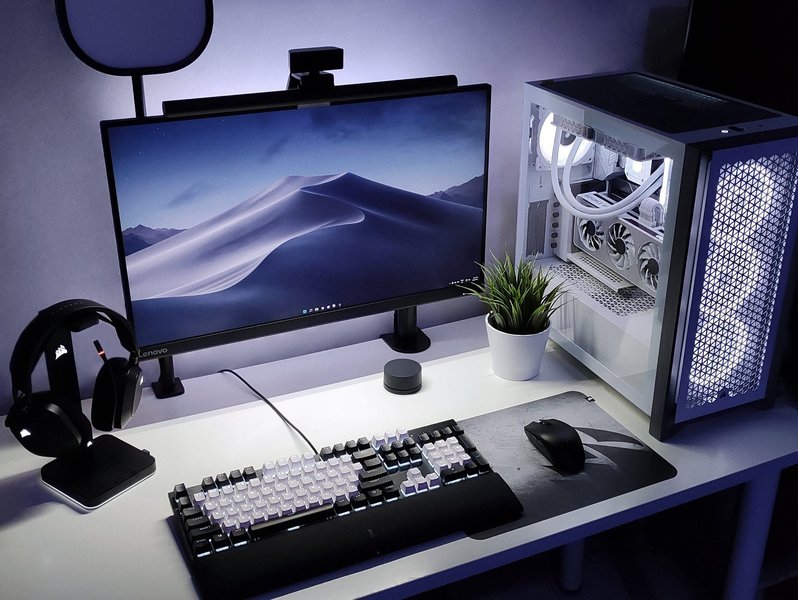
A well-organized desk setup, often featuring a customizable mechanical keyboard.
Wireless Connectivity: Untethered Personalization
Many modern mechanical keyboards, including those compatible with VIA and QMK, offer wireless connectivity options:
- Bluetooth: Widely compatible with various devices like laptops, tablets, and phones. Ideal for portability and connecting to multiple devices.
- 2.4GHz Wireless: Often uses a dedicated USB dongle and can provide lower latency than Bluetooth, making it suitable for gaming or a more stable connection.
Customizations made via VIA or QMK are generally stored on the keyboard's internal memory, so they persist when using the keyboard in wireless mode. However, initial configuration with VIA or flashing QMK firmware might sometimes require a wired USB connection.
Getting Started: Prerequisites
Before you begin customizing, ensure you have the following:
- A Compatible Keyboard: Look for keyboards explicitly stating QMK and/or VIA support along with wireless capabilities. Examples include certain models from GMK, Kinetic Labs (e.g., GMK67, GMK87, GMK104), Glorious (e.g., GMMK 3), Keychron (e.g., Q Pro series, K Pro series), and others.
- Software Tools:
- VIA Configurator: Downloadable from caniusevia.com or used as a web app.
- QMK Toolbox (for QMK development): Used for flashing firmware. Available on the QMK website.
- QMK Build Environment (for QMK development): Requires setting up a development environment for C programming (details on docs.qmk.fm).
- Basic Understanding (for QMK): Familiarity with Git, command-line interfaces, and basic C programming concepts is beneficial if you plan to modify QMK firmware directly. For VIA, no coding knowledge is typically required.
Methods for Customizing Your Wireless Keyboard
There are two primary approaches to "writing code" or configuring your GMK/VIA wireless keyboard:
Method 1: Using the VIA Configurator (Low-Code/No-Code)
VIA is the most straightforward method for most users. It allows for real-time customization without needing to compile firmware.
Steps:
- Connect Your Keyboard: It's often recommended to connect your keyboard via USB for the initial VIA setup, even if it's a wireless model. Some keyboards support VIA configuration over wireless after initial pairing.
- Open VIA: Launch the VIA application or web app. It should automatically detect your compatible keyboard. If not, you might need to load a JSON definition file for your specific keyboard model (usually provided by the manufacturer or community) in VIA's "Design" tab.
- Configure:
- Keymapping: In the "Configure" tab, you can select any key on the visual layout and assign it a new function from the list of basic keycodes, media keys, layer switching keys, etc.
- Macros: VIA allows you to record and assign simple macros to keys.
- Layers: Define and switch between different layers for different sets of key assignments.
- Lighting: Control RGB lighting effects if your keyboard supports it through VIA.
- Save and Test: Changes made in VIA are typically saved to the keyboard's EPROM (onboard memory) instantly. Test your new configuration in both wired and wireless modes.
Method 2: Modifying QMK Firmware (Requires Coding)
For ultimate control and features beyond VIA's capabilities, you can directly modify the QMK firmware.
Steps:
- Set Up QMK Environment:
- Clone the QMK firmware repository:
git clone https://github.com/qmk/qmk_firmware.git - Navigate into the directory and run the setup script:
(You may need to install QMK MSYS or similar build tools depending on your OS).cd qmk_firmware && qmk setup
- Clone the QMK firmware repository:
- Locate/Create Keyboard Configuration: Your keyboard's configuration files will be in a subdirectory under
qmk_firmware/keyboards/. For example,keyboards/gmk/gmk67/. You'll typically create a personal keymap folder within your keyboard'skeymapsdirectory (e.g.,keymaps/my_custom_map/). - Edit Configuration Files:
rules.mk(in your keymap folder or keyboard's main folder): Enable VIA and wireless features.# Enable VIA VIA_ENABLE = yes # Optional: Enable Bluetooth if your board hardware supports it (MCU dependent) # BLUETOOTH_ENABLE = yes # Optional: Enable 2.4GHz support (e.g., for nRF24L01 based modules if supported by your board) # NRF24L01_ENABLE = yes # Note: Wireless features are highly hardware-dependent and require specific MCU support in QMK.config.h(in your keymap folder): Define hardware settings, layout options, or custom feature toggles.keymap.c(in your keymap folder): This is where you define your key layouts, layers, custom keycodes, and macros in C.#include QMK_KEYBOARD_H // Example basic layout for a 65% ANSI keyboard const uint16_t PROGMEM keymaps[][MATRIX_ROWS][MATRIX_COLS] = { [0] = LAYOUT_65_ansi( // Base Layer KC_ESC, KC_1, KC_2, KC_3, KC_4, KC_5, KC_6, KC_7, KC_8, KC_9, KC_0, KC_MINS, KC_EQL, KC_BSPC, KC_TAB, KC_Q, KC_W, KC_E, KC_R, KC_T, KC_Y, KC_U, KC_I, KC_O, KC_P, KC_LBRC, KC_RBRC, KC_BSLS, KC_CAPS, KC_A, KC_S, KC_D, KC_F, KC_G, KC_H, KC_J, KC_K, KC_L, KC_SCLN, KC_QUOT, KC_ENT, KC_LSFT, KC_Z, KC_X, KC_C, KC_V, KC_B, KC_N, KC_M, KC_COMM, KC_DOT, KC_SLSH, KC_RSFT, MO(1), // MO(1) to access Layer 1 KC_LCTL, KC_LGUI, KC_LALT, KC_SPC, KC_RALT, KC_RGUI, KC_APP, KC_RCTL ), [1] = LAYOUT_65_ansi( // Layer 1 (Function Layer) KC_GRV, KC_F1, KC_F2, KC_F3, KC_F4, KC_F5, KC_F6, KC_F7, KC_F8, KC_F9, KC_F10, KC_F11, KC_F12, KC_DEL, _______, _______, _______, RGB_TOG, RGB_MOD, RGB_HUI, RGB_HUD, RGB_SAI, RGB_SAD, RGB_VAI, RGB_VAD, _______, _______, _______, // Example RGB controls _______, _______, _______, _______, _______, _______, _______, _______, _______, _______, _______, _______, _______, _______, _______, _______, _______, _______, _______, BL_TOGG, BL_INC, BL_DEC, BL_STEP, _______, _______, KC_TRNS, // Example Backlight controls, KC_TRNS for transparent _______, _______, _______, _______, _______, _______, _______, _______ ) }; // Optional: Custom function for wireless pairing if hardware/firmware supports it // This is a conceptual example, actual implementation is hardware-specific. /* void matrix_scan_user(void) { // Example: Trigger pairing mode with a specific key combination // if (get_highest_layer(layer_state) == _MY_PAIRING_LAYER && matrix_is_pressed(ROW, COL_FOR_PAIR_KEY)) { // my_wireless_pairing_function(); // } } */
- Compile Firmware:
For example:qmk compile -kb your_keyboard_folder/your_subfolder -km your_keymap_nameqmk compile -kb gmk/gmk67 -km my_custom_map - Flash Firmware: Put your keyboard into DFU (bootloader) mode (usually a key combination or a reset button). Then use QMK Toolbox or the command line to flash the compiled
.hexor.binfile.qmk flash -kb your_keyboard_folder/your_subfolder -km your_keymap_name
Visualizing Customization Approaches
The choice between VIA and direct QMK modification depends on your needs. VIA offers ease of use for common tasks, while QMK provides unparalleled depth for advanced users. The radar chart below illustrates a comparison of these two approaches based on several factors. Note that these are general assessments and can vary slightly based on specific keyboard implementations.
This chart highlights that VIA excels in ease of use and real-time feedback, requiring minimal coding skills. QMK, on the other hand, offers maximum customization depth but comes with a steeper learning curve and more complex setup.
Mapping the Keyboard Customization Ecosystem
The following mind map illustrates the interconnected components and processes involved in customizing your wireless keyboard:
(Open-Source Engine)"] id1b["VIA Configurator
(User-Friendly GUI)"] id1c["Wireless Protocols"] id1c1["Bluetooth"] id1c2["2.4GHz RF"] id2["Customization Methods"] id2a["Using VIA
(Real-time, No Code)"] id2a1["Key Remapping"] id2a2["Macro Creation"] id2a3["Layer Management"] id2b["Modifying QMK Firmware
(Deep Customization, C Code)"] id2b1["Editing
keymap.c"]
id2b2["Configuring rules.mk"]
id2b3["Advanced Features (Tap Dance, etc.)"]
id3["Key Components"]
id3a["Compatible Keyboard Hardware(PCB, MCU)"] id3b["Keycaps
(e.g., GMK brand)"] id3c["Firmware
(Stores Logic)"] id4["The Process"] id4a["Environment Setup
(QMK Tools, VIA App)"] id4b["Configuration
(VIA GUI or Code Editing)"] id4c["Compilation & Flashing
(For QMK changes)"] id4d["Testing & Iteration"]
This mind map shows how hardware, firmware (QMK), configuration tools (VIA), and connectivity options all play a role in the overall customization experience.
Wireless Considerations and GMK
Managing Wireless Connections
Most wireless keyboards with these features will have hardware switches or key combinations to toggle between wired, Bluetooth, and 2.4GHz modes. For example, the Glorious GMMK 3 might use Fn + K for 2.4GHz pairing.
- Pairing: Follow your keyboard manufacturer's instructions for pairing via Bluetooth or connecting the 2.4GHz dongle.
- VIA and Wireless: While VIA configuration is often done wired, some keyboards support VIA over their wireless connection once established. However, firmware flashing (for QMK changes) almost always requires a wired connection.
- Battery Life: Custom firmware can potentially impact battery life. QMK offers power-saving features, but complex lighting or high polling rates can drain batteries faster.
A Note on "GMK"
GMK is highly regarded for producing premium keycaps. While GMK also manufactures keyboards, the term "GMK keyboard" in the custom community often refers to a keyboard (from any manufacturer) that is outfitted with GMK keycaps. Many third-party keyboards that are VIA/QMK compatible and wireless can be paired with GMK keycaps for a personalized aesthetic and feel.
Featured Keyboards & Setups
Many keyboards on the market support QMK/VIA and wireless connectivity. Brands like Keychron, NuPhy, Glorious, and boutique manufacturers offer models with these capabilities. The video below reviews the Keychron K8 Pro, a popular wireless mechanical keyboard with QMK/VIA support, giving you an idea of what to expect from such a device.
Review of the Keychron K8 Pro, a QMK/VIA wireless mechanical keyboard.
This video provides insights into the features, build quality, and user experience of a typical QMK/VIA enabled wireless keyboard, which can be very helpful when choosing or customizing your own.
Example Compatible Keyboards
Here's a table showcasing some popular keyboard models known for their QMK/VIA compatibility and wireless features. This is not an exhaustive list, but provides examples of what to look for.
| Keyboard Model | Layout | Connectivity | QMK Support | VIA Support | Notes |
|---|---|---|---|---|---|
| GMK67 / FKZ GMK67 (Kit) | 65% | Tri-Mode (USB-C, Bluetooth, 2.4GHz) | Yes (often community/variant firmware) | Yes | Popular budget-friendly kit. |
| Kinetic Labs GMK87 TKL | Tenkeyless (80%) | Tri-Mode (USB-C, Bluetooth, 2.4GHz) | Yes | Yes | Pre-built or kit option. |
| Kinetic Labs GMK104 | Full-size (100%) | Tri-Mode (USB-C, Bluetooth, 2.4GHz) | Yes | Yes | Full-size option. |
| Glorious GMMK 3 (Wireless variants) | Various (e.g., 65%, TKL) | Tri-Mode (USB-C, Bluetooth, 2.4GHz) | Yes (check specific model) | Yes (check specific model) | Known for hotswap sockets. |
| Keychron Q Pro Series (e.g., Q1 Pro, Q6 Max) | Various (60% to Full-size) | Tri-Mode (USB-C, Bluetooth, 2.4GHz) | Yes | Yes | Premium build quality. |
| Keychron K Pro Series (e.g., K2 Pro, K8 Pro) | Various | Bluetooth, Wired | Yes | Yes | More budget-friendly than Q Pro. |
Note: Always verify the specific features and compatibility of a keyboard model before purchasing, as specifications can change or vary between revisions.
Frequently Asked Questions (FAQ)
What is VIA, and how does it help?
VIA is a user-friendly software application (available as a desktop app or web-based tool) that allows you to configure compatible keyboards in real-time. You can remap keys, create macros, manage layers, and control lighting without needing to write code or reflash your keyboard's firmware. It makes customization accessible to a wider range of users.
What is QMK firmware?
QMK (Quantum Mechanical Keyboard) is an open-source firmware project for keyboards. It provides a highly flexible and powerful platform for customizing virtually every aspect of your keyboard's behavior, from key assignments and macros to complex features like tap-dance and custom RGB animations. Modifying QMK involves C programming.
Do I absolutely need to write code to customize my keyboard?
No, not necessarily. If your keyboard supports VIA, you can perform many common customizations (key remapping, macros, layer switching) through its graphical interface without writing any code. Coding with QMK is only required if you want to implement features beyond what VIA offers or need very specific, low-level control.
Can I use VIA to configure my keyboard while it's in wireless mode?
It depends on the keyboard. Some newer keyboards and firmware versions support VIA configuration over Bluetooth or 2.4GHz after the initial connection is established. However, for many keyboards, or for initial setup, connecting via USB is often required or recommended for stability. Flashing QMK firmware almost always requires a wired connection.
What if VIA doesn't detect my keyboard?
First, ensure your keyboard is indeed VIA-compatible and running firmware with VIA support enabled. Try connecting it via USB. If it's still not detected, you might need to manually load a keyboard definition JSON file into VIA. These files are usually provided by the keyboard manufacturer or found in community forums. Also, check if there are any driver issues or if another application is conflicting with USB device detection.
Recommended Further Exploration
To deepen your understanding and skills, consider exploring these related topics:
- How to set up a QMK development environment on Windows/Mac/Linux?
- Advanced QMK features: tap dance, leader keys, and custom macros explained.
- Troubleshooting common issues with VIA and QMK keyboards.
- Comparing different wireless mechanical keyboard MCUs for QMK compatibility.
References
 amazon.com
Last updated May 9, 2025