
Unlocking the Secrets of System Directories: What Lies Within /opt/.manus/?
Exploring the purpose of /opt, potential contents of .manus, and how file access generally works (while respecting security).
Hello! You've asked about the files located in the /opt/.manus/ directory and requested to download them. While I understand your curiosity, I cannot directly access specific file systems, including the one containing that path, nor can I initiate file downloads from such locations.
There are several important reasons for this limitation:
- Security Protocols: Accessing internal system directories like
/opt/.manus/could potentially expose sensitive configurations, runtime code, or proprietary data related to the system or applications installed there, such as the Manus AI agent. Protecting this information is crucial. - Privacy Concerns: System files may contain information that is private or intended only for the system administrators or the application itself.
- Technical Limitations: As an AI assistant, I don't operate with direct access to specific user or server file systems in the way a user logged into that system would.
However, I can provide you with comprehensive information about what the /opt directory is typically used for, what the .manus subdirectory might contain based on context, and the general methods used to interact with files on Unix-like systems, assuming one has the necessary permissions and access.
Key Insights
- Direct Access Denied: I cannot check the contents of
/opt/.manus/or provide files from it due to security, privacy, and technical constraints. - Understanding
/opt: This directory is standard in Linux/Unix systems for installing optional or third-party software packages, keeping them separate from the core operating system files. - General File Interaction: Listing and downloading files on such systems typically involves command-line tools like
ls,scp, orrsync, but requires appropriate permissions and direct system access.
Demystifying the /opt Directory
A Standard Location for Add-On Software
In the Filesystem Hierarchy Standard (FHS), which defines the main directories and their contents in Linux and other Unix-like operating systems, the /opt directory plays a specific role. Its primary purpose is to serve as a designated location for installing optional or "add-on" software packages provided by third-party vendors.
Think of it as a reserved space that keeps non-essential, often proprietary, software separate from the core system files found in directories like /usr or /bin. This organization offers several benefits:
- Modularity: Makes it easier to install, upgrade, or remove add-on software without interfering with the base operating system.
- Clarity: System administrators know where to look for third-party applications and their associated files.
- Consistency: Adheres to a widely accepted standard, promoting better interoperability and understanding across different Linux distributions.
Typically, software installed in /opt resides within its own subdirectory named after the package or vendor (e.g., /opt/google/chrome or /opt/my-custom-app). The FHS also reserves specific subdirectories like /opt/bin, /opt/lib, and /opt/man for the local system administrator to manage links or wrappers for applications installed under /opt.
What About /opt/.manus/?
Contextual Clues Point to Manus AI
Given the name, the /opt/.manus/ directory almost certainly relates to the "Manus" AI agent. Manus is described as an AI assistant capable of performing various tasks, potentially using tools and specific configurations. The leading dot (.) in .manus typically signifies a hidden directory in Unix-like systems, often used for configuration files or internal data.
Therefore, /opt/.manus/ is likely where the Manus AI application stores some or all of its essential files when installed in the /opt location. Based on how AI systems and complex applications function, this directory could potentially contain:
- Configuration Files: Settings defining how Manus operates, API keys, user preferences, or model parameters.
- Runtime Files: Executable binaries, scripts, or libraries needed for Manus to run.
- Log Files: Records of operations, errors, interactions, or debugging information.
- Plugin or Tool Files: Specific modules or extensions that enhance Manus's capabilities (e.g., browser interaction tools, data analysis scripts).
- Dependencies: Required libraries or software components that Manus relies upon.
- Internal Data: Cached data, temporary files, or other operational data generated by the AI.
Why Accessing Internal AI Files Can Be Risky
Security and Proprietary Concerns
Attempting to access or distribute files from internal directories like /opt/.manus/ without authorization carries significant risks:
- Exposing Sensitive Information: Runtime code, prompts, API keys, or internal logic could be revealed. There have been documented instances where users probed similar directories of AI systems to extract such internal details.
- Violating Terms of Service: Accessing or sharing proprietary software components might breach licensing agreements or terms of service.
- Enabling Malicious Use: Understanding the internal workings could potentially allow bad actors to find vulnerabilities, "jailbreak" the AI's constraints, or misuse its capabilities.
- System Instability: Modifying or deleting critical files could break the application or even affect system stability.
For these reasons, access to such directories is typically restricted, and exploring them without proper authorization is strongly discouraged.
Visualizing Potential Directory Contents
Relative Importance of File Types in an AI Agent Directory
While we don't know the exact contents of /opt/.manus/, we can visualize the *potential* relative importance or presence of different types of files typically found within an AI agent's installation directory. This radar chart offers a hypothetical assessment – the actual composition could vary significantly.
This chart suggests that configuration files, runtime components, and core/dependency libraries are often crucial parts of such a directory. AI model files might be present, logs track activity, plugins add functionality, and cache stores temporary data. Remember, this is illustrative.
Understanding the Filesystem Context
Where /opt Fits In
The Filesystem Hierarchy Standard (FHS) provides a map for navigating Linux/Unix systems. The /opt directory is just one part of this larger structure. This mindmap illustrates the top-level directories and the typical placement of /opt for add-on software.
As shown, /opt sits alongside other standard directories, providing a dedicated space for software like Manus AI, potentially within a hidden .manus subdirectory.
General Methods for File System Interaction (Requires Access & Permissions)
If you *did* have legitimate access (e.g., via SSH or a local terminal) to a system where /opt/.manus/ exists, and the necessary permissions, you would typically use command-line tools to interact with the files. Here are the common commands:
Listing Directory Contents: The ls Command
The primary command for listing files and directories is ls.
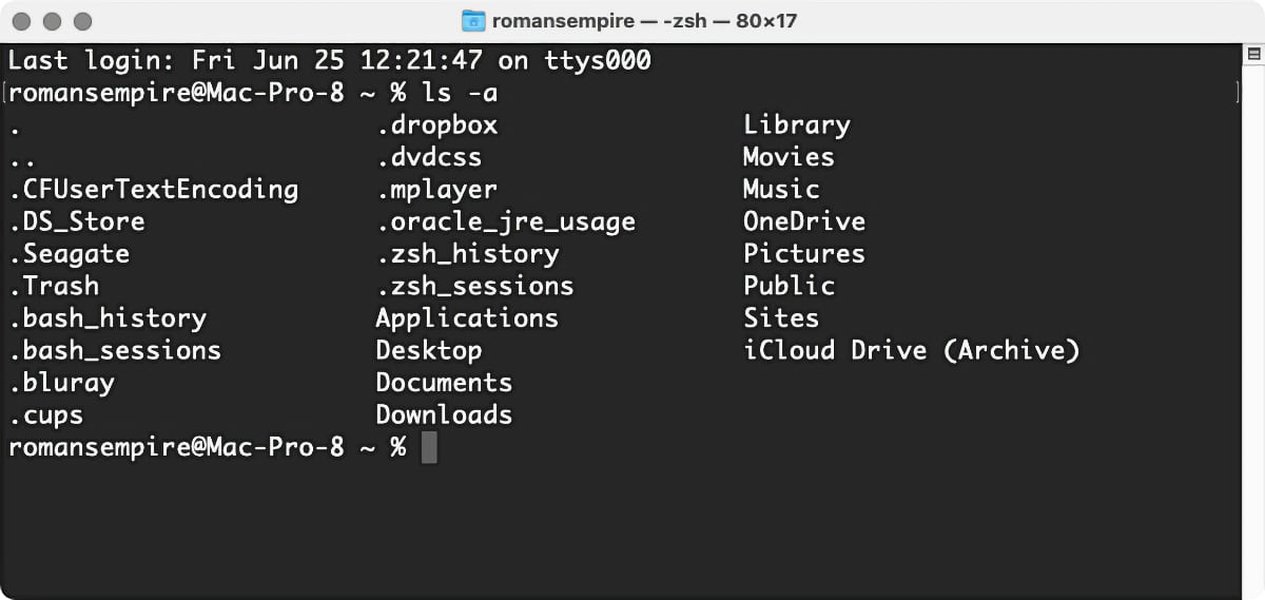
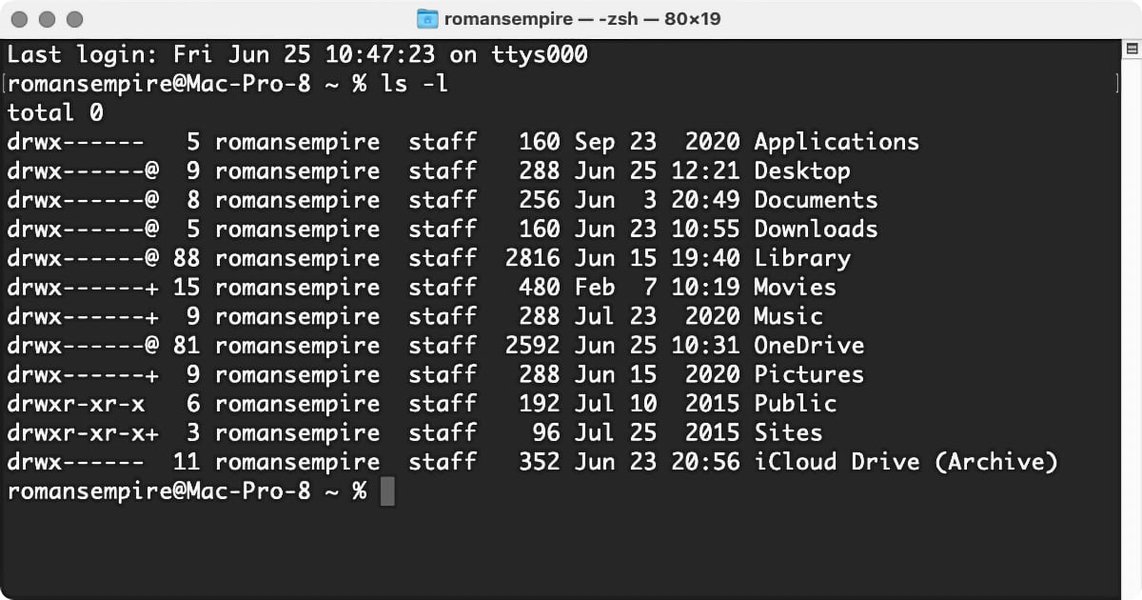
ls /opt/.manus/: Lists the visible files and directories inside/opt/.manus/.ls -a /opt/.manus/: Lists *all* files, including hidden ones (those starting with a dot.). The-aflag stands for "all".ls -l /opt/.manus/: Lists files in a "long" format, showing details like permissions, owner, group, size, and modification date. The-lflag stands for "long".ls -la /opt/.manus/orls -al /opt/.manus/: Combines both flags to show detailed information for all files, including hidden ones.
Visualizing Terminal Output
The following images illustrate what the output of ls -a and ls -l might look like in a terminal (using generic examples, not specific to /opt/.manus/).
Downloading Files Remotely: scp and rsync
If you have Secure Shell (SSH) access to the remote machine where the files are located, you can use tools like scp (secure copy) or rsync to transfer files to your local machine.
Using scp
scp copies files over an encrypted SSH connection.
# Copy a single file from the remote host to your current local directory
scp your_username@remote_host_ip_or_name:/opt/.manus/some_file.txt .

# Copy an entire directory recursively from remote to local
scp -r your_username@remote_host_ip_or_name:/opt/.manus/ ./local_manus_copy
You would replace your_username, remote_host_ip_or_name, some_file.txt, and local_manus_copy with the actual details. The dot . at the end signifies the current local directory.
Using rsync
rsync is often more efficient for transferring multiple files or large directories, especially if you need to synchronize changes.
# Synchronize the remote directory to a local directory
# -a: archive mode (preserves permissions, ownership, etc.)
# -v: verbose output
# -z: compress data during transfer
rsync -avz your_username@remote_host_ip_or_name:/opt/.manus/ ./local_manus_sync/
Crucially, both scp and rsync require:
- SSH access configured on the remote host.
- Your username and authentication (password or SSH key) for the remote host.
- Read permissions on the files/directories you want to copy on the remote host.
- Write permissions on the local directory where you want to save the files.
Command Summary Table
This table summarizes the common commands for file interaction on Unix-like systems:
| Command | Purpose | Common Usage / Options | Requires |
|---|---|---|---|
ls |
List directory contents | ls /path/to/dirls -a (all files)ls -l (long format)ls -la (long format, all files) |
Read permission on the directory |
cd |
Change directory | cd /path/to/dircd .. (move up one level) |
Execute permission on the directory |
scp |
Secure copy (remote file transfer) | scp user@host:/remote/path /local/pathscp -r ... (recursive for directories) |
SSH access, Remote read permissions, Local write permissions |
rsync |
Remote sync (efficient file transfer) | rsync -avz user@host:/remote/path /local/path |
SSH access (usually), Remote read permissions, Local write permissions |
cp |
Copy files/directories locally | cp source_file destination_filecp -r source_dir destination_dir |
Read permission on source, Write permission on destination |
Alternative Ways to Obtain Manus Files (If Applicable)
If you are looking for distributable files related to Manus AI (like installation packages or source code if it's open source), the correct approach is typically:
- Check Official Sources: Visit the official Manus website (
manus.im) or any associated GitHub repositories (likeOpenManusmentioned in some sources) for downloads or documentation. - Consult Documentation: Official documentation might specify how to obtain necessary files or where user-specific data is stored.
- Contact Support: If Manus is a commercial product or service, contacting their official support channel is the appropriate way to request information or files.
- Use GUI Tools: If you have desktop access to the system, file transfer clients with graphical interfaces (like FileZilla using SFTP) can also be used, but still require the necessary credentials and permissions.
Understanding the /opt Directory in More Detail
Video Explainer
For a deeper dive into the purpose and usage of the /opt directory within the Linux filesystem structure, this video provides a helpful overview:
This explanation reinforces why /opt is used for add-on applications and helps contextualize why files for something like Manus AI might be found there, separate from the core OS.
Frequently Asked Questions (FAQ)
What exactly is the /opt directory for?
The /opt directory is a standard directory in the Filesystem Hierarchy Standard (FHS) for Linux and Unix-like systems. It's reserved for the installation of optional, add-on software packages provided by third-party vendors. This helps keep such software separate from the core operating system files (found in /usr, /bin, etc.), making system management cleaner and more organized.
Why can't you just list the files in /opt/.manus/ for me?
I cannot list the files for several key reasons:
- No Direct File System Access: I do not have the technical capability to browse specific server or user file systems.
- Security Risks: Accessing internal application directories like this could expose sensitive code, configurations, or proprietary data.
- Privacy Concerns: These directories might contain private information not intended for public disclosure.
- Ethical Guidelines: Providing potentially sensitive internal system information goes against safe and ethical AI practices.
What are file permissions and why are they important?
In Unix-like systems, file permissions control who can read, write, or execute a file or directory. They are assigned to three categories: the owner of the file, the group the file belongs to, and others (everyone else). Permissions are crucial for security, preventing unauthorized users from accessing or modifying sensitive files or executing potentially harmful programs. Commands like ls -l show these permissions. Accessing directories like /opt/.manus/ or copying files requires having the appropriate permissions granted by the system administrator.
Is Manus AI open source? Where can I find its files?
Some sources mention "OpenManus" potentially being an open-source version or related project. The best way to determine if Manus AI or parts of it are open source, and to find any publicly available files (like source code, documentation, or installation packages), is to check their official resources:
- The official website: manus.im
- Associated GitHub repositories (search for "Manus AI" or "OpenManus").
Files within a system directory like /opt/.manus/ typically represent an *installed* instance and may not be the same as distributable source code or installation packages.
References
- Manus Official Website - manus.im
- Manus capabilities on GitHub Gist - gist.github.com
- OpenManus GitHub Repository - github.com
- Linux Filesystem Hierarchy Standard - /opt/ - tldp.org
- Significance of the /opt Directory in Linux - eitca.org
- Discussion on Manus AI File Access Incident - threads.net
- How to organize /opt? - Unix & Linux Stack Exchange
Recommended
Last updated April 10, 2025