
Mastering the Move: A Comprehensive Guide to Migrating Complex IQ Bot Learning Instances to Document Automation
Unlock seamless transition for your intelligent document processing, ensuring continuity and enhanced capabilities for highly variable documents.
Key Highlights for a Successful Migration
- Version Compatibility is Crucial: Ensure your source IQ Bot is version 11.3.4 or later for direct migration to Automation 360 Document Automation. Older versions require staged upgrades.
- Leverage the Migration Utility: Automation Anywhere's Migration Utility is the primary tool for exporting and importing learning instances, preserving their intelligence.
- Thorough Validation is Non-Negotiable: Post-migration, extensively test with diverse, variable documents to ensure accuracy and retrain if necessary.
Embarking on Your Migration Journey: A Phased Approach
Migrating complex IQ Bot learning instances, especially those adept at handling highly variable documents, to the more advanced Document Automation capabilities within Automation 360, requires meticulous planning and execution. This guide provides a step-by-step pathway to navigate this transition effectively, preserving the valuable training and intelligence embedded in your existing instances.
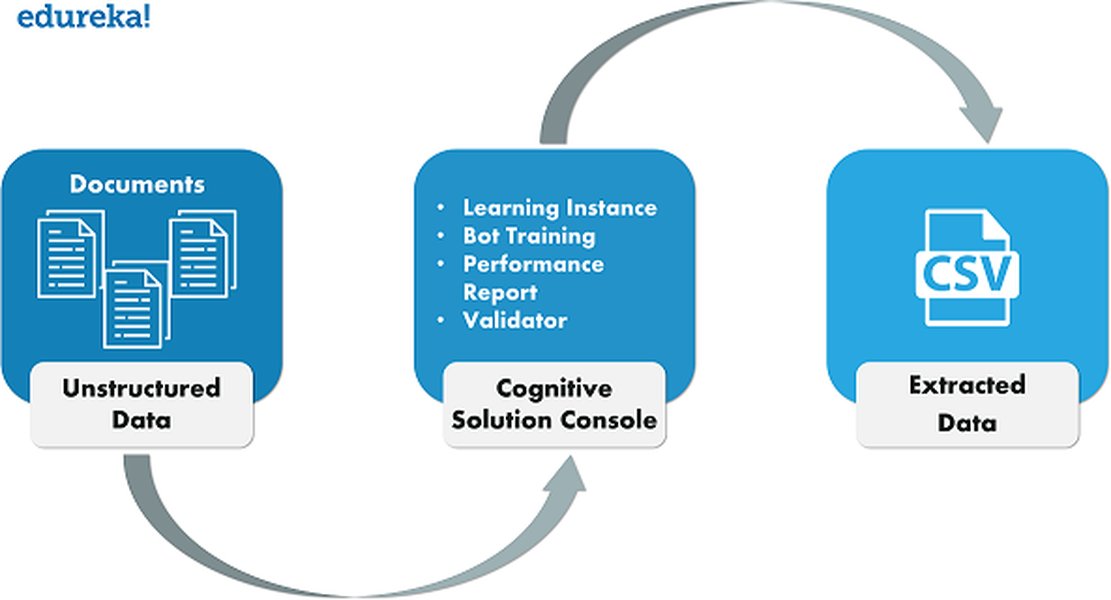
Illustrative workflow of intelligent document processing, similar to IQ Bot and Document Automation.
Phase 1: Pre-Migration Assessment and Preparation
Before initiating the migration, a thorough assessment of your current environment and meticulous preparation are paramount. This phase lays the groundwork for a smooth transition.
1.1. Verify IQ Bot Version Compatibility
A critical first step is to confirm your current IQ Bot version. For a direct migration path to Automation 360 Document Automation, your IQ Bot environment must be on version 11.3.4 or later.
- Versions 11.3.4+: Eligible for direct migration using the utility.
- Versions 6.5.x: You will likely need to upgrade to a compatible version (e.g., 11.3.4) before migrating to Document Automation.
- Versions 5.3.x or earlier: These typically require a multi-step upgrade, first to a version like 6.5.x, then to 11.3.4 or a similar compatible intermediary, before the final migration. Consult Automation Anywhere documentation for precise upgrade paths.
1.2. Analyze Learning Instances and Document Variability
Create an inventory of all IQ Bot learning instances slated for migration. Pay special attention to:
- Complexity: Identify instances with intricate logic, numerous fields, or custom scripts.
- Document Variability: Assess the degree of structural and content variation in the documents processed by each instance. This includes different layouts, languages, and data presentation for the same document type (e.g., invoices from various vendors).
- Dependencies: Note any associated bots, custom domains, or specific configurations tied to these learning instances.
1.3. Comprehensive Backup Procedures
Before any migration activity, perform a full backup of your existing IQ Bot environment. This includes:
- IQ Bot database(s).
- Repository files.
- Learning instance data (though the migration utility handles this specifically, a system-level backup is a good safety net).
1.4. Assign Permissions and Roles
Ensure the user account performing the migration has the necessary administrative privileges in both the source IQ Bot environment and the target Automation 360 Control Room. This typically involves having the IQ Bot Admin role or a custom role with equivalent migration permissions.
1.5. Gather Necessary Tools
Familiarize yourself with and ensure access to:
- IQ Bot Migration Utility: This is the primary tool provided by Automation Anywhere for exporting and importing learning instances. It's usually accessible via the IQ Bot portal (often by appending
/migration-utilityto the URL) or through the Administration section. - Database Migration Assistant (if applicable): For certain upgrade scenarios (e.g., from much older versions or specific database changes), Automation Anywhere may provide a Database Migration Assistant.
1.6. Plan for Downtime
The export and import processes, especially for numerous or large learning instances, can be resource-intensive and may require scheduled downtime or be performed during off-peak hours to avoid impacting production users or system performance.
Phase 2: Exporting Learning Instances from IQ Bot
Once preparations are complete, the next step is to export the selected learning instances from your source IQ Bot environment.
2.1. Access and Utilize the Migration Utility
Log in to your IQ Bot portal with an administrative account. Navigate to the Migration Utility. This interface will allow you to select the learning instances you wish to export.
2.2. Select and Export Instances
From the list of available learning instances:
- Select one or more instances for export. For highly complex instances, consider exporting them individually or in small batches to manage the process more effectively.
- Initiate the export process. Provide a meaningful name for the backup file. The system typically appends a timestamp for uniqueness.
- The utility packages the learning instance configuration, associated groups, bot dependencies, training documents (including those used during staging and validation), and the learned intelligence. This comprehensive export is crucial for preserving the instance's ability to handle variable documents.
- The exported file will usually have an
.iqbaextension and will be saved to a designated output folder (e.g.,OutputBackupDatawithin the IQ Bot directory).
Phase 3: Preparing the Target Document Automation Environment
The target environment, typically Automation 360 with its Document Automation capabilities, needs to be ready to receive and effectively run the migrated learning instances.
3.1. Set Up Automation 360 Environment
Ensure your Automation 360 Control Room and Document Automation components are properly installed, configured, and licensed. This could be an on-premises setup or Automation Anywhere's cloud platform.
If migrating to Automation 360 Cloud, be aware of its architecture (e.g., IQ Bot Cloud being a single-node instance) and ensure it meets your processing volume and concurrency requirements for variable documents.
3.2. Verify Compatibility and Dependencies
Confirm that the target Document Automation environment supports all features utilized by your complex learning instances. If your IQ Bot instances rely on specific OCR engines (like ABBYY FineReader Engine) or other external components, ensure these are available and correctly configured in the new environment.
3.3. Create a Test Learning Instance (Optional but Recommended)
Before importing your production instances, consider creating a new, simple learning instance directly within Document Automation. Process a few sample variable documents through it. This helps confirm that the basic Document Automation functionality is working as expected and that it can handle document variability with its AI-driven field detection and conditional logic capabilities.
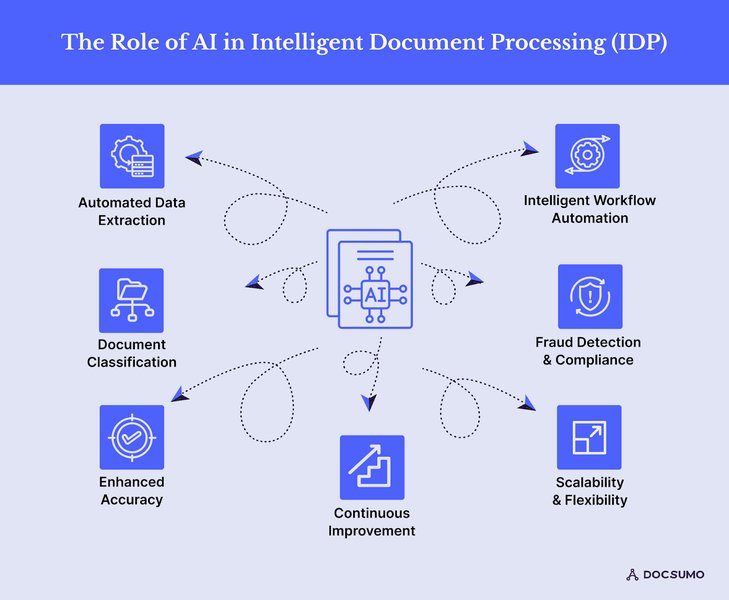
Intelligent Document Processing (IDP) forms the core of both IQ Bot and Document Automation.
Phase 4: Importing Learning Instances into Document Automation
With the exported .iqba files and a prepared target environment, you can now import your learning instances.
4.1. Access Import Functionality
In your Automation 360 environment, navigate to the section responsible for managing Document Automation learning instances. This is typically where you'll find the import functionality, often as part of the same Migration Utility interface or a dedicated import action within the Document Automation package (e.g., `IQBot - Document Automation Bridge` package).
4.2. Upload and Import the .iqba File
Select the .iqba file(s) you exported earlier. Initiate the import process. The system will unpack the learning instance, including its configurations, training data, and associated intelligence, into the Document Automation framework.
Monitor the import process for any errors or warnings. Ensure that the user performing the import has the necessary permissions in the Automation 360 Control Room.
Phase 5: Post-Migration Validation and Optimization
Successfully importing the instances is a major milestone, but rigorous validation is essential, especially for those handling highly variable documents.
5.1. Thorough Functional Testing
Test each migrated learning instance extensively using a diverse set of real-world documents that represent the full spectrum of variability encountered in production.
- Verify that classification (if applicable) and data extraction are accurate.
- Compare the results against the performance of the original IQ Bot instance.
- Pay close attention to fields that were historically challenging due to document variations.
5.2. Retraining and Fine-Tuning
If discrepancies in accuracy or performance are observed:
- Utilize the training and validation tools within Document Automation to fine-tune the instances. You may need to process additional sample documents or adjust field detection logic.
- Document Automation often provides enhanced AI capabilities and more granular control, which can be leveraged to improve upon the original instance's performance with highly variable documents.
5.3. Performance Monitoring and Optimization
Once functional accuracy is confirmed, monitor the processing speed and resource utilization of the migrated instances in the Document Automation environment. Leverage platform-specific optimization features, such as conditional logic, improved AI models, or custom processing rules, to enhance efficiency.
Phase 6: Finalize, Go-Live, and Continuous Improvement
The final phase involves transitioning to production and establishing ongoing maintenance.
6.1. Production Cutover
Once you are satisfied with the testing and validation results, plan the cutover from your old IQ Bot instances to the newly migrated ones in Document Automation. This may involve updating bots or workflows that previously interacted with IQ Bot to now point to Document Automation.
6.2. Document the Migration Process
Maintain detailed records of the migration steps, configurations, any challenges encountered, and resolutions. This documentation is invaluable for future reference, troubleshooting, and onboarding new team members.
6.3. Establish Continuous Improvement
Document Automation platforms are designed for continuous learning and improvement. Regularly review performance, incorporate feedback from validators (if human-in-the-loop is used), and adapt the learning instances as document formats or business requirements evolve.
Visualizing Migration Factors
The migration of complex learning instances involves several critical factors. The radar chart below provides an opinionated comparison between an 'Ideal Scenario' for migration and 'Typical Challenges' that organizations might face across different dimensions. Understanding these can help in planning and mitigating risks.
This chart illustrates subjective scores (3=Low/Challenging, 10=High/Ideal) for key migration aspects. For instance, 'Version Compatibility Ease' being lower for 'Typical Challenges' suggests that this is often a hurdle.
Migration Process Mindmap
This mindmap outlines the overarching stages and key activities involved in migrating your IQ Bot learning instances to Document Automation. It provides a visual summary of the journey.
This mindmap offers a bird's-eye view of the structured approach recommended for a successful migration.
Key Stages and Considerations Table
The following table summarizes the main stages of the migration process, highlighting key actions, critical considerations, and relevant tools or concepts for each.
| Stage | Key Actions | Critical Considerations | Relevant Tools/Concepts |
|---|---|---|---|
| 1. Assessment & Preparation | Version checks, instance analysis, backups, permissions setup. | IQ Bot version (11.3.4+), document variability, data integrity. | IQ Bot Admin Portal, System Backup Utilities. |
| 2. Exporting Instances | Use Migration Utility to select and export LIs. | CPU-intensive process, export file (.iqba) management. | IQ Bot Migration Utility. |
| 3. Preparing Target Environment | Set up A360/Document Automation, verify dependencies. | Compatibility with source features, environment stability. | A360 Control Room, Document Automation setup. |
| 4. Importing Instances | Use Migration Utility/Import action to load .iqba files. | Schema matching (same version recommended), error monitoring. | IQ Bot Migration Utility (Import), A360 Actions. |
| 5. Post-Migration Validation | Test with diverse documents, compare accuracy, retrain. | Maintaining extraction quality for variable docs, performance. | Document Automation Validator, Training Interface. |
| 6. Finalize & Go-Live | Cutover, document process, plan for continuous improvement. | User impact, ongoing maintenance strategy. | Change Management Processes, A360 Monitoring. |
Understanding Bot Migration in Automation Anywhere
While this guide focuses on IQ Bot learning instances, these instances are often part of larger automation workflows involving bots. The video below provides insights into migrating bots within the Automation Anywhere ecosystem, which can be relevant context for the overall transition to Automation 360. Understanding how to migrate the bots that utilize these learning instances is a key part of the complete migration strategy.
This video explains how to use the Bot Migration Wizard tool to migrate bots from Enterprise 10 or 11 to Automation 360, providing a broader context for your migration efforts.
Frequently Asked Questions (FAQ)
What if my IQ Bot version is older than 11.3.4? ▼
If your IQ Bot version is older than 11.3.4 (e.g., 6.5.x or 5.3.x), you generally cannot migrate directly to Automation 360 Document Automation. You will need to perform one or more intermediate upgrades to reach a compatible version first. For example, you might need to upgrade from 5.3.x to 6.5.x, and then from 6.5.x to 11.3.4 or a later supported version. Always consult the official Automation Anywhere documentation for the precise upgrade path relevant to your specific versions.
What data is included in the exported learning instance (.iqba file)? ▼
The exported .iqba file is a comprehensive package containing:
- The learning instance configuration (defined fields, logic, etc.).
- Associated groups and bots (dependencies).
- Training documents used during the learning process (both for initial training and subsequent validation/corrections).
- The actual "learning" or trained model, which includes the intelligence developed to classify and extract data from your documents.
How do I ensure accuracy after migration for highly variable documents? ▼
Ensuring accuracy for highly variable documents post-migration involves:
- Extensive Testing: Use a large and diverse set of sample documents that accurately represent the variability seen in production.
- Comparative Analysis: Compare the extraction results from the migrated instance in Document Automation against the results from the original IQ Bot instance and against ground truth.
- Retraining/Fine-Tuning: If inaccuracies are found, use the Document Automation platform's tools to retrain the instance. This might involve processing more examples, adjusting field mapping, or leveraging advanced AI features.
- Iterative Improvement: Document Automation often supports continuous learning. Monitor performance and make adjustments as needed.
What are common challenges during this migration? ▼
Common challenges include:
- Version Incompatibility: Attempting to migrate between significantly different or unsupported versions.
- Data Schema Mismatches: Particularly if not migrating between identical IQ Bot versions before moving to Document Automation.
- Underestimation of Testing Effort: Especially for instances handling highly diverse documents.
- Environmental Differences: Discrepancies in configurations or dependencies between source and target environments.
- Performance Bottlenecks: If the target environment isn't adequately provisioned or optimized.
Can I migrate directly to Document Automation in the cloud? ▼
Yes, migrating IQ Bot learning instances from an on-premises setup to Automation 360 Document Automation in the cloud is a common scenario. The general process of exporting learning instances (.iqba files) from your compatible on-premises IQ Bot version and then importing them into your A360 Cloud Document Automation environment still applies. You'll need to ensure your Control Room is also migrated or accessible to the cloud environment. Be mindful of cloud-specific considerations like data transfer, security configurations, and potential architectural differences (e.g., IQ Bot Cloud as a single-node instance).
Recommended Further Exploration
- What are the best practices for upgrading older IQ Bot installations to version 11.3.4 or later before migrating to Document Automation?
- How can I further optimize Document Automation learning instances to handle documents with extremely high variability in layouts and content?
- What are the detailed steps for integrating migrated Document Automation learning instances with existing Automation 360 bots and workflows?
- How do I troubleshoot common errors encountered during the import of IQ Bot learning instances into Automation 360 Document Automation?
References
 docs.aws.amazon.com
 s3-us-west-2.amazonaws.com
Last updated May 10, 2025