
Unlocking Host Device Capabilities: A Deep Dive into /dev/uinput for Containerized Jenkins on Kubernetes
Navigating the complexities of emulating input devices within isolated Jenkins environments running on your Kubernetes cluster.
Integrating /dev/uinput into a containerized Jenkins setup managed by Kubernetes presents unique challenges and opportunities. This powerful Linux kernel module allows userspace applications to create virtual input devices, emulating keyboards, mice, or game controllers. Such functionality can be crucial for automated testing, UI interaction simulations, or specialized CI/CD workflows. However, the inherent isolation of containers and the security paradigms of Kubernetes require careful configuration to enable this access safely and effectively.
Key Insights: Accessing /dev/uinput in Your Kubernetes Jenkins Setup
- Host Device Exposure is Crucial: To use
/dev/uinputin a container, it must be explicitly exposed from the Kubernetes host node to the Pod and then mounted into the specific container running Jenkins or its agents. - Privileges and Security Contexts Matter: Accessing
/dev/uinputtypically requires elevated privileges. Kubernetes provides mechanisms likesecurityContext(e.g.,privileged: trueor specific Linux capabilities) to grant these, but they must be used judiciously due to security implications. - Configuration Varies Across Layers: Setup involves ensuring the
uinputkernel module is loaded on host nodes, configuring Docker (if building custom images with specific tools), defining appropriate Kubernetes Pod specifications (volumes, security contexts), and potentially customizing your Jenkins deployment or agent templates.
Understanding /dev/uinput
What is /dev/uinput?
The /dev/uinput device is a vital component of the Linux kernel's input subsystem. It acts as a character device file that, when written to by a userspace process, allows that process to register a new virtual input device with the kernel. This means an application can programmatically simulate events as if they were coming from a physical keyboard, mouse, joystick, or other input hardware. This capability is invaluable for:
- Automated testing frameworks that need to simulate user interactions.
- Remote control applications that translate network commands into local input events.
- Virtual keyboards or accessibility tools.
- Gaming input emulation or remapping.
Essentially, /dev/uinput bridges the gap between software-generated input logic and the system's core input handling mechanism.
Conceptual flow of input events involving uinput.
Permissions and Default Access
By default, /dev/uinput usually has permissions like crw-rw---- (0660) and is owned by root:root or sometimes root:input. This means that typically only the root user and members of the root (or input) group have read and write access. Write access is necessary to create and send events to a virtual input device.
In a containerized environment, this permission model is a primary hurdle. Containers run with their own user namespaces and restricted privileges, so they cannot simply access host devices like /dev/uinput without explicit configuration and, often, elevated permissions within the container's security context.
Challenges in Containerized Jenkins on Kubernetes
Deploying Jenkins within containers on a Kubernetes cluster introduces several layers of abstraction and security that complicate direct hardware or host device access like /dev/uinput.
Isolation by Design
Containers, by their nature (e.g., Docker), are designed for process and filesystem isolation. Kubernetes Pods further encapsulate one or more containers, providing network and storage isolation. This means a container running Jenkins or a Jenkins agent won't "see" /dev/uinput from the host node unless explicitly mapped.
Security Restrictions and Privileges
Kubernetes enforces security policies to protect the host and other workloads. Direct device access is a privileged operation. To allow a Jenkins Pod to use /dev/uinput, you typically need to:
- Mount the device: Use a
hostPathvolume to make/dev/uinputfrom the node available inside the Pod. - Grant permissions:
- Run the container in
privileged: truemode, which grants it almost all host capabilities (use with extreme caution). - Grant specific Linux capabilities like
SYS_ADMIN(though/dev/uinputaccess itself might not map directly to a single fine-grained capability, broad ones are often used as a shortcut). - Ensure the user ID (UID) running the process inside the container has the necessary rights on the mounted device file, or adjust device file permissions on the host (less ideal for security).
- Run the container in
Granting such privileges, especially privileged: true, significantly widens the potential attack surface if the Jenkins container or its jobs are compromised.
Consistency Across Nodes and Jenkins Agents
In a Kubernetes cluster, Pods (including Jenkins agents) can be scheduled on any worker node. You must ensure that:
- The
uinputkernel module is loaded on all relevant worker nodes. - The device
/dev/uinputis consistently available and has appropriate underlying permissions on all these nodes. - If Jenkins dynamically provisions agents as Pods (e.g., using the Kubernetes plugin), the Pod template for these agents must include the necessary volume mounts and security contexts.
Step-by-Step Configuration Guide
Enabling /dev/uinput access for a Jenkins container within Kubernetes requires configuration at multiple levels: the host node, the Kubernetes Pod specification, and potentially the Jenkins setup itself.
1. Host Node Preparation
Ensure uinput Kernel Module is Loaded
On each Kubernetes worker node where your Jenkins Pods might run, verify that the uinput module is loaded. You can check and load it using:
# Check if loaded
lsmod | grep uinput

# Load if not present
sudo modprobe uinput

# Verify device existence
ls -l /dev/uinput
Typically, /dev/uinput should exist with major:minor numbers like 10:223.
2. Kubernetes Pod Configuration
The core of enabling access lies in the Pod specification for your Jenkins master or agent Pods. You'll need to define a volume to mount the host's /dev/uinput and set an appropriate security context.
Example Pod YAML for Jenkins (or Agent)
This example demonstrates how to mount /dev/uinput and run the container in privileged mode. For Jenkins agents spawned by the Kubernetes plugin, this configuration would go into the Pod template.
apiVersion: v1
kind: Pod
metadata:
  name: jenkins-agent-with-uinput # Or your Jenkins master pod name
spec:
  containers:
  - name: jenkins-agent # Or jenkins
    image: your-jenkins-agent-image:latest # Or jenkins/jenkins:lts
    securityContext:
      privileged: true # Grants extensive host access. Consider alternatives if possible.
      # Alternatively, try specific capabilities (might require experimentation):
      # capabilities:
      #   add: ["SYS_ADMIN"] # Often too broad, but sometimes used
    volumeMounts:
    - name: uinput-dev
      mountPath: /dev/uinput # Makes it available at this path inside the container
  volumes:
  - name: uinput-dev
    hostPath:
      path: /dev/uinput # Path on the host node
      type: CharDevice # Specifies that this is a character device
Important: Setting privileged: true is a significant security consideration. It grants the container nearly all the capabilities of the host. If possible, explore using more fine-grained Linux capabilities or other security mechanisms like SELinux or AppArmor profiles, though configuring these for /dev/uinput can be complex.
Pod Security Policies (PSP) / Pod Security Admission (PSA)
Your Kubernetes cluster might have Pod Security Policies (deprecated but possibly still in use) or the newer Pod Security Admission controller active. These mechanisms can restrict the use of hostPath volumes and privileged containers. You may need to adjust these policies or create specific roles/bindings to allow your Jenkins Pods these permissions. For PSA, your namespace might need a label like pod-security.kubernetes.io/enforce: privileged if using the privileged profile, or a custom policy.
3. Jenkins Integration
Modifying Jenkins Deployment or Agent Templates
If you deploy Jenkins using a Helm chart or custom YAML manifests, you'll need to incorporate the volumeMounts, volumes, and securityContext sections into the appropriate part of your Jenkins master or agent Pod template specification.
If using the Jenkins Kubernetes plugin to dynamically provision agents:
- Navigate to "Manage Jenkins" -> "Nodes and Clouds" -> "Clouds".
- Select your Kubernetes cloud configuration.
- Go to "Pod Templates" and either modify an existing template or add a new one.
- In the Pod template configuration, there's usually a section for "Raw YAML for the Pod". You can insert the
volumeMounts,volumes, andsecurityContextsnippets there, ensuring they are correctly merged with the plugin-generated YAML.
Custom Jenkins Image
Your Jenkins master or agent Docker image might need specific tools to interact with /dev/uinput (e.g., evemu-tools for testing, or libraries required by your specific input emulation software). You may need to build a custom Docker image:
# Example Dockerfile snippet for an agent
FROM jenkins/inbound-agent
USER root
RUN apt-get update && apt-get install -y evemu-tools # Example tool
USER jenkins
Visualizing the Setup and Configuration Options
Configuration Interaction Mindmap
The following mindmap illustrates the key components and their relationships when configuring /dev/uinput access for Jenkins in a Kubernetes environment. It highlights how host-level settings, Kubernetes resource definitions, and Jenkins configurations interact.
This diagram helps in understanding the different layers of configuration that must align for successful /dev/uinput operation within your containerized Jenkins jobs.
Comparative Analysis of Access Methods
When considering how to grant /dev/uinput access, different methods offer trade-offs between security, complexity, and flexibility. The radar chart below provides a conceptual comparison of these aspects for various approaches. Scores are illustrative, ranging from 1 (low/poor) to 5 (high/good).
This chart underscores that while privileged containers are easier to set up for device access, they pose a higher security risk. More granular methods, if available and correctly configured, offer better security but can be more complex.
Key Kubernetes Configuration Parameters
The following table summarizes the crucial Kubernetes Pod specification parameters involved in granting /dev/uinput access to a container:
| Parameter Path | Description | Example Value |
|---|---|---|
spec.containers[n].volumeMounts[m].name |
Name of the volume mount, must match a volume defined in spec.volumes. |
uinput-dev |
spec.containers[n].volumeMounts[m].mountPath |
Path inside the container where the volume (host device) will be mounted. | /dev/uinput |
spec.volumes[m].name |
Name of the volume, referenced by volumeMounts. |
uinput-dev |
spec.volumes[m].hostPath.path |
Path on the host node that is mounted into the Pod. | /dev/uinput |
spec.volumes[m].hostPath.type |
Specifies the type of the hostPath. For device files, this is crucial. | CharDevice |
spec.containers[n].securityContext.privileged |
If true, the container is run in privileged mode, granting access to all host devices and capabilities. High security risk. | true / false |
spec.containers[n].securityContext.capabilities.add |
A list of specific Linux capabilities to add to the container. Can be an alternative to full privileged mode. | ["SYS_ADMIN"] (example, may vary) |
Carefully configuring these parameters is essential for both functionality and security within your Kubernetes cluster when dealing with host device access.
This video discusses hybrid local and Kubernetes development environments. While not directly about /dev/uinput, it touches upon the complexities of interacting with Kubernetes for development purposes, which can share parallels with configuring specialized access like device passthrough.
Best Practices and Security Considerations
Principle of Least Privilege
Always strive to grant only the minimum necessary permissions. If privileged: true is used, understand the risks and restrict which nodes these pods can run on, or use it only for specific, trusted Jenkins agent Pods. Explore if a combination of specific Linux capabilities and user/group ID settings within the container (matching host device permissions) can work instead of full privileged mode.
Secure Security Contexts
When configuring securityContext:
- Avoid
privileged: trueif at all possible. - If using capabilities, only add those strictly necessary.
SYS_ADMINis very broad; research if more targeted capabilities could suffice, although this is often difficult for/dev/uinput. - Consider setting
runAsUserandrunAsGroupif you can align container UIDs/GIDs with host device permissions, potentially avoiding the need for world-writable device files on the host.
Restrict Node Access
If certain Pods require sensitive host access, use Kubernetes taints and tolerations, or node selectors/affinity, to ensure these Pods only run on specific, hardened, or isolated nodes within your cluster.
Avoid World-Writable Permissions
Resist the temptation to chmod 0666 /dev/uinput on the host as a quick fix. This makes the device writable by any user or process on the host, creating a significant security hole. Proper container user mapping or controlled privileged access is preferred.
Alternatives and Advanced Considerations
Input Emulation Libraries
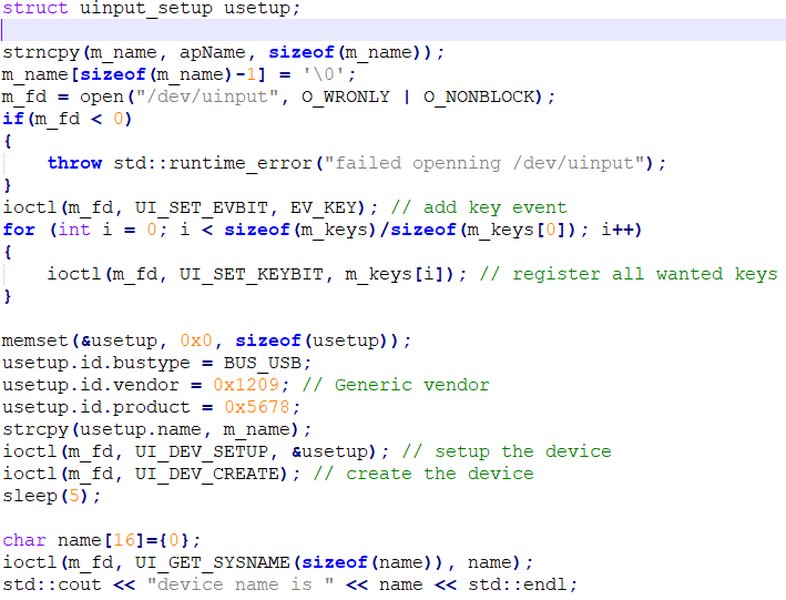
Libraries like libevdev provide a higher-level C API for handling evdev devices and can also create uinput devices. Using such a library within your container application might offer a cleaner interface than direct ioctl calls to /dev/uinput, but still requires the underlying device access.
Kubernetes Device Plugins
For more complex or vendor-specific hardware, Kubernetes supports a device plugin framework. While creating a custom device plugin for /dev/uinput might be overkill for simple use cases, it's a more robust and "Kubernetes-native" way to advertise and manage host devices. This approach would involve writing a small daemon to run on nodes that exposes /dev/uinput as a schedulable resource.
Testing and Debugging
Once configured, test access from within the Jenkins container (e.g., in a Jenkins job's shell step):
# Ensure evemu-tools or similar is installed in the container image
# Attempt to list devices or create a simple event
# This is a conceptual test; actual uinput interaction requires code
ls -l /dev/uinput
# A simple C program or Python script using uinput could be run here.
# Example with evemu (if you want to record/play events to a uinput device)
# First, you'd need a uinput device created by your application.
# Then, you could try: evemu-record /dev/input/eventX (where eventX is your virtual device)
Check container logs (kubectl logs <pod-name> -c <container-name>), Pod events (kubectl describe pod <pod-name>), and host system logs (dmesg or journalctl) for permission errors or uinput-related messages.
Frequently Asked Questions (FAQ)
What exactly is /dev/uinput used for? ▼
/dev/uinput is a Linux kernel device that allows userspace programs to create virtual input devices. This means software can emulate keyboards, mice, joysticks, or touchscreens, sending input events as if they came from physical hardware. It's commonly used for automation, testing, remote control, and custom input solutions.
Why is accessing /dev/uinput in containers challenging? ▼
Containers are isolated from the host system by default for security and stability. Accessing a host device like `/dev/uinput` breaks this isolation. It requires explicitly mounting the device into the container and often granting the container elevated privileges (e.g., running as privileged or with specific Linux capabilities) to interact with it, which Kubernetes security mechanisms aim to restrict.
Is `privileged: true` the only way to access /dev/uinput in Kubernetes? ▼
While `privileged: true` is often the most straightforward way to ensure access, it's also the riskiest. Alternatives include granting specific Linux capabilities (e.g., `SYS_ADMIN`, though this is also very broad) via `securityContext.capabilities.add`. In some cases, if the user ID within the container can be made to match the ownership/group of `/dev/uinput` on the host and the device has appropriate group permissions, it might be possible without full privileges, but this is complex to manage. A Kubernetes device plugin would be a more secure, albeit more complex, method.
What are the main security risks of exposing /dev/uinput to containers? ▼
The primary risk is container escape or privilege escalation. If a container with access to `/dev/uinput` (especially a privileged one) is compromised, an attacker could inject malicious input events into the host system or other containers, potentially taking control of the host, disrupting services, or accessing sensitive data. This is why least privilege principles are critical.
Do I always need /dev/uinput access for Jenkins in Kubernetes? ▼
No, most standard Jenkins operations (compiling code, running unit tests, deploying applications) do not require `/dev/uinput`. Access to `/dev/uinput` is only necessary for specific use cases where Jenkins jobs need to simulate user input directly at the operating system level, such as certain types of end-to-end UI testing, gamepad emulation, or specific hardware interaction tasks.
Recommended Further Exploration
- How can I configure Kubernetes Pod Security Admission for workloads requiring privileged access?
- What are the best practices for securing Jenkins agents that run as Pods in Kubernetes?
- Are there viable alternatives to using privileged containers for accessing host devices in Kubernetes?
- How can I create a custom Kubernetes device plugin to manage specific host resources like input devices?
References
Last updated May 9, 2025