
Unlocking Virtual Inputs: A Comprehensive Guide to Using /dev/uinput in Docker, Kubernetes, and Jenkins
Navigate emulating input devices in containerized CI/CD. Learn to configure /dev/uinput access effectively across your stack.
Interacting with /dev/uinput allows user-space applications to emulate input devices like keyboards, mice, or touchpads. This capability is invaluable for automated testing, simulations, and various interactive applications. However, integrating /dev/uinput into a modern DevOps workflow involving Docker containers, Kubernetes orchestration, and Jenkins for CI/CD presents a unique set of challenges. This guide will walk you through the necessary configurations and considerations to successfully use or "feed" /dev/uinput in such an environment.
Key Insights & Takeaways
- Privileged Access is Crucial: Accessing
/dev/uinputfrom a Kubernetes pod typically requires the container to run inprivileged: truemode and necessitates mounting the host's/dev/uinputdevice using ahostPathvolume. - Kubernetes Pod Specification: The core of the configuration lies in defining the Kubernetes Pod specification correctly, ensuring the container has the necessary permissions and device mappings.
- Jenkins Orchestrates Deployment: Your Jenkins pipeline is responsible for deploying these specially configured pods to your Kubernetes cluster, translating your requirements into runtime reality.
- Security Considerations are Paramount: While privileged mode grants the required access, it significantly widens the container's attack surface. Understanding and mitigating these security risks is essential, especially in production.
The Core Challenge: Device Access in Layered Abstractions
The primary hurdle in using /dev/uinput within this stack is navigating the multiple layers of isolation and abstraction imposed by Docker and Kubernetes.
Docker's Device Handling
Docker containers, by default, are isolated from host devices. To grant a Docker container access to a host device like /dev/uinput during local development or testing, you'd typically use the --device flag:
docker run --rm -it --device=/dev/uinput:/dev/uinput your-image-name /bin/bashHowever, even with this, permissions within the container for /dev/uinput can be an issue. Furthermore, some reports indicate that virtual devices created using uinput from *inside* a Docker container might not be accessible or behave as expected without proper host-level integration.
Kubernetes's Orchestration and Security Model
Kubernetes abstracts away the underlying hardware, and it does not offer a direct equivalent to Docker's --device flag in its standard Pod API. To expose host devices to pods, Kubernetes relies on mechanisms like:
hostPathVolumes: Mounting specific files or directories from the host node into a pod. For/dev/uinput, this involves mounting it as a character device.- Privileged Mode: Setting
securityContext.privileged: truefor a container grants it almost all capabilities that the root user on the host possesses, including unrestricted device access. This is often the most straightforward way to enable/dev/uinputfunctionality but comes with significant security trade-offs. - Device Plugins: A more robust and secure way to expose system hardware. While ideal, readily available, generic device plugins for
/dev/uinputare not common, often requiring custom development for specific needs.
The namespacing and isolation inherent to containers mean that /dev/uinput operations require careful consideration of how these boundaries are traversed.
Jenkins's Role in Orchestration
Jenkins, as the CI/CD orchestrator, doesn't directly manage device access. Instead, its role is to trigger and manage the deployment of Kubernetes pods. Therefore, the Jenkins pipeline (e.g., a Jenkinsfile) must be configured to define a Kubernetes Pod template that incorporates the necessary hostPath volume mounts and security contexts for /dev/uinput access.
Step-by-Step Configuration Guide
Follow these steps to configure your environment to use /dev/uinput within a Docker container scheduled by Kubernetes via Jenkins.
Step 1: Prepare Your Environment and Docker Image
Host System & Kubernetes Nodes:
- Ensure the
uinputkernel module is loaded on your Kubernetes nodes. You can typically check withlsmod | grep uinputand load it viasudo modprobe uinputif necessary. - Verify that
/dev/uinputexists on the nodes and has appropriate permissions. Often, it's owned by root with restricted group/other access (e.g.,crw-rw---- root input). The privileged container will bypass some of these, but host-level udev rules might sometimes be needed for specific group access scenarios (though less common with privileged mode).
Docker Image:
- Your Dockerfile should install any necessary user-space libraries or tools for interacting with
/dev/uinput. Examples includelibevdev,libinput, or specific applications likeevemu-tools. - Example Dockerfile snippet:
FROM ubuntu:latest RUN apt-get update && apt-get install -y \ libevdev-tools \ libinput-tools \ # Add any other uinput-related dependencies && rm -rf /var/lib/apt/lists/* # Your application or script that uses uinput COPY your_uinput_script.sh /app/your_uinput_script.sh RUN chmod +x /app/your_uinput_script.sh CMD ["/app/your_uinput_script.sh"] - Test your image locally if possible, using
docker run --device=/dev/uinput ...to confirm basic functionality.
Jenkins Setup:
- Ensure the Jenkins Kubernetes plugin is installed and configured to connect to your Kubernetes cluster. This plugin allows Jenkins to dynamically provision agents as pods.
Step 2: Crafting the Kubernetes Pod Specification
The Kubernetes Pod definition is where you enable access to /dev/uinput. This typically involves mounting /dev/uinput as a hostPath volume and running the container in privileged mode.
Here's an example Pod YAML:
apiVersion: v1
kind: Pod
metadata:
  name: uinput-access-example-pod
spec:
  restartPolicy: Never # Or OnFailure, depending on use case
  containers:
  - name: uinput-app-container
    image: your-registry/your-uinput-image:latest # Replace with your actual image
    securityContext:
      privileged: true  # Essential for uinput operations
    volumeMounts:
    - mountPath: /dev/uinput      # Path inside the container
      name: uinput-device-volume  # Reference to the volume definition
  volumes:
  - name: uinput-device-volume
    hostPath:
      path: /dev/uinput          # Path on the host node
      type: CharDevice           # Specify that this is a character device
Note: Using privileged: true grants the container extensive permissions. While capabilities: ["SYS_ADMIN"] might seem like a more targeted alternative, full privileged mode is often cited as necessary for robust uinput functionality due to the broad range of operations it might need to perform (e.g., ioctls, device creation). Always assess the security implications.
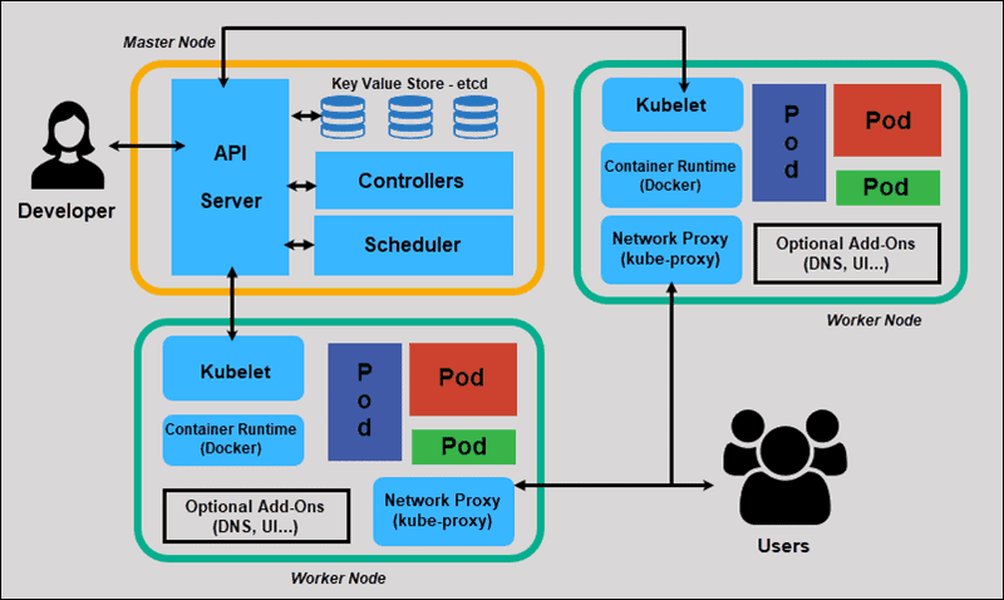
A diagram illustrating the overall architecture of a Kubernetes cluster, where your pod with /dev/uinput access will run on one of the worker nodes.
Step 3: Integrating with Jenkins for CI/CD
Your Jenkins pipeline will use the Kubernetes plugin to schedule a pod based on a template similar to the YAML above. This allows your CI/CD jobs to run within an environment that has access to /dev/uinput.
Example Declarative Jenkinsfile snippet:
pipeline {
    agent {
        kubernetes {
            label 'mypod-uinput' // Optional label for the pod
            yaml '''
apiVersion: v1
kind: Pod
spec:
  containers:
  - name: uinput-worker
    image: your-registry/your-uinput-image:latest # Replace with your image
    command: ["/bin/sh", "-c"]
    args: ["sleep 999999"] # Keep container running, or run your script directly
    securityContext:
      privileged: true
    volumeMounts:
    - name: uinput-dev
      mountPath: /dev/uinput
  volumes:
  - name: uinput-dev
    hostPath:
      path: /dev/uinput
      type: CharDevice
  restartPolicy: Never
'''
        }
    }
    stages {
        stage('Execute uinput Task') {
            steps {
                container('uinput-worker') { // Must match the container name in the pod spec
                    sh 'echo "Host uinput device should be accessible now."'
                    sh 'ls -l /dev/uinput'
                    // Execute your script or application that uses /dev/uinput
                    sh '/app/your_uinput_script.sh'
                    sh 'echo "Uinput task completed."'
                }
            }
        }
    }
}
This Jenkinsfile defines a Kubernetes agent pod with the necessary configurations. The container('uinput-worker') block ensures commands are run inside this specific container.
Step 4: Feeding or Interacting with /dev/uinput
Once the container is running with /dev/uinput mounted and appropriate privileges, your application or script within the container can interact with it. This might involve:
- Using libraries like
libevdev(C) orpython-evdev(Python) to create virtual devices and send events. - Employing command-line tools like
evemu-recordandevemu-play(fromevemu-tools) to capture and replay input events. - Writing custom code that performs
ioctlcalls directly on the/dev/uinputfile descriptor to define device capabilities and emit events.
For example, a simple test inside the container could be:
# (Inside the container, assuming evemu-tools is installed)
# This command would require user interaction or a pre-recorded event file.
# evemu-play /dev/input/eventX < my_recorded_events

# Or, your custom application might do something like:
# ./my_uinput_application --simulate-keypress A
The specifics of "feeding" /dev/uinput depend heavily on your application's requirements and the tools/libraries you choose.
Visualizing the Interconnections: A Mindmap
The following mindmap illustrates the key components and their relationships in enabling /dev/uinput access within your Jenkins-Kubernetes-Docker setup. It highlights how configurations at each layer contribute to the overall goal.
(e.g., /dev/uinput)"] id2_2_3["securityContext
(privileged: true)"] id2_3["API Server"] id3["Docker"] id3_1["Container Image"] id3_1_1["uinput tools & libraries
(libevdev, evemu)"] id3_2["Container Runtime"] id4["Configuration Aspects"] id4_1["Device Access"] id4_2["Permissions & Security"] id4_3["Orchestration"]
This diagram shows how the Jenkins pipeline defines a pod specification that the Kubernetes API server uses to schedule a pod on a worker node. The pod's container, built from a Docker image, gains access to the host's /dev/uinput through volume mounts and privileged security settings.
Comparative Analysis of Device Access Approaches
When considering how to grant device access, various factors come into play. The radar chart below offers a conceptual comparison of different strategies for enabling /dev/uinput access, focusing on key operational and security aspects. Note that "Device Plugin (Idealized)" refers to a hypothetical, well-implemented, and readily available generic uinput plugin, which may not currently exist as a standard offering.
This chart highlights that while privileged containers are relatively easier to set up for /dev/uinput access, they score lower on security. An idealized device plugin would offer better security and native Kubernetes integration but might be more complex to implement or find. Operating uinput on the host and communicating results to the container is an alternative that could offer a different balance of these factors.
Understanding Device Access in Docker
The challenges of device access are not unique to Kubernetes but are inherent in containerization. The following video provides a good overview of common issues and approaches when working with devices in Docker, which forms the foundation for container behavior in Kubernetes.
This video, "Devices in Docker - Not so simple!", discusses general pain points and methods for getting devices to work within Docker containers, which is relevant background for the /dev/uinput scenario.
Key Configuration Parameters Summary
The table below summarizes the essential configuration settings across the different layers of your stack for enabling `/dev/uinput` access:
| Layer | Configuration Method | Example/Snippet | Notes |
|---|---|---|---|
| Docker (Local Testing) | --device flag |
docker run --device=/dev/uinput:/dev/uinput ... |
Maps the host device directly into the container. Useful for initial image validation. |
| Kubernetes Pod | hostPath Volume |
volumes: |
Mounts the host's `/dev/uinput` character device into the pod. |
| Kubernetes Pod | volumeMounts in Container Spec |
volumeMounts: |
Makes the `hostPath` volume available at the specified path inside the container. |
| Kubernetes Container | securityContext: privileged |
securityContext: |
Grants the container extended privileges necessary for `/dev/uinput` operations. |
| Jenkins Pipeline | Kubernetes Plugin Pod Template (YAML) | agent { kubernetes { yaml '''...''' } } |
Defines the entire pod structure, including volumes and security contexts, for Jenkins-managed jobs. |
Security Considerations and Best Practices
Running containers in privileged: true mode effectively disables most container isolation mechanisms regarding the host kernel and devices. This poses significant security risks:
- Increased Attack Surface: A compromised privileged container can potentially gain root access to the host node and, consequently, affect other workloads or the entire cluster.
- Bypass of Security Policies: Privileged containers can often bypass other security measures like AppArmor, SELinux, seccomp profiles, and some network policies.
Mitigation Strategies:
- Principle of Least Privilege: While full privilege is often cited for
uinput, continuously evaluate if a more restricted set of capabilities (e.g.,CAP_SYS_ADMINplus specific device access rules) could suffice for your exact use case, although this can be complex to fine-tune foruinput. - Pod Security Admission (PSA) / Pod Security Policies (PSPs - deprecated): Use Kubernetes' built-in mechanisms to enforce security standards. Define policies that restrict or audit the use of privileged containers. For PSA, use profiles like
restrictedorbaselineby default and only allowprivilegedpods under strict, namespace-specific exceptions. - Dedicated Nodes: If privileged workloads are unavoidable, consider scheduling them on a dedicated pool of nodes (using taints and tolerations) to isolate them from more sensitive applications.
- Regular Audits: Audit workloads requiring privileged access and regularly review their necessity.
- SELinux/AppArmor: Ensure host-level mandatory access control systems are properly configured. However, privileged containers can often manipulate these.
- Alternative Approaches: For some use cases, it might be possible to perform `uinput` operations on the host itself (or in a dedicated, highly secured sidecar with host access) and communicate with the primary application container via IPC, though this adds complexity.
Always prioritize security and thoroughly test configurations in a controlled environment before deploying to production.
Frequently Asked Questions (FAQ)
Why is `privileged: true` often required for `/dev/uinput`?
Interacting with `/dev/uinput` to create virtual input devices and inject events often involves low-level system calls (ioctls) and device manipulations that standard, unprivileged containers are blocked from performing. `privileged: true` grants the container nearly unrestricted access to the host's kernel and devices, bypassing many of these restrictions, making it the most common way to ensure full functionality for `/dev/uinput`.
Are there less risky alternatives to privileged mode in Kubernetes for `/dev/uinput`?
While `privileged: true` is the most cited solution, potential alternatives (though more complex or less common for `uinput`) include:
- Linux Capabilities: Granting specific capabilities like `CAP_SYS_ADMIN` or `CAP_SYS_RAWIO` might work for some `uinput` operations, but often `uinput` needs a broader set of permissions that effectively equates to privileged. This requires careful testing.
- Device Plugins: A Kubernetes device plugin could theoretically manage access to `/dev/uinput` more securely. However, generic, off-the-shelf `uinput` device plugins are not widely available, and developing one can be a significant effort.
- Modifying udev rules on the host: This could change permissions of `/dev/uinput` to allow access by a specific group, and then running the container process as a user in that group (using `securityContext.runAsUser/runAsGroup`). This is complex and might not cover all `uinput` operations.
For most practical purposes, especially in CI/CD or testing scenarios, `privileged: true` combined with `hostPath` is the most direct approach, with the caveat of its security implications.
How do I check if `/dev/uinput` is available on my Kubernetes nodes?
You can check for `/dev/uinput` and the `uinput` kernel module on your Kubernetes nodes by:
- Accessing the node: SSH into the Kubernetes worker node or use a debug pod with host access.
- Check for the device file: Run
ls -l /dev/uinput. If it exists, you'll see its permissions and ownership. - Check for the kernel module: Run
lsmod | grep uinput. If the `uinput` module is listed, it's loaded. - Load the module if missing: If not loaded, you might need to run
sudo modprobe uinputon the node. This may require node-level configuration to persist across reboots.
Can I use `/dev/uinput` from a non-root user inside the privileged container?
Even if the container is running as `privileged: true`, the process inside the container attempting to access `/dev/uinput` might still face standard file permission issues *within the container's user namespace context* if `/dev/uinput` (as mapped from the host) doesn't grant permissions to that specific user. By default, `/dev/uinput` on the host is often `root:input` or `root:root` with mode `0660` or `0600`. A privileged container typically runs its entrypoint as root by default, which would have access. If you switch to a non-root user inside the container (e.g., via `USER` in Dockerfile or `runAsUser` in securityContext, though the latter interacts complexly with `privileged:true`), that non-root user might not have direct permission unless host udev rules are adjusted or the application uses capabilities effectively.
What if my Jenkins pipeline fails to schedule the pod with `/dev/uinput` access?
Failures can occur for several reasons:
- PodSecurityPolicies/Admission Controllers: Your cluster might have security policies (like Pod Security Admission controllers) that prevent the creation of privileged pods or pods using `hostPath` volumes. Check Kubernetes events (
kubectl get events -n your-namespace) and pod descriptions (kubectl describe pod pod-name -n your-namespace) for messages related to admission control. - Incorrect YAML syntax: Errors in your Jenkinsfile's pod template YAML can prevent pod creation. Validate the YAML carefully.
- Node issues: The target node might not have `/dev/uinput` available, or there could be resource constraints.
- Jenkins Kubernetes Plugin issues: Ensure the plugin is correctly configured and has the necessary permissions to interact with your Kubernetes cluster. Check Jenkins system logs and agent logs.
- RBAC Permissions: The service account used by Jenkins or the pod itself might lack permissions to create/manage pods with these specific security contexts or volume types.
Troubleshooting usually involves examining Jenkins console output, Kubernetes pod events, and kubelet logs on the target node.
Recommended Further Exploration
- Explore advanced Kubernetes device plugin development for custom hardware access.
- Investigate secure alternatives to privileged containers in production Kubernetes environments.
- Deep dive into the Linux input event subsystem (evdev) for a foundational understanding of uinput.
- How to effectively monitor and log uinput activity and device events within Kubernetes pods for debugging and security?
References
 thehackerdiary.wordpress.com
Last updated May 9, 2025