
Unlock Peak Efficiency: Mastering Advanced Web Form Automation with Selenium VBA
Dive deep into automating complex web forms, handling dynamic content, and integrating Excel data seamlessly using Selenium and VBA.
Advanced form automation using Selenium with Visual Basic for Applications (VBA) empowers you to programmatically interact with intricate web forms, manage dynamic web elements, perform validations, and orchestrate multi-step workflows directly from Microsoft Excel or other VBA-enabled applications. This synergy between Selenium's robust browser control and VBA's data manipulation capabilities offers a powerful solution for automating repetitive web-based tasks, extracting crucial data, and enhancing overall productivity.
Essential Insights: Key Takeaways
- Robust Element Interaction: Learn to reliably identify and manipulate diverse form elements, even those dynamically loaded or within complex structures like iframes or Shadow DOMs.
- Seamless Excel Integration: Master techniques to leverage data directly from Excel spreadsheets for bulk form submissions, data-driven testing, and logging results.
- Dynamic Content & Error Management: Implement effective wait strategies and error handling routines to build resilient automation scripts capable of navigating modern web complexities.
Getting Started: Prerequisites and Setup
Before embarking on advanced form automation, a proper setup is crucial. This involves installing the necessary components and configuring your VBA environment to communicate with web browsers via Selenium.
Installing SeleniumBasic
SeleniumBasic acts as a COM wrapper for Selenium WebDriver, enabling VBA to control browsers. Download and install it from a trusted source like its official GitHub page. This package typically includes WebDrivers for common browsers, but you might need to manage them separately based on your browser versions.

Conceptual overview of browser automation using Selenium from Excel VBA.
Referencing Selenium Type Library in VBA
Once SeleniumBasic is installed, you need to enable its library in your VBA project:
- Open the VBA editor in Excel (Alt + F11).
- Go to "Tools" > "References".
- Find and check "Selenium Type Library" (or a similar name like "SeleniumBasic"). Click "OK".
This step allows your VBA code to recognize and use Selenium objects, methods, and properties.
WebDriver Management
Selenium communicates with browsers through WebDrivers (e.g., ChromeDriver for Google Chrome, GeckoDriver for Firefox, EdgeDriver for Microsoft Edge). Ensure you have the correct WebDriver version corresponding to your installed browser version. Place the WebDriver executable in a location where SeleniumBasic can find it (often in the SeleniumBasic installation directory or a directory specified in your system's PATH).
Some modern SeleniumVBA wrappers may assist in automatically managing WebDriver versions, but manual checks are good practice, especially if you encounter browser startup issues.
Initiating and Controlling the Browser
With the setup complete, you can start writing VBA code to launch and control a web browser.
Starting a Browser Session
The first step in your VBA script will be to create an instance of a WebDriver and start a browser. You can then navigate to the desired web page.
' VBA Code to Start a Chrome Browser and Navigate
Dim driver As New Selenium.ChromeDriver ' Or Selenium.WebDriver for a more generic approach

Sub LaunchBrowserAndNavigate()
    ' Start the Chrome browser
    driver.Start "chrome" ' You can also use "firefox", "edge", etc.

    ' Optional: Set implicit wait time
    ' driver.Timeouts.ImplicitWait = 5000 ' Waits up to 5 seconds for elements to appear

    ' Maximize the browser window
    driver.Window.Maximize

    ' Navigate to the web page containing the form
    driver.Get "https://www.example.com/your-form-page"
End Sub
This snippet initializes a ChromeDriver object, starts the Chrome browser, maximizes its window for better visibility during development, and navigates to a specified URL.
Core Techniques for Advanced Form Automation
Advanced form automation goes beyond simple field filling. It involves sophisticated element identification, handling various control types, managing dynamic content, and robust error handling.
Reliable Element Identification
Accurately locating web elements is fundamental. Selenium offers several locator strategies:
- ID:
driver.FindElementById("elementId")- Usually the most reliable if unique IDs are available. - Name:
driver.FindElementByName("elementName") - Class Name:
driver.FindElementByClassName("className") - Tag Name:
driver.FindElementByTagName("tagName") - Link Text:
driver.FindElementByLinkText("exactLinkText") - Partial Link Text:
driver.FindElementByPartialLinkText("partialText") - CSS Selector:
driver.FindElementByCss("cssSelector")- Powerful and concise. - XPath:
driver.FindElementByXPath("xpathExpression")- Very flexible, especially for complex or dynamic elements. Use functions likecontains(),starts-with(), or navigate hierarchies.
Example: Using XPath for a dynamic element
Dim usernameField As Selenium.WebElement
' Example: Find an input field whose ID contains 'user'
Set usernameField = driver.FindElementByXPath("//input[contains(@id, 'user')]")
usernameField.SendKeys "YourUsername"
Interacting with Various Form Controls
Different form elements require different interaction methods:
- Text Boxes & Text Areas: Use
.SendKeys "text to enter"to input data. Use.Clearto empty the field before typing if needed. - Buttons (Submit, Reset, etc.): Use
.Clickto activate the button. - Checkboxes & Radio Buttons: Use
.Clickto select or deselect. You can check their status using.IsSelected. - Dropdown Menus (Select Elements):
selectElement.SelectByText "Visible Text"selectElement.SelectByValue "optionValue"selectElement.SelectByIndex numericIndex(0-based)
Example: Handling a dropdown menu
Dim countryDropdown As Selenium.WebElement
Set countryDropdown = driver.FindElementById("countrySelect")
countryDropdown.SelectByText "United States"
Managing Dynamic Content and Waits
Modern web applications frequently load content asynchronously (AJAX, JavaScript). Interacting with elements before they are fully loaded or visible can lead to errors. Selenium provides wait mechanisms:
- Implicit Waits:
driver.Timeouts.ImplicitWait = milliseconds- Tells WebDriver to poll the DOM for a certain amount of time when trying to find an element if it's not immediately available. Set once per session. - Explicit Waits:
driver.Wait milliseconds- A simple pause. Less reliable. More advanced explicit waits involve waiting for specific conditions (e.g., element to be clickable, visible). While Selenium VBA's explicit wait capabilities are simpler than in Python/Java, you can create custom loops:
Example: Custom explicit wait loop
Dim submitButton As Selenium.WebElement
Dim startTime As Double
startTime = Timer

Do
    On Error Resume Next ' Suppress error if element not found yet
    Set submitButton = driver.FindElementById("dynamicSubmitButton")
    On Error GoTo 0 ' Re-enable error handling

    If Not submitButton Is Nothing Then Exit Do ' Element found
    If Timer - startTime > 10 Then ' Timeout after 10 seconds
        MsgBox "Submit button not found after 10 seconds."
        Exit Do
    End If
    DoEvents ' Allow other processes to run
Loop
If Not submitButton Is Nothing Then submitButton.Click
Handling Multi-Step / Wizard Forms
For forms spanning multiple pages or steps:
- Fill out fields on the current page.
- Click the "Next" or "Continue" button.
- Implement waits for the next page/section to load.
- Repeat the process for each step.
- Store data in Excel or VBA variables if it needs to be carried across steps or validated.
Data Integration from Excel
A key strength of using VBA is its native integration with Excel. You can easily read data from worksheets to populate forms for bulk submissions.
Example: Looping through Excel rows
Sub FillFormFromExcel()
    Dim ws As Worksheet
    Dim lastRow As Long
    Dim i As Long

    Set ws = ThisWorkbook.Sheets("FormData") ' Assuming data is in a sheet named "FormData"
    lastRow = ws.Cells(ws.Rows.Count, "A").End(xlUp).Row ' Find the last row with data in column A

    ' driver and navigation code here...

    For i = 2 To lastRow ' Assuming headers are in row 1
        driver.FindElementById("firstName").SendKeys ws.Cells(i, "A").Value ' Column A for First Name
        driver.FindElementById("lastName").SendKeys ws.Cells(i, "B").Value  ' Column B for Last Name
        driver.FindElementById("email").SendKeys ws.Cells(i, "C").Value     ' Column C for Email

        ' ... fill other fields ...

        driver.FindElementById("submitFormButton").Click

        ' Wait for submission confirmation or next page
        driver.Wait 2000 ' Simple wait, better to use explicit waits for elements

        ' Optional: Write status back to Excel
        ' ws.Cells(i, "D").Value = "Submitted"

        ' If form resets or needs to navigate back for next entry
        ' driver.Get "https://www.example.com/your-form-page"
    Next i

    ' driver.Quit ' Close browser when done
End Sub
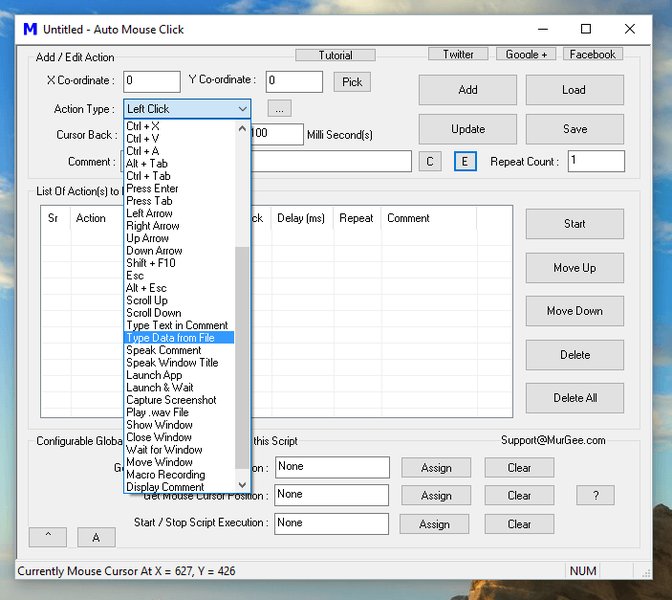
Conceptual image showing software automating text input into web forms.
Error Handling and Validation
Robust scripts anticipate and manage errors:
- VBA Error Handling: Use
On Error GoTo ErrorHandlerLabelto catch runtime errors (e.g., element not found, timeout). - Validation: After submission, check for success messages, error messages, or specific elements on the resulting page to confirm the outcome. Extract this information and log it back to Excel.
Example: Basic error handling
Sub FormInteractionWithErrorHandling()
    On Error GoTo CatchError

    ' ... your Selenium automation code ...
    Dim emailField As Selenium.WebElement
    Set emailField = driver.FindElementById("emailAddress")
    emailField.SendKeys "test@example.com"
    ' ...

ExitSubHandler:
    ' Clean up code here
    Exit Sub

CatchError:
    MsgBox "An error occurred: " & Err.Description
    ' Log error to Excel or a file
    Resume ExitSubHandler ' Or Resume Next to continue with next iteration in a loop
End Sub
Advanced Interactions
For more complex scenarios, Selenium VBA supports:
- Action Chains: For actions like mouse hover, drag-and-drop, right-click. Example:
driver.Actions.MoveToElement(element).Perform - Executing JavaScript:
driver.ExecuteScript("arguments[0].click();", element)can be used to click elements that are not responding to standard.Click, or to perform other JS operations. - Handling Cookies:
driver.Manage.AddCookie(...),driver.Manage.GetCookieNamed(...),driver.Manage.DeleteAllCookies() - Working with Iframes: Switch to an iframe using
driver.SwitchToFrame frameReference(ID, name, index, or WebElement) and back usingdriver.SwitchToDefaultContent. - Shadow DOM: Interacting with elements inside a Shadow DOM often requires executing JavaScript to pierce the shadow boundary. Example:
Set shadowHost = driver.FindElementByCss("#shadowHost"),Set shadowRoot = driver.ExecuteScript("return arguments[0].shadowRoot", shadowHost). Then find elements withinshadowRoot. - Handling File Uploads: For
<input type="file">elements, you can often use.SendKeys "C:\path\to\your\file.txt"directly on the input element. - Browser Capabilities: Set browser preferences (e.g., download directory, headless mode) before starting the session using
driver.SetCapability "capabilityName", value.
Visualizing Selenium VBA Form Automation Capabilities
This radar chart below provides an opinionated overview of key aspects concerning advanced form automation using Selenium VBA. It highlights areas where Selenium VBA typically excels and where users might need to invest more effort or consider alternatives for highly complex scenarios. The ratings are relative and aim to guide expectations.
The chart suggests strong Excel integration and reasonable setup simplicity, while handling very advanced UI interactions or achieving top-tier execution speed might require more sophisticated techniques or workarounds compared to Selenium bindings in languages like Python or Java. Error handling robustness depends heavily on the developer's implementation.
Structuring Your Automation Project: A Mindmap Overview
The mindmap below outlines the key stages and considerations involved in developing an advanced form automation solution using Selenium VBA. It serves as a conceptual guide to help structure your thoughts and project plan.
This mindmap visually breaks down the project into manageable components, from initial setup to ongoing maintenance, emphasizing the multifaceted nature of advanced form automation.
Common Selenium VBA Methods for Form Interaction
The following table summarizes some of the most frequently used Selenium VBA objects and methods when automating web forms. Understanding these is key to building effective automation scripts.
| Object/Method | Purpose | Example Usage |
|---|---|---|
Dim driver As New Selenium.ChromeDriver |
Declares and creates a new Chrome WebDriver instance. | Dim driver As New Selenium.ChromeDriver |
driver.Start "browserName" |
Starts the specified browser (e.g., "chrome", "firefox", "edge"). | driver.Start "chrome" |
driver.Get "URL" |
Navigates the browser to the specified URL. | driver.Get "https://www.example.com" |
driver.FindElementById("id") |
Locates an element by its unique ID attribute. | Set elem = driver.FindElementById("username") |
driver.FindElementByName("name") |
Locates an element by its 'name' attribute. | Set elem = driver.FindElementByName("emailField") |
driver.FindElementByXPath("xpath") |
Locates an element using an XPath expression. | Set elem = driver.FindElementByXPath("//input[@type='submit']") |
driver.FindElementByCss("cssSelector") |
Locates an element using a CSS selector. | Set elem = driver.FindElementByCss("input#loginButton") |
WebElement.SendKeys "text" |
Sends keystrokes to an input element (e.g., text box). | elem.SendKeys "John Doe" |
WebElement.Click |
Clicks an element (e.g., button, checkbox, link). | elem.Click |
WebElement.Clear |
Clears the content of a text input element. | elem.Clear |
WebElement.Text |
Gets the visible inner text of an element. | Dim message As String: message = elem.Text |
WebElement.SelectByText "visibleText" |
Selects an option from a dropdown by its visible text. (Applied to a Select element). | countryDropdown.SelectByText "Canada" |
WebElement.SelectByValue "value" |
Selects an option from a dropdown by its value attribute. | countryDropdown.SelectByValue "CA" |
driver.Wait milliseconds |
Pauses script execution for a specified duration (fixed wait). | driver.Wait 3000 ' Waits for 3 seconds |
driver.SwitchToFrame frameReference |
Switches focus to an iframe (by ID, name, index, or WebElement). | driver.SwitchToFrame "contentFrame" |
driver.SwitchToDefaultContent |
Switches focus back to the main document from an iframe. | driver.SwitchToDefaultContent |
driver.ExecuteScript "script", [args] |
Executes JavaScript in the context of the current window/frame. | driver.ExecuteScript "arguments[0].scrollIntoView();", elem |
driver.Quit |
Closes all browser windows opened by WebDriver and ends the session. | driver.Quit |
driver.CloseBrowser |
Closes the current browser window. (Part of SeleniumBasic, often used before driver.Shutdown) |
driver.CloseBrowser |
This table provides a quick reference for common operations. The exact methods and their availability might slightly vary based on the specific Selenium VBA wrapper version you are using (e.g., SeleniumBasic vs. other community wrappers).
Visual Tutorial: Getting Started with Selenium VBA
The video below, "Excel VBA Introduction Part 57.1 - Getting Started with Selenium Basic and Google Chrome" by Teach IT SMR, provides a foundational introduction to setting up and using Selenium Basic with VBA for Chrome automation. While it covers basic web scraping, the initial setup and browser interaction principles are directly applicable to form automation. Understanding these basics is crucial before tackling more advanced form scenarios.
This video demonstrates installing SeleniumBasic, referencing the library in VBA, and writing simple scripts to open Chrome and navigate to a website. These are the initial steps you would take for any form automation task. It also touches upon potential issues like WebDriver compatibility, which is a common hurdle for beginners.
Best Practices for Sustainable Automation
To ensure your Selenium VBA form automation scripts are reliable, maintainable, and efficient, consider these best practices:
- Externalize Data: Keep input data, URLs, and other configurable parameters in Excel sheets or configuration files rather than hardcoding them in VBA. This makes scripts more flexible and easier to update.
- Modular Code: Break down complex automation tasks into smaller, reusable subroutines and functions (e.g., a function to log in, a subroutine to fill a specific form section). This improves readability and maintainability.
- Robust Selectors: Prefer unique IDs and names for locating elements. If not available, use stable CSS selectors or XPath expressions that are less likely to break with minor website changes. Avoid overly complex or position-dependent XPaths.
- Explicit Waits Over Fixed Delays: Whenever possible, use conditional waits (e.g., wait for an element to be visible or clickable) instead of fixed
driver.Wait milliseconds. This makes scripts faster and more reliable by adapting to varying page load times. - Comprehensive Error Handling: Implement
On Error GoToblocks to catch and manage exceptions gracefully. Log errors with relevant details (e.g., which step failed, error message) to facilitate debugging. - Regular Testing and Maintenance: Websites change. Regularly test your automation scripts to ensure they still work as expected and update them as needed to accommodate UI or structural changes on the target website.
- Comment Your Code: Add comments to explain complex logic, selector choices, or workarounds. This helps you and others understand the code later.
- Secure Credential Management: Avoid hardcoding sensitive information like usernames and passwords directly in the script. Consider prompting the user, reading from protected Excel cells, or using more secure storage methods if available.
- Close Browser and WebDriver Sessions: Always use
driver.Quit(ordriver.CloseBrowseranddriver.Shutdowndepending on the wrapper) at the end of your script to properly close the browser and release system resources. - Version Control: For larger projects or team collaboration, use version control systems like Git to track changes to your VBA code and Excel files.
Comprehensive Example: Advanced Form Filling with Error Handling
Below is a more detailed VBA subroutine demonstrating several advanced concepts, including reading data from Excel, interacting with different form elements, basic error handling, and conditional waits.
Public Sub AdvancedFillComplexForm()
    Dim driver As New Selenium.ChromeDriver
    Dim ws As Worksheet
    Dim i As Long, lastRow As Long
    Dim confirmationMsg As String
    Dim element As Selenium.WebElement

    On Error GoTo ErrorHandler ' Global error handler for the sub

    ' Initialize worksheet
    Set ws = ThisWorkbook.Sheets("AdvancedFormData") ' Ensure this sheet exists

    ' Start browser and navigate
    driver.Start "chrome"
    driver.Get "https://your-target-website.com/complex-form" ' Replace with actual URL
    driver.Window.Maximize
    driver.Timeouts.ImplicitWait = 5000 ' Set implicit wait

    lastRow = ws.Cells(ws.Rows.Count, "A").End(xlUp).Row ' Assuming data starts in column A

    For i = 2 To lastRow ' Assuming row 1 has headers
        ' Clear fields before entering new data for robustness
        On Error Resume Next ' Ignore error if element not found immediately for clearing
        driver.FindElementById("firstName").Clear
        driver.FindElementById("emailAddress").Clear
        On Error GoTo ErrorHandler ' Resume global error handling

        ' Fill First Name
        Set element = WaitForElement(driver, "Id", "firstName", 10)
        If element Is Nothing Then GoTo NextIteration ' Skip if critical element not found
        element.SendKeys ws.Cells(i, "A").Value ' First Name from Column A

        ' Fill Email
        Set element = WaitForElement(driver, "Id", "emailAddress", 10)
        If element Is Nothing Then GoTo NextIteration
        element.SendKeys ws.Cells(i, "B").Value ' Email from Column B

        ' Select from Dropdown (Country)
        Set element = WaitForElement(driver, "Id", "countryDropdown", 10)
        If element Is Nothing Then GoTo NextIteration
        element.SelectByText ws.Cells(i, "C").Value ' Country from Column C

        ' Handle Checkbox (e.g., Agree to Terms)
        Set element = WaitForElement(driver, "XPath", "//input[@id='termsCheckbox' and @type='checkbox']", 10)
        If Not element Is Nothing Then
            If Not element.IsSelected And CBool(ws.Cells(i, "D").Value) Then ' Check if needs to be checked
                 element.Click
            ElseIf element.IsSelected And Not CBool(ws.Cells(i, "D").Value) Then ' Check if needs to be unchecked
                 element.Click
            End If
        End If

        ' Click Submit Button
        Set element = WaitForElement(driver, "Css", "button[type='submit'].main-submit", 10)
        If element Is Nothing Then
            ws.Cells(i, "E").Value = "Submit button not found"
            GoTo NextIteration
        End If
        element.Click

        ' Wait for confirmation message and write back to Excel
        Set element = WaitForElement(driver, "ClassName", "confirmation-message-class", 15) ' Wait longer for page load/AJAX
        If Not element Is Nothing Then
            confirmationMsg = element.Text
            ws.Cells(i, "E").Value = confirmationMsg ' Status/Confirmation in Column E
        Else
            ws.Cells(i, "E").Value = "Confirmation not found"
        End If

        ' Optional: Navigate back or refresh if form needs to be reloaded for next entry
        ' driver.Get "https://your-target-website.com/complex-form"
        ' driver.Wait 1000 ' Small pause before next iteration

NextIteration:
        ' Loop to next record
    Next i

Cleanup:
    MsgBox "Form processing complete. Check Excel for status.", vbInformation
    If Not driver Is Nothing Then
        driver.Quit
    End If
    Set driver = Nothing
    Set ws = Nothing
    Exit Sub

ErrorHandler:
    MsgBox "An unexpected error occurred: " & vbCrLf & _
           "Error Number: " & Err.Number & vbCrLf & _
           "Error Description: " & Err.Description & vbCrLf & _
           "Processing stopped at row: " & i, vbCritical, "Automation Error"
    If i > 0 And i <= lastRow And Not ws Is Nothing Then
        ws.Cells(i, "E").Value = "Error: " & Err.Description ' Log error to current row
    End If
    Resume Cleanup ' Go to cleanup section
End Sub

' Helper function for explicit wait
Private Function WaitForElement(driver As Selenium.WebDriver, findBy As String, locator As String, timeoutSeconds As Long) As Selenium.WebElement
    Dim el As Selenium.WebElement
    Dim startTime As Double
    startTime = Timer

    Do
        On Error Resume Next
        Select Case LCase(findBy)
            Case "id": Set el = driver.FindElementById(locator)
            Case "name": Set el = driver.FindElementByName(locator)
            Case "xpath": Set el = driver.FindElementByXPath(locator)
            Case "css": Set el = driver.FindElementByCss(locator)
            Case "classname": Set el = driver.FindElementByClassName(locator)
            Case "linktext": Set el = driver.FindElementByLinkText(locator)
            Case "partiallinktext": Set el = driver.FindElementByPartialLinkText(locator)
            Case Else: Set el = Nothing
        End Select
        On Error GoTo 0 ' Important to turn off 'Resume Next'

        If Not el Is Nothing Then
            If el.IsDisplayed Then ' Check if element is also visible
                Set WaitForElement = el
                Exit Function
            End If
        End If

        If Timer - startTime > timeoutSeconds Then
            Set WaitForElement = Nothing
            Exit Function
        End If
        DoEvents
        driver.Wait 50 ' Small pause before retrying to avoid busy loop
    Loop
End Function
This example includes a helper function WaitForElement for more robust explicit waits, demonstrates reading various data types from Excel, and has a basic structure for error logging and continuation.
Frequently Asked Questions (FAQ)
Q: What are the most common errors when starting with Selenium VBA form automation?
Common errors include:
- WebDriver Mismatch: The ChromeDriver (or other WebDriver) version doesn't match the installed browser version. Ensure they are compatible.
- Selenium Type Library Not Referenced: Forgetting to add the "Selenium Type Library" reference in VBA > Tools > References, leading to "User-defined type not defined" errors.
- Element Not Found (NoSuchElementException): The script tries to interact with an element before it has loaded or using an incorrect/changed selector. Implement proper waits and verify selectors.
- Automation Error / COM Exception: Generic errors that can occur if SeleniumBasic is not installed correctly, WebDriver path issues, or browser crashes.
Q: How can I handle forms with CAPTCHAs using Selenium VBA?
Automating CAPTCHAs is generally not recommended or feasible with Selenium alone, as CAPTCHAs are specifically designed to prevent automated access. Attempting to bypass them can violate website terms of service.
Possible approaches (use with caution and ethically):
- Manual Intervention: Pause the script and allow a human to solve the CAPTCHA.
- CAPTCHA Solving Services: Integrate third-party services (API-based) that solve CAPTCHAs. This adds complexity and cost.
- Test Environments: If you control the website (e.g., for testing), request a version with CAPTCHA disabled or a bypass mechanism for automation scripts.
Q: Can Selenium VBA interact with elements inside a Shadow DOM?
Yes, but it requires using JavaScript execution. Standard `FindElementBy` methods cannot directly access elements within a Shadow DOM (open mode). You need to first get the shadow host element, then use `driver.ExecuteScript` to access its `shadowRoot` property, and then find elements within that shadow root.
Example snippet:
Dim shadowHost As Selenium.WebElement
Dim shadowRoot As Selenium.WebElement ' Technically a SearchContext
Dim elementInShadow As Selenium.WebElement

Set shadowHost = driver.FindElementByCss("selector-for-shadow-host")
Set shadowRoot = driver.ExecuteScript("return arguments[0].shadowRoot", shadowHost)

' Now find elements within the shadowRoot (using methods available on shadowRoot)
Set elementInShadow = shadowRoot.FindElement(By.Css("selector-within-shadow-dom"))
elementInShadow.Click
Note: The exact syntax for finding elements within `shadowRoot` might depend on the SeleniumVBA wrapper. The `FindElement` method on `shadowRoot` would take a `By` object, e.g., `By.Css("css-selector")`.
Q: Is SeleniumBasic (for VBA) still actively maintained?
As of early 2025, SeleniumBasic itself (the original project by Florent BREHERET) may not see frequent updates compared to Selenium bindings for languages like Python, Java, or C#. However, the underlying WebDriver protocols are relatively stable for core functionalities. Community-driven wrappers and forks, like the one by GCuser99 on GitHub, sometimes provide more up-to-date features or bug fixes.
For critical, long-term projects requiring cutting-edge Selenium features, exploring alternatives or ensuring you have a robust error handling and maintenance strategy for VBA-based solutions is advisable. For many standard form automation tasks, SeleniumBasic and its variants remain quite capable.
Recommended Further Exploration
- How can I effectively handle AJAX calls and dynamic content loading when automating forms with Selenium VBA?
- What are some advanced error reporting and logging strategies for Selenium VBA automation projects to improve debugging?
- What are the best techniques for automating file uploads and downloads within web forms using Selenium VBA?
- How does Selenium VBA compare to Python with Selenium for tackling highly complex web automation tasks and form interactions?
References
- SeleniumBasic - GitHub Pages - Official site for SeleniumBasic, crucial for understanding the base wrapper.
- GCuser99/SeleniumVBA - GitHub - A comprehensive and often more up-to-date Selenium wrapper for VBA, offering enhanced features.
- Excel VBA Selenium Tutorial: Web Scraping with Chrome - Guru99 - Provides tutorials on using Selenium for web scraping and form filling.
- Web Automation using Excel VBA Selenium - RKs TechAdemy - Offers practical VBA code examples for form automation.
- Web Scraping - Filling in Forms - My Online Training Hub - Discusses automating web browsers with VBA to fill and submit forms.
- Browser Automation in Excel using Selenium (VBA) - Coding Is Love - Explains best practices for browser automation and form interaction.
- Web form fill using vba selenium - Stack Overflow - Community discussions offering solutions to real-world form automation challenges.
Unlock Peak Efficiency: Mastering Advanced Web Form Automation with Selenium VBA
Dive deep into automating complex web forms, handling dynamic content, and integrating Excel data seamlessly using Selenium and VBA.
Advanced form automation using Selenium with Visual Basic for Applications (VBA) empowers you to programmatically interact with intricate web forms, manage dynamic web elements, perform validations, and orchestrate multi-step workflows directly from Microsoft Excel or other VBA-enabled applications. This synergy between Selenium's robust browser control and VBA's data manipulation capabilities offers a powerful solution for automating repetitive web-based tasks, extracting crucial data, and enhancing overall productivity.
Essential Insights: Key Takeaways
- Robust Element Interaction: Learn to reliably identify and manipulate diverse form elements, even those dynamically loaded or within complex structures like iframes or Shadow DOMs.
- Seamless Excel Integration: Master techniques to leverage data directly from Excel spreadsheets for bulk form submissions, data-driven testing, and logging results.
- Dynamic Content & Error Management: Implement effective wait strategies and error handling routines to build resilient automation scripts capable of navigating modern web complexities.
Getting Started: Prerequisites and Setup
Before embarking on advanced form automation, a proper setup is crucial. This involves installing the necessary components and configuring your VBA environment to communicate with web browsers via Selenium.
Installing SeleniumBasic
SeleniumBasic acts as a COM wrapper for Selenium WebDriver, enabling VBA to control browsers. Download and install it from a trusted source like its official GitHub page. This package typically includes WebDrivers for common browsers, but you might need to manage them separately based on your browser versions.

Conceptual overview of browser automation using Selenium from Excel VBA.
Referencing Selenium Type Library in VBA
Once SeleniumBasic is installed, you need to enable its library in your VBA project:
- Open the VBA editor in Excel (Alt + F11).
- Go to "Tools" > "References".
- Find and check "Selenium Type Library" (or a similar name like "SeleniumBasic"). Click "OK".
This step allows your VBA code to recognize and use Selenium objects, methods, and properties.
WebDriver Management
Selenium communicates with browsers through WebDrivers (e.g., ChromeDriver for Google Chrome, GeckoDriver for Firefox, EdgeDriver for Microsoft Edge). Ensure you have the correct WebDriver version corresponding to your installed browser version. Place the WebDriver executable in a location where SeleniumBasic can find it (often in the SeleniumBasic installation directory or a directory specified in your system's PATH).
Some modern SeleniumVBA wrappers may assist in automatically managing WebDriver versions, but manual checks are good practice, especially if you encounter browser startup issues.
Initiating and Controlling the Browser
With the setup complete, you can start writing VBA code to launch and control a web browser.
Starting a Browser Session
The first step in your VBA script will be to create an instance of a WebDriver and start a browser. You can then navigate to the desired web page.
' VBA Code to Start a Chrome Browser and Navigate
Dim driver As New Selenium.ChromeDriver ' Or Selenium.WebDriver for a more generic approach

Sub LaunchBrowserAndNavigate()
    ' Start the Chrome browser
    driver.Start "chrome" ' You can also use "firefox", "edge", etc.

    ' Optional: Set implicit wait time
    ' driver.Timeouts.ImplicitWait = 5000 ' Waits up to 5 seconds for elements to appear

    ' Maximize the browser window
    driver.Window.Maximize

    ' Navigate to the web page containing the form
    driver.Get "https://www.example.com/your-form-page"
End Sub
This snippet initializes a `ChromeDriver` object, starts the Chrome browser, maximizes its window for better visibility during development, and navigates to a specified URL.
Core Techniques for Advanced Form Automation
Advanced form automation goes beyond simple field filling. It involves sophisticated element identification, handling various control types, managing dynamic content, and robust error handling.
Reliable Element Identification
Accurately locating web elements is fundamental. Selenium offers several locator strategies:
- ID: `driver.FindElementById("elementId")` - Usually the most reliable if unique IDs are available.
- Name: `driver.FindElementByName("elementName")`
- Class Name: `driver.FindElementByClassName("className")`
- Tag Name: `driver.FindElementByTagName("tagName")`
- Link Text: `driver.FindElementByLinkText("exactLinkText")`
- Partial Link Text: `driver.FindElementByPartialLinkText("partialText")`
- CSS Selector: `driver.FindElementByCss("cssSelector")` - Powerful and concise.
- XPath: `driver.FindElementByXPath("xpathExpression")` - Very flexible, especially for complex or dynamic elements. Use functions like `contains()`, `starts-with()`, or navigate hierarchies.
Example: Using XPath for a dynamic element
Dim usernameField As Selenium.WebElement
' Example: Find an input field whose ID contains 'user'
Set usernameField = driver.FindElementByXPath("//input[contains(@id, 'user')]")
usernameField.SendKeys "YourUsername"
Interacting with Various Form Controls
Different form elements require different interaction methods:
- Text Boxes & Text Areas: Use `.SendKeys "text to enter"` to input data. Use `.Clear` to empty the field before typing if needed.
- Buttons (Submit, Reset, etc.): Use `.Click` to activate the button.
- Checkboxes & Radio Buttons: Use `.Click` to select or deselect. You can check their status using `.IsSelected`.
- Dropdown Menus (Select Elements):
- `selectElement.SelectByText "Visible Text"`
- `selectElement.SelectByValue "optionValue"`
- `selectElement.SelectByIndex numericIndex` (0-based)
Example: Handling a dropdown menu
Dim countryDropdown As Selenium.WebElement
Set countryDropdown = driver.FindElementById("countrySelect")
countryDropdown.SelectByText "United States"
Managing Dynamic Content and Waits
Modern web applications frequently load content asynchronously (AJAX, JavaScript). Interacting with elements before they are fully loaded or visible can lead to errors. Selenium provides wait mechanisms:
- Implicit Waits: `driver.Timeouts.ImplicitWait = milliseconds` - Tells WebDriver to poll the DOM for a certain amount of time when trying to find an element if it's not immediately available. Set once per session.
- Explicit Waits: `driver.Wait milliseconds` - A simple pause. Less reliable. More advanced explicit waits involve waiting for specific conditions (e.g., element to be clickable, visible). While Selenium VBA's explicit wait capabilities are simpler than in Python/Java, you can create custom loops:
Example: Custom explicit wait loop
Dim submitButton As Selenium.WebElement
Dim startTime As Double
startTime = Timer

Do
    On Error Resume Next ' Suppress error if element not found yet
    Set submitButton = driver.FindElementById("dynamicSubmitButton")
    On Error GoTo 0 ' Re-enable error handling

    If Not submitButton Is Nothing Then Exit Do ' Element found
    If Timer - startTime > 10 Then ' Timeout after 10 seconds
        MsgBox "Submit button not found after 10 seconds."
        Exit Do
    End If
    DoEvents ' Allow other processes to run
Loop
If Not submitButton Is Nothing Then submitButton.Click
Handling Multi-Step / Wizard Forms
For forms spanning multiple pages or steps:
- Fill out fields on the current page.
- Click the "Next" or "Continue" button.
- Implement waits for the next page/section to load.
- Repeat the process for each step.
- Store data in Excel or VBA variables if it needs to be carried across steps or validated.
Data Integration from Excel
A key strength of using VBA is its native integration with Excel. You can easily read data from worksheets to populate forms for bulk submissions.
Example: Looping through Excel rows
Sub FillFormFromExcel()
    Dim ws As Worksheet
    Dim lastRow As Long
    Dim i As Long

    Set ws = ThisWorkbook.Sheets("FormData") ' Assuming data is in a sheet named "FormData"
    lastRow = ws.Cells(ws.Rows.Count, "A").End(xlUp).Row ' Find the last row with data in column A

    ' driver and navigation code here...

    For i = 2 To lastRow ' Assuming headers are in row 1
        driver.FindElementById("firstName").SendKeys ws.Cells(i, "A").Value ' Column A for First Name
        driver.FindElementById("lastName").SendKeys ws.Cells(i, "B").Value  ' Column B for Last Name
        driver.FindElementById("email").SendKeys ws.Cells(i, "C").Value     ' Column C for Email

        ' ... fill other fields ...

        driver.FindElementById("submitFormButton").Click

        ' Wait for submission confirmation or next page
        driver.Wait 2000 ' Simple wait, better to use explicit waits for elements

        ' Optional: Write status back to Excel
        ' ws.Cells(i, "D").Value = "Submitted"

        ' If form resets or needs to navigate back for next entry
        ' driver.Get "https://www.example.com/your-form-page"
    Next i

    ' driver.Quit ' Close browser when done
End Sub
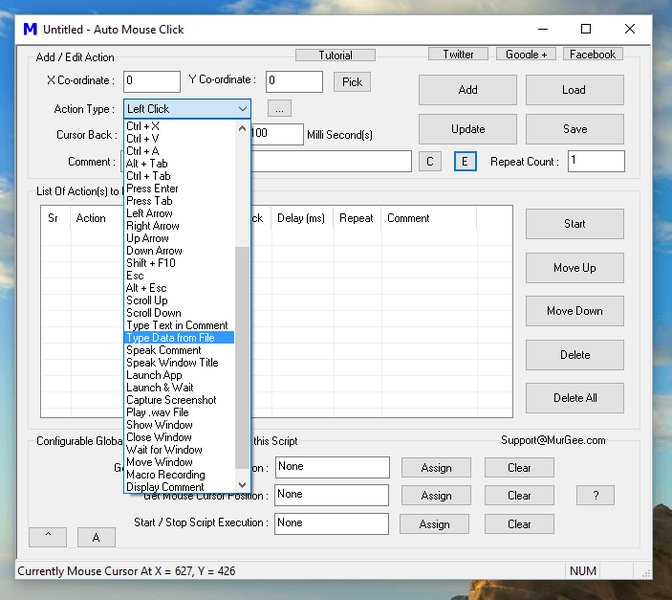
Conceptual image showing software automating text input into web forms.
Error Handling and Validation
Robust scripts anticipate and manage errors:
- VBA Error Handling: Use `On Error GoTo ErrorHandlerLabel` to catch runtime errors (e.g., element not found, timeout).
- Validation: After submission, check for success messages, error messages, or specific elements on the resulting page to confirm the outcome. Extract this information and log it back to Excel.
Example: Basic error handling
Sub FormInteractionWithErrorHandling()
    On Error GoTo CatchError

    ' ... your Selenium automation code ...
    Dim emailField As Selenium.WebElement
    Set emailField = driver.FindElementById("emailAddress")
    emailField.SendKeys "test@example.com"
    ' ...

ExitSubHandler:
    ' Clean up code here
    Exit Sub

CatchError:
    MsgBox "An error occurred: " & Err.Description
    ' Log error to Excel or a file
    Resume ExitSubHandler ' Or Resume Next to continue with next iteration in a loop
End Sub
Advanced Interactions
For more complex scenarios, Selenium VBA supports:
- Action Chains: For actions like mouse hover, drag-and-drop, right-click. Example: `driver.Actions.MoveToElement(element).Perform`
- Executing JavaScript: `driver.ExecuteScript("arguments[0].click();", element)` can be used to click elements that are not responding to standard `.Click`, or to perform other JS operations.
- Handling Cookies: `driver.Manage.AddCookie(...)`, `driver.Manage.GetCookieNamed(...)`, `driver.Manage.DeleteAllCookies()`
- Working with Iframes: Switch to an iframe using `driver.SwitchToFrame frameReference` (ID, name, index, or WebElement) and back using `driver.SwitchToDefaultContent`.
- Shadow DOM: Interacting with elements inside a Shadow DOM often requires executing JavaScript to pierce the shadow boundary. Example: `Set shadowHost = driver.FindElementByCss("#shadowHost")`, `Set shadowRoot = driver.ExecuteScript("return arguments[0].shadowRoot", shadowHost)`. Then find elements within `shadowRoot`.
- Handling File Uploads: For `` elements, you can often use `.SendKeys "C:\path\to\your\file.txt"` directly on the input element.
- Browser Capabilities: Set browser preferences (e.g., download directory, headless mode) before starting the session using `driver.SetCapability "capabilityName", value`.
Visualizing Selenium VBA Form Automation Capabilities
This radar chart below provides an opinionated overview of key aspects concerning advanced form automation using Selenium VBA. It highlights areas where Selenium VBA typically excels and where users might need to invest more effort or consider alternatives for highly complex scenarios. The ratings are relative and aim to guide expectations.
The chart suggests strong Excel integration and reasonable setup simplicity, while handling very advanced UI interactions or achieving top-tier execution speed might require more sophisticated techniques or workarounds compared to Selenium bindings in languages like Python or Java. Error handling robustness depends heavily on the developer's implementation.
Structuring Your Automation Project: A Mindmap Overview
The mindmap below outlines the key stages and considerations involved in developing an advanced form automation solution using Selenium VBA. It serves as a conceptual guide to help structure your thoughts and project plan.
This mindmap visually breaks down the project into manageable components, from initial setup to ongoing maintenance, emphasizing the multifaceted nature of advanced form automation.
Common Selenium VBA Methods for Form Interaction
The following table summarizes some of the most frequently used Selenium VBA objects and methods when automating web forms. Understanding these is key to building effective automation scripts.
| Object/Method | Purpose | Example Usage |
|---|---|---|
Dim driver As New Selenium.ChromeDriver |
Declares and creates a new Chrome WebDriver instance. | Dim driver As New Selenium.ChromeDriver |
driver.Start "browserName" |
Starts the specified browser (e.g., "chrome", "firefox", "edge"). | driver.Start "chrome" |
driver.Get "URL" |
Navigates the browser to the specified URL. | driver.Get "https://www.example.com" |
driver.FindElementById("id") |
Locates an element by its unique ID attribute. | Set elem = driver.FindElementById("username") |
driver.FindElementByName("name") |
Locates an element by its 'name' attribute. | Set elem = driver.FindElementByName("emailField") |
driver.FindElementByXPath("xpath") |
Locates an element using an XPath expression. | Set elem = driver.FindElementByXPath("//input[@type='submit']") |
driver.FindElementByCss("cssSelector") |
Locates an element using a CSS selector. | Set elem = driver.FindElementByCss("input#loginButton") |
WebElement.SendKeys "text" |
Sends keystrokes to an input element (e.g., text box). | elem.SendKeys "John Doe" |
WebElement.Click |
Clicks an element (e.g., button, checkbox, link). | elem.Click |
WebElement.Clear |
Clears the content of a text input element. | elem.Clear |
WebElement.Text |
Gets the visible inner text of an element. | Dim message As String: message = elem.Text |
WebElement.SelectByText "visibleText" |
Selects an option from a dropdown by its visible text. (Applied to a Select element). | countryDropdown.SelectByText "Canada" |
WebElement.SelectByValue "value" |
Selects an option from a dropdown by its value attribute. | countryDropdown.SelectByValue "CA" |
driver.Wait milliseconds |
Pauses script execution for a specified duration (fixed wait). | driver.Wait 3000 ' Waits for 3 seconds |
driver.SwitchToFrame frameReference |
Switches focus to an iframe (by ID, name, index, or WebElement). | driver.SwitchToFrame "contentFrame" |
driver.SwitchToDefaultContent |
Switches focus back to the main document from an iframe. | driver.SwitchToDefaultContent |
driver.ExecuteScript "script", [args] |
Executes JavaScript in the context of the current window/frame. | driver.ExecuteScript "arguments[0].scrollIntoView();", elem |
driver.Quit |
Closes all browser windows opened by WebDriver and ends the session. | driver.Quit |
driver.CloseBrowser |
Closes the current browser window. (Part of SeleniumBasic, often used before driver.Shutdown) |
driver.CloseBrowser |
This table provides a quick reference for common operations. The exact methods and their availability might slightly vary based on the specific Selenium VBA wrapper version you are using (e.g., SeleniumBasic vs. other community wrappers).
Visual Tutorial: Getting Started with Selenium VBA
The video below, "Excel VBA Introduction Part 57.1 - Getting Started with Selenium Basic and Google Chrome" by Teach IT SMR, provides a foundational introduction to setting up and using Selenium Basic with VBA for Chrome automation. While it covers basic web scraping, the initial setup and browser interaction principles are directly applicable to form automation. Understanding these basics is crucial before tackling more advanced form scenarios.
This video demonstrates installing SeleniumBasic, referencing the library in VBA, and writing simple scripts to open Chrome and navigate to a website. These are the initial steps you would take for any form automation task. It also touches upon potential issues like WebDriver compatibility, which is a common hurdle for beginners.
Best Practices for Sustainable Automation
To ensure your Selenium VBA form automation scripts are reliable, maintainable, and efficient, consider these best practices:
- Externalize Data: Keep input data, URLs, and other configurable parameters in Excel sheets or configuration files rather than hardcoding them in VBA. This makes scripts more flexible and easier to update.
- Modular Code: Break down complex automation tasks into smaller, reusable subroutines and functions (e.g., a function to log in, a subroutine to fill a specific form section). This improves readability and maintainability.
- Robust Selectors: Prefer unique IDs and names for locating elements. If not available, use stable CSS selectors or XPath expressions that are less likely to break with minor website changes. Avoid overly complex or position-dependent XPaths.
- Explicit Waits Over Fixed Delays: Whenever possible, use conditional waits (e.g., wait for an element to be visible or clickable) instead of fixed `driver.Wait milliseconds`. This makes scripts faster and more reliable by adapting to varying page load times.
- Comprehensive Error Handling: Implement `On Error GoTo` blocks to catch and manage exceptions gracefully. Log errors with relevant details (e.g., which step failed, error message) to facilitate debugging.
- Regular Testing and Maintenance: Websites change. Regularly test your automation scripts to ensure they still work as expected and update them as needed to accommodate UI or structural changes on the target website.
- Comment Your Code: Add comments to explain complex logic, selector choices, or workarounds. This helps you and others understand the code later.
- Secure Credential Management: Avoid hardcoding sensitive information like usernames and passwords directly in the script. Consider prompting the user, reading from protected Excel cells, or using more secure storage methods if available.
- Close Browser and WebDriver Sessions: Always use `driver.Quit` (or `driver.CloseBrowser` and `driver.Shutdown` depending on the wrapper) at the end of your script to properly close the browser and release system resources.
- Version Control: For larger projects or team collaboration, use version control systems like Git to track changes to your VBA code and Excel files.
Comprehensive Example: Advanced Form Filling with Error Handling
Below is a more detailed VBA subroutine demonstrating several advanced concepts, including reading data from Excel, interacting with different form elements, basic error handling, and conditional waits.
Public Sub AdvancedFillComplexForm()
    Dim driver As New Selenium.ChromeDriver
    Dim ws As Worksheet
    Dim i As Long, lastRow As Long
    Dim confirmationMsg As String
    Dim element As Selenium.WebElement

    On Error GoTo ErrorHandler ' Global error handler for the sub

    ' Initialize worksheet
    Set ws = ThisWorkbook.Sheets("AdvancedFormData") ' Ensure this sheet exists

    ' Start browser and navigate
    driver.Start "chrome"
    driver.Get "https://your-target-website.com/complex-form" ' Replace with actual URL
    driver.Window.Maximize
    driver.Timeouts.ImplicitWait = 5000 ' Set implicit wait

    lastRow = ws.Cells(ws.Rows.Count, "A").End(xlUp).Row ' Assuming data starts in column A

    For i = 2 To lastRow ' Assuming row 1 has headers
        ' Clear fields before entering new data for robustness
        On Error Resume Next ' Ignore error if element not found immediately for clearing
        driver.FindElementById("firstName").Clear
        driver.FindElementById("emailAddress").Clear
        On Error GoTo ErrorHandler ' Resume global error handling

        ' Fill First Name
        Set element = WaitForElement(driver, "Id", "firstName", 10)
        If element Is Nothing Then GoTo NextIteration ' Skip if critical element not found
        element.SendKeys ws.Cells(i, "A").Value ' First Name from Column A

        ' Fill Email
        Set element = WaitForElement(driver, "Id", "emailAddress", 10)
        If element Is Nothing Then GoTo NextIteration
        element.SendKeys ws.Cells(i, "B").Value ' Email from Column B

        ' Select from Dropdown (Country)
        Set element = WaitForElement(driver, "Id", "countryDropdown", 10)
        If element Is Nothing Then GoTo NextIteration
        element.SelectByText ws.Cells(i, "C").Value ' Country from Column C

        ' Handle Checkbox (e.g., Agree to Terms)
        Set element = WaitForElement(driver, "XPath", "//input[@id='termsCheckbox' and @type='checkbox']", 10)
        If Not element Is Nothing Then
            If Not element.IsSelected And CBool(ws.Cells(i, "D").Value) Then ' Check if needs to be checked
                 element.Click
            ElseIf element.IsSelected And Not CBool(ws.Cells(i, "D").Value) Then ' Check if needs to be unchecked
                 element.Click
            End If
        End If

        ' Click Submit Button
        Set element = WaitForElement(driver, "Css", "button[type='submit'].main-submit", 10)
        If element Is Nothing Then
            ws.Cells(i, "E").Value = "Submit button not found"
            GoTo NextIteration
        End If
        element.Click

        ' Wait for confirmation message and write back to Excel
        Set element = WaitForElement(driver, "ClassName", "confirmation-message-class", 15) ' Wait longer for page load/AJAX
        If Not element Is Nothing Then
            confirmationMsg = element.Text
            ws.Cells(i, "E").Value = confirmationMsg ' Status/Confirmation in Column E
        Else
            ws.Cells(i, "E").Value = "Confirmation not found"
        End If

        ' Optional: Navigate back or refresh if form needs to be reloaded for next entry
        ' driver.Get "https://your-target-website.com/complex-form"
        ' driver.Wait 1000 ' Small pause before next iteration

NextIteration:
        ' Loop to next record
    Next i

Cleanup:
    MsgBox "Form processing complete. Check Excel for status.", vbInformation
    If Not driver Is Nothing Then
        driver.Quit
    End If
    Set driver = Nothing
    Set ws = Nothing
    Exit Sub

ErrorHandler:
    MsgBox "An unexpected error occurred: " & vbCrLf & _
           "Error Number: " & Err.Number & vbCrLf & _
           "Error Description: " & Err.Description & vbCrLf & _
           "Processing stopped at row: " & i, vbCritical, "Automation Error"
    If i > 0 And i <= lastRow And Not ws Is Nothing Then
        ws.Cells(i, "E").Value = "Error: " & Err.Description ' Log error to current row
    End If
    Resume Cleanup ' Go to cleanup section
End Sub

' Helper function for explicit wait
Private Function WaitForElement(driver As Selenium.WebDriver, findBy As String, locator As String, timeoutSeconds As Long) As Selenium.WebElement
    Dim el As Selenium.WebElement
    Dim startTime As Double
    startTime = Timer

    Do
        On Error Resume Next
        Select Case LCase(findBy)
            Case "id": Set el = driver.FindElementById(locator)
            Case "name": Set el = driver.FindElementByName(locator)
            Case "xpath": Set el = driver.FindElementByXPath(locator)
            Case "css": Set el = driver.FindElementByCss(locator)
            Case "classname": Set el = driver.FindElementByClassName(locator)
            Case "linktext": Set el = driver.FindElementByLinkText(locator)
            Case "partiallinktext": Set el = driver.FindElementByPartialLinkText(locator)
            Case Else: Set el = Nothing
        End Select
        On Error GoTo 0 ' Important to turn off 'Resume Next'

        If Not el Is Nothing Then
            If el.IsDisplayed Then ' Check if element is also visible
                Set WaitForElement = el
                Exit Function
            End If
        End If

        If Timer - startTime > timeoutSeconds Then
            Set WaitForElement = Nothing
            Exit Function
        End If
        DoEvents
        driver.Wait 50 ' Small pause before retrying to avoid busy loop
    Loop
End Function
This example includes a helper function `WaitForElement` for more robust explicit waits, demonstrates reading various data types from Excel, and has a basic structure for error logging and continuation.
Frequently Asked Questions (FAQ)
Q: What are the most common errors when starting with Selenium VBA form automation?
Common errors include:
- WebDriver Mismatch: The ChromeDriver (or other WebDriver) version doesn't match the installed browser version. Ensure they are compatible.
- Selenium Type Library Not Referenced: Forgetting to add the "Selenium Type Library" reference in VBA > Tools > References, leading to "User-defined type not defined" errors.
- Element Not Found (NoSuchElementException): The script tries to interact with an element before it has loaded or using an incorrect/changed selector. Implement proper waits and verify selectors.
- Automation Error / COM Exception: Generic errors that can occur if SeleniumBasic is not installed correctly, WebDriver path issues, or browser crashes.
Q: How can I handle forms with CAPTCHAs using Selenium VBA?
Automating CAPTCHAs is generally not recommended or feasible with Selenium alone, as CAPTCHAs are specifically designed to prevent automated access. Attempting to bypass them can violate website terms of service.
Possible approaches (use with caution and ethically):
- Manual Intervention: Pause the script and allow a human to solve the CAPTCHA.
- CAPTCHA Solving Services: Integrate third-party services (API-based) that solve CAPTCHAs. This adds complexity and cost.
- Test Environments: If you control the website (e.g., for testing), request a version with CAPTCHA disabled or a bypass mechanism for automation scripts.
Q: Can Selenium VBA interact with elements inside a Shadow DOM?
Yes, but it requires using JavaScript execution. Standard `FindElementBy` methods cannot directly access elements within a Shadow DOM (open mode). You need to first get the shadow host element, then use `driver.ExecuteScript` to access its `shadowRoot` property, and then find elements within that shadow root.
Example snippet:
Dim shadowHost As Selenium.WebElement
Dim shadowRoot As Selenium.WebElement ' Technically a SearchContext
Dim elementInShadow As Selenium.WebElement

Set shadowHost = driver.FindElementByCss("selector-for-shadow-host")
Set shadowRoot = driver.ExecuteScript("return arguments[0].shadowRoot", shadowHost)

' Now find elements within the shadowRoot (using methods available on shadowRoot)
Set elementInShadow = shadowRoot.FindElement(By.Css("selector-within-shadow-dom"))
elementInShadow.Click
Note: The exact syntax for finding elements within `shadowRoot` might depend on the SeleniumVBA wrapper. The `FindElement` method on `shadowRoot` would take a `By` object, e.g., `By.Css("css-selector")`.
Q: Is SeleniumBasic (for VBA) still actively maintained?
As of early 2025, SeleniumBasic itself (the original project by Florent BREHERET) may not see frequent updates compared to Selenium bindings for languages like Python, Java, or C#. However, the underlying WebDriver protocols are relatively stable for core functionalities. Community-driven wrappers and forks, like the one by GCuser99 on GitHub, sometimes provide more up-to-date features or bug fixes.
For critical, long-term projects requiring cutting-edge Selenium features, exploring alternatives or ensuring you have a robust error handling and maintenance strategy for VBA-based solutions is advisable. For many standard form automation tasks, SeleniumBasic and its variants remain quite capable.
Recommended Further Exploration
- How can I effectively handle AJAX calls and dynamic content loading when automating forms with Selenium VBA?
- What are some advanced error reporting and logging strategies for Selenium VBA automation projects to improve debugging?
- What are the best techniques for automating file uploads and downloads within web forms using Selenium VBA?
- How does Selenium VBA compare to Python with Selenium for tackling highly complex web automation tasks and form interactions?
References
 matthewkastor.blogspot.com
Last updated May 11, 2025